Connect to Your Store
In a browser there's nothing to connect: the POS lives on your own site. The desktop and mobile apps start on the Connect screen, where you add your store once, sign in with your WordPress account, and open the POS.
Open the POS in a browser
Go to yourdomain.com/pos and sign in with your WordPress username and password. The POS opens straight away.
pos is the default address. To change it, an administrator opens Settings › Permalinks in WP Admin and fills in POS base under Optional. Leave it empty to keep pos.
In a browser, Sign out signs you out of WordPress too.
Connect a store in the app
- Under Your store's address, type your store's address, for example
mystore.com, and press Connect. The app shows each check as it goes: Finding your store…, Checking WordPress…, then the plugin check and Saving…. - Press Sign in with WordPress on your store's card. A login window opens on your store. Sign in with your WordPress username and password.
- You're back on the Connect screen. Your name is under WordPress users with Signed in beside it.
- Under Store, your store is already picked. With WCPOS Pro and several stores, the heading reads Choose a store: pick the one you're selling from.
- Press Open POS.
If the address can't be reached, the reason shows in red under Connect, often with a Learn more link to its error code page. See If something goes wrong.
The first time you open the app, it asks only for the address:
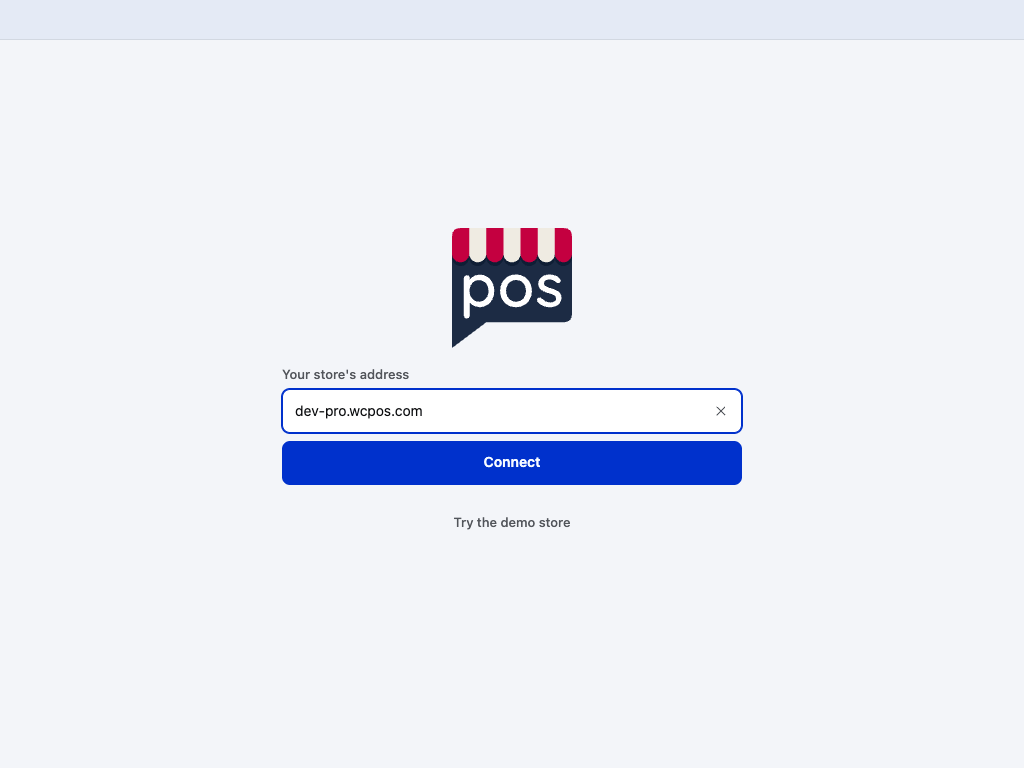
- Your store's address — where you type it.
- Connect — the checks show under it, and any problem in red.
- Try the demo store — look around without your own store. See Try the demo store.
After Connect, your store has a card. Nobody is signed in yet:
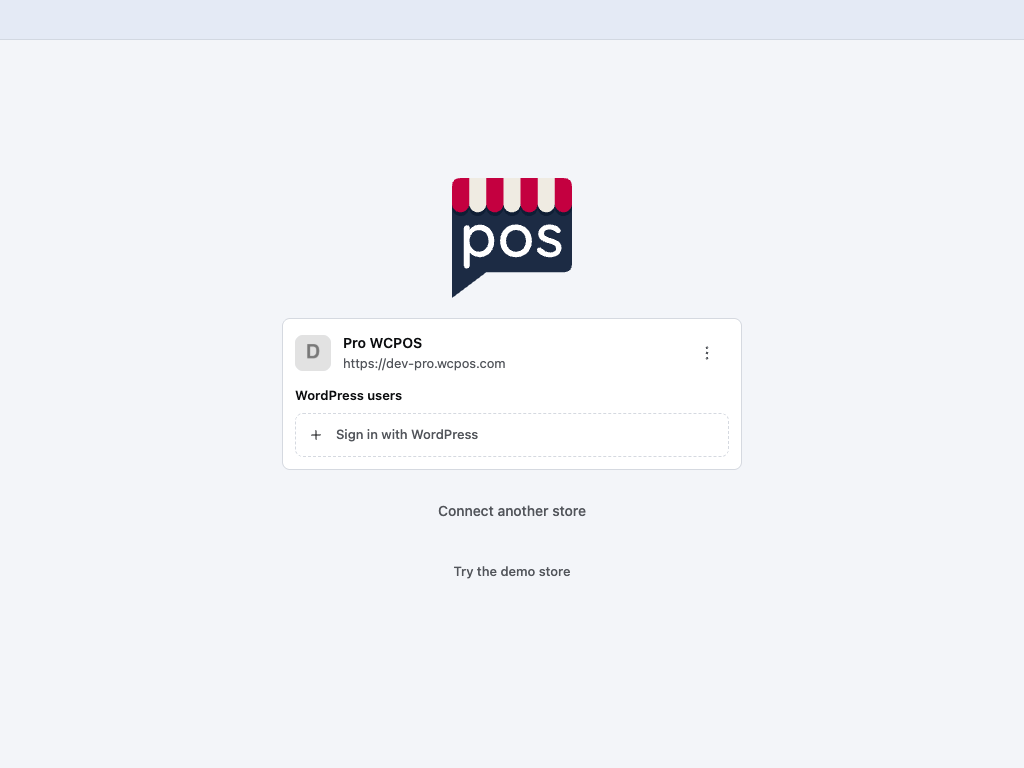
- Sign in with WordPress — opens the login window.
- Actions — holds Remove site. See Several stores on one device.
- Connect another store — add a second store to this device.
- Try the demo store — still here once you're connected.
After you sign in, the card shows you, the store and Open POS:
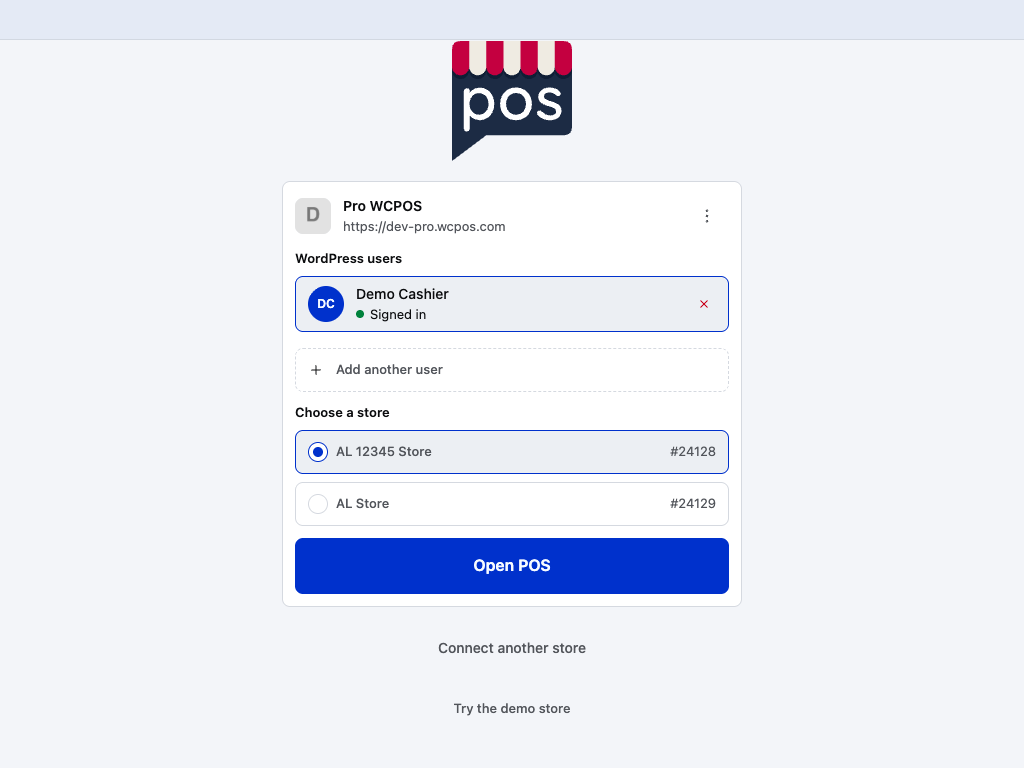
- WordPress users — you, with Signed in beside you. Tap a name to choose who's selling.
- Choose a store — the store you sell from.
- Open POS — opens the POS as that person, in that store.
- Add another user — sign in the next cashier on this device. See Several cashiers on one store.
- × — take this person off this device.
- Actions — holds Remove site.
- Connect another store — add a second store.
- Try the demo store — the WCPOS demo store.
Several stores on one device
Press Connect another store under your stores to add the next one. With two or more, they're listed under Your sites, one open at a time. Each shows its name, its address and how many people are signed in, such as 2 users. Tap a store to open it.
To take a store off this device, open the Actions menu on its card, choose Remove site and confirm Remove. The app asks Remove store and associated users?: everyone signed in to that store is signed out on this device. Nothing changes on the store itself.
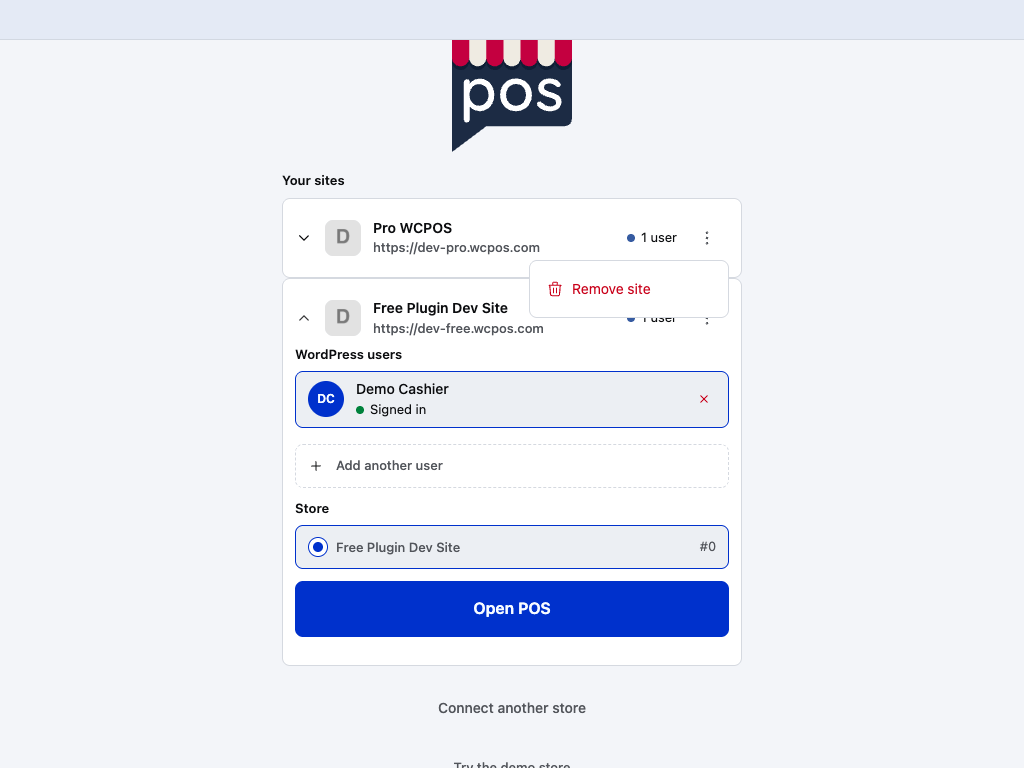
- A closed store — tap it to open it. The open one closes.
- 1 user — how many people are signed in to that store on this device.
- Actions — the menu for that store.
- Remove site — takes the store off this device, after you confirm.
- The open store — its users, its store and Open POS.
- Connect another store — add one more.
Several cashiers on one store
Each person who sells signs in with their own WordPress account.
- Add a cashier. Press Add another user under WordPress users and sign them in. They join the list.
- Choose who's selling. Tap a name. The store and Open POS follow the person you picked.
- Sign in again. A name showing Sign in again has been signed out by the store: the login expired, or a manager ended it in Sessions. Press Re-authenticate on that row and sign in as that person.
- Remove a cashier. Press × on their row and confirm Remove. It only removes them from this device: nothing on the server changes.
If Re-authenticate ends signed in as someone else, the app says so: Signed in as a different user. That person is added to the list, but the one you picked is still signed out. Press Re-authenticate again and sign in with their account.
Hand the till to another cashier
Once the POS is open, changing hands happens in your cashier sheet. Tap your avatar at the end of the register bar.
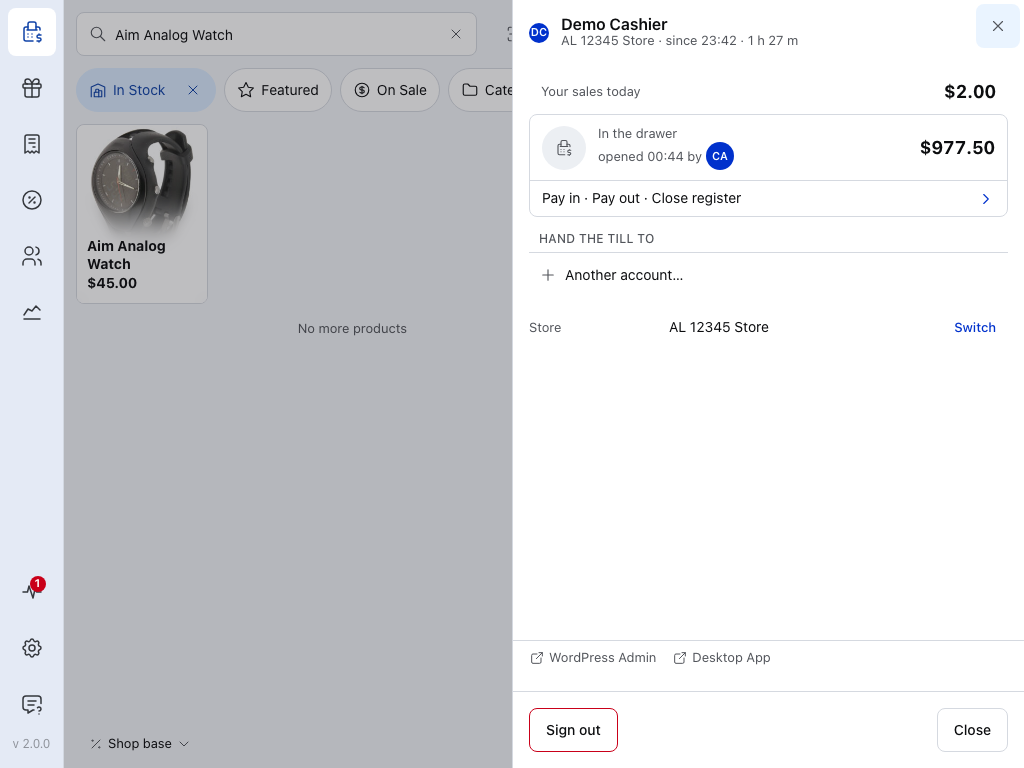
- Hand the till to — the other cashiers signed in on this device, with how many carts each has open. Choose one and press Hand over to …: the POS reloads as them, and an open register stays open. Your own open carts and unsent sales wait here for you. Here nobody else is signed in yet.
- Another account… — sign in someone new on this device. They join the list above and the Connect screen.
- Switch — move to another store, when there's more than one (WCPOS Pro). See Choosing a store and a register.
- WordPress Admin — opens WP Admin on your site, in a browser only.
- Desktop App — the download page for the desktop app, in a browser only.
- Sign out — back to the Connect screen in the app, or out of WordPress in a browser. A register left open stays open for the next cashier, and the POS asks whether to close it first. See Your cashier sheet.
You can't hand over while a payment is in progress (Finish the payment first) or while the drawer is being counted (Finish or abandon the count first).
Try the demo store
At the foot of the Connect screen, Try the demo store connects the app to the WCPOS demo store and opens its login. Use it to look around without touching your own store.
If something goes wrong
Find your message under the moment it appeared.
While connecting or signing in
The login didn't complete.
The sign-in didn't make it back to the app. Nothing is lost: anything not yet sent goes once you're signed in. Press Sign in with WordPress or Re-authenticate again.
The login window shows an error or a blank page
A security, firewall or login plugin on your site is usually blocking it. See Plugin Conflicts.
The WordPress REST API on this site requires authentication
Ask the person who manages your website to check this setting. The app may show the blocking plugin's own message instead, such as one saying only signed-in users can use the REST API.
For them: a plugin such as Force Login is closing the REST API to everyone who isn't signed in, so the app can't read your store. Allow visitors who aren't signed in to reach the REST API in that plugin. See Plugin Conflicts.
Site does not seem to be a WordPress site
The app couldn't find WordPress at that address. Check the address opens your store in a browser, and that yourdomain.com/pos works there. If the message says the site took too long to respond, check the server and try again.
Can't connect to a local or test site
The app finds your store from the Link header your site's home page sends, which points to its REST API. If it can't read that header, it tries yourdomain.com/wp-json/ instead. When neither works, you see Site does not seem to be a WordPress site.
- Use an address this device can reach.
localhostalways means the device itself, so a phone or tablet can't reach a store on your computer by that name. - Open
yourdomain.com/wp-json/in a browser on the same device. It should show your site's REST API data, not an error or a login page. - Check WCPOS is active on the site. It sends the headers that let the app read the
Linkheader. - A message about CORS or the
Linkheader means the site's cross-origin (CORS) headers are broken, often by a second CORS layer on the server or a proxy. See HOST111.
No stores for this user
The app found no POS store for this account. A manager sets one up, then you sign in again. See Setting up stores.
When an update is needed
Update the POS app on this device.
The WCPOS plugin on your site is newer than this app. In a browser, press Reload. In the desktop or mobile app, install the app update and open it again; unsent sales stay on the device. Logout is there too. On the Connect screen the store shows the same message with Retry for after you've updated. See SYNC341.
Update the WCPOS plugin on your WordPress site.
The app is newer than the plugin on your store. A manager opens Plugins in WP Admin and updates WCPOS, then you sign in again. Until then the only way out is Logout. On the Connect screen the store card shows a notice asking for the same plugin update, with Learn more. See AUTH331.
After Open POS
No register for this store
The store uses registers but has none yet. A manager adds one in WooCommerce › POS › Stores; managers see an Open Stores button that goes straight there, cashiers see Register guide. Then press Try again. See Registers.
Can't reach this store's registers
The POS couldn't read the store's registers. Check the connection, then press Try again.
Still stuck
Check the store meets the server requirements and that your host isn't blocking the REST API.