Refund Rules
Refunding from WCPOS needs WCPOS Pro. Without Pro, the Orders page is a preview only: refund the order in WP Admin under WooCommerce → Orders.
This page covers refunds in detail: each part of the refund form, where the money goes, what each failure message means, and what the order shows afterwards. For the steps of a refund, from opening the order to confirming it, follow Refunds at the Till.
Starting a Refund
You need a connection, and the order must have reached your store and be Completed, Processing or On hold (When the Refund Action Appears). Wait for "Refund of (amount) processed" before you hand over any cash. If a message appears instead, see If a Refund Fails.
An opened order:
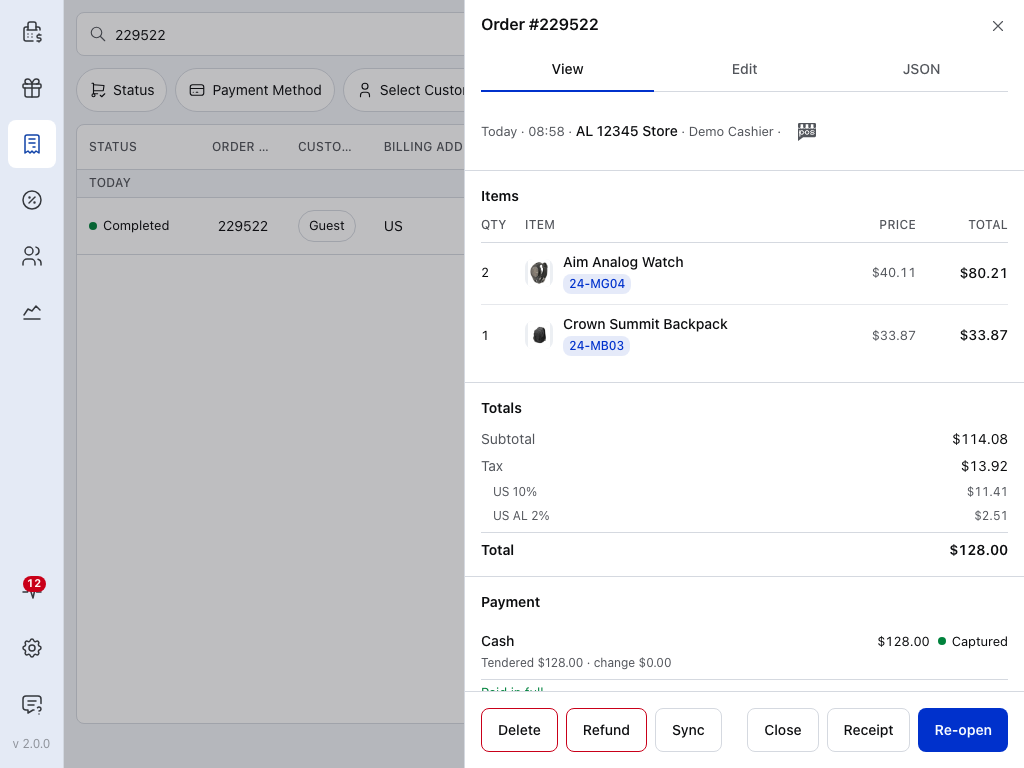
- Order details — when it was paid, at which store, by which cashier, and where it was created.
- Payment — how the customer paid. This decides where a refund can go; see When to Use Cash vs. Original Method.
- Delete — deletes the order. It is not a refund.
- Refund — opens the refund form, Refund Order #(number).
- Sync — fetches the order again from your store.
- Receipt — the order's receipt as it is now.
- Re-open — puts the order back in the cart to change it.
When the Refund Action Appears
Refund shows only on a Completed, Processing or On hold order that has reached your store.
Refund button missing?
It doesn't show on Pending, Cancelled, Failed or fully Refunded orders, on a sale still open in the POS (POS open or POS partial), or on an order still waiting to sync. To refund one of those, use WP Admin under WooCommerce → Orders. If an order's status changed in WP Admin, press Sync and open it again. If WCPOS reports that its local database is unavailable, refunds are blocked until you reload the app.
The Refund Form
The form opens with every line of the order and nothing selected to refund. Below, a second refund on the same order is filled in: one watch, with $45.00 refunded before.
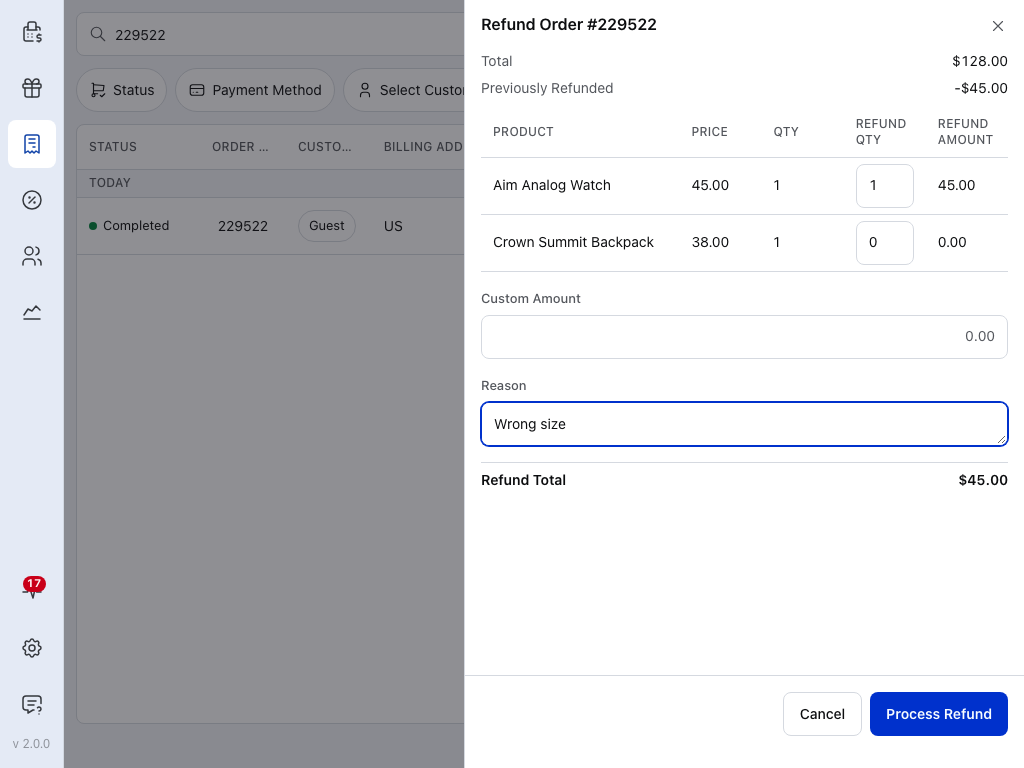
Each part of the form:
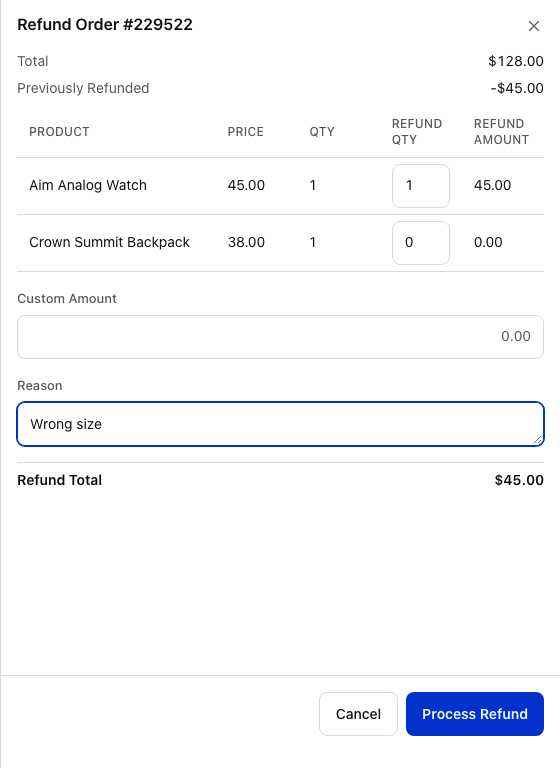
- Total — the order total.
- Previously Refunded — what earlier refunds have already given back. It shows only after a first refund.
- QTY — how many of the line are still refundable: the quantity bought, less any refunded before. If WCPOS can't load the store's refund history (offline, for example), it shows the full quantity bought; the money is still capped at what is left to refund.
- Refund Qty — how many of the line to refund now.
- Refund Amount — what the line refunds, tax included.
- Custom Amount — an extra amount not tied to a line. It is added to the line amounts.
- Reason — optional. It is saved with the refund and shown on its card under Refunds.
- Process Refund — asks you to confirm. Greyed out until Refund Total is above zero and no more than is left to refund.
The table columns, in order
| Column | What it shows |
|---|---|
| Product | The line's name |
| Price | The unit price, with or without tax as your store displays prices in the cart |
| QTY | The quantity still refundable |
| Refund Qty | How many to refund now |
| Refund Amount | Refund Qty × the line's price, plus that share of the line's tax |
Refund Total at the bottom adds the line amounts and Custom Amount, and updates as you type.
Refunding Whole vs. Partial Quantities
There is no separate full-refund button. To refund the whole order, set every line's Refund Qty to its full QTY, and type any shipping and fees in Custom Amount: the table lists the order's products only, so shipping and fees have no row. For a part refund, set only the lines and quantities coming back.
A custom amount is refunded as one sum, with no tax split.
Refunded products go back into stock when the product tracks stock.
When to Use Cash vs. Original Method
- Paid by card on a reader or payment method that can refund from WCPOS: choose Refund to (payment method).
- Card customer taking cash back instead, if your store allows it: choose Refund via cash and hand the cash from the drawer.
- Paid in cash: the refund is cash, and the form doesn't ask.
Don't choose Refund via cash for money you give back on a card terminal. A cash refund lowers the cash the register expects in the drawer, but no cash left it, so the count at close would come up over.
Paid on a separate card terminal?
If the customer paid on a standalone card terminal that WCPOS doesn't connect to, refund the card on the terminal or in the provider's dashboard, then record the refund on the order in WP Admin.
Original payment method unavailable?
When the payment method can't refund from WCPOS, Refund to (payment method) is greyed out and the form says "Original payment method refunds are unavailable for this order."
If WCPOS can't check the payment method, the form says "Couldn't verify original payment method refunds. Cash refunds are still available." and selects Refund via cash. Choose it only if you are handing over cash.
If a Refund Fails
Read the message before you try again. Most failures mean nothing was refunded. One means WCPOS can't tell.
"WCPOS couldn't confirm whether this refund went through." means the refund was sent but WCPOS got no clear answer, so it may have gone through. Open the order and look under Refunds before you try again. Each try is a new refund, so pressing Process Refund again could refund the customer twice. If the order hasn't updated, check it in WP Admin. See PAYMENT311.
Every other message means nothing was refunded, for example when you are offline:
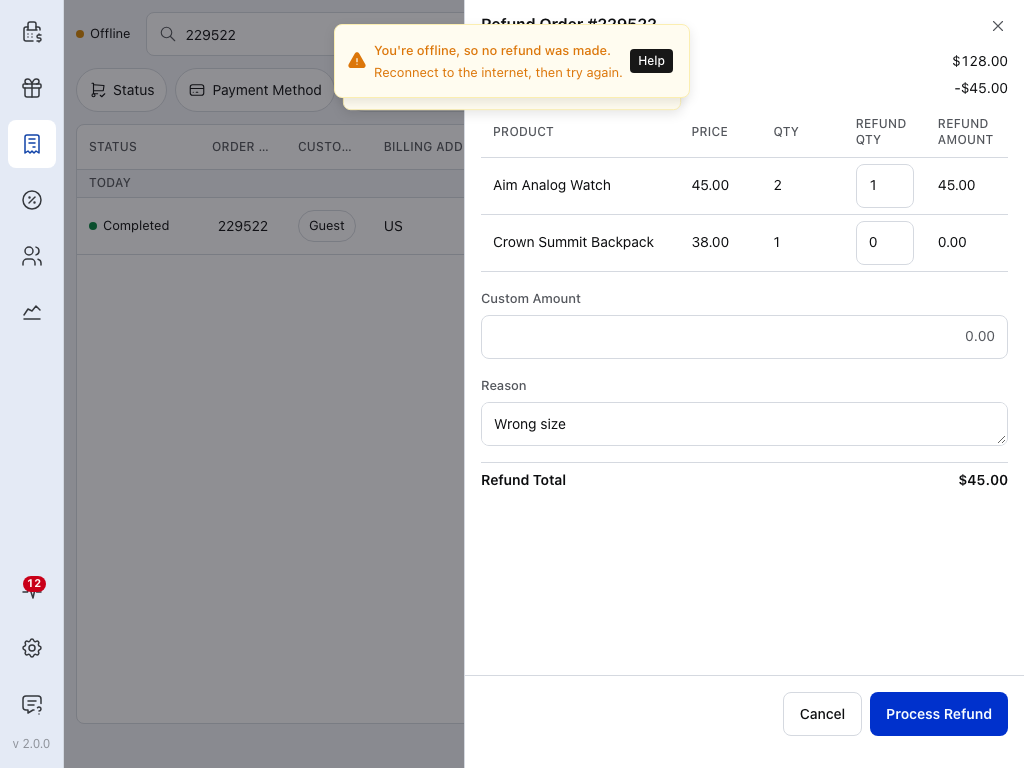

Any other message: nothing was refunded
Fix what the message names, then press Process Refund again:
- "You're offline, so no refund was made." Reconnect to the internet, then try again.
- "WCPOS was in the background, so no refund was made." The app was put away before the refund was sent. Try again now.
- "No refund was made — sign in, then try again." Your sign-in expired. Sign in, then try again.
- Your store's own message, or "Failed to process refund". The store or the payment method refused the refund, for example because your account may not refund or a value isn't allowed. Read the message, fix what it names, or choose Refund via cash if you are handing over cash.
After the Refund
Once the order has refreshed from your store, it shows the refund.
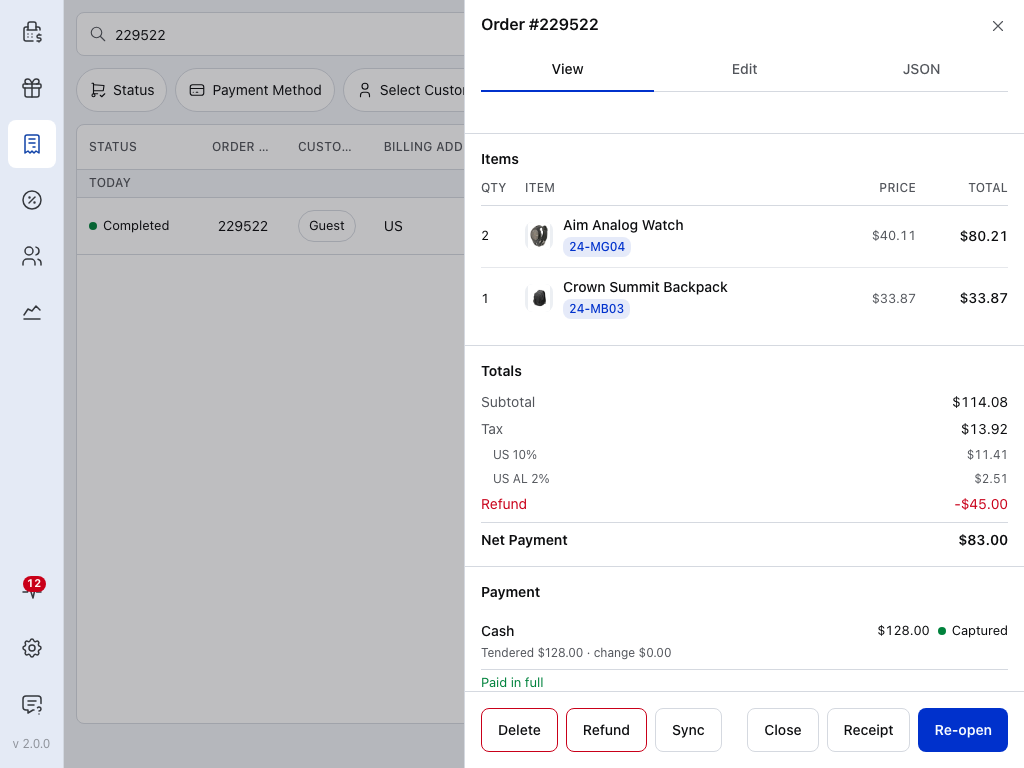
- Refund — what has been refunded so far, taken off the totals.
- Net Payment — replaces Total: what the order took, less refunds.
- Payment — the original payment stays as it was. Below it, a Refund line shows the amount given back.
At the top of the order, the status badge reads Partially refunded. The order's status itself doesn't change: the Orders list still shows it as Completed, for example. When everything has been refunded, WooCommerce sets the order to Refunded, and Refund no longer shows on it.
The Refunds Section
Scroll down the order to Refunds. Its header counts the refunds and adds them up. Each refund has a card.
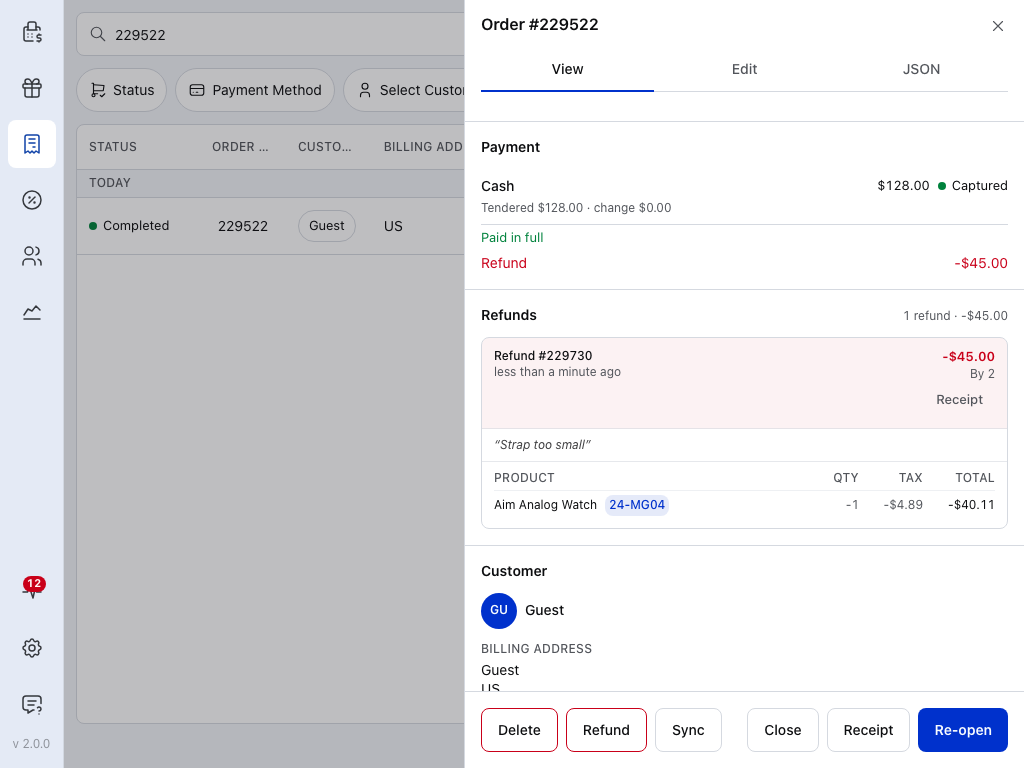
- Refund — under Payment, the amount given back.
- Count and total — how many refunds the order has and what they add up to.
- By — who made the refund, shown as their WordPress user ID (2 here), not their name.
- Receipt — opens the refund receipt for this refund.
Each card starts with Refund #(id), the refund's own number, and when it was made. The amount is on the right. Below come the reason in quotes, then the lines the refund covered: product and SKU, quantity, tax and total, shown as negatives.
If WCPOS can't fetch the refund details, the section says "Could not load refund details." with Retry. Below it, Local refund summary: lists what the device already holds for each refund: its number, the reason (or "No reason provided") and the amount. When the device holds nothing, it says "No local refund summaries are available." Press Retry once you're connected.
Refund Receipts
Receipt on a refund card opens a Refund receipt for that refund only, to print or save as a PDF. It has no email button. It lists the refunded lines and their tax, and its payment section, headed Refunded to, says where the money went. Pick the template and printer, then Print Receipt or Download PDF.
Receipt in the order's footer opens the order's receipt as it is now. A detailed receipt shows Refunded and Net Total rows. See Open a receipt again.
Cash Refunds and the Drawer
A cash refund made while the register is open lowers the cash the register expects in the drawer, and the register panel lists it under Cash refunds. See Cash refunds and the drawer.
Who Made the Refund
Each refund from WCPOS records the cashier, the store and the destination (cash or the payment method). When the register has a session open, the refund is tied to that register and session too, so it counts against that drawer. See Reconciliation.
Things to Know
- Returns are refunds. To take something back, refund the order the customer paid with, not a new sale.
- Coupons stay as they were. A refund gives back the amounts on the form; it doesn't change the order's coupons.
- Refunds need a connection. Your store, and for a refund to the payment method the payment provider, must be reachable.
- A fully refunded order has nothing left to refund. Its status is Refunded and Refund no longer shows.