Register Settings
WP admin: WP Admin → POS → Settings → General → Register.
Here you turn the register on and set its opening float, when a manager must approve a count, and when to remind the cashier to close. Further down is what the cashier sees because of each setting.
For what a register is, and how it differs from a store and a device, see Stores, Registers and Devices.
Turn the register on
With Pro and at least one store, these settings become site defaults and each register's float moves to its store; see A store's Registers page.
- On the General settings page, scroll to Register.
- Turn on Open and close the register. The rules below it appear. With it off, the POS goes straight to the cart and cashiers don't open or count a register.
- Check the Opening float. The first time you turn the register on, it is set to 200.00. Change it to what your drawer starts the day with. With a Pro store, this field isn't here: set each register's float on its store's Registers page.
- Optional: turn on Ask a manager when the count is out by more than and set the amount.
- Optional: turn on Remind the cashier to close at and set the time.
Each change saves as soon as you make it or leave the field. A field you leave empty goes back to its last value.
Opening float, manager approval and closing reminder
Each setting is a sentence with its value inside it.
- Open and close the register turns register sessions on. Cashiers open with a float, record cash in and out, and count the drawer at close. Off, the POS goes straight to the cart and there is nothing to open or count.
- Opening float is the cash the drawer starts with. It fills in Cash in the drawer when a cashier opens the register, and the cashier can type what is really there. It shows only while the register is on.
- Ask a manager when the count is out by more than … is off by default; on, it starts at 5.00. A closing count that is short or over by more than this needs a manager's approval before the register closes. Off, any difference closes without approval.
- Remind the cashier to close at … is off by default; on, it starts at 17:30. After this time the register shows Overdue, and an empty cart offers Close register instead of Checkout. See At closing time.
Turning an optional rule on fills in its starting value; turning it off clears it, and turning it on again starts from that value again.
Under the settings, a link reads More registers and stores with Pro.
The free plugin has exactly one register.
Using the same register on several devices
Every device that signs in uses the one register: a browser, the desktop app and a phone on the same counter all sell into the same drawer and share one register session, so the drawer is counted and closed once. There is no setting to name it, and the register bar shows only the store.
What the cashier sees
When the register is closed, the cashier counts the drawer and opens it from the cart column.
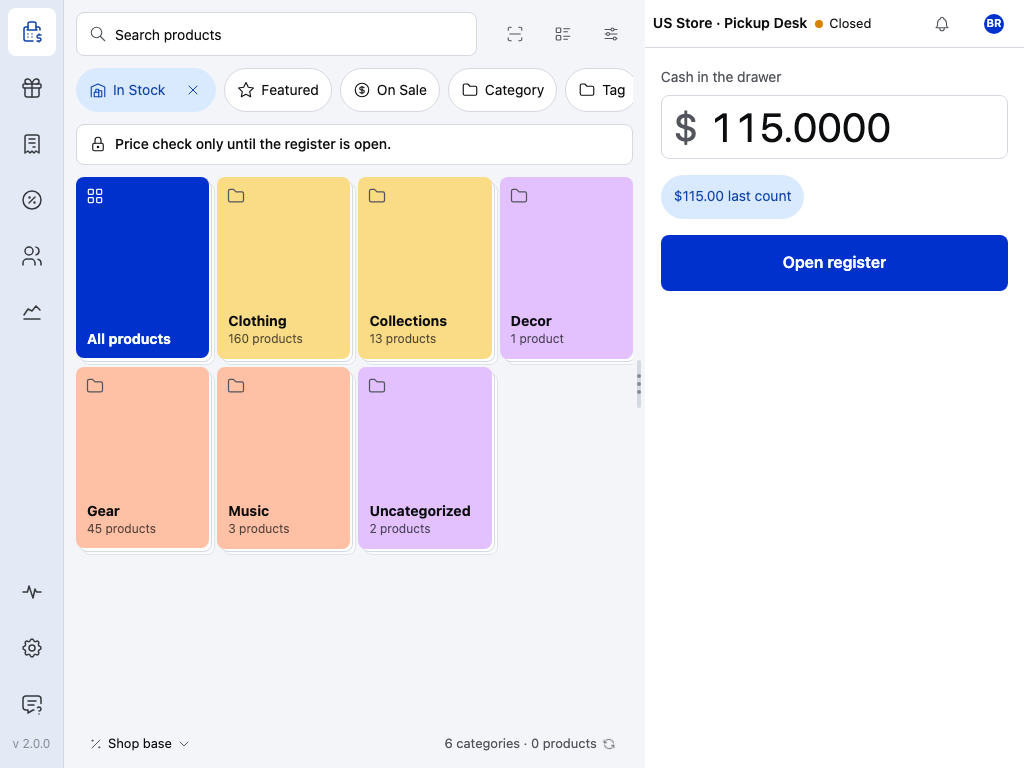
- Register status — Closed here. It can also show Overdue (see At closing time) or Approval needed (see When the count is out).
- Register bar — the store this device sells for. With Pro and more than one register in a store, it names the register too.
- Price check band — while the register is closed, cashiers can search and read prices, but nothing goes in a cart.
- Cash in the drawer — starts at your Opening float, or the last count if no opening float is set. The cashier types what they really counted.
- Last count — a chip with the count from the last closure, one tap to use it. Cashiers who count blind, without seeing the expected cash, don't see it either; that is set in Access.
- Open register — starts the session. A figure different from the float shows as an Opening variance.
The whole session, from float to closure, is walked in Open the Register.
At closing time
Remind the cashier to close at doesn't close anything and doesn't stop sales. Once the time passes, on the store's clock, the POS reminds whoever is at the till:
- The register bar shows Overdue.
- With the cart empty, Close register takes the place of Checkout. A cart with items in it still checks out as usual.
- In the register panel, the button reads Close register · it's past 17:30, with your time.
A register opened after the time is due at the same time the next day. One left open overnight stays Overdue until someone closes it.
When the count is out
At close, the cashier enters what they really counted, float included, and the difference shows as they type. The Note field under it is for explaining any difference.
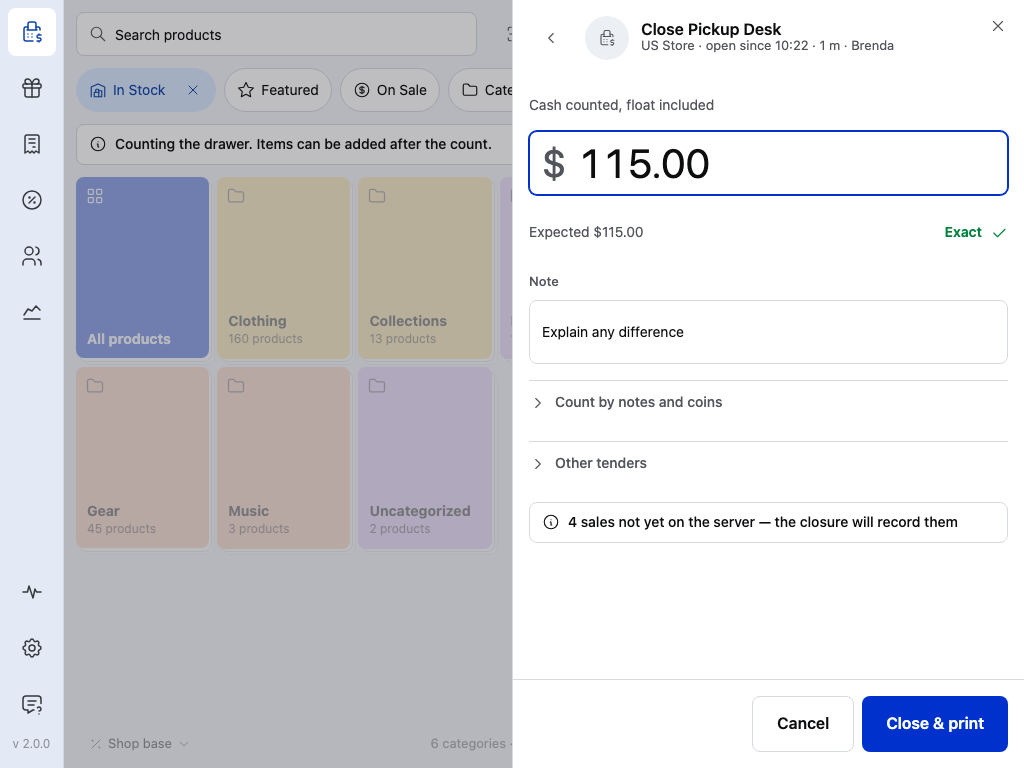
- Cash counted, float included — what the cashier counted.
- Expected and the difference — Exact here. A count that is out shows the amount short or over; past your limit it adds Over the … limit · a manager must approve.
- Close & print — closes the register. When the difference is more than your limit in Ask a manager when the count is out by more than, the button reads Approve & close and a manager signs in to approve. Approval needs a connection.
Who may approve, and who counts blind, is set in Access. Closures and approvals are kept in Reconciliation.
Sessions lists who is signed in to the POS and on which devices. A register session is something else: the time between opening the register with a float and closing it with a count.
More registers with Pro
A second cash drawer needs a second register, and that is a WCPOS Pro feature. With Pro, registers belong to stores. The Register section in General settings changes once Pro is active:
Before your first store
- Open and close the register and the two rules apply to the site's one register, as in the free plugin.
- Opening float stays here, for that one register.
- Under the settings, the section says To run more than one register, create a store and add registers on its page. with an Add store link.
Once you have a store
- Open and close the register and the two rules become Site defaults. The section says Site defaults. Each store can customise these on its page.
- Opening float is gone from this section. Each register's float is set on its store's Registers page.
- Under the settings, Manage stores opens the list of stores.
When you create stores:
- The first store you create takes over the register you already have, as it is; no new register is made for it.
- Every store after that gets a register of its own.
- If a published store has no register, one named Register is added the next time the POS or the store's page lists its registers.
- A register belongs to one store at a time.
A store's Registers page
Open POS → Stores, click the store, and choose Registers under Selling in the store's menu. The Tills table lists the store's registers; + Add register adds one, named Register 2, Register 3 and so on, ready to rename. A new store needs Create first; until then the table says Save the store first to add registers.
The Tills table: columns, statuses and the ⋯ menu
| Column | What it shows |
|---|---|
| Register | The register's name, as the POS shows it. |
| Opening float | The cash a cashier starts with at this till. A change applies from the next opening. |
| Status | Open since a time · who opened it, with a green dot. Counting · who opened it, with an amber dot. Closed · last closure # its number and date, with a grey dot, or just Closed before the first closure. |
| ⋯ | Rename, Move to another store, or Retire. A register with a session open or counting can't be retired: the message says Close its session first. |
A badge on Registers in the store's menu counts the open tills, or all tills when none is open.
Cash drawer rules for one store
Under the table, Cash drawer rules stays collapsed and reads Site defaults while the store uses the rules from General. Click Customise to see the same three settings: Open and close the register each day, Ask a manager when the count is out by more than and Remind the cashier to close at. Each says Site default until you change it here. Use site default puts one rule back; Reset to site defaults puts back all three.
Below that, Reports & closures sets what this store prints when a till is closed (Closure printout) and when a sales report is run (Sales report).
The full walk, with the store's receipts and staff, is in Setting Up Stores.
If Pro is deactivated
The free plugin goes back to its one register. A session that is still open on any other register can be counted and closed, but those registers cannot be opened again until Pro is back.
If something goes wrong
Register could not be saved. The opening float didn't save. Check your connection and type it again.
The Opening float field is greyed out. It is loading or saving. Wait a moment; if it stays grey, reload the page.
Cashiers never see Overdue. Check that Remind the cashier to close at is on. With Pro, check the store's own Cash drawer rules: a store that customised them doesn't follow General. A register opened after the time is due the next day.
Save the store first to add registers. A new store has no Tills table until it exists. Click Create, then add registers.
Close its session first. The register you tried to retire is open or being counted. Count and close it in the POS, then retire it.