Previous Versions
Use this page when you need to go back to an earlier version of the plugin, most often from 2.0 to 1.11. In WP Admin you turn off auto-updates, download the version you want, and upload it over the one you have. Nothing is deleted on the way, so your orders, settings and receipt templates stay where they are.
Tell us on Discord or at support@wcpos.com what went wrong. Most upgrade-day problems have a quicker fix than a rollback.
Before you start
- Sync every till that can. Open the POS on each till and let it send the sales it is holding to the store. Start once changes waiting to send reads 0, no panel asks for a decision and no open order is left unsynced (how to check). If you are rolling back because a till on 1.11 still holds unsent sales, that till can't send them until 1.11 is back: roll back, then let it sync.
- Check which tills run an app. A desktop or mobile app that already updated to 2.0 cannot connect to a 1.11 plugin: it shows AUTH331, and app stores don't offer older apps. Plan to run those tills in the browser POS at
yourdomain.com/posuntil you upgrade again. - Have an administrator sign in. You need a WordPress administrator account, one that can install plugins.
- With WCPOS Pro, roll back WCPOS Pro only. It contains the free plugin.
If you are leaving 2.0, read Rolling back on the upgrade page as well.
Check that a till has sent everything
On each till, open Store health and look at the Database tab. It counts only the cashier and store signed in now, so check each cashier who uses the till, in every store they use:
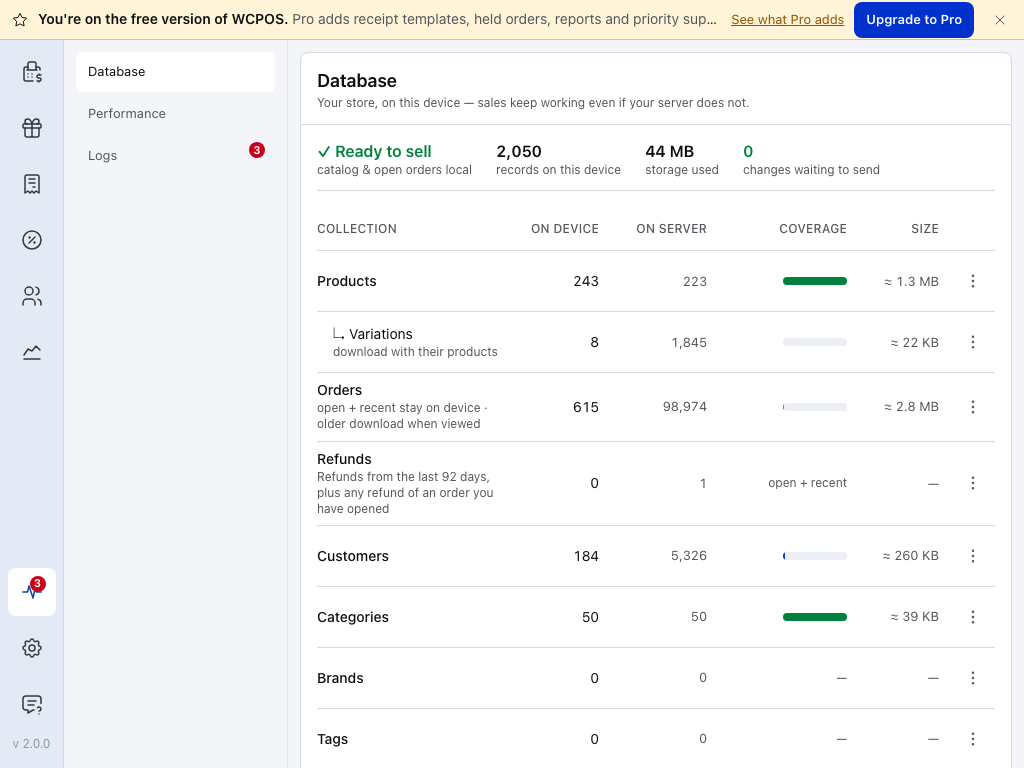
- Store health: the pulse icon at the foot of the menu.
- Database: on a tablet or computer, Store health opens on this tab.
- changes waiting to send: at 0, with no panel below the figures and no open order left unsynced, this till has sent everything. Above 0, keep the POS open and online so it can send them. Open orders aren't counted: press Sync order on each. A panel lists changes your store refused or that need a choice: settle them first (When something needs you).
Turn off auto-updates
With auto-updates on, WordPress installs the newest version again by itself.
- Go to WP Admin → Plugins.
- On the WCPOS row (or the WCPOS Pro row), look at the Automatic Updates column. If it reads Disable auto-updates, click it. When it reads Enable auto-updates, auto-updates are off.
Download the version you need
Download the version as a .zip file and keep it zipped. WordPress installs the .zip, not a folder. Follow the route for the plugin you run:
- WCPOS: download from WordPress.org.
- WCPOS Pro: download from your account on wcpos.com.
WCPOS: from WordPress.org
- Open the WCPOS Advanced View on WordPress.org.
- Scroll to Advanced Options. Under Previous Versions, choose the version you want.
- Click Download.
Choose the newest release of the version you want: to leave 2.0, that is the newest 1.11 release, not an older 1.x. WordPress.org warns that previous versions may not be secure or stable, and the newest release carries every fix.
WCPOS Pro: from your account on wcpos.com
- Sign in to your account at wcpos.com and open Downloads.
- In Version history, find the version you want. Use the newest 1.11 release to leave 2.0.
- Click Download on that row.
Your licence decides what you can download. With an expired licence, versions released before it expired still download; later ones are greyed out and say Released after your license expired.
Upload it over the current version
Upload the .zip over the plugin you have; that keeps everything. Deleting the plugin from Plugins runs WCPOS's clean-up: it signs every cashier out, so each till has to sign in again, and it clears the sync data each till rebuilds. Your orders, settings, receipt templates and registers are kept even then, unless the site is set to remove all WCPOS data on uninstall. There is no reason to delete.
-
Go to WP Admin → Plugins and click Add Plugin at the top of the page.
-
Click Upload Plugin, choose the
.zipfile you downloaded, and click Install Now. -
WordPress says This plugin is already installed. and shows two columns side by side:
- Current: the version you have now.
- Uploaded: the version in your
.zip. Check its Version row shows the version you want.
Below them it says You are uploading an older version of a current plugin.
-
Click Replace current with uploaded.
-
WordPress replaces the plugin and says Plugin downgraded successfully. If it offers Activate Plugin, click it. Otherwise the plugin was already active and stays active.
After you roll back
- Move app tills to the browser. On a till whose app is on 2.0, open
yourdomain.com/posin a browser instead (see Before you start). - Open the POS on every till and let it finish its first sync. A browser till loads the version you installed the next time it opens the POS.
- Leave auto-updates off until you are ready to update again. Then follow Upgrading to 2.0, and turn auto-updates back on afterwards, or later fixes won't arrive by themselves.
Orders made on 2.0 are ordinary WooCommerce orders and stay where they are. Register sessions and closures recorded on 2.0 stay in the database, but 1.11 does not show them.
If something goes wrong
The newer version came back by itself. Auto-updates were still on. Turn them off, then upload the version you want again.
The version I need is greyed out in Version history. It was released after your licence expired. Renew the licence, or choose a version released before it expired.
A till shows AUTH331. That till runs the 2.0 app against your 1.11 plugin. Open the POS in a browser on that device instead.
For developers: roll back with WP-CLI
On a server with WP-CLI, this replaces the free plugin with a version from WordPress.org, without running its uninstall:
wp plugin install woocommerce-pos --version=<version> --force
--version picks the release; --force overwrites the installed copy without asking. For WCPOS Pro, download the .zip from your account as above and pass its path instead of the plugin name: wp plugin install /path/to/woocommerce-pos-pro.zip --force.