WCPOS Polylang
WP admin: installed in WP Admin → POS → Settings → Extensions, and set per store in WP Admin → POS → Stores.
WCPOS Polylang shows each product once in search and the product grid, in your store's language. Without it, products translated in Polylang show up in the POS once for each language.
What the cashier sees
- One copy of each product. Search, the product grid and variations all come from one language.
- The store's language. On WCPOS Pro, each store can have its own language. Without Pro, the POS uses Polylang's default language.
- Your POS Only settings still apply. A product set to Online Only stays out of the POS. See POS Only Products.
A product with no translation in the store's language doesn't show in that store. Add the translation in Polylang to sell it there.
Requirements
Set it up
Steps 1 to 3 happen in WP Admin. Step 4 happens on each till.
-
Set up Polylang. Install and activate Polylang, add your languages and choose the default one. On WordPress 6.5 and later, WordPress won't activate WCPOS Polylang until Polylang is active.
-
Install WCPOS Polylang.
With WCPOS Pro: open POS → Settings → Extensions, find WCPOS Polylang, then Install and Activate. See Installing an Extension.
Without WCPOS Pro: download
wcpos-polylang.zipfrom the latest release and upload it in Plugins → Add Plugin → Upload Plugin. Click Install Now, then Activate Plugin. -
With WCPOS Pro, choose each store's language if a store shouldn't use Polylang's default. See Choose a language for each store.
-
Download the products again on each till. See Download the products again.
Choose a language for each store
Each store can have its own Polylang language. Without Pro, every till uses Polylang's default language. To set a language per store, upgrade to WCPOS Pro.
- In WP Admin, open POS → Stores and click the store.
- In the store's menu, under Extensions, click Language.
- Under Store language, pick a language. Polylang lists them by code, such as
enorfr. The first choice, Default language with your default's code beside it, follows Polylang's default.
The page saves as you go. Then download the products again on that store's tills, as below.
The Language page shows only when WCPOS Pro, Polylang (with at least one language) and WCPOS Polylang are all active.
Two settings called Language
A store has two Language settings, and they can be different.
| In the store's menu | What it changes |
|---|---|
| Extensions → Language | Which products the store's tills get: one Polylang language. |
| Currency & language → Language | The language of the POS screen and receipts. See Fill in the store's pages. |
Download the products again
So that each till holds one language only, fetch its products again. Do this on each till while it's online:
- Open the navigation drawer and tap Store health (the heartbeat icon). It opens on the Database tab.
- On the Products row, open the More actions menu and choose Clear & re-download…, then confirm. This clears the variations too.
- Search for a product that has a translation in the store's language. It shows once, with its name in that language. If not, see If something goes wrong.
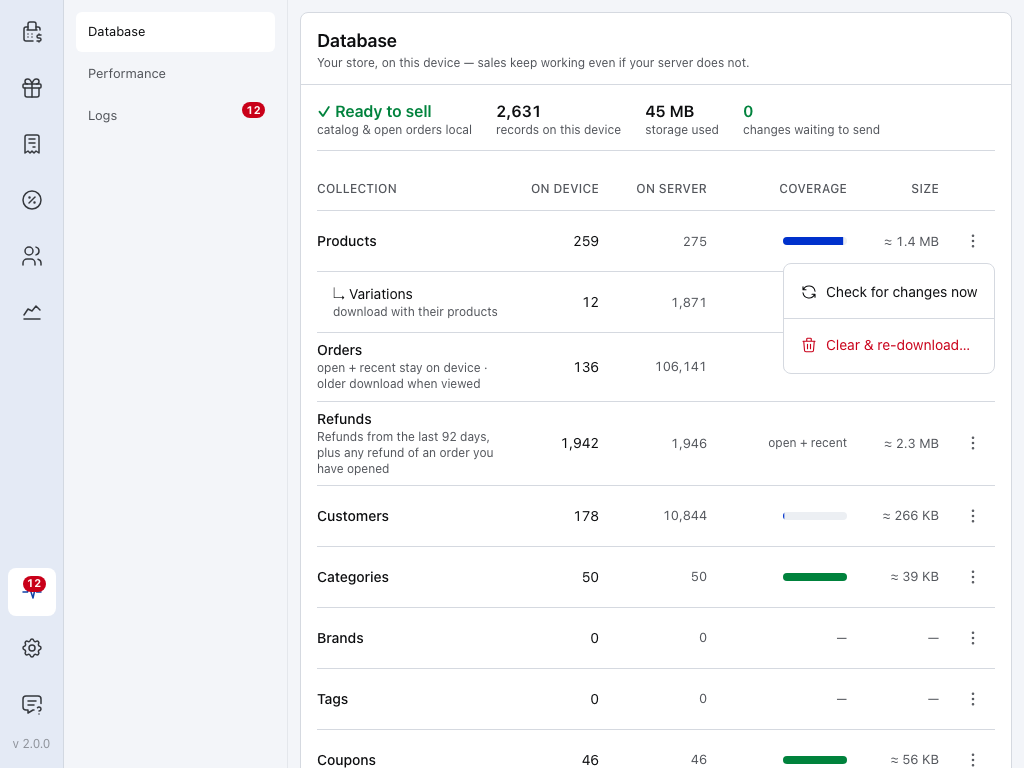
- Products — how many products this till holds, out of the total on your site. The Variations row below it is cleared with it.
- More actions — the menu for the row.
- Clear & re-download… — removes this till's copy and fetches it again, in one language. See Store Health.
Nothing on the server changes. The first products come back right away, and the rest as you browse, search and sell. The Products row shows how many are back. See Checking download progress.
If something goes wrong
Every product shows more than once. Check that Polylang and WCPOS Polylang are both active in Plugins. When Polylang is off, WCPOS Polylang does nothing and the POS gets every language. Then download the products again on each till.
A store shows products in the wrong language. Its Extensions → Language page is on Default language, or on another language. Pick the store's language, then download the products again on its tills.
A product is missing in one store. Check that it has a translation in that store's language, and add one in Polylang if not. If it has, see When you can't find it.
There's no Language page under Extensions. It needs WCPOS Pro, Polylang with at least one language, and WCPOS Polylang, all active.
For developers
How the filtering works, and its filters
- WCPOS Polylang adds Polylang's
langquery to the product and variation REST queries that WCPOS makes, on both the/wcpos/v…/routes and requests marked as WCPOS by the free plugin'swcpos_request(). - It answers WCPOS's ID-only product and variation lists (
posts_per_page=-1withfields=idorfields=id,date_modified_gmton/wcpos/v1/productsand its variation routes) itself, filtered to the language, leaving out Online Only IDs when POS Only products is on. - With WCPOS Pro, a request with a
store_idthe user may use gets that store's language. A store's language is saved in the_wcpos_polylang_languagepost meta and returned aslanguageby/wcpos/v1/stores.
| Filter | Purpose |
|---|---|
wcpos_polylang_resolved_language | Change the language for a request. Receives the language slug and the WP_REST_Request. |
wcpos_polylang_default_language | Change the fallback language when a store has none set. |
wcpos_polylang_is_supported | Turn the integration on or off, whatever Polylang detection says. |
wcpos_polylang_minimum_version | Require a minimum Polylang version. Empty by default: no version check. |
Source: github.com/wcpos/wcpos-polylang.
Related Documentation
The other language plugins work the same way: