Store Defaults
POS settings: Settings → General in the POS, saved on this device.
General holds the store's name and address, the language the POS shows, the customer each new cart starts with, and how money is written. Open it from Settings at the foot of the menu: it's the first page in the list.
These settings start as your store's own: the name from Store details in WP Admin, the address and money format from WooCommerce, the language from WordPress, and the default customer from Default POS Customer. With WCPOS Pro, a store you created under WP Admin > POS > Stores brings its own name, address, currency and language: see Setting up stores.
A change saves at once (there is no Save button) and applies to this device only. Your WooCommerce settings and the other tills stay as they were. To go back to the store's values, use Restore Server Settings.
The General page
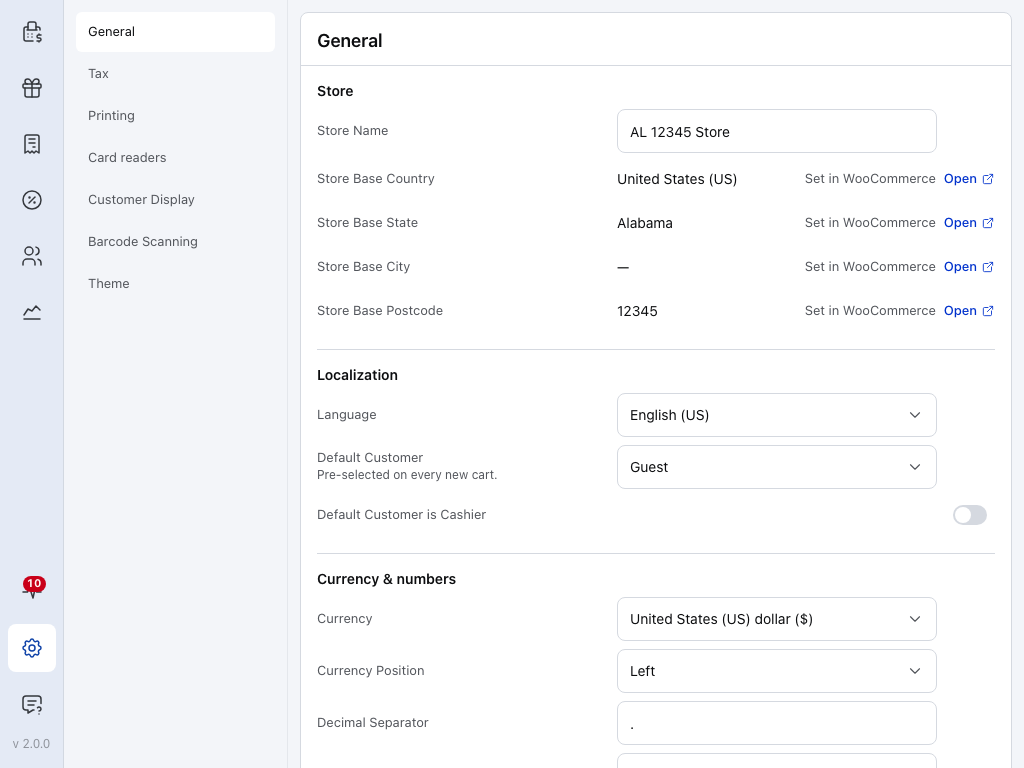
- General — this page, first in the Settings list.
- Store Name — the store's name in the POS on this device.
- Store Base Country — the first of four address rows you can't change here. See Store address.
- Open — opens your WooCommerce settings in the browser, where the address is set.
- Language — the language of the POS screens on this device. See Language.
- Default Customer — the customer every new cart starts with. See Default customer.
Under Default Customer, the Default Customer is Cashier switch starts every new cart with the cashier who is signed in. Further down are Currency & numbers, then Restore Server Settings and Clear All Local Data: see Money format and Restore server settings.
Store address
Store Base Country, Store Base State, Store Base City and Store Base Postcode show the address as plain text you can't edit, marked Set in WooCommerce. They're your store's address, and the POS uses it to work out tax when a sale is taxed at the shop base address, so it must match what your store uses.
To change the address:
- Press Open on any of the four rows. Your WooCommerce settings open in the browser.
- Change Store Address under
WP Admin > WooCommerce > Settings > Generaland save. - Back in the POS, press Restore Server Settings. The POS doesn't pick up a new address on its own.
A store you created under WP Admin > POS > Stores keeps its own address, on its Details page. Change it there (see Fill in the store's pages), then press Restore Server Settings. Open still goes to the WooCommerce settings, which don't hold that store's address.
A store with no city set shows a dash in Store Base City. On a phone, Set in WooCommerce and Open sit under each value.
Language
Language changes the POS screens on this device and how amounts are written on receipts and the customer display. It does not translate the words printed on receipts, such as "Subtotal": those come from your store, see Translations.
It starts as your WordPress site's language or, with WCPOS Pro, the language set on the store's Currency & language page.
Default customer
Every new cart starts with the Default Customer: Guest for a walk-in sale, or a customer you pick from the list. Turn on Default Customer is Cashier to start every new cart with the cashier who is signed in; the Default Customer list is then greyed out.
Both start as your store's Default POS Customer and Use Cashier Account. A change here applies to new carts on this device. A cart that is already open keeps its customer, and you can change the customer of any sale in the cart: see Choose the customer.
Money format
Currency goes onto every new order this device sends to WooCommerce, and Number of Decimals is used to round payments and change at checkout. A value different from your store's gives orders in the wrong currency or payments that don't match the order total. A cart that is already open keeps the currency it started with.
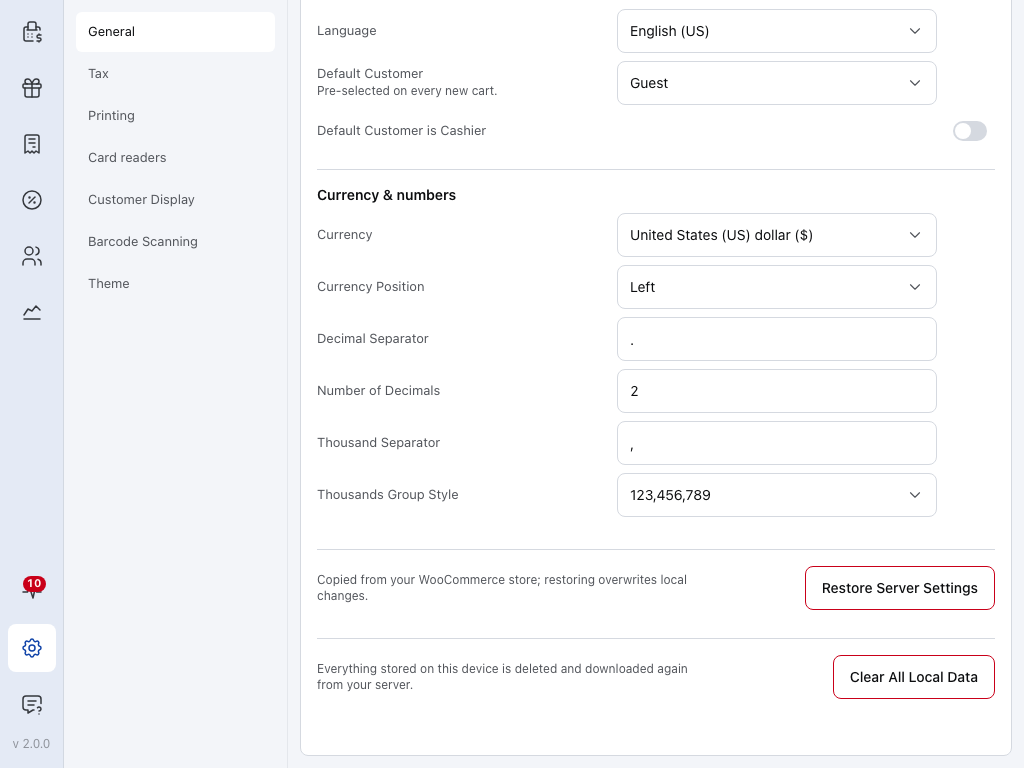
- Currency — the currency of new orders made on this device. Keep it the same as your store's.
- Number of Decimals — how many decimal places money has on screen and at checkout. Keep it the same as your store's.
- Restore Server Settings — puts back your store's values. See Restore server settings.
- Clear All Local Data — deletes everything stored on this device and downloads it again. See Clear local data.
Currency, Currency Position, Decimal Separator, Thousand Separator and Number of Decimals start as your store's currency options, under WP Admin > WooCommerce > Settings > General. With WCPOS Pro, a store's own Currency & language page can set its Currency and Currency Position instead.
Currency Position, Decimal Separator, Thousand Separator and Thousands Group Style only change how money looks on this device's screens.
Currency position, separators and digit grouping
| Row | What it sets, shown for 1234.5 US dollars |
|---|---|
| Currency Position | Left $1,234.50 · Right 1,234.50$ · Left with space $ 1,234.50 · Right with space 1,234.50 $ |
| Decimal Separator | The mark before the cents, usually . or ,. |
| Thousand Separator | The mark between groups of digits, usually ,, . or a space. Use a different mark from the decimal separator. |
| Thousands Group Style | 123,456,789 (groups of three) · 12,34,56,789 (lakh, used in India) · 1,2345,6789 (groups of four, used in China and Japan). The choices show your thousand separator. |
Receipts and the customer display write amounts in the format of the language instead.
Restore server settings
Restore Server Settings loads your store's settings again. Use it after you change something in WooCommerce, such as the store address or currency, and when the POS and your store disagree.
The store's name, address, language, default customer and money format go back to your store's values, even if you changed them on this device.
Which settings are restored?
Restoring also refreshes the store's tax settings on the Tax page. Thousands Group Style is a setting of this device only, so it stays as it is.
- Scroll to the foot of General and press Restore Server Settings. Restore server settings? opens.
- Press Restore Server Settings to go ahead, or Cancel to leave everything as it is.
- When it's done, Restored shows for a moment under the button, and the page shows your store's values.
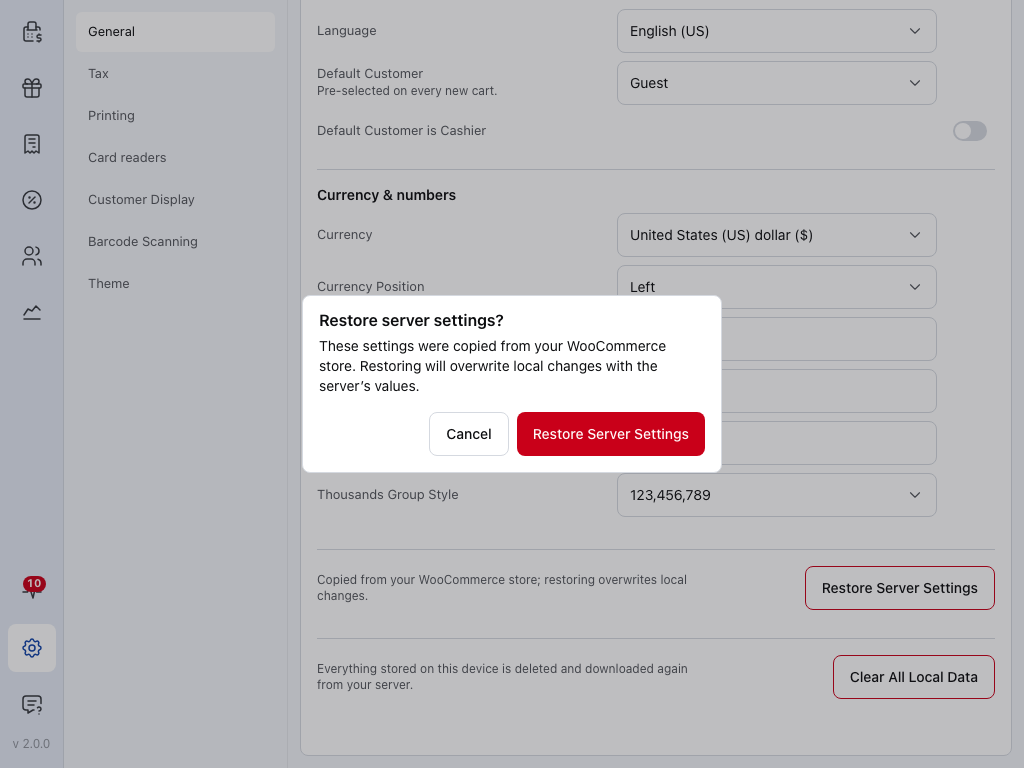
- Cancel — closes the dialog. Nothing changes.
- Restore Server Settings — puts back your store's values on this device.
Restoring needs a connection to your store. Offline, the page says Couldn't reach the store and nothing changes. Press Try again when you're back online.
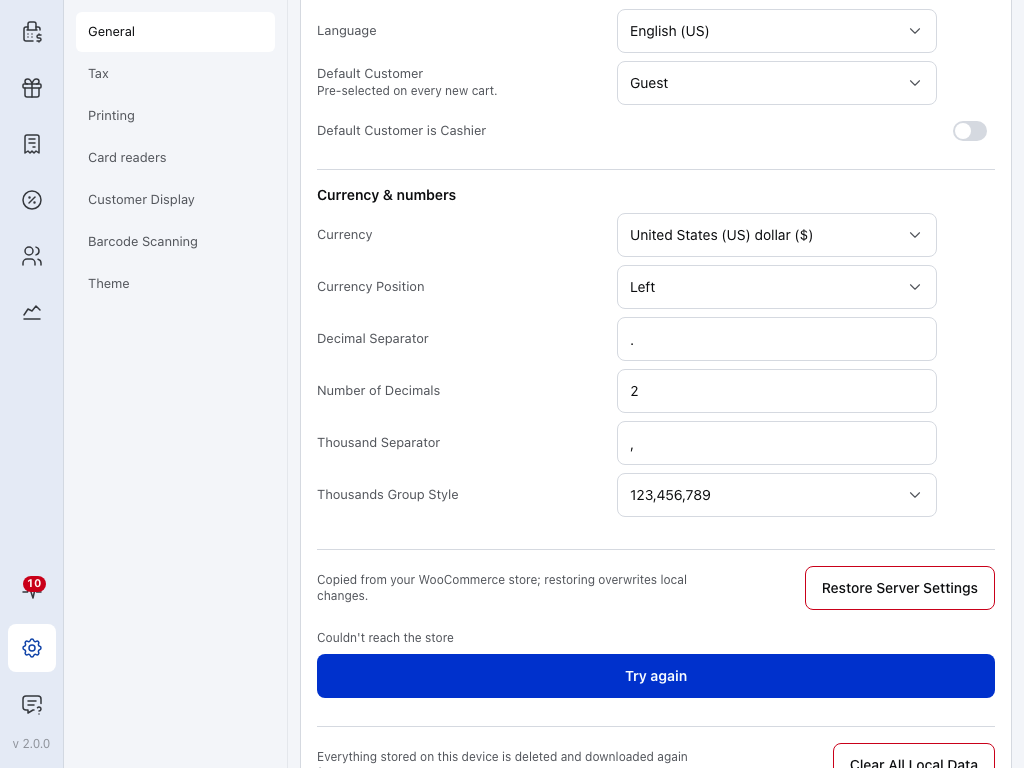
- Restore Server Settings — the restore that couldn't reach the store.
- Try again — opens the confirmation again. Press it when you're back online.
If something goes wrong
The store name, address or currency is out of date. The POS copies them from your store the first time it loads it and doesn't update them on its own, so a rename in WP Admin or a change in WooCommerce doesn't reach the POS by itself. Press Restore Server Settings.
Couldn't reach the store. The device is offline or your store didn't answer. Check the connection, then press Try again. Your settings stay as they were until a restore succeeds.
Prices show the wrong symbol or separators. Someone changed Currency & numbers on this device. Set the rows back by hand, or press Restore Server Settings. Restoring also puts back the store's name, address, language and default customer on this device.
The POS shows the wrong language. Change Language on this page. Each device keeps its own.
New carts start with the wrong customer. Check Default Customer and Default Customer is Cashier on this device. For every device, change Default POS Customer in WP Admin, then press Restore Server Settings on each device.