Plugin Conflicts
Another plugin on your website can stop the POS signing in, downloading products or saving a sale. This page helps you find that plugin, and lists the ones we already know about.
Most fixes on this page are made in WP Admin or with your host. If you're a cashier, show this page to whoever looks after the website.
Know which plugin changed? Open Find your plugin by name just below. Each name links to its fix under Known plugin conflicts. Don't know which plugin? Start with a staging site.
Find your plugin by name
- Autoptimize: Caching and optimisation
- Barcode scanner plugins: WooCommerce extensions and others
- Complianz: Page builders
- CTX Feed: WooCommerce extensions and others
- Elementor: Page builders
- Force Login: Security and login
- GoDaddy Website Firewall: Server-level
- Google Listings & Ads: WooCommerce extensions and others
- Hummingbird: Caching and optimisation
- Image Prioritizer: Handled by WCPOS
- Jetpack CRM Client Portal: Security and login
- JWT Authentication plugins: Handled by WCPOS
- LiteSpeed Cache: Caching and optimisation
- MailerLite: WooCommerce extensions and others
- Mollie: WooCommerce extensions and others
- MyParcel: Handled by WCPOS
- MyStickyElements: Page builders
- Omnisend: Page builders
- PixelYourSite, PixelMySite: WooCommerce extensions and others
- Really Simple Security: Security and login
- Security Optimizer: Security and login
- Smush: Caching and optimisation
- Solid Security (iThemes Security): Security and login
- Stripe (WooCommerce Stripe): Handled by WCPOS
- Stripe Tax: WooCommerce extensions and others
- Stripe Terminal: WooCommerce extensions and others, the warning after the list
- Sucuri: Security and login
- The Courier Guy Shipping: WooCommerce extensions and others
- WooCommerce Subscriptions: WooCommerce extensions and others
- Wordfence: Security and login
- WP Activity Log: WooCommerce extensions and others
- WP Rocket: Caching and optimisation
Signs of a plugin conflict
It may be a plugin conflict if, after a plugin was added or updated:
- The login window shows an error or a blank page.
- The app says "The WordPress REST API on this site requires authentication", or shows another plugin's message saying only signed-in users can use the REST API.
- The site shows "There has been a critical error on this website", in the POS or in WP Admin.
- Products, orders or customers stop downloading, or a sale won't save to the store.
- A gateway's payment page on the Legacy tab looks broken, or its buttons do nothing.
- Everything is slow, or requests time out. A slow checkout has its own page: Checkout Performance.
If the POS menu has gone from WP Admin after a plugin update, see The POS is gone after a plugin update.
Before you start: use a staging site
Switching plugins off on the site your till uses can stop sales and change your web store. Do it on a staging site.
What is a staging site?
A staging site is a copy of your website where you can test changes without your customers or your till seeing them. Most hosts make one in a few clicks from the hosting dashboard.
If your host doesn't offer staging
Ask your host how to copy the site. If they have no way to, it's worth moving to a host that does: you'll want staging for every plugin, theme, WordPress and WooCommerce update, not only for this. WP Engine, SiteGround, Kinsta and Cloudways all include it.
Step 1: Look for a fatal error
A crash usually names the plugin that caused it. Look there first:
- The POS log. Open Store health from the drawer, choose Logs, then Errors. See Logs.
- The WooCommerce fatal error log. Follow Critical Error to find it in WP Admin.
- Read the file path. A line such as
wp-content/plugins/<plugin-name>/…names the plugin.
If the error names a plugin other than WooCommerce or WCPOS, switch that one off on your staging site and try again. If nothing names a plugin, go on to Step 2.
Step 2: Switch plugins off, then back on one by one
Use this when there's no fatal error, or when the problem is slowness.
2.1 Note what goes wrong
- Open the POS on your staging site. In a web browser, go to
/poson the staging address. In the app, connect the staging address as another store (see Connect), and check the address under Your sites before you go on. - Do the thing that fails, and write down exactly what you see: the message, the screen, how long it takes.
- For slowness, note the times in the Logs so you can compare later.
2.2 Switch off everything except the POS
Keep these active:
- WooCommerce
- WCPOS
- WCPOS Pro, if you have it
- the payment gateway, if the problem is its payment page
Switch off everything else:
- Go to
WP Admin > Plugins. - Tick every other plugin.
- Choose Deactivate from Bulk actions.
- Click Apply.
This is the foot of the Plugins list on a store with the free plugin, before anything is ticked:
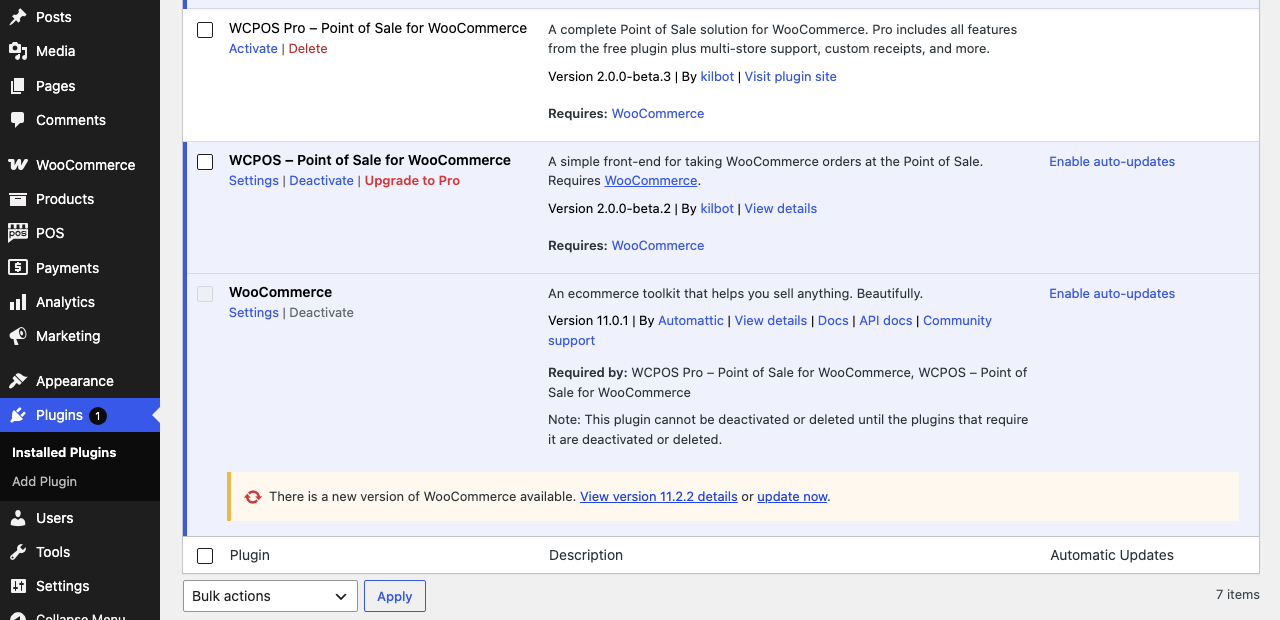
- WCPOS Pro — leave it unticked. On this store it is installed but not active.
- WCPOS — leave it unticked.
- WooCommerce — its checkbox is greyed out while WCPOS needs it, so it stays active.
- Bulk actions — choose Deactivate once every other plugin is ticked.
- Apply — switches the ticked plugins off.
2.3 Try again
- Clear every cache: your host's, your CDN's and any caching plugin's.
- Do the thing that failed. Does it work now?
- For slowness, compare the times with the ones you noted.
It works now: one of the plugins you switched off is likely the cause. Go to Switch plugins back on one by one to find which one brings the problem back.
It still fails: this test hasn't found the cause. Don't switch plugins back on one by one. Check your theme in Step 3. If the theme isn't it either, check:
- your server's resources and firewall: see Server Performance
- a service in front of your site, such as Cloudflare
- WordPress, WooCommerce or WCPOS itself: contact support with what you wrote down in Note what goes wrong
2.4 Switch plugins back on one by one
Which plugins to try first
Start with the kinds of plugin most likely to clash, so you find it sooner:
- Security and login plugins: Wordfence, Sucuri, Solid Security and similar
- Caching and optimisation plugins
- Payment gateways
- Other WooCommerce extensions
- SEO plugins
- Everything else
Test each plugin:
- Activate one plugin.
- Try again.
- Still works: activate the next one and try again.
- Fails again: note the plugin you just activated. It's the likely conflict.
Make sure it's that plugin:
- Switch off the plugins you've turned back on, leaving WooCommerce, WCPOS, WCPOS Pro and any payment gateway you kept active.
- Turn on only the plugin you noted, and try again.
- The problem comes back: that plugin is the conflict.
- It doesn't come back: another plugin may also be involved. Turn the others on one at a time and note the pair that brings the problem back.
2.5 Write down what you found
- The plugin's name and version.
- What it breaks, in the words you noted in 2.1.
- Whether a newer version is out.
You'll need these for Step 4 and if you contact support.
Step 3: Check your theme
The POS screens don't use your theme, so a theme rarely breaks the till. It can still break what WordPress sends the POS:
- a gateway's payment page on the checkout's Legacy tab, and the web store checkout the Web Checkout gateway sends customers to
- WP Admin screens, including the POS settings
- the REST API requests the POS makes, because WordPress runs your theme's code on those too
Test with a default theme
- On your staging site, switch to a default WordPress theme, such as Twenty Twenty-Five or Twenty Twenty-Four.
- Try again.
- It works now: your theme is the cause. Tell the theme's developer what breaks.
Step 4: Fix the conflict
Once you know the plugin, try these in order.
Option 1: Update it
- Look for an update. The conflict may already be fixed.
- Update on staging first, and try again.
- If that fixes it, and the POS and your web store checkout both still work, update your live site.
Option 2: Exclude the POS from it
Most clashes are fixed in the other plugin's settings, without switching it off. See What to exclude, and the fix for your plugin under Known plugin conflicts.
Option 3: Find an alternative
- Look for another plugin that does the same job.
- Try it on staging.
- Move its settings across before you switch.
Option 4: Tell the plugin's developer
Send them:
- the plugin's version, and your WordPress, WooCommerce and WCPOS versions
- what breaks, with the exact message
- the steps to make it happen
Option 5: Get a developer to work around it
For a plugin you can't do without, a WordPress developer can often stop the part that clashes from running on POS requests and POS pages, using the plugin's own hooks.
What to exclude
Most fixes below tell the other plugin to leave the POS alone, rather than switching it off. If your plugin is under Known plugin conflicts, its entry says what to change. If it isn't, give the details below to whoever manages your website, or to the plugin's support.
Addresses and settings for your website manager
The POS reads and saves your store through your WordPress site's REST API. A plugin that blocks, caches or rewrites those requests can break it. If the plugin isn't listed:
- Firewall and REST API settings: let
/wp-json/itself through, and everything under/wp-json/wcpos/. Keep the protection on for every other address. - Caching and script optimisation settings: leave out
/posand/wcpos-checkout/. - Can't find the setting: send this table to the plugin's support, and ask where to add these addresses.
| Address | What the POS uses it for |
|---|---|
/wp-json/wcpos/ | Everything the POS reads and saves |
/wp-json/ | Finding your store when the app connects. The app reads this address itself, not the ones under it |
/pos | The POS in a web browser. This is the default; your site may use another POS base under WP Admin > Settings > Permalinks |
/wcpos-auth/ | The app's login window |
/wcpos-checkout/ | A gateway's payment page on the Legacy tab, and receipts |
The desktop and mobile apps sign in on WCPOS's own form at /wcpos-auth/, in a separate window. Plugins that change the WordPress login page, such as a custom login address, two-factor codes, a captcha or email-only login, don't apply to it. They do apply when you open the POS in a web browser, which sends you to your normal WordPress login first.
Common conflicting plugin types
Which kinds of plugins can interfere?
Most likely to clash:
- Security and firewall plugins can block REST API requests, lock out the till after many requests, or stop the sign-in.
- Caching and optimisation plugins can serve stale answers to the POS, or break scripts on the pages WordPress draws for it.
- Login, membership and access plugins can close the REST API to anyone not signed in, or change how users sign in.
- Page builders and front-end injectors can load their scripts and overlays into a gateway's payment page.
- Anything that runs when an order or product is saved can slow every sale, or make a sale fail to save.
Rarely a problem: contact forms, social media, analytics and content plugins rarely touch the POS. WooCommerce Tax works with it: POS sales get the same automated rates as your online orders.
Known plugin conflicts
These plugins have been reported to clash with WCPOS. Open yours to see what goes wrong and the fix, then make the fix on your staging site first.
Jump to: Security and login · Caching and optimisation · Page builders · WooCommerce extensions and others · Server-level · Handled by WCPOS
Security & login plugins
These are the most common cause. They block the requests the POS makes, so the app can't connect, sign in or download your store.
Wordfence: the POS can't connect or download
What goes wrong: its firewall blocks the POS's REST API requests.
Fix: allow /wp-json/wcpos/ in the firewall. Allow only that address, not the whole REST API.
Really Simple Security: REST API blocked or redirected
What goes wrong: it blocks REST API access, or forces redirects.
Fix: turn off its REST API restrictions in the plugin's Advanced settings.
Solid Security (iThemes Security): REST API blocked or till locked out
What goes wrong: it blocks the REST API, or locks the till out as a brute-force attack.
Fix: allow the POS's addresses, /wp-json/ and /wp-json/wcpos/, and your server's own IP address. Don't allow IP addresses across the whole site.
Sucuri: the POS can't connect or download
What goes wrong: its firewall blocks REST API requests.
Fix: allow /wp-json/wcpos/ in the Sucuri dashboard.
Force Login, and other plugins that close the REST API: "requires authentication"
What goes wrong: the app says "The WordPress REST API on this site requires authentication", or shows the plugin's own message saying only signed-in users can use the REST API.
Fix: let visitors who aren't signed in reach the REST API, or at least /wp-json/ and /wp-json/wcpos/.
Security Optimizer: web browser POS asks for the custom login URL
What goes wrong: opening the POS in a web browser stops at a message to use the custom login URL.
Fix: log in to WP Admin through your custom login URL first, then go to /pos.
Jetpack CRM Client Portal: users can't sign in
What goes wrong: users can't sign in to the POS.
Fix: switch off the Client Portal extension only, not all of Jetpack CRM.
Performance, caching & optimisation plugins
WP Rocket, Autoptimize, Hummingbird, Smush: Legacy payment pages break
What goes wrong: deferring or minifying JavaScript breaks gateway payment pages on the Legacy tab.
Fix: exclude /wcpos-checkout/ and /pos from JavaScript optimisation.
LiteSpeed Cache: desktop app reloads at checkout
What goes wrong: the desktop app reloads over and over at checkout.
Fix: update WCPOS and LiteSpeed Cache, purge the cache, and exclude /wcpos-checkout/ and /pos from caching.
Page builders & front-end injectors
These load their scripts and overlays into the payment page that a gateway on the Legacy tab opens inside the POS. That page has a Checkout Settings button that removes scripts and styles from it: see A Gateway's Payment Page Looks Wrong.
Elementor: payment methods won't open
What goes wrong: elementor-frontend.js breaks the payment page: payment methods won't open.
Fix: in Checkout Settings, remove Elementor's frontend script under Disable Selected Scripts, or stop Elementor loading it on /wcpos-checkout/.
Omnisend, and other marketing plugins: payment page layout breaks
What goes wrong: their scripts break the payment page's layout and payments.
Fix: in Checkout Settings, remove their scripts under Disable Selected Scripts.
MyStickyElements, Complianz: buttons or a banner cover the payment page
What goes wrong: sticky buttons or a cookie banner cover the payment page.
Fix: set them to leave out /wcpos-checkout/, or remove their scripts in Checkout Settings.
WooCommerce extensions & other plugins
Stripe Tax: doesn't work with POS orders
What goes wrong: it doesn't work with orders created through the REST API, which is how the POS saves every order.
Fix: there's no workaround. WooCommerce Tax is the automated tax that works with the POS.
WP Activity Log: database fills up, store slows
What goes wrong: it logs every change the POS makes, so the database fills up and the store slows down.
Fix: switch it off, or leave POS products and orders out of its logging.
MailerLite: server error (500) when a sale saves
What goes wrong: with both MailerLite Signup Forms and the MailerLite WooCommerce integration active, the server runs out of memory and returns a server error (500) when the POS saves an order.
Fix: deactivate both to confirm, then contact MailerLite.
The Courier Guy Shipping: orders won't save
What goes wrong: the POS can't save orders: a server error.
Fix: go back to the plugin's previous version, or contact its developer.
Mollie: Direct Bank Transfer missing
What goes wrong: it hides Direct Bank Transfer from the POS checkout.
Fix: update Mollie.
CTX Feed: 403 errors on the POS settings page
What goes wrong: 403 errors now and then on the POS settings page.
Fix: deactivate it to confirm. There's no known setting that fixes it.
Barcode scanner plugins: orders won't save or show
What goes wrong: they break the order data the REST API sends, so orders won't save or show.
Fix: switch them off. The POS reads barcodes itself: see Barcode Scanning.
PixelYourSite, PixelMySite: critical error
What goes wrong: a critical error: call to a member function is_type() on bool.
Fix: switch it off.
Google Listings & Ads: critical error, WCPOS class not found
What goes wrong: a critical error saying a WCPOS class was not found.
Fix: delete every WCPOS plugin, then install only the latest WCPOS Pro.
WooCommerce Subscriptions: blocks the Pro upgrade from 1.7 or older
What goes wrong: it blocks WCPOS Pro's upgrade step.
Fix: deactivate Subscriptions, activate WCPOS Pro and let the upgrade finish, then reactivate Subscriptions.
Switch Stripe Terminal on only for the POS, in WP Admin > POS > Settings > Checkout. It doesn't need to be on in WP Admin > WooCommerce > Settings > Payments. Switched on there, it shows on your web store's checkout, where it has broken the checkout for online customers. See Stripe Terminal.
Server-level conflicts
Security headers set by your web server: POS stuck on its logo, or blank pages
A Content-Security-Policy or X-Frame-Options line in .htaccess, Nginx or your host's panel.
What goes wrong: the POS stays on its logo, or a Legacy tab payment page or a receipt shows blank.
Fix: leave /pos, /wcpos-auth/ and /wcpos-checkout/ out of that header. Allowing the CDN addresses isn't enough on its own, because the POS page starts from an inline script and fetches its files from cdn.wcpos.com and cdn.jsdelivr.net. WCPOS removes these headers from its own pages when WordPress or a plugin adds them, but it can't remove a header your web server adds.
GoDaddy Website Firewall: "Received 'undefined'"
What goes wrong: it blocks /wp-json/, with "Received 'undefined'".
Fix: allow the /wp-json/ path in the firewall: see Server Performance.
Conflicts WCPOS handles itself
Plugins that used to clash and need nothing from you now
Keep WCPOS up to date and these need no setting:
- Security headers from plugins. Wordfence, LiteSpeed Cache and other plugins can add a
Content-Security-Policythat stops the POS loading. WCPOS removesContent-Security-PolicyandX-Frame-Optionsfrom its own pages. A developer who needs a policy there can set one with thewcpos_content_security_policyfilter. - JWT Authentication plugins. They used to reject the POS's sign-in token, so every request after login failed with a 403. WCPOS now clears their error when it has signed the request in itself; other plugins' errors still come through.
- Image Prioritizer. It fills the
Linkheader that apps use to find a WordPress site. When that header doesn't name your site's REST API, the app looks for it at/wp-json/instead. If the app still says "Site does not seem to be a WordPress site", deactivate it. - Plugins that run when a product is saved (Jetpack, Astra, Xero and others). Older WCPOS versions made them add duplicate rows on every request. That was fixed in 1.8.12, and the upgrade removed the duplicates.
- WooCommerce Stripe 11.1.0. Its card script stopped every other payment method from paying on a Legacy tab payment page. While your Stripe plugin is older than 11.1.1, WCPOS takes Stripe's card script and styles off that page. The other payment methods then work, but Stripe's card form doesn't show there. Stripe fixed the clash in 11.1.1. Update Stripe, and WCPOS leaves its card form on the page again, even if an earlier Checkout Settings save had it switched off.
- MyParcel. A cart with a miscellaneous product couldn't go through checkout, because MyParcel hit a critical error while the order saved. WCPOS now tells MyParcel that the line has no catalogue product, as WooCommerce does, so the sale goes through.
Prevention tips
Regular maintenance
- Keep plugins up to date.
- Delete plugins you don't use, rather than leaving them deactivated.
- Test every update on staging before your live site.
- Watch your server's speed with Server Performance.
Choosing plugins
- Pick plugins that are kept up to date, with good reviews.
- Don't run two plugins that do the same job.
- Check the plugin says it's tested with your WooCommerce version.
- Add plugins one at a time, and check the till after each.
Getting help
If you can't find or fix the conflict, contact us.
For Pro users
A Pro licence comes with priority support in the Pro channels on Discord. See Free vs Pro.
Community support
What to send
- Your active plugins, with versions.
WP Admin > Tools > Site Health > Infolists them, with a Copy site info to clipboard button. - Your WordPress, WooCommerce and WCPOS versions.
- What goes wrong, in the words you noted.
- What you've already tried.
- Error messages from the Logs. Copy debug info on the Logs tab (Share debug info in the iOS and Android apps) gathers what we need.
- Your server's response times, if it's slow.