Slow Checkout
Checkout is slow when your store is slow to answer the till. A sale waits for your store twice: when you press Checkout, the order is saved to your store, and when you press Take, your store records the payment before the receipt shows. This page shows where the till waits, how to measure your store, and what to change.
The fixes are made on your website, mostly in WP Admin. If you don't run the website, time a test sale and send the times, with a link to this page, to whoever does.
Time a test sale
Time a test sale before and after each change to see what it buys you. Each count is time the till spends waiting for your store:
- Count from Checkout until Take stops reading Saving order….
- Pay, and count the wait for the way you paid:
- Cash, Card or another payment recorded at the till — from Take until the receipt shows.
- A card reader — from tapping its tile until it reaches On terminal, then again from Approved until the receipt shows. Leave out the time the customer spends at the reader.
- The Legacy tab — from opening the tab until Process Payment can be pressed.
- Note the typical response from Store health → Performance.
Repeat step 2 for each way you take payment, and change one thing at a time between tests. Where the till waits explains what each count measures. Time it on the device and connection you sell on: another device or network can give different times.
Where the till waits for your store
Checkout — the order is saved to your store. The checkout opens at once, but the keypad doesn't respond and Take reads Saving order… until your store answers. After 4 seconds a message says the store isn't answering: see what to do.
Take, on Cash, Card or another payment recorded at the till — your store records the payment, and then the receipt shows. If your store doesn't answer, the till asks again after 1, 3 and 9 seconds. If it still has no answer: see what to do.
A card reader tile — your store creates the payment first. Then the tile reaches the On terminal step and reads Waiting for the customer on the terminal, or Present card on the reader on a reader connected straight to this till. If the till keeps failing to reach your store while it waits, the tile keeps that message, and its Details log adds Connection unstable, still trying. Once the reader approves, the tile shows Approved while your store confirms the payment, and then the receipt shows. See Taking a Payment.
The Legacy tab — your store sends its payment page. A loading placeholder shows, and Process Payment stays greyed out until the page loads. If it doesn't load: see what to do. See The Legacy Tab.
Each wait is a request to your store, so a store that answers slowly makes every sale slow. Offline, a payment recorded at the till doesn't wait: the sale is held on this device and sent when the store is back. See Offline Mode.
Measure your store
A test sale times one sale. Store health shows how your store has answered this till all day.
Store health → Performance
Store health → Performance shows how fast your store has answered this till over the last 24 hours.
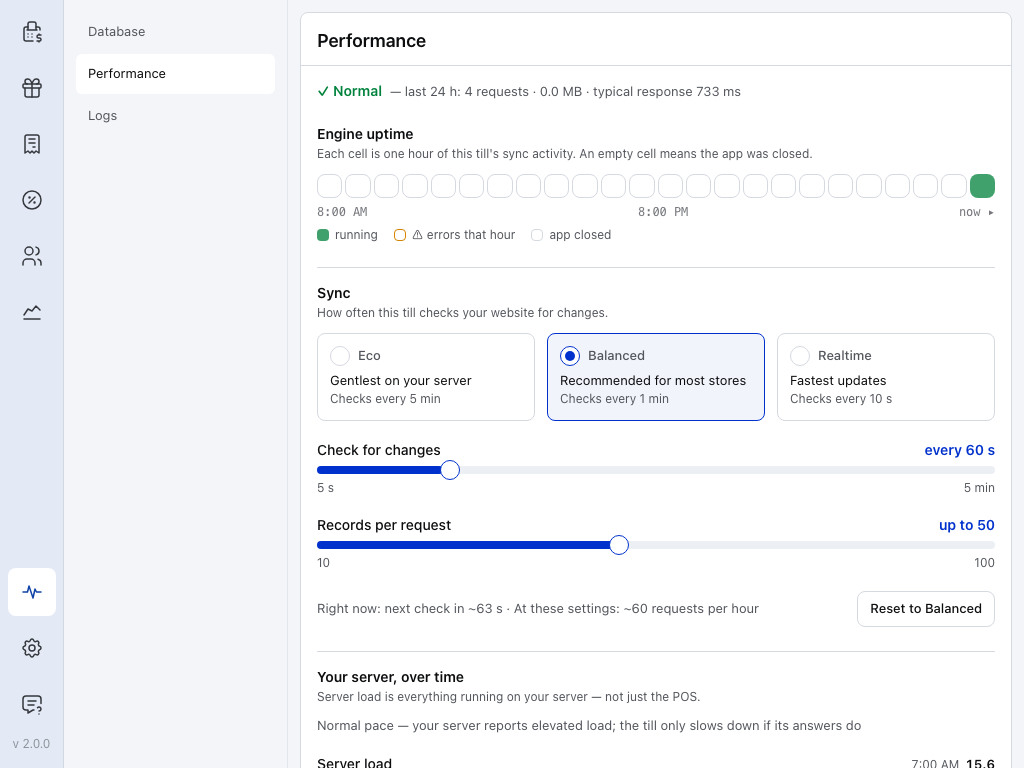
- Store health — the pulse icon near the foot of the menu.
- Performance — this tab.
- Status line — the requests this till made in the last 24 hours, and the typical response: how long your store took to answer, on average across all those requests. Compare it with the times from your test sale.
- Engine uptime — one cell per hour. Amber means at least one request to your store failed that hour.
- Balanced — how often this till checks your store for changes. On shared or budget hosting, Eco asks less often and leaves your store more room for sales. See Sync presets.
- Check for changes — the same setting as a slider, from 5 seconds to 5 minutes.
- Right now — about how many requests an hour these settings make.
Further down, Your server, over time charts your server's load beside the POS's requests. On a till that has just started, both charts read Not enough data yet and fill in as the till runs.
Read the server charts
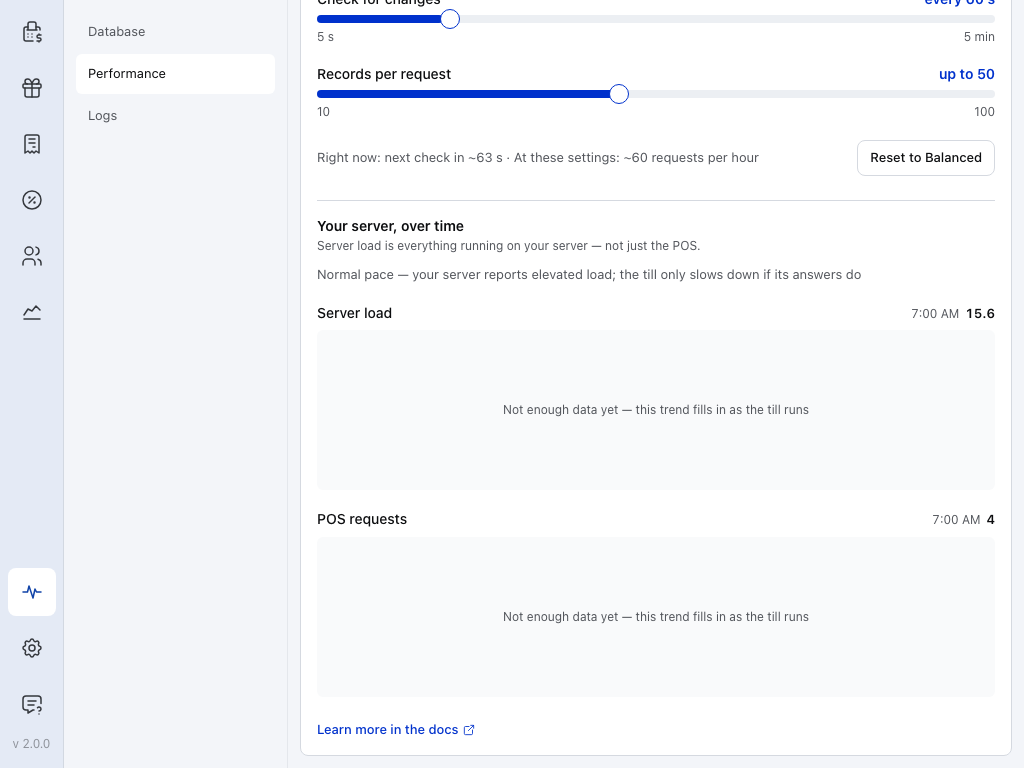
- Right now — the requests an hour these settings make.
- Your server, over time — the section heading.
- Pace — Normal pace, or Easing off when your server answered slowly, timed out or returned errors. See Your server, over time.
- Server load — everything running on your server, not just the POS, with the latest figure on the right. A high figure alone doesn't slow the till down: read it with the typical response, and give both to your host.
- POS requests — how many requests this till made each hour.
Speed up saving and paying
Check these possible causes one at a time, and time another test sale after each change.
Order storage
If WooCommerce still keeps orders in WordPress posts (legacy storage), every save at checkout gets slower as your store grows. Check which storage you use and switch to HPOS: see Order Storage (HPOS).
Plugins that run when an order is saved
Some plugins do their own work each time an order is saved or paid, and the till waits for them. An accounting plugin that sends the order to Xero, for example, holds every sale until Xero answers. Turning plugins off one at a time on a copy of your website finds the one.
Find the plugin, step by step
Plugins that often do work on every order:
- Accounting and bookkeeping (Xero, QuickBooks)
- Email marketing tools that act on new orders
- Inventory and stock systems
- Shipping calculators
- Analytics and tracking
To find the one:
- On a staging site, turn off every plugin except WooCommerce and WCPOS.
- Time a test sale.
- If it's much faster, turn the plugins back on one at a time, timing a sale after each, until it slows down again.
- Ask that plugin's developer whether its work can run in the background instead.
The full method is in Plugin Conflicts.
Your hosting
If the typical response is slow as well as your checkout times, your server may be short of resources. Take the times from your test sale to your host, with the Server load figure, so they can look into it. See Server Performance for recommended specifications.
What to ask your host
- CPU and memory use while you sell
- The PHP memory limit and the number of PHP workers
- Slow database queries, and old data that could be cleaned up
- Object caching (test it with the POS before you rely on it)
- A larger plan, or a VPS instead of shared hosting
Speed up the Legacy tab's payment page
Only gateways on the Legacy tab load a web page at checkout. It's a stripped-down copy of the WooCommerce page customers use to pay for an order online, sent by your website each time. Your theme's header, footer and layout are already gone, but the styles and scripts your theme and plugins add to every page still load, and they can make the page slow or break it. Changing what it loads is a job for a shop manager. If the page doesn't load at the till, see what to do.
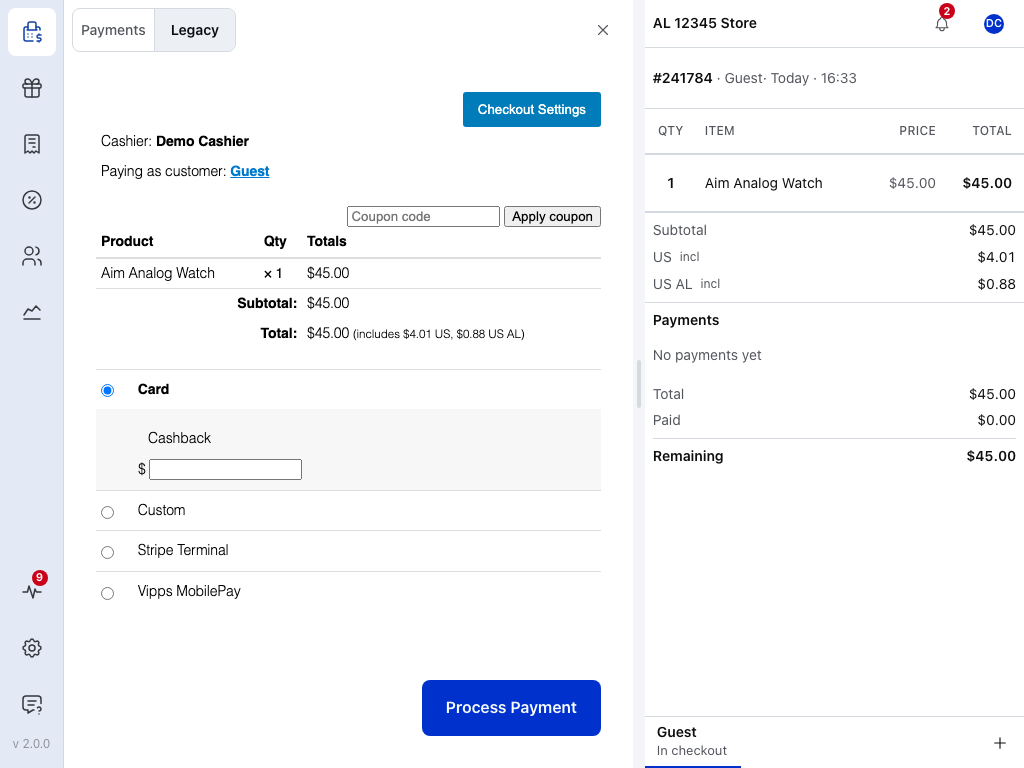
- Payments — Cash, Card, card readers and the other tiles in the app. They load no page.
- Legacy — gateways that run on your store's own payment page.
- Checkout Settings — opens the form for choosing which styles and scripts this page loads. The page around it is sent by your website.
- Process Payment — greyed out until the page has loaded.
- ✕ — back to the cart, with the order kept.
To remove styles and scripts from this page:
- Sign in to the POS as a shop manager or administrator. A cashier can open the form but can't save it.
- Press Checkout, open the Legacy tab, and press Checkout Settings on the payment page.
- Untick a style or script to remove it. Start with your theme's styles, such as
classic-theme-styleson a classic theme, then scripts your gateway doesn't need, such asselectWoo. - Press Submit, then try a test payment with each Legacy gateway you use.
What the Checkout Settings form shows
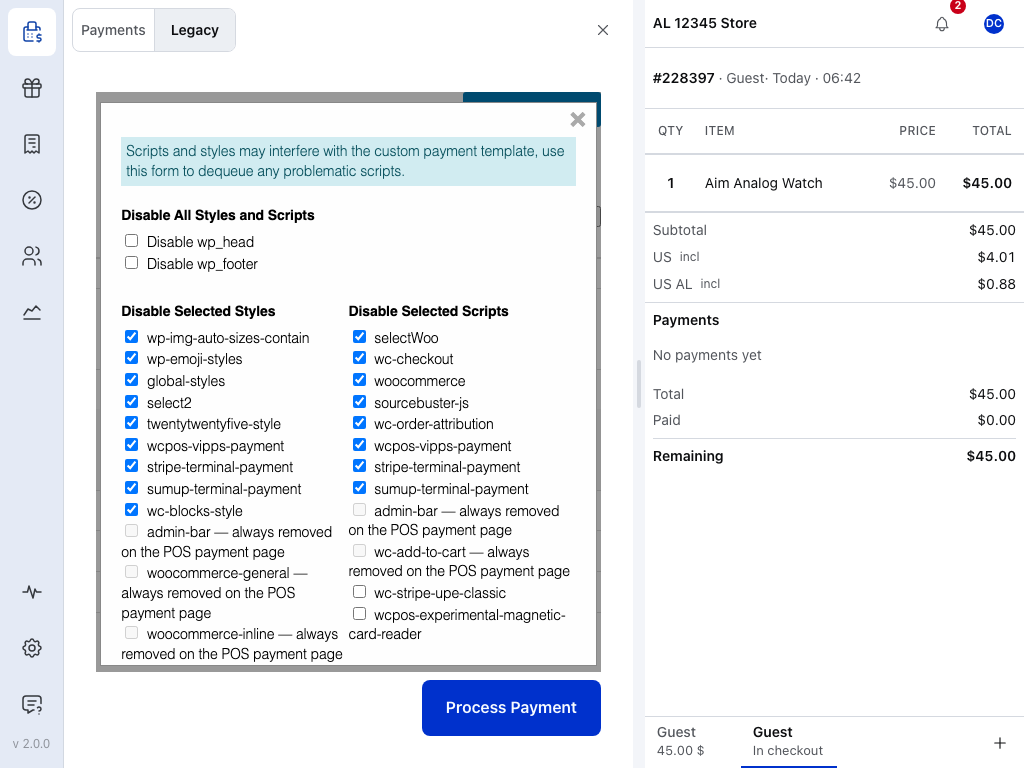
- Legacy — the tab the form belongs to.
- Checkout Settings — the form, over the payment page. Every style and script on the page has a checkbox, ticked if it loads.
The form has three parts, from the top:
- Disable All Styles and Scripts — Disable wp_head and Disable wp_footer remove everything the page's header or footer would load, including what the payment form needs. Use them only to test whether styles and scripts are the cause.
- Disable Selected Styles, on the left — one entry per style. Your theme's styles are named after it, such as
twentytwentyfive-style. - Disable Selected Scripts, on the right — one entry per script.
Greyed entries ending always removed on the POS payment page are removed already and can't be ticked.
If a payment method stops working after you remove a script, tick it again and press Submit.
What WCPOS removes on its own, and options for developers
The payment page always drops the admin bar, the extra links WordPress adds to a page's header, and these WooCommerce styles and scripts:
- Styles:
admin-bar,woocommerce-general,woocommerce-inline,woocommerce-layout,woocommerce-smallscreen,woocommerce-blocktheme,wp-block-library - Scripts:
admin-bar,wc-add-to-cart - With WooCommerce Stripe older than 11.1.1, also its
wc-stripe-upe-classicscript and styles andstripelink_styles.
For developers:
- Saving the form needs the
manage_woocommercecapability. - The filters
wcpos_payment_template_dequeue_style_handlesandwcpos_payment_template_dequeue_script_handlesadd handles to the removed lists. - The template can be overridden by copying it to
yourtheme/woocommerce-pos/payment.php. The original is templates/payment.php in the plugin. - Only styles and scripts added with
wp_enqueue_styleandwp_enqueue_scriptcan be removed. A theme or plugin that prints its code straight into the page can't be; ask its developer to enqueue it, or remove it with that plugin's or theme's own hooks (for a theme, in a child theme).
If something goes wrong
The store isn't answering
"The store isn't answering. Keep waiting, or go back to the cart." Your store is taking more than 4 seconds to save the order. Keep waiting, or press ✕ to go back to the cart with the order kept. If you see it often, time a test sale and check the causes under Speed up saving and paying.
The store has not answered the last payment
"The store has not answered the last payment. Try again to confirm it; it will not be taken twice." Press Try again.
The payment form didn't load
"The payment form didn't load — check the connection to your store, then retry." The Legacy tab waited 90 seconds for the payment page, reloaded it, waited another 90 seconds, and gave up. Check the connection and press Retry. If the page is slow every time, see Speed up the Legacy tab's payment page.
You don't have permission to modify checkout settings
"You do not have permission to modify checkout settings." You pressed Submit in Checkout Settings as a cashier. Sign in as a shop manager or administrator.
Still slow
If checkout keeps taking more than 10 seconds after all this, or you suspect a plugin but can't find which one, ask on Discord. Press Copy debug info in Store health → Logs and paste it in, with the times from your test sale and what you've tried. See Help & Troubleshooting.
Gateways other than Cash and Card need WCPOS Pro.