# Cash Drawer
A cash drawer doesn't connect to the POS. It plugs into the **receipt printer**, and the POS asks the printer to open it. This page wires the drawer, turns it on in the app, and tests it.
You need a receipt printer first
Add the printer before the drawer. See [Printer Setup Wizard](/de/hardware/receipt-printers/printer-setup-wizard.md). The built-in **Print Dialog** and cloud printers can't open a drawer.
## Plug the drawer into the printer[](#wire-it-up "Direkter Link zu Plug the drawer into the printer")
1. Find the socket on the back of the printer marked **DK**, **Drawer** or **Cash Drawer**.
2. Plug in the drawer's cable. Its plug looks like a telephone plug. The network socket beside it is wider: don't use that one.
3. Switch the printer off and on.
## Turn it on in the app[](#switch-it-on-in-the-app "Direkter Link zu Turn it on in the app")
The switch is **Auto-open cash drawer**, one per printer. It's off for a new printer. You can turn it on while you add the printer, or later from the printer's row. Already added your printer? Go to [Test the drawer](#test-the-drawer).
Every receipt opens the drawer
With **Auto-open cash drawer** on, the drawer opens every time that printer prints a receipt, card sales and reprints too. See [When the drawer opens](#when-it-opens).
### While you add the printer[](#while-adding "Direkter Link zu While you add the printer")
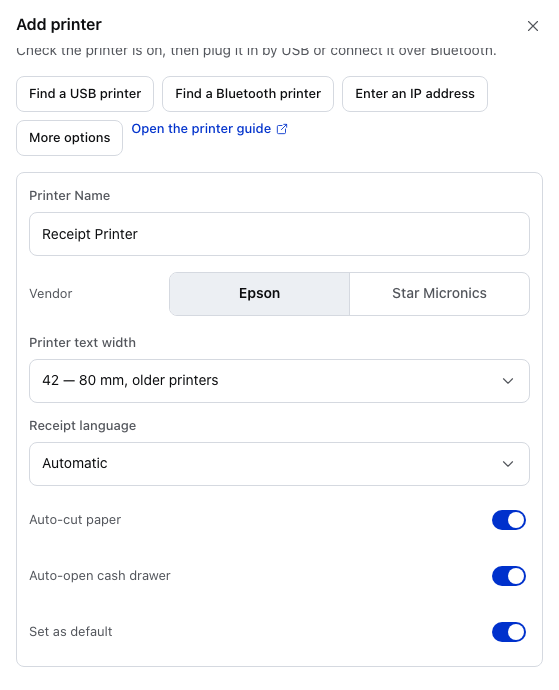
In **Settings → Printing**, press **Add printer**. When the search finishes, press **More options**.
1234
1. **More options** — opens the printer's settings under the search results.
2. **Vendor** — **Epson** or **Star Micronics**. Each make has its own drawer command, so pick the make of your printer.
3. **Auto-open cash drawer** — the printer opens the drawer each time it prints a receipt.
4. **Set as default** — **No sale** opens the drawer on the default printer. See [Open the drawer without a sale](#no-sale).
Finish adding the printer as [Printer Setup Wizard](/de/hardware/receipt-printers/printer-setup-wizard.md) shows. The wizard's test page never opens the drawer, so test the drawer next.
### Test the drawer, or change a printer you have[](#test-the-drawer "Direkter Link zu Test the drawer, or change a printer you have")
1. In **Settings → Printing**, press **Edit** on the printer's row.
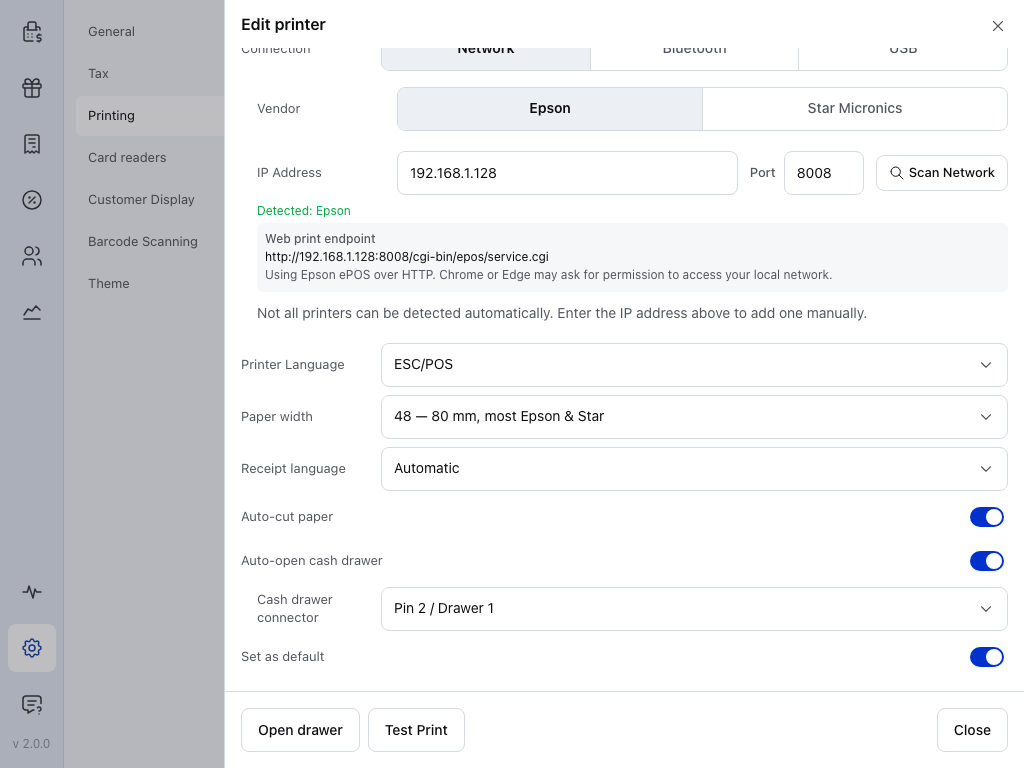
2. Turn on **Auto-open cash drawer** if it's off. **Cash drawer connector** appears under it: the pin the drawer is wired to. **Pin 2 / Drawer 1** suits most drawers. Pick **Pin 5 / Drawer 2** for a second drawer, or when the drawer's manual says pin 5.
3. Press **Open drawer**, at the foot of **Edit printer** beside **Test Print**. It opens the drawer once, without printing. Check that the drawer springs open. If it stays shut, see [If the drawer doesn't open](#when-it-doesnt-open), even if the app says **Cash drawer opened**.
1234
1. **Auto-open cash drawer** — on here. The printer opens the drawer each time it prints a receipt.
2. **Cash drawer connector** — the pin the drawer is wired to, here **Pin 2 / Drawer 1**. It shows only while **Auto-open cash drawer** is on.
3. **Open drawer** — opens the drawer once, without printing.
4. **Test Print** — prints a test page on this printer. With **Auto-open cash drawer** on, as here, it opens the drawer too.
## When the drawer opens[](#when-it-opens "Direkter Link zu When the drawer opens")
With **Auto-open cash drawer** on, the drawer opens whenever that printer prints a receipt:
* a receipt printed at checkout, by hand or automatically;
* a receipt you print again later;
* **Test Print** on the printer's row.
It opens for every payment method, not only cash.
It stays shut for register reports: the X-report, the handover and the closure. See [Open the Register](/de/sell/open-register.md).
## Open the drawer without a sale[](#no-sale "Direkter Link zu Open the drawer without a sale")
To make change or check the float, use **No sale** in the register panel. It opens the drawer and records why, with no money moving.
Before you start
* The register is open. See [Open the Register](/de/sell/open-register.md).
* Your default receipt printer has **Auto-open cash drawer** on. **No sale** opens the drawer on that printer. To make a printer the default, open its **More actions** menu in **Settings → Printing** and press **Set Default**.
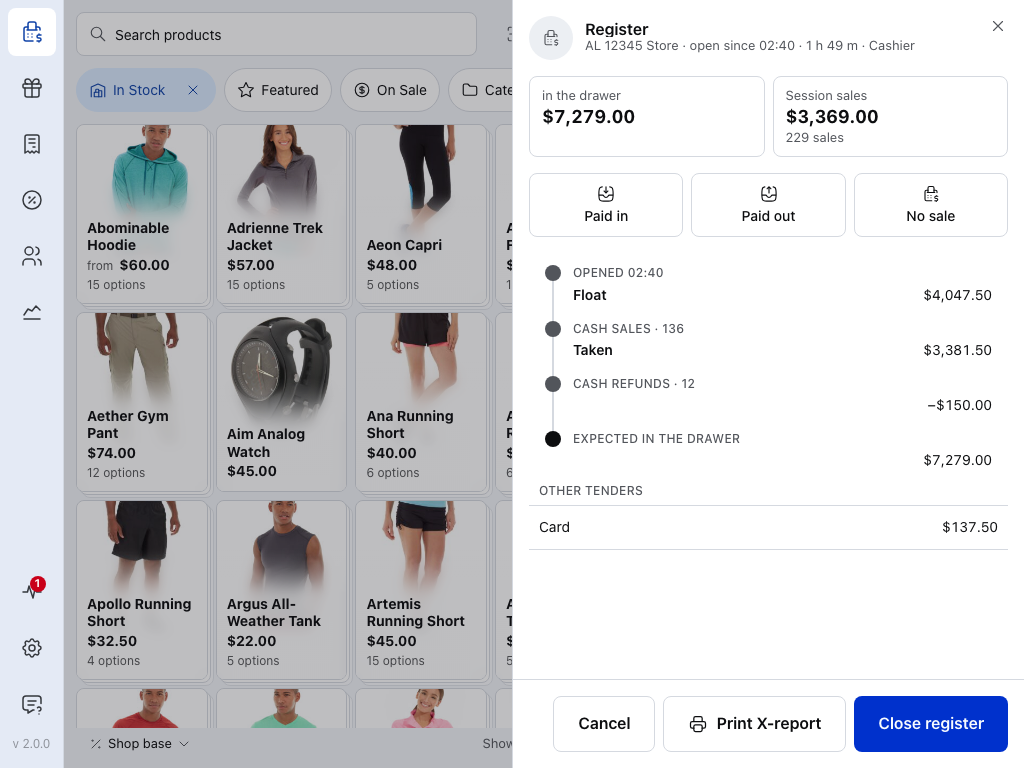
Tap your avatar at the end of the register bar, then **In the drawer**, to open the register panel.
12
1. **No sale** — opens the drawer. Only while the register is open. **Paid in** and **Paid out** beside it record cash going in or out, and don't open the drawer.
2. **In the drawer** — the cash the register expects. A No sale doesn't change it. **Print X-report** at the foot never opens the drawer.
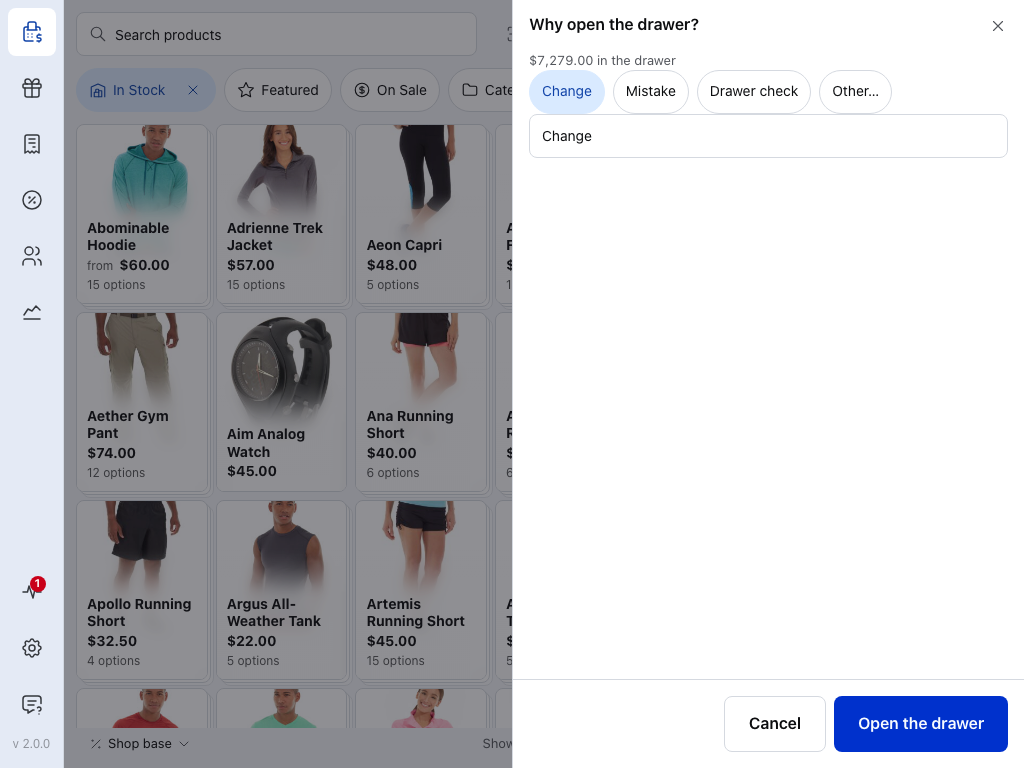
Press **No sale**. The sheet asks **Why open the drawer?**
123
1. **Change** — one of the ready reasons, with **Mistake** and **Drawer check**. Tap one to fill in the reason. **Other…** clears the field so you can type your own.
2. **Reason** — the reason that's recorded. Until there is one, the sheet says **Add a reason**.
3. **Open the drawer** — records the No sale and opens the drawer.
The figure at the top is the cash the register expects in the drawer. Cashiers who count blind don't see it.
Check that the drawer opens. If it stays shut, see [If the drawer doesn't open](#when-it-doesnt-open). The No sale is recorded either way.
## If the drawer doesn't open[](#when-it-doesnt-open "Direkter Link zu If the drawer doesn't open")
Start with **Open drawer** in **Edit**. It opens the drawer without printing a receipt, so you can see whether the drawer opens at all. Then open the symptom that matches.
Open drawer works, but receipts don't open the drawer
The wiring is right. Check that **Auto-open cash drawer** is on for the printer that prints your receipts.
Open drawer shows “The printer did not accept the job.”
The printer didn't take the command. Print a test page from the printer's row first. See [Receipt Printers](/de/hardware/receipt-printers.md#when-nothing-prints).
The app says Cash drawer opened, but nothing happens
Check the cable is in the drawer socket, not the network socket. Then try the other **Cash drawer connector**: the drawer may be wired to pin 5.
The drawer clicks but doesn't open
Check the drawer's key. Most drawers have a lock on the front, and one key position keeps the drawer shut. Then check the voltage: drawers are made for 12 V or 24 V, and the drawer has to match what the printer puts out. The printer's manual says which.
Edit warns: Cash drawer kicks depend on printer language/emulation
The **Printer Language** doesn't match the printer's make, for example a Star printer set to ESC/POS. Set the language to match the printer's emulation mode.
No sale closed, but the drawer stayed shut
The No sale is recorded either way. Check that your default receipt printer has **Auto-open cash drawer** on. If the printer refused, the sheet stays open with the error: press **Open the drawer** again. That only opens the drawer, it doesn't record a second No sale.
A low-cost printer doesn't respond
Some low-cost printers only understand an older version of the drawer command. For a printer set to **Epson**, **Open drawer** sends Epson's newer command, which these printers ignore. Some printers have no drawer socket, or don't drive one. The printer's manual says whether it supports a cash drawer.
The drawer opens when Auto-open cash drawer is off
A custom thermal template can carry its own `` command, and that opens the drawer whatever the switch says. Remove the tag from the template to stop it. See [Thermal Templates](/de/settings/receipt-templates/thermal-templates.md).
## Still stuck?[](#still-stuck "Direkter Link zu Still stuck?")
In **Settings → Printing**, open the printer's **More actions** menu and press **Copy setup report**. Paste it into your message, with the printer and drawer models.
[Discord Community](https://wcpos.com/discord)
## Related Documentation[](#related-documentation "Direkter Link zu Related Documentation")
[Receipt PrintersPrinter settings, and what each app can connect to.](/de/hardware/receipt-printers.md)
[Open the RegisterNo sale, paid in and paid out, and the closure.](/de/sell/open-register.md)
[Thermal TemplatesThe receipt layout, and the drawer command.](/de/settings/receipt-templates/thermal-templates.md)