Find Products
The Product Panel is where you find what the customer wants and put it in the cart. Tap a tile to add it. While the register is closed you can still search and read prices, but nothing goes in a cart until it's open.
Find a product
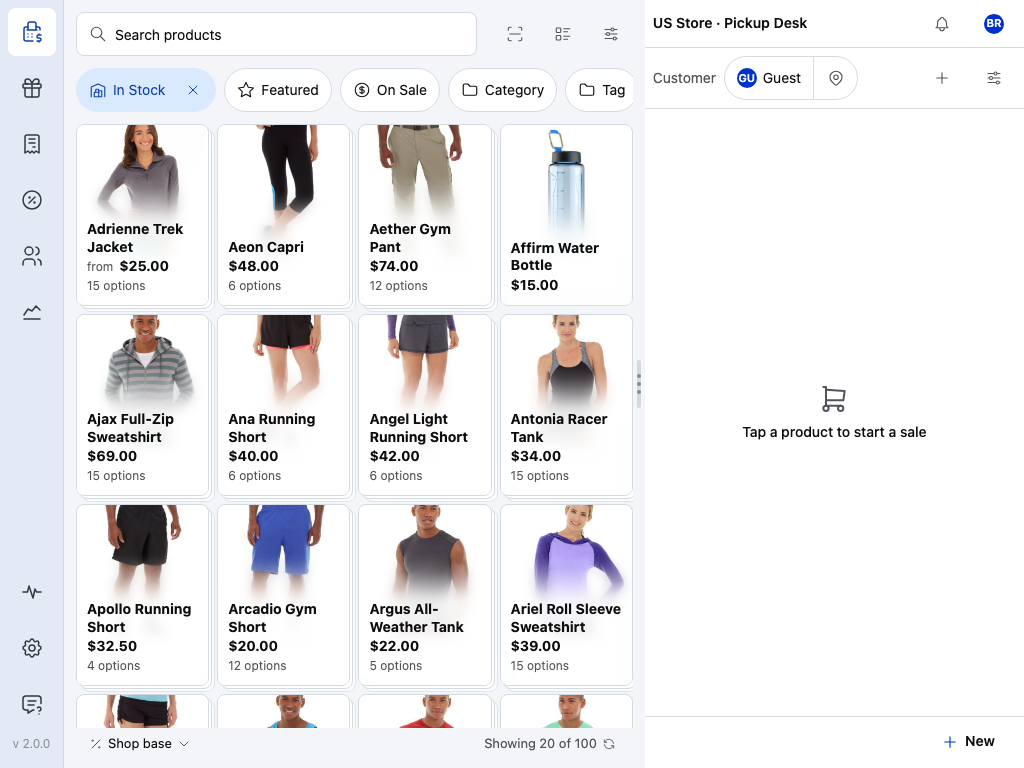
- Search products — type part of a product's name, its SKU or its barcode. Clear the field to get everything back. See Search & Filtering.
- Scan — opens the camera scanner, for a device with no scanner attached. See Camera scanning.
- Grid or table — tiles with pictures, or rows you can read at a glance. The POS remembers your choice on this device.
- Settings — Browse by, Show out-of-stock products, Variations, sort order, what a tile shows and which filters sit on the bar. See Display Settings.
- In Stock — lit from the start unless Show out-of-stock products is on. Press the cross to see everything, or tap it to pick another stock status. See Stock status.
- Featured — only products marked as featured in WooCommerce. Tap again to turn it off.
- On Sale — only products on sale right now. Tap again to turn it off.
- Category — pick a category from the list, typing to narrow it down. Press the cross on the filter to take it off. Tag and Brand work the same way, further along the bar.
- A product tile — tap it to add one to the cart. A tile showing … options opens its variations instead.
- Showing … of … — how many products are on screen, out of those on this device that match. The second number can start low on a new device, while your catalogue is still downloading. The arrow beside it refreshes from your store.
Search and filters work together: a filter narrows what the search finds. If a product you expect isn't showing, look for a filter that's still on, then see When you can't find it.
Your own filter buttons
If you reach for the same filters all day, save them as one button. In Settings, press Customise filter bar, then Add quick filter, name it and choose its conditions. In the same place you can drag filters into a new order, or switch off the ones you never use. See Display Settings.
Start from categories
Browse by in Settings decides what the panel opens on. Categories is where a new device starts: tap your way down through tiles, the way a shop is laid out. Choose Tags, Brands or Shortcuts (your quick filters) to do the same with those, or All products for the full list shown above.
Scan a barcode
In a browser or the desktop app, scan anywhere in the POS, the cart and checkout included, and the product goes straight into the cart. You don't need to tap into the search field first: the POS tells a scan from typing by its speed. Keep the cursor out of text fields, because anything going into a field counts as typing. In the iPhone, iPad or Android app, tap the product search first: that field is where the app hears a keyboard-mode scanner. A scanner registered on Android works without it. A scan that can't add one product says so:
- Barcode not found — nothing on this device or in your store has this code. The code stays in the search field so you can see what was read.
- Several matches — more than one product has this barcode. Pick the right one from the results.
- Choose a variation — the barcode belongs to the main product, not one of its options. Pick the option.
- … out of stock — refused while Show out-of-stock products is off.
- Scanning unavailable — the product isn't on this device and the store can't be reached. Search for it when you're back online.
Which field counts as the barcode is set in Barcode Field. To set up a scanner, see Barcode Scanning and Scanners.
Choose a variation
Tap a tile showing … options, and they open in the panel, one tile each, with their own price and stock.
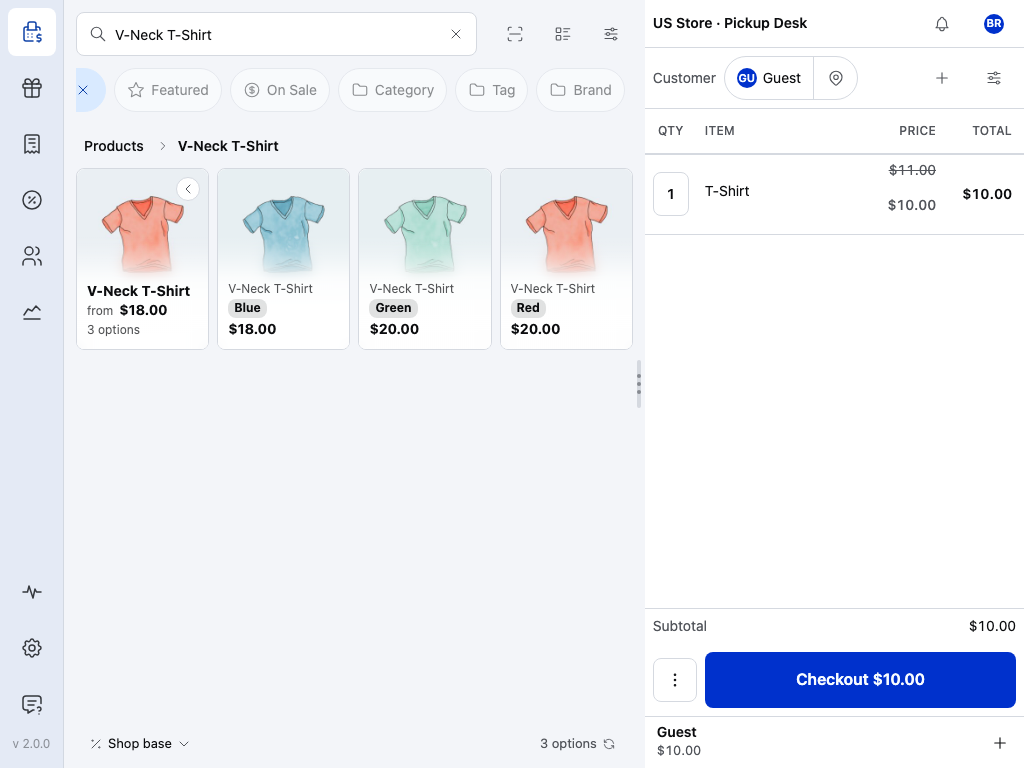
- Where you are — the product you opened.
- Products — tap it to go back to the list you came from.
- The product — its name, price range and how many options it has.
- One option — tap it to add that option to the cart. The chips show what makes it different, such as size and colour.
- … options — the count under the grid now counts this product's options.
This is the Open in place style under Variations in Settings, which is where a new device starts. The other style shows a popover on a tile, or expanded rows in the table. See Variable Products.
When you can't find it
- The list looks short — a filter is still on. Check the bar for anything lit, including In Stock, and clear the search field.
- It's out of stock — it's hidden while In Stock is on. Press the cross on the filter to see it, or turn on Show out-of-stock products in Display Settings.
- It was only just added to the store — search for it. A search asks your store for anything the device doesn't have yet. See Search & Filtering. If it's still missing, press and hold the sync button and choose Clear and Refresh.
- It's marked online only — it won't appear in the POS at all. See POS Only Products.
- You added the wrong one — remove it from the cart with the line's Remove.