Refunds
Refunding from the POS needs WCPOS Pro. Without Pro, the Orders page is a preview only: refund the order in WP Admin under WooCommerce → Orders.
A customer brings something back. This page walks through one refund at the till: one watch from a cash sale of two watches and a backpack. A refund is made on the order the customer paid with, so you start from Orders, not from the cart.
Open the order
Open Orders from the menu and search for the order number or the customer. Tap the order's row to open it; with a mouse, click the arrow at the end of the row.
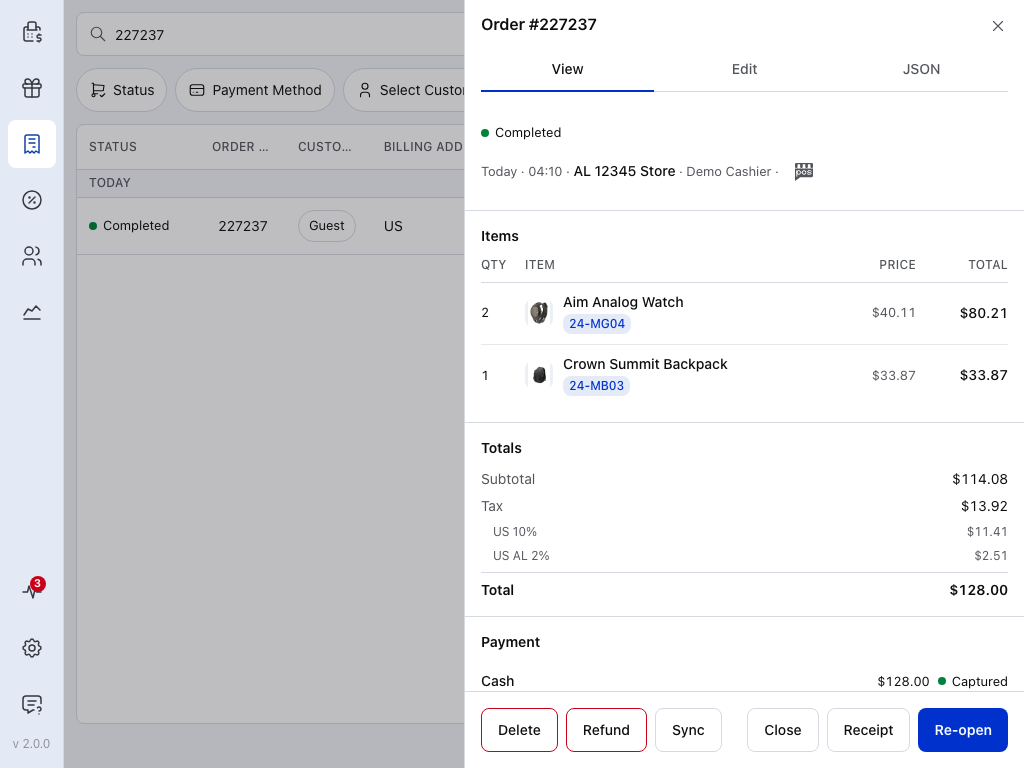
- Order details — when it was paid, at which store, and by which cashier.
- Receipt — the original receipt, to check what was bought. See Receipts.
- Refund — opens the refund form.
Check Items and Payment before you start: they show what the customer bought and how they paid. A cash sale refunds as cash; see Choose where the money goes.
Refund shows only when the order is Completed, Processing or On hold, and it has reached your store. An order still waiting to sync has no Refund button yet.
Choose what to refund
Press Refund. The refund form lists every line of the order. Tap a line's Refund Qty, type how many come back, and press Done. The refund amount for that line includes its tax.
For this return, set the watch's Refund Qty to 1, leave the backpack at 0, and check that Refund Total shows $45.00. For a whole-order refund, set every line to its full quantity.
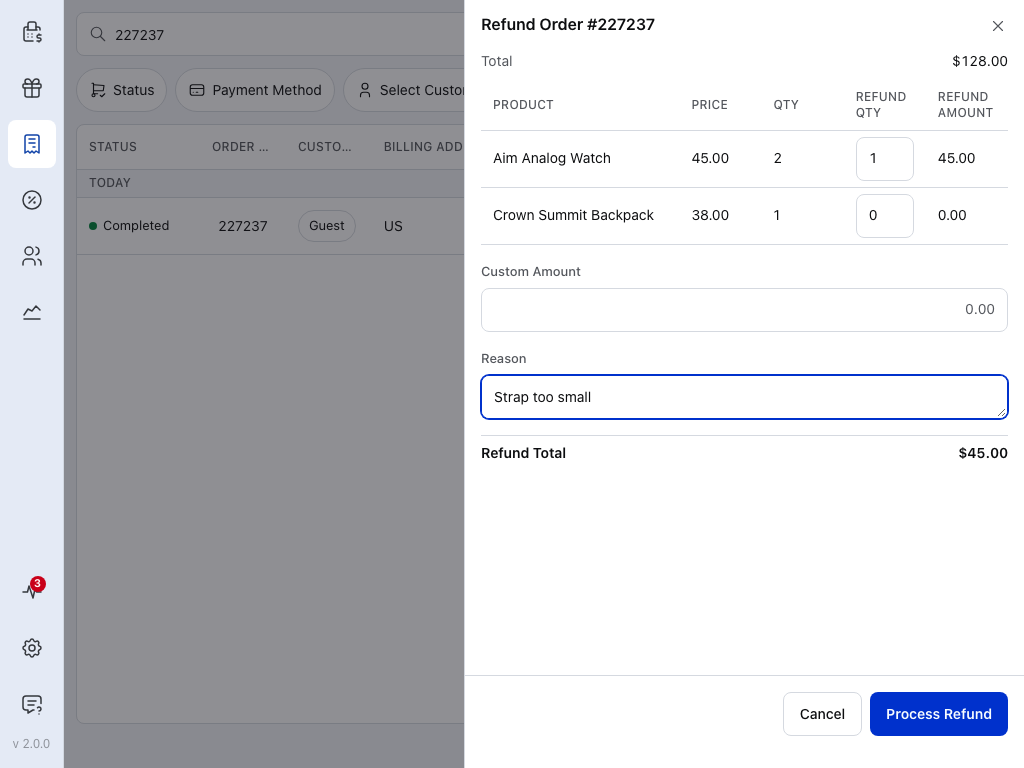
- Refund Qty — how many of this line come back. QTY beside it is how many are still refundable, so items refunded before are already taken off.
- Refund Amount — what this line refunds, tax included.
- Custom Amount — money to refund that isn't tied to a line, such as a price adjustment. It is added to the line amounts.
- Reason — optional. It is saved with the refund and shown on the order.
- Process Refund — greyed out until the Refund Total at the bottom is above zero, and while it is more than is left to refund.
When the order has been refunded before, a Previously Refunded row under Total shows how much.
Choose where the money goes
A cash sale has no choice to make: the refund is recorded as cash handed back from the drawer, as in the walkthrough.
Refund a sale paid another way
When the order was paid another way, the form adds Refund destination between Reason and Refund Total:
- Refund to (payment method) — sends the money back through the payment method the customer used. It is the default when that payment method can refund from WCPOS. When it can't, this option is greyed out with "Original payment method refunds are unavailable for this order."
- Refund via cash — you hand the money back from the drawer, and WCPOS records the refund without contacting the payment method.
Confirm the refund
A refund needs a connection: it can't wait offline like a sale. Press Process Refund. WCPOS asks you to confirm the amount and the order number.
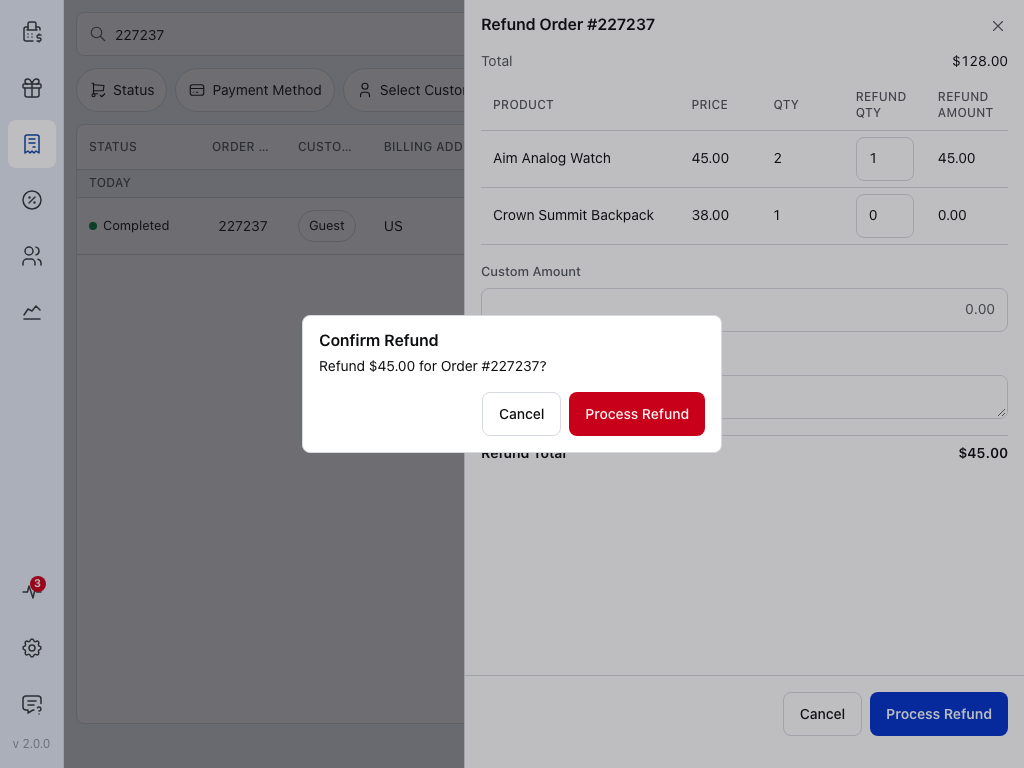
- Process Refund — sends the refund to your store.
When the store accepts it, "Refund of (amount) processed" appears and you're back on the order. For a cash refund, hand the customer the amount now.
If WCPOS says "WCPOS couldn't confirm whether this refund went through," don't press Refund again straight away. Check Refunds on the order first: a second try could refund the customer twice. If the order hasn't updated, check it in WP Admin before trying again. See PAYMENT311.
Check the refund on the order
Once WCPOS has refreshed the order from your store, it shows what was refunded. A part refund marks it Partially refunded, and Payment gains a Refund line with the amount taken off. When everything has been refunded, WooCommerce sets the order to Refunded.
Scroll down to Refunds. Each refund has its own card: the amount, who made it and when, the reason, and the lines it covered. Receipt on the card opens the refund receipt for that refund, to print or send.
Cash refunds and the drawer
If the register is open when you refund cash, the amount it expects in the drawer goes down. In the drawer on your cashier sheet drops by the amount, and the register panel lists it as Cash refunds. When you count and close, the cash you handed back is already accounted for. See Reconciliation.
The register doesn't have to be open to refund. If it's closed, the refund won't reduce its expected cash. If you hand the money back from the drawer, open the register first.
If something goes wrong
There's no Refund button
The order isn't Completed, Processing or On hold, or it hasn't reached your store yet. If its status changed in WP Admin, press Sync on the order and open it again. An order that hasn't reached your store has no Sync or Refund button until it has been sent: check your connection, then open it again.
"…no refund was made"
Nothing was refunded. Fix the cause the message names, then try again:
- "You're offline, so no refund was made." Reconnect first.
- "No refund was made — sign in, then try again." Your sign-in expired. Sign in first.
- "WCPOS was in the background, so no refund was made." The app was put away before the refund went through. Try again now.
The store refused the refund
You see your store's own message, or "Failed to process refund". Nothing was refunded. Read the message, fix what it names, and try again.
Not sure the refund went through
"WCPOS couldn't confirm whether this refund went through" means the refund was sent but no answer came back. Open the order and check Refunds before you try again: a second try could refund the customer twice. See PAYMENT311.
The order still shows no refund
If "Refund of (amount) processed" appeared, your store answered the POS, which normally means the refund was made and the order on the POS hasn't caught up yet. Don't refund it again until you've checked the order in WP Admin: a second try could refund the customer twice.
Refund to the payment method isn't available
- Refund to (payment method) is greyed out. That payment method can't refund from WCPOS. Refund via cash, or refund the order in WP Admin or in the payment provider's own dashboard.
- "Couldn't verify original payment method refunds. Cash refunds are still available." WCPOS couldn't check whether the payment method can refund. Refund via cash, or refund it later.