Clear Local Data
The POS keeps a copy of your store on each device, so it can sell quickly and keep selling offline. Clear All Local Data deletes that copy and downloads it again from your store. It fixes a device whose data has gone wrong in a way nothing smaller can repair. It's the last thing to try, not the first.
Anything this device hasn't sent yet is deleted with the rest, and it can't be recovered. That can include a completed sale, with its money already in your drawer. Check first.
Try these first
Each of these fixes one thing and leaves the rest of the device alone.
- One kind of record looks wrong (products, customers, orders): Clear & re-download… on its row in Store health → Database. Nothing else on the device changes and you stay signed in. Before you clear Orders, finish or sync every open order: one that was never synced exists only on this device.
- A change in WooCommerce hasn't arrived: Check for changes now on the same row menu. See Download & Sync.
- Language, currency or number format is wrong on this device: Restore Server Settings at the foot of Settings → General puts back your WooCommerce store's values. See General settings.
- A screen shows a red "Something went wrong" panel: close it, or reload. See CLIENT151.
Check nothing is waiting to send
Store health counts only the store and cashier signed in now. Each cashier's sales, in each store, are kept apart on the device, and a clear deletes all of them. So check every cashier who uses this device, in every store they use:
- Open Store health and read changes waiting to send on the Database tab. It must be 0, and no … changes never reached your server or … changes were held panel may show below the figures. Settle any panel first: see When something needs you.
- Look at the open orders under the cart. An order you haven't paid or synced exists only on this device, and that count leaves it out. Finish it, or press Sync order in Order details. See Save an order to the store. The strip shows one register at a time: if this cashier uses other registers in this store, choose Switch register in the cashier sheet and check each one.
- Tap the avatar to open the cashier sheet and pick the next cashier. For another store, choose Switch store in the same sheet. See Choosing a store and a register.
- Repeat until every cashier passes. If you can't check everyone, don't clear: contact support.
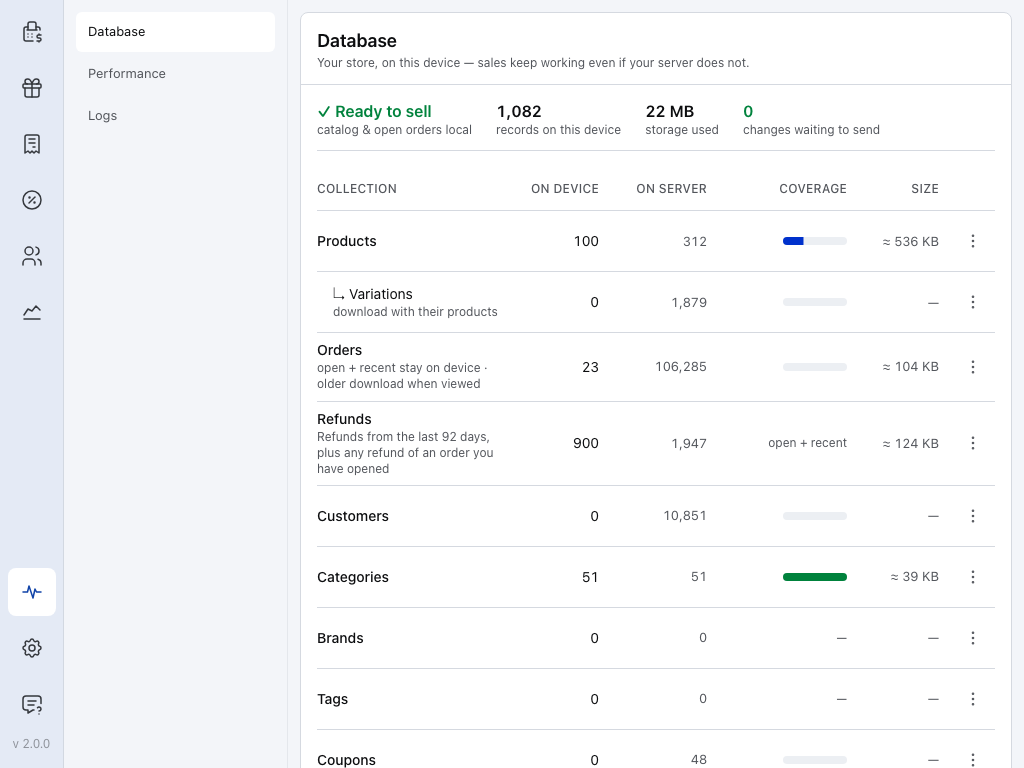
- Store health — the pulse icon at the foot of the menu.
- Database — what is on this device and what is waiting to send.
- changes waiting to send — sales, customers and edits on their way to your store. Open orders still in the cart, and changes waiting for your decision, aren't counted here.
- The table — each kind of record, on this device and in your store. Its ⋮ menus hold the smaller fixes in Try these first.
- 0, no panel, and no open order left unsynced: this cashier's work in this store has reached your store. Check the next one.
- More than 0: don't clear yet. Get the device online and wait for the count to reach 0. If it won't go down, see "changes waiting to send" won't go down.
What gets cleared
Only this device. Your store, and every other device, are untouched. Sales that haven't been sent are lost, and printers, scanners and the register choice have to be set up again. The desktop and mobile apps also forget their stores and sign-ins, so you connect your store again afterwards.
Cleared from this device
- Products, customers, orders, coupons and taxes held here
- Sales and changes not yet sent
- Printers and barcode scanners set up on this device
- Its register choice
- Changes made in Settings → General on this device
- Its activity log in Store health
- The stores and sign-ins in the desktop and mobile apps
Kept in your store
- Everything this device already sent: sales, customers, edits
- Your WooCommerce products, customers and orders
- Settings made in WP Admin
- Your registers, and the closures already sent
After the clear, set up the printers again in Printing, and the scanners in Barcode scanning.
Clear all local data
- Open Settings from the foot of the menu (the gear), then General at the top of its list.
- Scroll to the bottom and press Clear All Local Data.
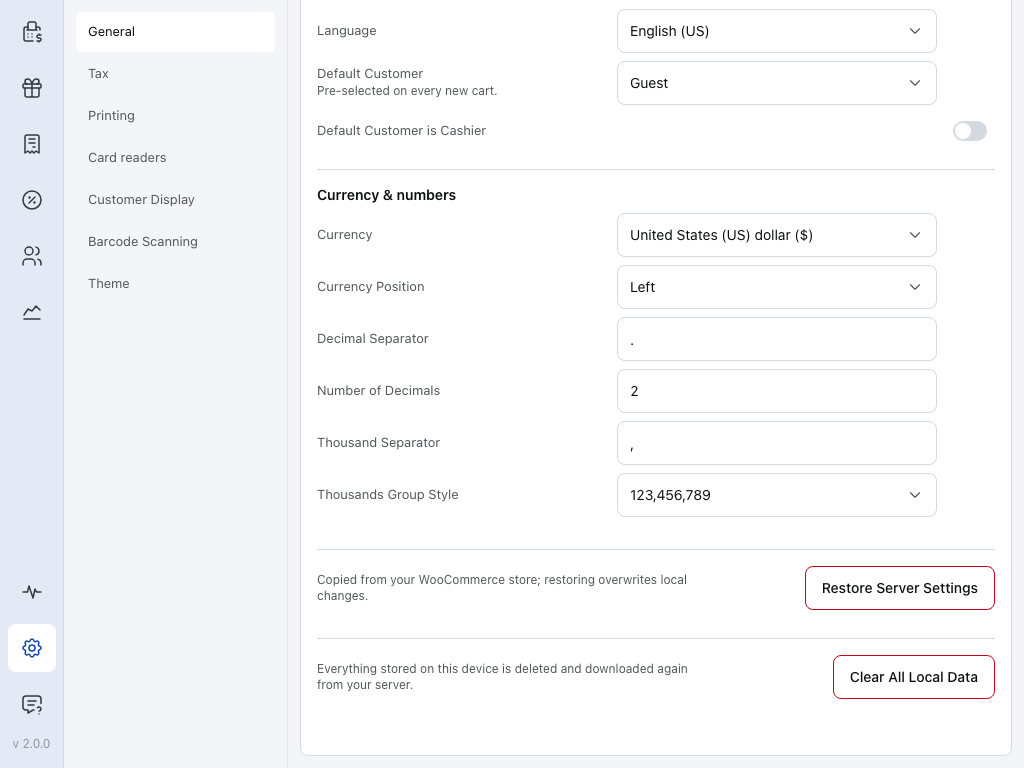
- Settings — the gear at the foot of the menu. General is the first page in its list.
- Restore Server Settings — the smaller fix in Try these first. It deletes nothing.
- Clear All Local Data — the last button on the page. It asks before it deletes anything.
- Read the confirmation. Its first line decides what you do:
- It names a number of changes: press Cancel. N changes on this device have never reached your server and will be permanently lost. Send them first.
- It says the app could not check: go on only if every cashier in every store passed the check: 0 waiting, no panel, no open order left unsynced. Otherwise press Cancel and contact support. The app shows The app could not check for changes waiting to be sent… whenever this store has nothing waiting, because it can't check the other cashiers and stores on the device.
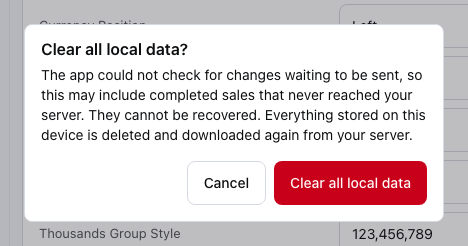
- Cancel — closes the confirmation. Nothing is deleted.
- Clear all local data — deletes everything stored on this device. It can't be undone.
- Press Clear all local data. In the desktop app, it asks Are you sure? once more: press Yes. The POS restarts. In the iOS and Android apps it shows Restart required instead: close the app completely and open it again.
What happens next
In the browser, the page reloads and you're still signed in, because you're signed in to WordPress. In the desktop app, it restarts as if it were new, and you connect your store and sign in again. In the iOS and Android apps, close and reopen the app when it asks, then connect your store and sign in again. See Connect to your store.
Then the POS downloads your products, customers and recent orders, as it did the first time. See Download & Sync. If your store has several registers, the POS asks which one this device is. See Choosing a store and a register.
When the app won't open
If the whole app stops on Something went wrong, with Try again keeps everything on this device, it offers two buttons. Press Try again first.
A reset from this screen, or from the desktop app's menu below, deletes every sale this device hasn't sent. Reset only after each cashier in every store passes the check: 0 changes waiting to send, no panel, no open order left unsynced. If the app won't open far enough to check, contact support before you reset.
- Try again — tries to open the app again and touches no data. Always try it first.
- Reset app data and restart — clears all local data from this screen. It asks Reset app data and restart? and says how many changes would be lost, as the confirmation in Settings does. Press Reset and restart, or Cancel.
The app may not know whether anything is waiting to send. Then the warning says the reset may include completed sales that never reached your server. If you took sales offline that you can't see in WooCommerce, don't reset: contact support.
The desktop app can also clear itself from its menu bar: Window → Advanced → Clear App Data, then Yes. Use it when the app won't open far enough to reach Settings.
If something goes wrong
"Restart required". The app can't restart itself. Close it completely and open it again: it clears its data as it starts.
"Reset didn't finish". The clear stopped partway, and nothing new can be saved until it finishes. Press Reload and retry. If there's no button, close the app completely and open it again.
"Could not clear local data". Close the app completely, open it again, and try once more.
The first download is slow. A big store takes a while. You can watch it in Store health → Database. Records that download on demand, such as older orders, come back as you open them.
The problem came back after a clear. Don't clear it again. Note what you see and contact support.