Logs
Every till keeps a log of what it did: sales, syncs, settings changes and errors. When something goes wrong, the log says what happened, what it means for your sales and what to do next. Your store keeps a second log on the server, in WP Admin, for problems on the WordPress side.
Got an error now? Open the entry to read it, or send the log to support.
When the till has new errors
A red number on Store health, at the foot of the menu, counts the errors logged since you last opened Logs. Past 99 it reads 99+.
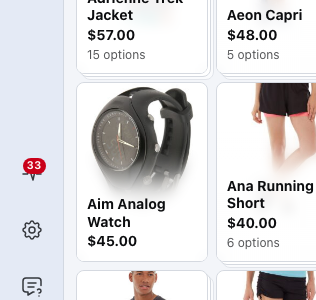
- Store health — the red number counts errors only, not warnings. On a phone, open the menu to see it.
Open Store health, then Logs, and the number clears. Opening Database or Performance doesn't clear it. Each till keeps its own count, for the store and cashier signed in on it, and closing the app doesn't reset it.
Read the log
Each entry is one thing the till did, newest first. Entries are kept for up to 30 days.
The log is this till's working record, not the record of a sale. For a question about a payment, start from the order in WooCommerce → Orders, where each payment keeps its own short history. The log shows what happened on this till around it.
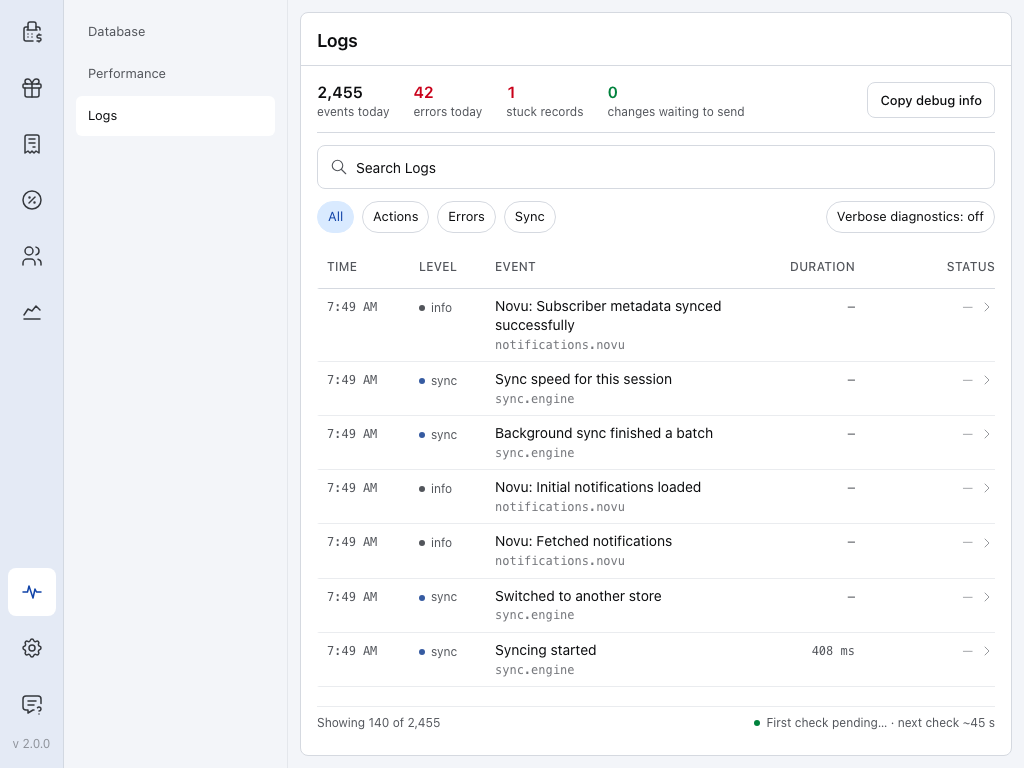
- Store health — where the log lives.
- Logs — the third tab. See Store Health for the figures above the list.
- Errors — only errors. See Find an entry.
- Time — the time for today's entries, the date and time for older ones.
- Level — error, warn, action (something a person did), sync, info or debug (only while Verbose diagnostics is on).
- Event — what happened, with the area of the app under it, and the record's name when there is one. ×2 means the same thing happened twice within a minute or so.
- Duration — how long the job took.
- Status — the error code on an error or warning, ✓ ok when an action worked, otherwise —.
- The status line — Watching for changes, with when this till last checked your store and when it checks next. It reads First check pending… until the first check is done.
Entries next to each other that belong to one job share a coloured edge down the left. Most entries show in the language the till uses now, whatever it used when they were written.
Find an entry
- Search Logs — type an error code, such as SYNC131, or a word from the error.
- All, Actions, Errors, Sync — Actions is what a person did, Sync is the till talking to your store.
- events today, errors today, stuck records — tap events today for All, errors today for Errors, or stuck records for Sync.
- A level — tap it on an entry, such as error, to show only that level. Tap it again, or press the cross on the button it adds, to show them all.
Showing … of … at the foot of the list counts what you've loaded out of the entries that match. Scroll down to load more.
Open an entry
Open Store health → Logs and press Errors. Look for the entry whose time matches when the problem happened, or type its error code in Search Logs. Tap it to read it under its row, and tap it again to close it.
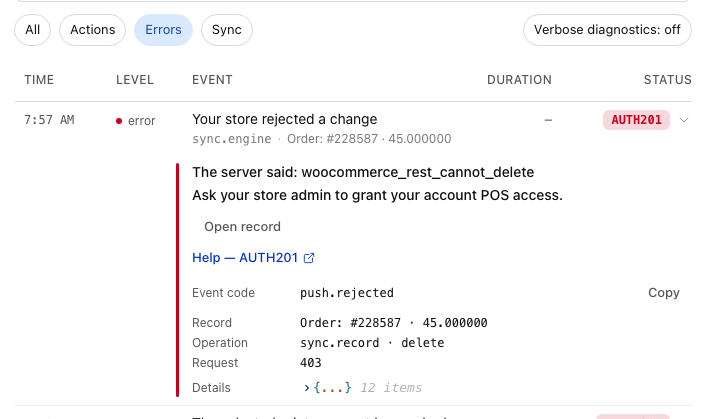
- Errors — the filter that's on.
- The entry — AUTH201 in Status is its error code.
- What happened and what to do — what your store said, when it said something, then one line on what to do. When it matters, a warning comes first, such as Payment has been taken — don't charge again. or Don't clear this device's data.
- Help — AUTH201 — opens the code's page in these docs. See Error Codes.
- Open record — opens the order, product or customer the entry is about, when this till has it, your store has WCPOS Pro, and you're allowed to edit it.
- Copy — copies the whole entry for support. Event code beside it is what the till was doing, the same in every language.
A stuck or refused change has Go to Store health → Database, where it waits for you to choose. See When something needs you. Ask the site admin to check the server logs means the store's own log has the reason: see Your store's log in WP Admin.
More details in an entry
Under these, Record, Operation, Request and Details say what the entry was about. Other entries can have Field, Attempts or Store's reason. An entry with nothing more says No further detail for this entry.
Don't clear this device's data means the till holds sales or changes your store doesn't have yet. Clearing the till's data loses them. See Clear All Local Data.
Send the log to support
-
Open Store health → Logs and press Errors.
-
Open the entry from when the problem happened. If it has an Event code, press Copy beside it (Share in the phone and tablet apps) and paste it into your message. If not, send the error code and the time.
-
Press Copy debug info (Share debug info in the phone and tablet apps) and paste that too.
What the report holds
The app, WordPress, WooCommerce and WCPOS versions, your store's name, the connection, today's figures, up to ten stuck records and the last ten errors.
-
Read what you pasted: Copy on an entry includes the cashier's name when the entry has one, and error messages can name a record. Then send both to support on Discord or by email to support@wcpos.com. See Support.
Never take a payment again just to repeat a problem for support.
- If support asks you to repeat the problem, turn on Verbose diagnostics first, do it again, and send a new report.
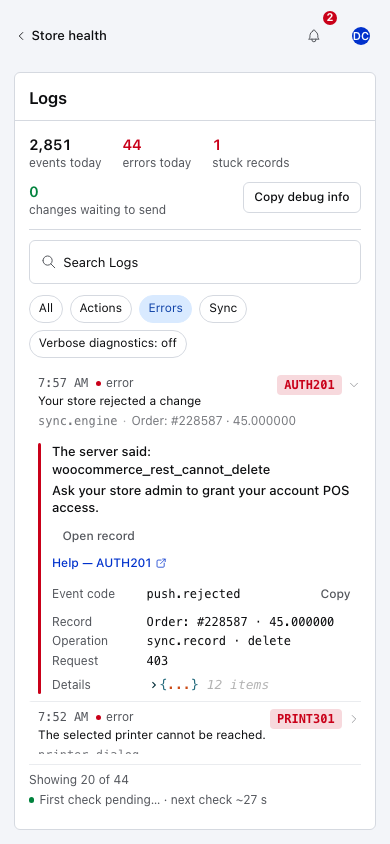
- Copy debug info — a report of this till for support. In the phone and tablet apps it's Share debug info.
- Search Logs — find the entry you were asked about.
- Errors — on, so only errors show.
- Verbose diagnostics: off — tap to log extra detail. It switches itself off after 24 hours.
- The entry — on a phone, time and level on top, then the event, with the area and the record or the duration under it. Tap it to open it.
- Copy — copies the whole entry for your message to support.
Both reports are in English whatever language the till uses.
Your store's log in WP Admin
The plugin keeps its own log on your server, about the POS's requests, sync, payments, printing and registers. Anyone who can open the POS settings in WP Admin can read it: go to POS → Settings and choose Logs under Tools.
Here it is with Warnings on:
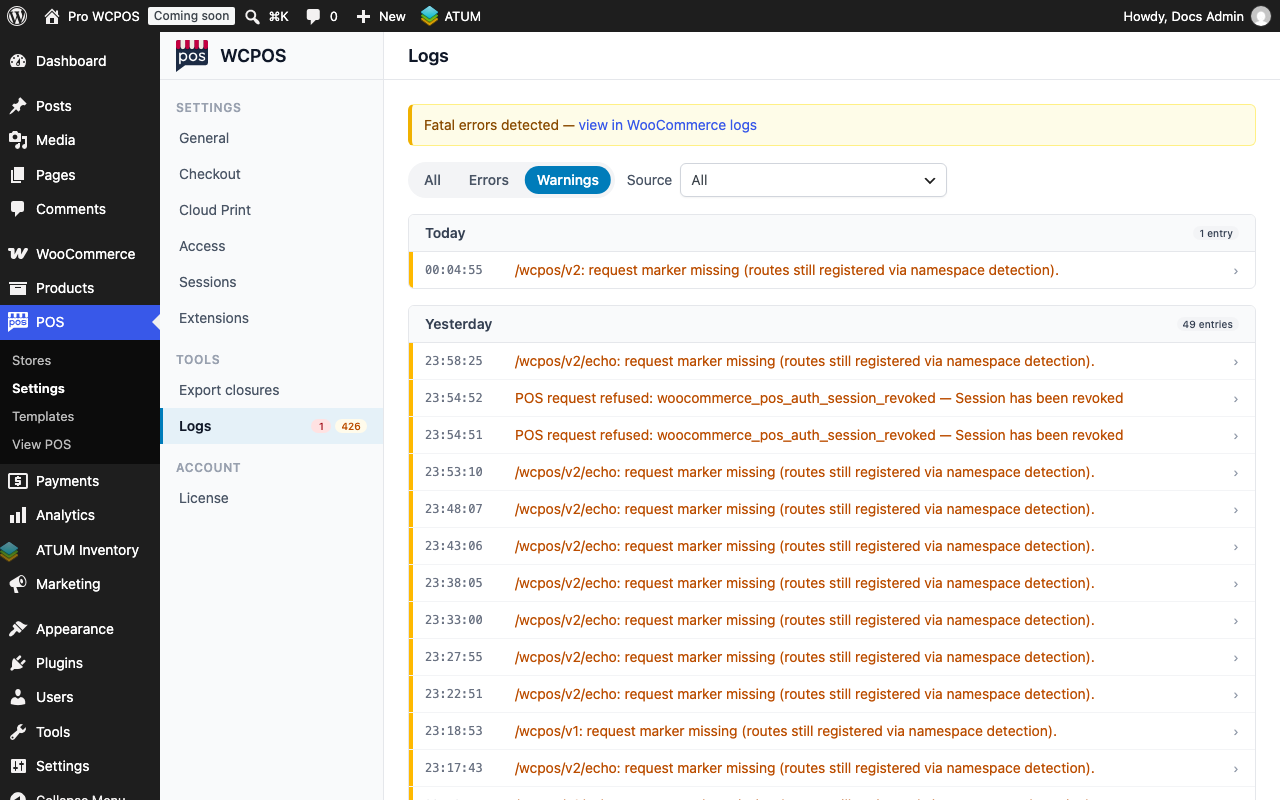
- Logs — under Tools. The red number counts new errors, the amber one new warnings.
- Warnings — the level filter that's on. All and Errors sit beside it.
- Source — which part wrote the entry, when an extension writes its own log.
- Today — entries grouped by day.
- An entry — click it to open it.
- view in WooCommerce logs — opens WooCommerce's own logs. The notice shows when WordPress has logged a fatal PHP error.
For your site administrator: the log in WP Admin
- Red and amber numbers on Logs in the settings menu count the errors and warnings since you last opened it. Each user has their own count, and opening Logs sets it back to 0.
- All, Errors, Warnings — filter by level. A Source list appears when an extension writes its own log.
- Entries by day — under Today, Yesterday or a date, 50 to a page, with Previous and Next.
- Click an entry to open it: its level, source and full time, the message and any context, and a Copy button.
The log is stored with WooCommerce's own logs, so WooCommerce decides how long entries are kept. The page can't clear or download them.
Fatal errors detected — view in WooCommerce logs appears at the top when WordPress has logged a fatal PHP error. The link opens WooCommerce → Status → Logs in a new tab. A crash like this can stop the POS reaching your store: show it to whoever runs your website.
If something goes wrong
The red number comes back. New errors were logged after you last looked. Open Logs, press Errors and read the newest.
"No logs found". Nothing matches the search or filter. Press All and clear the search.
"Last check didn't complete — retrying". The till couldn't reach your store on its last check. It tries again by itself. If changes pile up, see Store Health.
The stuck records count here and in Database differ. Open Store health → Database to see what needs you. stuck records here counts what the log saw; Database also lists changes your store turned down or held back. See When something needs you.
The till is slow. Duration shows how long each job took. For the last 24 hours as a whole, see Performance and Server Performance.