Bluetooth Printers
Symptom: you press Add printer in Settings → Printing, and your Bluetooth printer isn't on the list. Or it was there yesterday and isn't today.
Try the first two fixes, then open the instructions for the app you use.
Turn the printer off and on
A printer that dropped a connection often stops showing itself to other devices until it restarts. Then press Scan again in the Add printer panel.
If your printer appears, pick it and press Print a test page. If it doesn't, try the next fix.
Only one device at a time
Most Bluetooth printers talk to one device at a time. While it is still connected to another phone, tablet or laptop in the shop, it may not show up here, or may refuse this device. Disconnect it from that device, or switch off that device's Bluetooth, then scan again.
Where each app looks
Each app finds Bluetooth printers its own way. Not sure whether your printer needs pairing first? See Classic or Low Energy.
Open the app you use:
Web app (Chrome or Edge)
Press Find a Bluetooth printer, then pick your printer in the browser's own pop-up. Only Bluetooth Low Energy printers appear there. Safari and Firefox can't reach Bluetooth printers: see Browser permissions.
Desktop app
Press Find a Bluetooth printer, then pick it under Choose your Bluetooth printer. Bluetooth Classic printers you have paired in the computer's settings show up in the search itself: see Classic printers in the desktop app.
iPhone and iPad
The search lists Bluetooth printers as cards by itself. Bluetooth must be on, and the app must be allowed to use it.
Android
The search lists Bluetooth printers as cards by itself, including the Bluetooth Classic printers paired on the phone. Bluetooth must be on, and the app needs the Nearby devices permission: see Android permissions.
In the web app, an empty search looks like this. The desktop app shows the same panel without Find a USB printer:
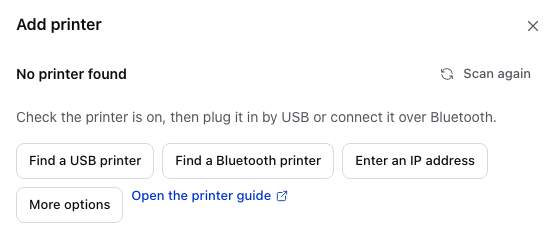
- Scan again — searches once more. Press it after each fix on this page.
- Find a Bluetooth printer — in a browser or the desktop app, opens the list of nearby Bluetooth printers. The phone and tablet apps have no such button: their search already looks for Bluetooth printers.
- Open the printer guide — the printer pages, for anything that isn't Bluetooth.
Classic or Low Energy
There are two kinds of Bluetooth printer, and they don't reach the same apps.
Which is yours? Look up your exact model in its manual or spec sheet, and match the words it uses. Check your model in Supported printers too.
- Bluetooth Low Energy (also BLE) — the web app (in Chrome or Edge), the desktop app and the mobile apps can search for these, without pairing. Don't pair them in the computer's or phone's Bluetooth settings: if you already did and the printer has gone missing, remove it there and scan again.
- Bluetooth Classic (also SPP or Bluetooth 2.0) — pair these in the computer's or phone's Bluetooth settings first, then scan in the app. A browser can't reach them at all; use the desktop or mobile app. On iPhone and iPad, only Epson and Star Classic printers work: see Supported printers.
Not sure, or it says both
Size and brand don't settle it: many small 58 mm printers are Low Energy, while many Epson and Star models and many other low-cost 58 mm printers are Classic. Some printers speak both: use them as Low Energy printers, without pairing. A printer that appears in the browser's or the desktop app's Bluetooth list speaks Low Energy. Supported printers lists the models we have tested.
Classic printers in the desktop app
On a Mac, a Classic printer you have paired in System Settings → Bluetooth shows up in the search as a Bluetooth card. On Windows, it shows up once Windows lists it as an installed printer.
On Android, pair Classic printers first
The Android app lists the Bluetooth Classic printers your phone has already paired. It can't pair one itself.
- On the phone, open Settings → Connected devices → Pair new device (the names vary a little by phone maker). On the No printer found screen, Open Bluetooth settings takes you to the phone's Bluetooth settings.
- Pick your printer. If it asks for a PIN, try
0000or1234, or read it off the printer's status sheet. - Come back to the app and press Scan again.
A printer that is paired but switched off still shows up as a card. Switch it on before you print the test page.
If the printer also speaks Bluetooth Low Energy, the app shows it once, as a Low Energy card, and it doesn't need pairing.
Find its Bluetooth name
When several devices look alike, print the printer's status sheet. On an Epson, open the roll cover, hold Feed for a second, then close the cover; on a Star, hold Feed for five seconds while it's switched on; on most others, hold Feed while you switch it on. It lists the printer's Bluetooth name and address, and often its PIN. Look for that name in the list.
The name doesn't look like a printer
The apps sort Bluetooth devices by name, so a shop full of phones and headphones doesn't bury your printer. Names such as Printer, POS or a maker's name (Epson, Star, Xprinter, MUNBYN and others) count as printers.
- Desktop app: printers lead the list, each marked Likely a printer. Devices with no name hide behind Show … unnamed devices.
- Phone and tablet apps: a printer whose name doesn't look like a printer may not be listed. Use the desktop app, or connect the printer by Wi-Fi or USB, and send us the setup report (below).
When the test page doesn't print
After you pick the printer and press Print a test page, Nothing printed says what to try. For a Bluetooth printer it is usually one of these four. Open the one that matches:
"Turn the printer off and on again, then try again."
The general Bluetooth fix, when the app can't tell more. See Turn the printer off and on.
"Put the printer in pairing mode, then try again."
The printer wasn't found, or wouldn't pair, when the app tried to connect. The printer's manual says how to put it in pairing mode.
"Pair the printer in this phone's Bluetooth settings, then scan again."
The phone isn't paired with the printer (any more). Press Open Bluetooth settings and pair it again.
"The printer did not answer. Check it is on and connected, then try again."
Check the printer is switched on, and bring your phone, tablet or computer closer, then try again.
The printer setup wizard walks through the rest of the test.
Still stuck?
On Nothing printed, press Copy setup report and paste it into your message.
If your printer never appears, tell us its model, which app you use, and what you have tried.