Staff Permissions
Who can use the POS, and what they can do in it, is set per WordPress role. Every account gets the permissions of its role, so you change them once for all your cashiers, not person by person. WCPOS adds a Cashier role for till staff; Administrator comes with WordPress and Shop Manager with WooCommerce.
Change what a role can do
Without Use the POS, or with Manage orders taken away, the POS refuses the sign-in and names what is missing. See If something goes wrong.
Who can open Access: the whole POS menu in WP Admin needs Manage POS settings, which Administrator and Shop Manager have and Cashier doesn't. If you can't open Access, or a change won't save, ask your site's administrator.
- Go to WP Admin > POS > Settings and choose Access in the sidebar. Not the Settings screen inside the POS: that one holds only this device's preferences, and every POS user can open it.
- Choose the role in the role list on the left. Administrator is selected first. A role with an amber dot has been changed from the WCPOS defaults.
- Under What a Cashier can do (the heading names the role you chose), tick a task to grant it or untick it to take it away.
- There is no Save button: each tick saves straight away. You'll see Saving, then Saved. If the store refuses the change, the box goes back and a notice says why.
- Ask anyone signed in with that role to sign out of the POS and back in, so the POS picks up the new permissions. The store applies them at once.
What saving a change needs
Besides Manage POS settings, saving needs the WordPress capabilities edit_users and promote_users. On a single WordPress site, administrators have both.
Tasks and the Cashier defaults
What each task lets a role do, grouped by what the Cashier role has on a fresh install.
Cashier can, by default:
- Use the POS: sign in to the POS and sell.
- Create & edit products: add products and change their name, price, stock, barcode and cost, variations included.
- Create & edit coupons: add coupons and change their code, amount, expiry and description (WCPOS Pro).
- Manage orders: save orders, reopen and change them, including orders taken by another cashier and orders from your online shop.
- Manage customers: find customers, add new ones and change their details.
- Manage categories & tags: add and change product categories and tags.
Cashier can't, by default:
- Manage POS settings: open the POS menu in WP Admin, including this screen, the receipt templates and the store's log.
- Delete products: delete products and variations.
- Delete coupons: delete coupons (WCPOS Pro).
Administrator and Shop Manager start with every POS permission. Their product, order and customer tasks show what WooCommerce and WordPress gave those roles; WCPOS doesn't change them.
What each default role can do, at a glance
- Administrator: everything, in the POS and in WP Admin.
- Shop Manager: the POS menu in WP Admin, the till permissions, and whatever WooCommerce lets a shop manager do with products, orders and customers. Not installing POS extensions, which needs the right to install plugins.
- Cashier: selling, with products, coupons, orders and customers to create and edit, and the register to open, count and close. No deleting, no POS settings and no approving a count that is out.
For which store request each role may make, see Role Endpoint Access.
When a cashier sees "You don't have permission"
With WCPOS Pro, the Products, Coupons and Customers screens and the cart's New coupon and Add new customer buttons follow the cashier's role. A control the role isn't allowed to use is greyed out, and its tooltip tells the cashier who can fix it:
You don't have permission to create coupons. An administrator can grant it in WP Admin > POS > Settings > Access.
Each hint names the task to tick for the cashier's role:
- "…to create coupons" or "…to edit coupons": tick Create & edit coupons.
- "…to edit products" or "…to edit variations": tick Create & edit products.
- "…to create customers" or "…to edit customers": tick Manage customers.
Without Pro, the same controls say Upgrade to Pro instead. Whatever the screen shows, the store checks every change again. A product, coupon or customer change it refuses is put back on the device, and Store health > Logs records it as Reverted a change your store rejected.
In the cart, New coupon is the + beside the Coupon field in the Add Discount dialog. Only that button depends on the role; picking and applying an existing coupon needs nothing more than Use the POS.
Find the New coupon button
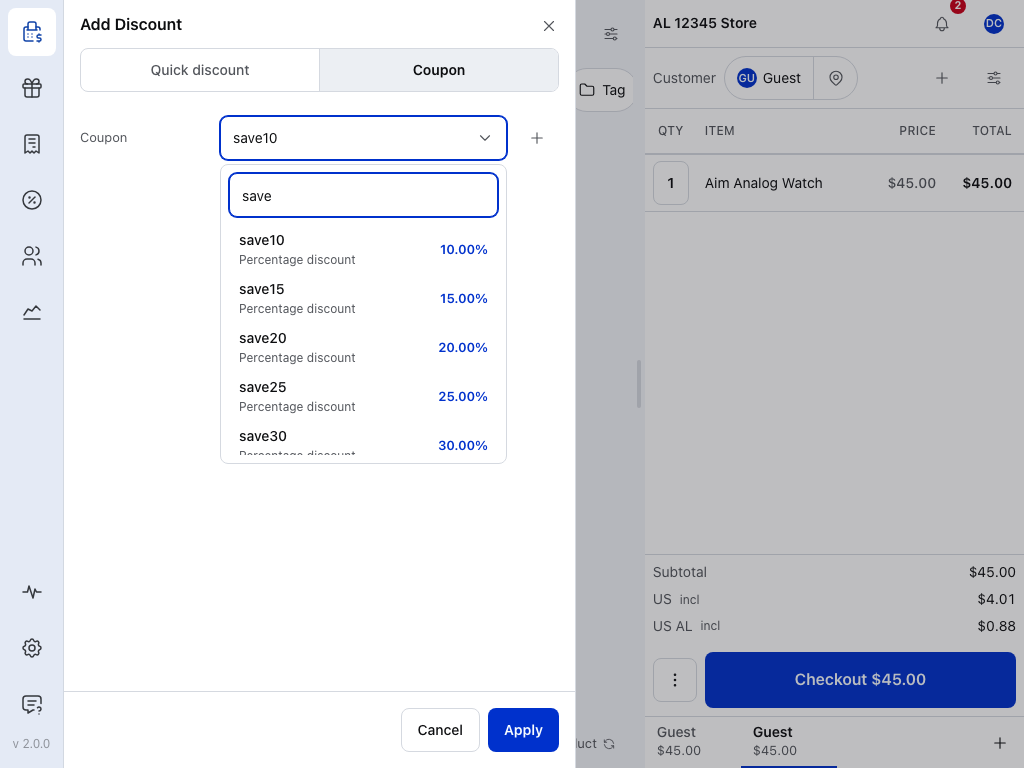
- Quick discount — an amount or percentage off that isn't a coupon. It needs no coupon permission.
- Coupon — the coupons your store already has. Every role with Use the POS can see them.
- Select coupon — picking an existing coupon needs only Use the POS.
- Search — find a coupon by its code, open to every POS user.
- A coupon — its code, type and amount. Changing these on the Coupons screen needs Create & edit coupons.
- New coupon — make a coupon from the till. Without Create & edit coupons it is greyed out, with the hint above.
- Apply — puts the coupon on the cart; no coupon permission needed. See Applying Coupons.
Till permissions
The register has four permissions of its own. They are not tasks: open Advanced at the foot of the Access screen to change them. For the names they carry there, open Names to find in Advanced below the list. Who has each one by default is in italics.
- Running the till: open the register, record paid in, paid out and no sale, and count and close. Cashier, Shop Manager, Administrator.
- Seeing the till's figures: the expected cash, the X-report, the printed closure and Reports. Without it the cashier counts blind: no expected cash and no difference on screen, and the closure can't be printed. Cashier, Shop Manager, Administrator.
- Approving closures: approve a count that is out by more than the limit, and recount a closure. The approver must be someone other than the cashier who opened the register and the one closing it. Shop Manager, Administrator.
- Reassigning sales: set aside for changing the cashier on a sale after it was taken. The POS doesn't offer that yet, so changing it has no effect for now. Shop Manager, Administrator.
Names to find in Advanced
Advanced lists these four by their capability names, under WCPOS:
- Running the till:
manage_woocommerce_pos_cash - Seeing the till's figures:
view_woocommerce_pos_reports - Approving closures:
manage_woocommerce_pos_closures - Reassigning sales:
reassign_woocommerce_pos_sales
The limit is Ask a manager when the count is out by more than, in Registers. For the count itself, see Open the Register.
Partly granted tasks and restoring the defaults
A box shows a dash and a badge such as 3 of 7: the role holds only part of that task. Tick the box to grant the whole task, or untick it to remove it.
To put a role back as it was on a fresh install: choose the role, press Restore defaults under its heading, check the list of changes in the dialog, then press Restore defaults again. The button is greyed out while the role still matches the defaults.
A restore writes only the capabilities WCPOS sets: for Cashier, every capability the Access screen lists; for any other role, only the six under WCPOS in Advanced. Anything else on the role is left alone, but one of those goes back to the WCPOS default even if another plugin granted it.
How partly granted tasks work
Each task stands for a set of capabilities. When a role holds only some of them, the box shows a dash and a badge such as 3 of 7 appears next to the task. Point at the badge to read what it means, or press Review to open Advanced and see which capabilities are missing. Ticking a dashed box grants the rest of the set; unticking it removes the whole set.
What Restore defaults changes for each role
Under the role's heading, Using the WCPOS defaults or Changed from the WCPOS defaults says whether the role still matches a fresh install. Before anything is written, a dialog titled Restore the default privileges for Cashier? lists under What will change each task it will Grant, Remove or Keep, then any capability under Advanced it would change. Press Restore defaults to confirm, or Cancel.
- Cashier: the full set WCPOS installs, as in the task list and till permissions above.
- Administrator and Shop Manager: only the POS permissions. WCPOS doesn't own these roles' WooCommerce or WordPress permissions.
- Any other role: no POS access. The dialog is titled Remove POS privileges from …? instead.
What re-activating or updating the plugin does to permissions
Deactivating and re-activating the WCPOS plugin re-adds every default grant to Administrator, Shop Manager and Cashier. It doesn't take away anything you added, such as Delete products. A plugin update grants only capabilities that are new in that release, so a task you turned off stays off. The exception is the first update from 1.10.17 or earlier: it re-adds every default once, as re-activating does.
Every capability on the Access screen
Advanced lists each capability under WCPOS, WooCommerce or WordPress. Change them one by one only if a task doesn't fit.
| Capability | Task | What it does in the POS |
|---|---|---|
access_woocommerce_pos | Use the POS | Sign in and use the POS. Without it the POS refuses the sign-in. |
manage_woocommerce_pos | Manage POS settings | The POS menu in WP Admin and its settings. Administrator always keeps it. |
manage_woocommerce_pos_cash, view_woocommerce_pos_reports, manage_woocommerce_pos_closures, reassign_woocommerce_pos_sales | none | See Till permissions. |
edit_products, edit_others_products, edit_published_products | Create & edit products | Change products. |
edit_product | Create & edit products | Change variations. |
publish_products, edit_private_products | Create & edit products | Add products; change private ones. |
read_private_products | Create & edit products | Load the product list. Without it no products load, not only private ones. |
delete_product, delete_products, delete_others_products, delete_private_products, delete_published_products | Delete products | Delete products and variations. |
edit_shop_coupons, edit_others_shop_coupons, edit_private_shop_coupons, edit_published_shop_coupons, publish_shop_coupons | Create & edit coupons | Add and change coupons. |
read_private_shop_coupons | Create & edit coupons | Part of the WooCommerce set. The POS reads coupons with Use the POS alone, so turning this off doesn't hide them. |
delete_shop_coupons, delete_others_shop_coupons, delete_private_shop_coupons, delete_published_shop_coupons | Delete coupons | Delete coupons. |
publish_shop_orders | Manage orders | Save new orders. Without it the POS refuses the sign-in. |
read_private_shop_orders | Manage orders | Load orders. |
edit_shop_orders | Manage orders | Change orders. |
edit_others_shop_orders | Manage orders | Change orders taken by another cashier, and orders from your online shop. |
list_users | Manage customers | Find customers. Without it the customer list is empty. |
edit_users | Manage customers | Change a customer's details. |
create_customers (WooCommerce 9.9 and later) or promote_users (earlier) | Manage customers | Add new customers. |
manage_product_terms | Manage categories & tags | Add and change categories and tags. |
read | none | The WordPress Dashboard and the user's own profile. Administrator always keeps it. |
Staff accounts in the customer list
The POS customer list shows every WordPress user, staff included, because any account can be the customer on an order. Changing one is narrower than finding it: only an administrator can edit or delete a staff account from the POS, whatever Manage customers says. Anyone else gets Only an administrator can edit or delete a staff account from the POS. Everyone can still edit their own account.
Staff means administrators, shop managers, cashiers, and editors, authors and contributors.
How staff accounts are identified
An account counts as staff when it holds any of manage_options, manage_woocommerce, edit_users or edit_posts. A custom role with one of those counts as staff too.
A user with more than one role
Symptom: a user with two roles, such as Administrator and Customer, is refused a permission one of the roles grants.
To fix it: remove the extra role from the account (Users > All Users, then edit the account), or open that role in the role editor and clear the Deny marks. Then the user signs in again.
Why a second role can take a permission away
One account can hold several roles, usually set with a role-editor plugin such as Members. WordPress adds up what every role grants, so a second role rarely takes anything away on its own. A role editor's Deny is different: a capability denied on one role can override a grant from another, and Members applies the deny first. An Administrator who is also a Customer can lose whatever the Customer role denies.
The Access screen shows each role's own ticks. A Deny shows there only as an unticked box on the role it was placed on, and looks the same as "not granted". Ticking that box writes a grant over the deny.
If something goes wrong
"This account cannot use the POS. Missing capabilities: …" The role lacks Use the POS or Manage orders, and the POS refuses the sign-in. Tick the task for the user's role. If the user has two or more roles, see A user with more than one role.
The full message, with one role and with several
The message lists what is missing, such as publish_shop_orders for Manage orders. With one role, it says to grant the capabilities under WCPOS Settings, Access, or to assign a role that has them. An account with two or more roles reads, for example:
This account cannot use the POS. Missing capabilities: publish_shop_orders, read_private_products, read_private_shop_orders, list_users. It has the roles Customer, Administrator. A capability denied on one role can override a grant from another, and role-editor plugins such as Members apply that deny first. Remove the extra role or clear the deny in the role editor.
The cashier signs in, but no products, customers or orders load. Tick Create & edit products, Manage customers or Manage orders again for the cashier's role, or look for a Deny on a second role.
Why the screens come up empty
The role is missing read_private_products, list_users or read_private_shop_orders. Those don't stop the sign-in, so every screen comes up empty instead. The till's log at Store health > Logs records each refused request as AUTH201.
A cashier's permissions came back after you turned them off. Someone deactivated and re-activated the plugin, or the store updated from 1.10.17 or earlier; both re-add the default grants. Untick the tasks again.
The tick on Administrator won't come off. Administrator always keeps Manage POS settings and read, so nobody can lock themselves out of the screen.
Pro adds stores. A store's Staff list offers everyone who has Use the POS, through their role or granted to them alone, and editing a store needs Manage POS settings. See Setting up stores. The Products, Coupons and Customers screens can change records only with Pro.