Offline Mode
The POS keeps your products, customers and open orders on the device. When the internet drops, or your store stops answering, you keep selling: cash, cards on your own terminal and other payments recorded at the till, for any sale that reached your store before the connection went. Each sale waits on the device and sends itself when the store is back. This page walks through one sale taken offline, from the moment the connection goes to the moment it returns.
Know when you're offline
You don't need to do anything when the connection drops. The POS tells you, and you carry on.
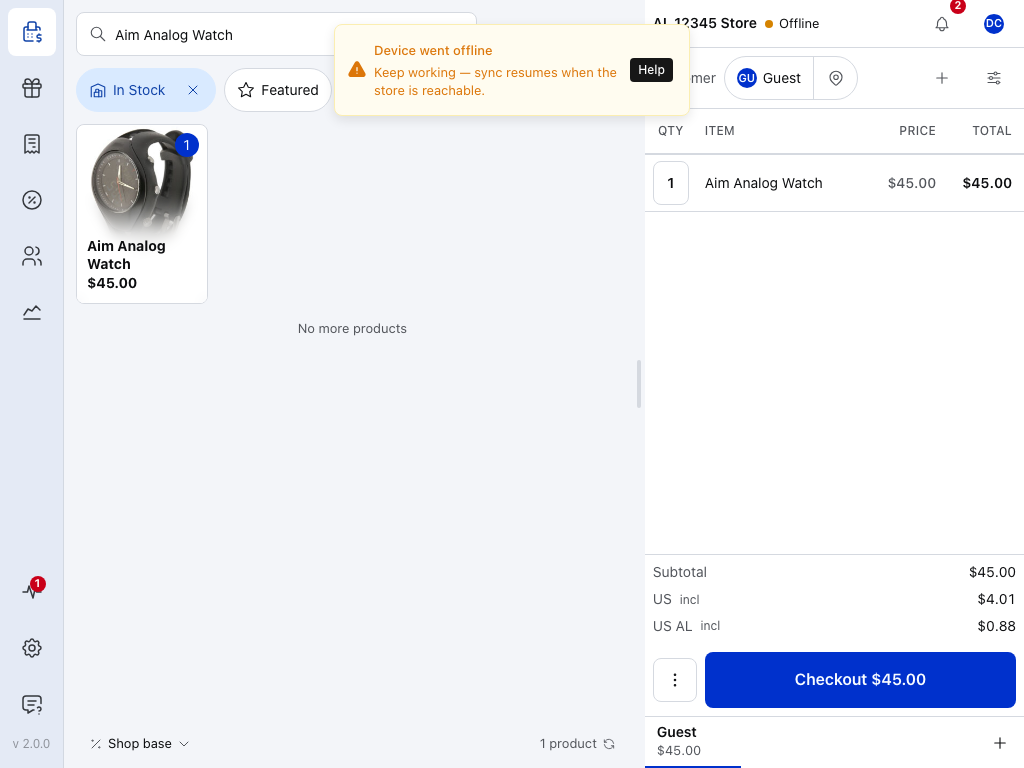
- Offline — beside the store name in the register bar. It also says Offline when the device has internet but your store isn't answering. On the other screens (Orders, Products, Customers) the same Offline badge sits in the page bar.
- Device went offline — appears once the connection has been gone for a few seconds. Help opens what the message means. When it's your store that stops answering instead, the message reads Website is unreachable.
- Search products — searches what's on the device, so you can still find and sell anything already downloaded.
- Checkout — works as usual for building the sale. A sale started while offline can't be paid until the store is back; it waits in your open orders. For a sale the store already has, it depends on the method: see Take a payment offline.
- Health — Store health, where you can see what's on the device and what's still waiting to send.
What keeps working
- Finding products and customers — search, filters and scans, from what's on the device.
- Building carts — add items, change quantities and prices, add discounts and fees, apply coupon codes already on the device, switch between open orders.
- Taking payment — Cash, Card for a card taken on your own terminal, and the other methods you record at the till, such as cash on delivery, bank transfer or cheque. Each works for a sale the store already knows about: see Take a payment offline.
- Receipts — the paid screen, printing on a printer attached to the till, and emails that wait to send.
- The register — sales go into the drawer as usual. Handing the till to another cashier and switching register work too.
- Saving changes — a new customer, an edited order, a receipt email. Each one is kept on the device and sent later.
Take a payment offline
A payment can be taken offline only on a sale that reached your store before the connection dropped: its order number shows above the items in Checkout. A sale started while offline has no number yet. Press Checkout and you see No connection instead of the payment methods: the sale is saved in your open orders, and its tab says In checkout · offline. Press Back to the register, serve the next customer, and take the payment once the store is back. See No connection.
- Press Checkout and check for the order number above the items, such as #224371.
- Tap Cash, Card for a card taken on your own terminal, or another method recorded at the till.
- Enter what the customer gave you, or tap the exact amount.
- Press Take, then confirm.
Offline, the tender pane says Offline beside the amount, and each payment method says whether it can be taken now.
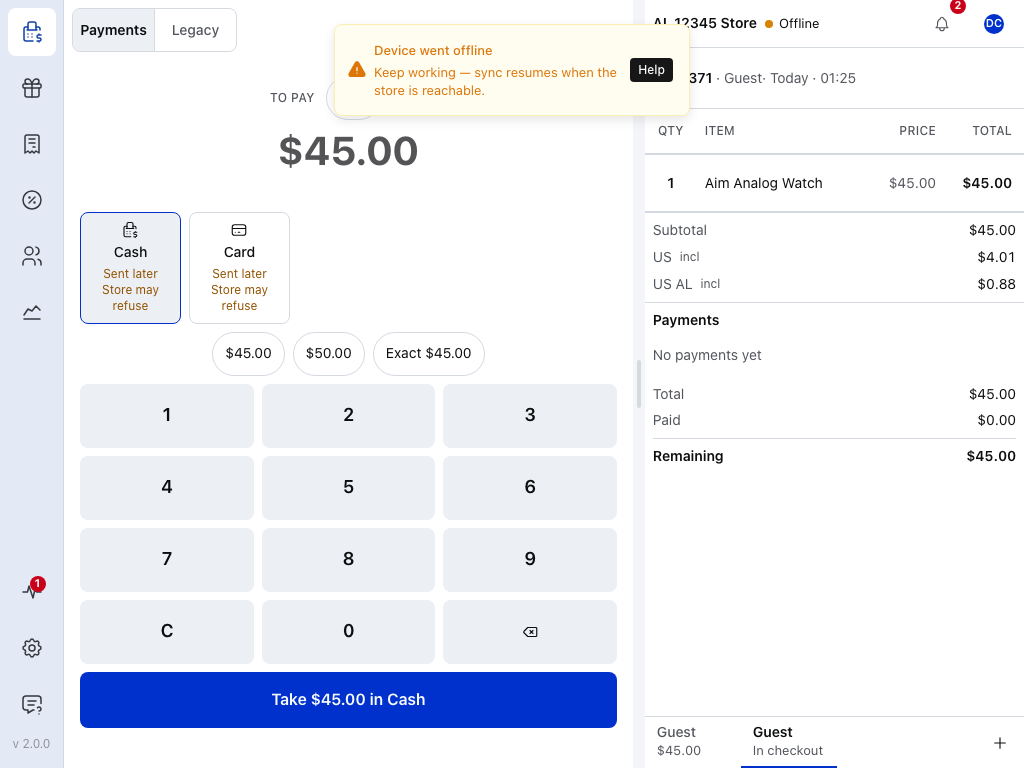
- Offline — the register bar keeps telling you.
- Cash — taken at the till, so it works offline.
- Card — a card taken on your own terminal and recorded at the till works offline too. A card reader paired with the till, or an online gateway, says Needs a connection instead, under … not available right now.
- Sent later · Store may refuse — the payment is recorded now and sent to your store when it's back. The store checks it then.
- Sent later · Store may refuse — the same for the card.
- Take $45.00 in Cash — names the amount and the method, as it always does.
When you press Take, the POS asks you to confirm, because the store hasn't seen this payment yet.
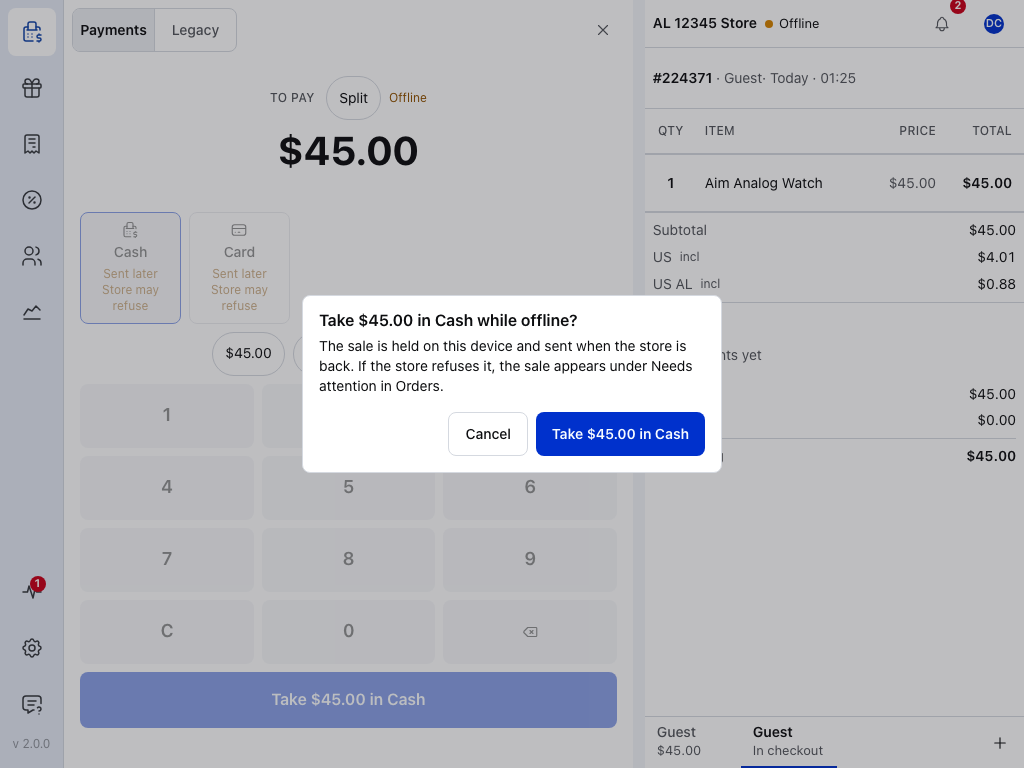
- Behind the question — the tender pane waits, dimmed. Nothing is taken until you choose.
- Take … while offline? — the sale is held on this device and sent when the store is back. If the store refuses it, it shows under Needs attention in Orders.
- Cancel — back to the tender pane, nothing taken.
- Take $45.00 in Cash — records the payment. Give the change as usual.
The receipt before the store confirms
The sale is paid. Until the store has it, the paid screen says so, and so does the receipt.
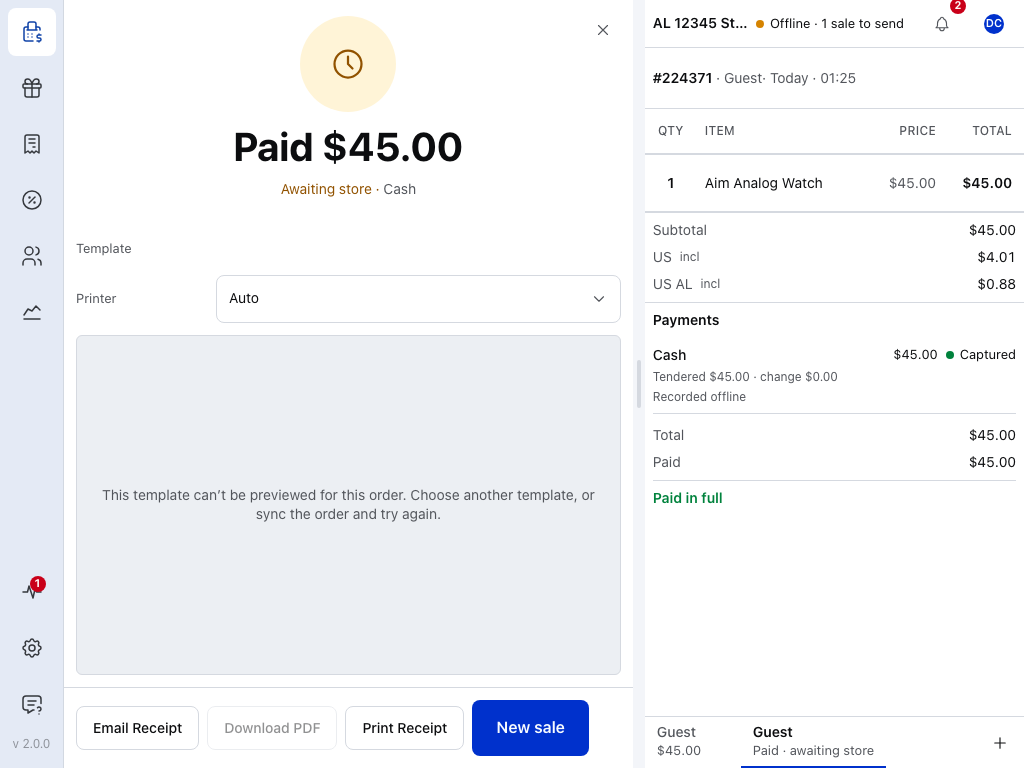
- Clock — paid, not yet confirmed by the store. It becomes the usual tick once the store has the sale.
- Awaiting store — before the method that paid. The open order's tab says Paid · awaiting store, and the payment in the cart reads Recorded offline.
- Offline · 1 sale to send — how many sales this device is holding for the store.
- Print Receipt — prints on a printer attached to the till. The receipt carries the line Awaiting store · not yet confirmed. A printer that prints the store's copy waits: it asks you to print again once the store has confirmed the sale. See Print Receipt.
- Email Receipt — still works: the email waits to send. See below.
- Download PDF — needs your store, so it's greyed out.
- New sale — an empty cart for the next customer.
The preview may say This template can't be previewed for this order. That's the store's template waiting for the store: the printed receipt is unaffected.
Press Email Receipt to send the customer their receipt anyway.
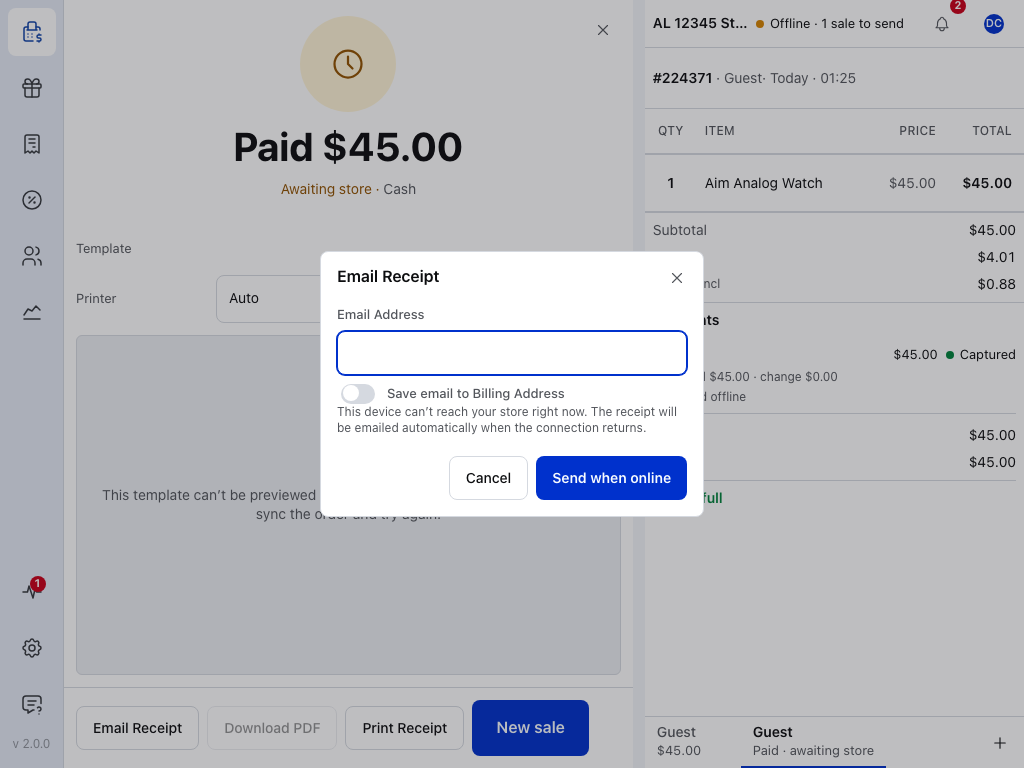
- This device can't reach your store right now — the receipt is emailed automatically when the connection returns.
- Send when online — takes the place of Send. Press it and you'll see Receipt email queued. See Email Receipt.
Sales waiting to send
Everything you do offline stays on this device, even if the connection drops mid-sale or you close the app. It sends automatically once you're signed in and the store is reachable: you don't press anything. Tap your avatar at the end of the register bar to see what's waiting.
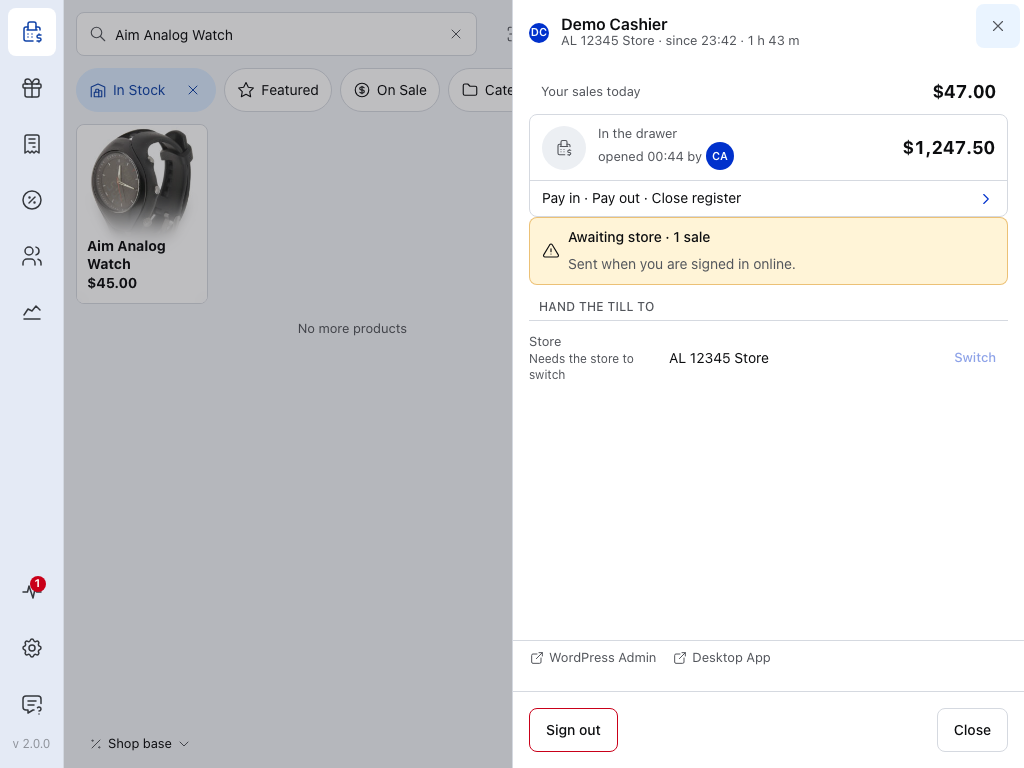
- Awaiting store · 1 sale — sales this device has taken that the store hasn't received yet. Sent when you are signed in online: you don't need to press anything.
- Switch — greyed out with Needs the store to switch. Changing store waits for the connection. Handing the till over, switching register and signing out still work.
In the register bar:
- Offline — no connection, nothing waiting.
- Offline · 1 sale to send — no connection, sales waiting.
- 1 sale awaiting store — the connection is back, and the store hasn't answered for these sales yet.
You may also see:
- 1 sale waiting to sync — on the banner when the store asks you to sign in again. See Signing in and the drawer.
- Waits here for you — when you hand the till over with sales still waiting, with the number of unsent sales. They stay on this device and send once you're signed in and back online.
- changes waiting to send — in Store health → Database: every change still on this device, including customers, edits and receipt emails.
Clearing local data throws away every change that hasn't reached your store. A sale taken offline is money already in your drawer.
When the connection comes back
Waiting sales send automatically, usually within seconds.
A Connection restored message appears at the top of the screen, and the register bar reads 1 sale awaiting store until the store has every sale; then it disappears. Card readers, online gateways and everything in What needs a connection work again.
Products, prices and customers changed in your store while you were offline download by themselves soon after you're back online. To check that every sale arrived, open Store health → Database: changes waiting to send reads 0, and no panel above the table asks you to decide anything. See When something needs you.
What needs a connection
- Card readers paired with the till and online gateways — the tile says Needs a connection. If the sale already has an order number, take cash or record a card taken on your own terminal. Otherwise, leave it open and take the payment when the store is back. Offline payments through card readers are on the roadmap.
- Paying a sale started offline — the sale stays in your open orders. Take its payment once the store is back. See the note above.
- The Legacy tab — gateways on their own payment page. See The Legacy Tab.
- Refunds — no refund is made offline. See Refunds.
- Creating a new coupon (WCPOS Pro) — the button says Coupons are created when the store is reachable.
- Download PDF of a receipt.
- Switching store, and adding a cashier to the device. Handing the till to a cashier already on it works offline.
- Taking the drawer with you to another store. Sales still waiting to send go first: the option says, for example, Send 2 sales first until they have.
- Approving a count that's out at closing. See Open the Register.
- New products, prices and customers from your store. You sell from what's on the device until the connection returns.
Open the POS while the signal is good and let your catalogue download. Store health → Database shows how much of it is on the device.
If something goes wrong
Find the message your till shows under the part of the sale it came from.
Scanning
"Scanning unavailable" — Not on this device, and the store can't be searched while offline. The product isn't on this device yet. Search for it by name, or sell it once you're back. View status opens Store health. See Barcode Scanning.
"Lookup failed" — Store didn't respond. The device has internet but your store didn't answer the scan. Check the connection and scan again.
Checkout and orders
"Order not saved — the store refused it". The store turned the order down and says why under the title. The sale goes back to the cart and its tab says Save refused. Fix what the store names (an item out of stock, for example) and press Checkout again. Store health opens the refused change, with Send again and Discard. See Changes that never reached your server.
"This order is still on its way to your store". Wait a moment, then press Checkout again. Nothing has been charged, and the store recognises the order, so you won't create a second one.
"… was not saved to the store". A customer you added offline was refused by the store. The sale keeps their addresses but stays a guest sale. Send the customer again from Store health and the sale links to them.
A sale under "Needs attention" in Orders. The store refused a payment taken offline. Open the order and settle it with the customer. See Orders.
Signing in and the drawer
"Session expired" or "1 sale waiting to sync". The store needs you to sign in again before it takes anything more from this device. Press Log in. Nothing is lost: unsent sales go once you're signed in. If you see Session renewed automatically, the POS signed you back in by itself and there's nothing to do.
"The drawer was carried. This device records it at the next sync." You took the drawer with you to another store, and the store has it. Nothing to do. If you see The drawer carry did not complete instead, check both registers before you try again.
Receipts
"Your server did not send the email." Your store got the receipt email but didn't send it. Receipt emails that are still waiting, or have stopped trying, are listed in Store health → Database under receipt emails waiting to go out, each with Send again and Remove.
"Not saved to the store · no order number" on a receipt. The store has never had this sale, so it has no order number and the receipt can't be emailed yet. Press Sync order to send it.
With several stores, switching store needs the connection: the store row says Needs the store to switch until it's back.