Tips
The customer adds a tip on the card reader, not at the till. The till sends the amount due, the reader asks the customer for a tip, and the till records what the reader took. There's no tip button on the till.
Take a card payment with a tip
Tips on a card reader need WCPOS Pro and a reader that asks for them.
Before you start, check that your reader asks for tips. With Open and close the register on, open the register first: the till won't record a payment while it's closed.
- Press Checkout and tap your reader's tile. See On a Card Reader.
- Press Send … to …. The button names the amount due and the payment method, and the till sends that amount to the reader.
- On the reader, the customer picks a tip, or no tip, then pays.
- At the till, the payment's row on the tender pane shows the whole amount the reader took, with Tip: and the tip under it.
The order gets a fee line named Tip, so the order total goes up by the tip and the tip is already paid. The receipt lists it with the order's other fees. A tip isn't taxed.
Taxing tips (for developers)
A store that has to tax tips can turn it on with the wcpos_payment_tip_fee_taxable filter. The tax is then taken out of the tip, so the customer still pays what they chose on the reader.
Which readers ask for a tip
| Payment method | Asks for a tip |
|---|---|
| Stripe Terminal | The WisePad 3, WisePOS E, S700 and S710, once tipping is on for your readers in the Stripe Dashboard. Not the M2, and not Tap to Pay. |
| SumUp Terminal | A Bluetooth reader paired with the WCPOS app. Not an internet-connected reader. |
| Mollie Terminal | Every reader. |
These payment methods don't ask for a tip:
The Card tile records a card you took on your own terminal. It has no tip. See Payment Methods.
Pay tips out of the drawer
When you hand staff their tips in cash, record it as a paid out so the drawer still counts right. This works in the free plugin too. It needs Open and close the register; see Move cash in and out.
- Tap your avatar at the end of the register bar, then In the drawer, then Paid out.
- Type the amount you're handing out on the keypad.
- Tap Tips under Reason. It fills in the reason, not the amount.
- Press Take … out.
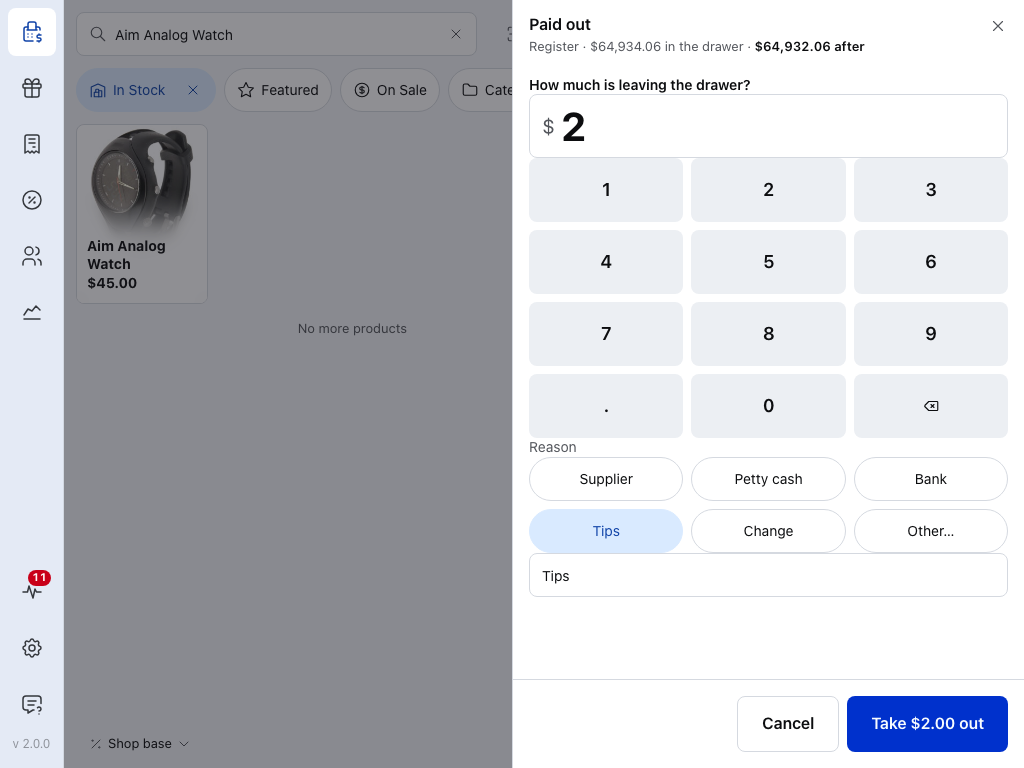
- Amount — what you're taking out. It fills in as you type.
- In the drawer — the register, the cash it expects now, and what's left after this paid out.
- Keypad — types the amount. A keyboard works too.
- Tips — the reason. Tap it to fill in the reason box, and again to clear it.
- Other… — clears the box and puts the cursor in it, so you can type your own reason.
- Reason — every paid out needs one. Without it, the sheet says Add a reason.
- Take $2.00 out — names the amount. Press it to record the paid out. Cancel leaves the drawer as it was.
To check it, tap In the drawer to open the register panel, then tap the Expected in the drawer row to open its breakdown. The paid out is listed there under Paid out, with its reason. Press Void on it if it was a mistake. Void only works while the register is open, not during a count, and a voided paid out can't be restored: enter it again. See If something goes wrong.
If something goes wrong
The reader didn't ask for a tip. Check the table: some payment methods and readers never ask. On Stripe, turn tipping on for the reader in the Stripe Dashboard.
Payment failed: The terminal confirmed a different amount. The reader took more than the till sent, using a payment method that doesn't take tips, so the till marked the payment failed and didn't count it towards the order.
Check the payment with your provider before you charge the customer again, or you may charge them twice.
If the provider shows the charge, refund it there: the till can't refund a failed payment. The amount is still due on the order, so take it again on a payment method that works.