# Theme
**POS settings:** `Settings → Theme` in the POS, on this device.
**Theme** changes how the POS looks: its colours, the size of its buttons and text, its icons and its fonts. It changes nothing about a sale, a price or a receipt. Your choice is saved on this device, for the store you're working in, so the till by the window can be dark while the one in the back stays light.
Open it from **Settings**, the cog at the foot of the menu, then **Theme**. A change shows at once and is saved straight away; there is no Save button.
## Choose a theme[](#choose "Enlace directo a Choose a theme")
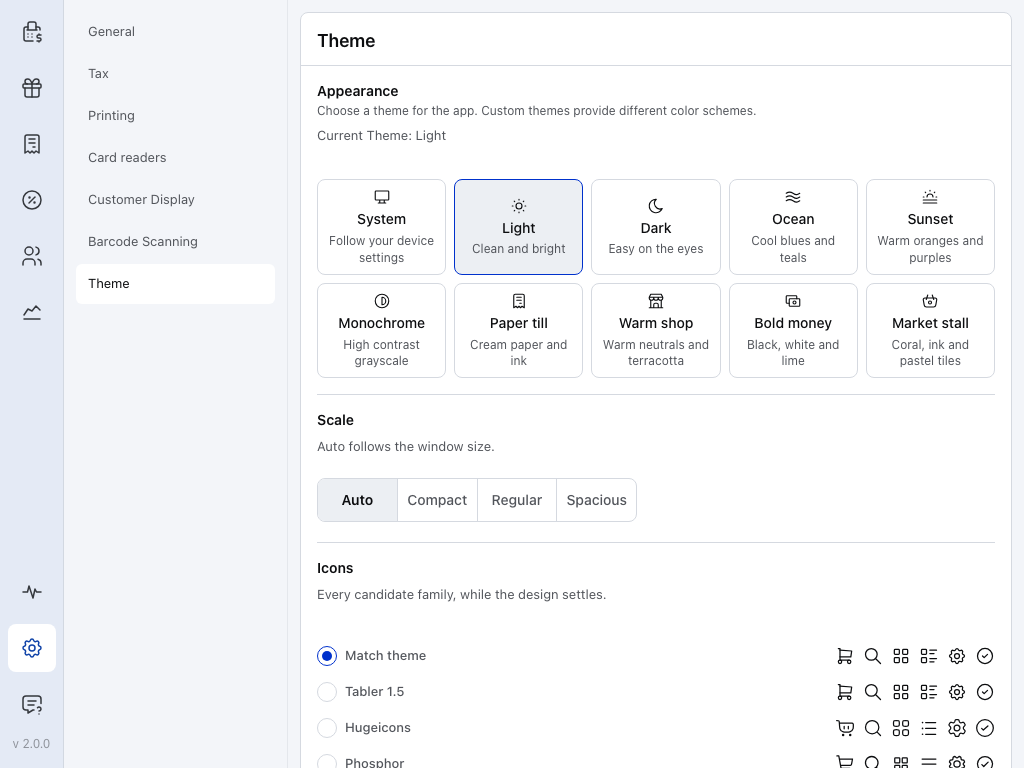
Tap a tile and the whole POS changes, this screen included. Try one at the till; you can always come back to **Light**.
123456789
1. **Theme** — this page, under **Settings**.
2. **System** — follows your device. When the device switches to dark mode, the POS switches to **Dark**, and back to **Light** when it switches back. The line above the tiles then reads **Following System Theme**.
3. **Light** — the outlined tile is the theme in use, and **Current Theme** above the tiles names it. A new device starts on **Light**, which suits a well-lit shop.
4. **Dark** — light text on a dark background, for a dim shop or an evening shift.
5. **Ocean** — one of three colour schemes, with **Sunset** and **Monochrome**. **Ocean** and **Sunset** give the till more personality. **Monochrome** is high-contrast greys, for a screen in bright light or a cashier who needs strong contrast.
6. **Paper till** — one of four shop styles, with **Warm shop**, **Bold money** and **Market stall**. Each brings its own colours, fonts and icons. See [What each theme changes](#each-theme).
7. **Auto** — the **Scale** a new device starts on. See [Make everything bigger or smaller](#scale).
8. **Compact** — smaller, so more fits on the screen.
9. **Spacious** — larger. **Regular** sits between the two.
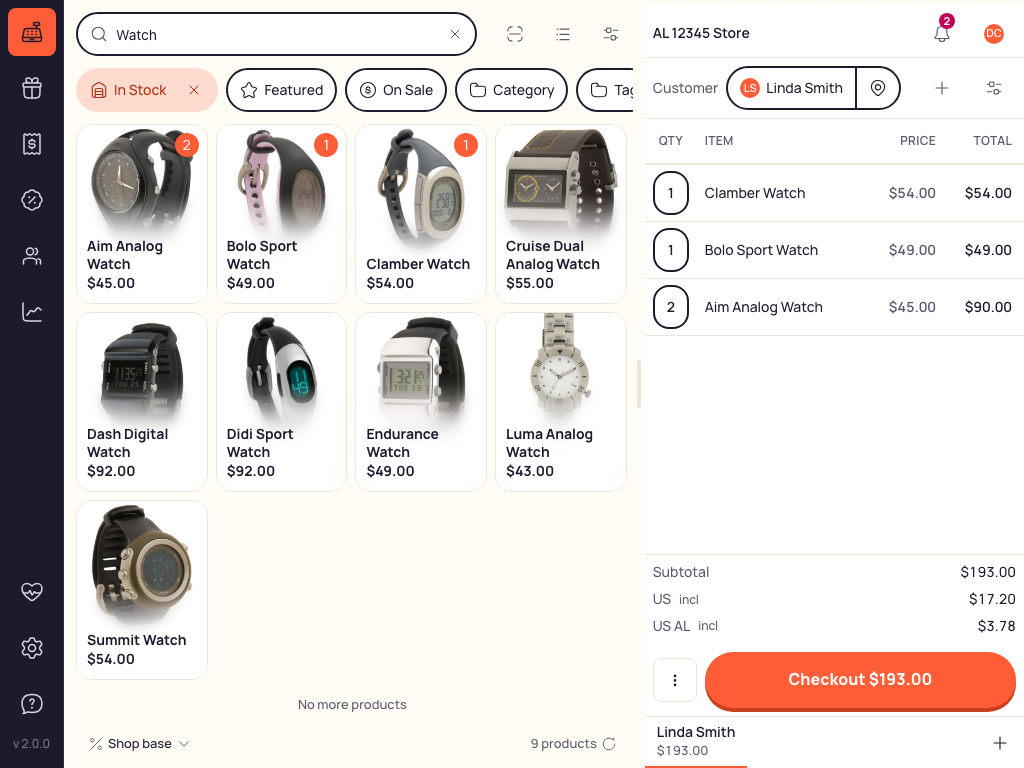
Market stall applied to the selling screen, with an order in progress: the product panel on the left, the cart on the right.
### What each theme changes[](#each-theme "Enlace directo a What each theme changes")
The four shop styles change more than colour. While **Icons** and **Fonts** are on **Match theme**, each theme brings its own icon style and fonts.
Compare themes, icons and fonts
| Theme | Icons and fonts |
| --------------------------------------------------- | ------------------------------------------------------ |
| **System**
Light or Dark, following the device | Icons: Tabler 1.5
Fonts: System |
| **Light**
Clean and bright | Icons: Tabler 1.5
Fonts: System |
| **Dark**
Easy on the eyes | Icons: Tabler 1.5
Fonts: System |
| **Ocean**
Cool blues and teals | Icons: Phosphor
Fonts: System |
| **Sunset**
Warm oranges and purples | Icons: Phosphor
Fonts: System |
| **Monochrome**
High contrast grayscale | Icons: Tabler 1.5
Fonts: System |
| **Paper till**
Cream paper and ink | Icons: Phosphor
Fonts: DM Sans · Instrument Serif |
| **Warm shop**
Warm neutrals and terracotta | Icons: Hugeicons
Fonts: DM Sans · Fraunces |
| **Bold money**
Black, white and lime | Icons: Phosphor
Fonts: Space Grotesk |
| **Market stall**
Coral, ink and pastel tiles | Icons: Hugeicons
Fonts: Manrope |
## Make everything bigger or smaller[](#scale "Enlace directo a Make everything bigger or smaller")
**Scale** sets the size of buttons, text and spacing everywhere in the POS. Leave it on **Auto** unless the screen feels cramped or too sparse.
In **Settings** → **Theme**, under **Scale**, tap **Auto**, **Compact**, **Regular** or **Spacious**.
* **Auto** — picks the size from the window: **Compact** on a narrow window such as a phone, **Spacious** on a wide desk monitor, **Regular** in between.
* **Compact** fits more on the screen; **Spacious** makes buttons and text larger; **Regular** sits between them. These three keep the same size when the window changes.
Where Auto switches, and touch screens
**Auto** uses **Compact** below 640 pixels wide, **Spacious** from 1600 pixels wide, and **Regular** between. Resize the browser or desktop window and the size follows. In the iOS and Android apps, **Auto** reads the screen's shorter side instead, so turning the device doesn't change the size.
On a touch screen, **Compact** keeps every button at least 44 pixels high so it stays easy to press; text and spacing still shrink. With a mouse, buttons get the full **Compact** size.
## Pick the icons and fonts[](#icons-and-fonts "Enlace directo a Pick the icons and fonts")
In **Settings** → **Theme**, scroll down past **Scale** to **Icons** and **Fonts**, and tap a choice in either list.
Both start on **Match theme**, which follows the theme (see [What each theme changes](#each-theme)). Choose an option other than **Match theme** to keep those icons or fonts when you change themes.
123456
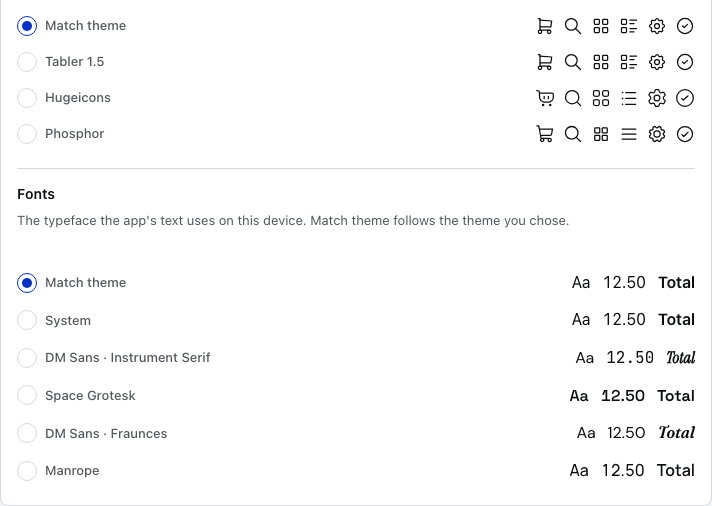
1. **Icons: Match theme** — the top list is **Icons**. **Match theme** uses the icons your theme brings. A new device starts here.
2. **Samples** — six icons you meet on every screen, drawn in that family, so you can compare before you pick.
3. **Phosphor** — one of three icon styles, with **Tabler 1.5** and **Hugeicons**. Pick one to use it with every theme.
4. **Fonts: Match theme** — the list under **Fonts**. **Match theme** uses the fonts your theme brings. A new device starts here.
5. **Samples** — **Aa** for text, **12.50** for prices and **Total** for headings, each in that font.
6. **DM Sans · Fraunces** — one of five font sets, with **System**, **DM Sans · Instrument Serif**, **Space Grotesk** and **Manrope**. **System** is your device's own font.
## If something goes wrong[](#goes-wrong "Enlace directo a If something goes wrong")
* **The POS turned dark on its own** — **System** is on and the device went into dark mode. Pick **Light** or **Dark** to keep one look all day.
* **Another till looks different** — each device keeps its own theme. Set it on that device too.
* **The fonts or icons didn't change with the theme** — **Icons** or **Fonts** is set to an option other than **Match theme**. Set it back to **Match theme**.
* **Buttons are too small to press, or too few fit on the screen** — change [Scale](#scale).
* **The theme changed after you switched stores** — each store keeps its own theme on this device. Set it again for that store.
## Related Documentation[](#related-documentation "Enlace directo a Related Documentation")
[Store SettingsEvery settings section and how to open it](/es/settings/pos-settings.md)
[GeneralLanguage, money format and the store's details](/es/settings/store-defaults.md)
[Display SettingsWhat the product panel shows and how](/es/sell/find-products/product-display.md)