SYNC204: The store had already closed this order
What this means
The store had already closed this order, so it refused a change to its lines.
This device sent a change to an order's lines (items, fees, shipping or coupons) after the store had already closed that order: it was paid or completed, cancelled or refunded. The store does not change the lines of a closed order, so it refused the change and kept its own copy as it was.
Your data
The store's copy of the order is unchanged. The refused change stays on this device, listed in Store health → Database, until you settle it. To make the change land, the order has to be reopened on the store first; otherwise discard the change.
Troubleshoot
At the till
- Expand the log entry: it names the order the store refused and the store's reason.
- If the store's copy is already right, nothing was lost: press Discard on the change's row in Store health → Database.
- If the change is still needed, your site administrator has to reopen the order first (see On the store). Then press Send again on the row.
- If the same order keeps being refused while it is still open on this device, another device or the site administrator is closing it. Agree who finishes the sale before changing it here.
On the store
For the site administrator.
- Open the same order in WooCommerce → Orders in WP Admin and check its status and lines. If the change is still needed, reopen the order there.
- If the log entry also shows a rounding fee amount, the refused change carried a cash rounding line.
Find the entry in the log
Every code is logged in Store health → Logs. SYNC204 is logged as a warning, and Errors shows only errors, so press All and type SYNC204 in Search Logs. Tap the entry to open it under its row. The picture shows an example error entry, AUTH201, with Errors on; on your till the entry shows this page's code.
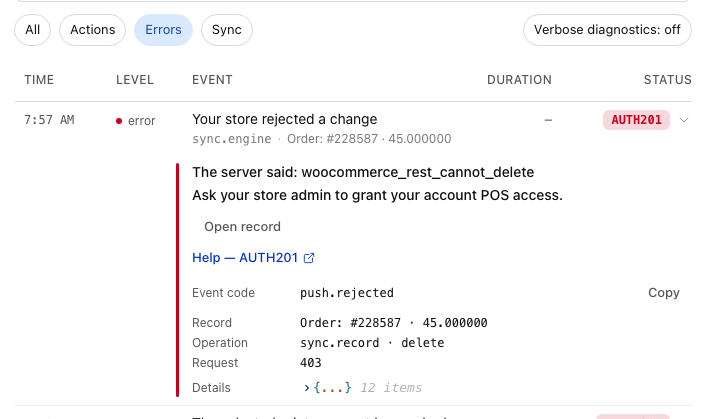
- Errors — on in this example. For SYNC204, press All instead.
- The entry — the code in Status is its error code.
- What happened and what to do — what your store said, when it said something, then one line on what to do. When it matters, a warning comes first, such as Payment has been taken — don't charge again. or Don't clear this device's data.
- Help — opens the code's page in these docs.
- Open record — opens the order, product or customer the entry is about, when this till has it, your store has WCPOS Pro, and you're allowed to edit it.
- Copy — copies the whole entry for support. The rows under it are for support; you don't need to read them.