Epson Secure Printing
This page is for you if an Epson printer won't print from the app:
- During printer setup: you print the test page in Add printer, answer Nothing came out, and the panel says Nothing printed with the line "Secure Printing is on. Turn it off on the printer, then try again." Go straight to Turn it off.
- The printer looks ready, but nothing prints: the job seems to go, there's no error, and nothing comes out. A self-test from the printer's own buttons still prints.
Secure Printing is a setting on the printer, not in the POS. You may not need to change it: check Do you need to turn it off? first.
Do you need to turn it off?
In most setups the app prints with Secure Printing on. If the app's Nothing printed panel says to turn it off, turn it off. Otherwise, start at the top of the table: the first row that matches how you print is your answer. Not sure whether Print receipts as an image is on? Check the switch first.
| How you print | With Secure Printing on |
|---|---|
| Any app, Epson on Wi-Fi or network cable, with Print receipts as an image on | Won't print. Turn it off. |
| Desktop app (WCPOS installed on a computer), Wi-Fi or network printer | Prints. |
| Web app (the POS open in Chrome, Edge, Safari or another browser) | Prints over HTTPS once this browser trusts the printer's certificate. See Browser permissions. Over HTTP (port 8008 or 80) it won't: turn it off. |
| Mobile apps | Prints when the printer's card in Add printer says Wi-Fi · secure. If it says Wi-Fi, turn it off. |
| USB or Bluetooth | Not affected. |
Check Print receipts as an image
This switch sends the receipt in a form the printer holds while Secure Printing is on. It's off unless you turned it on. Go to Settings → Printing and press Edit on the printer's row:
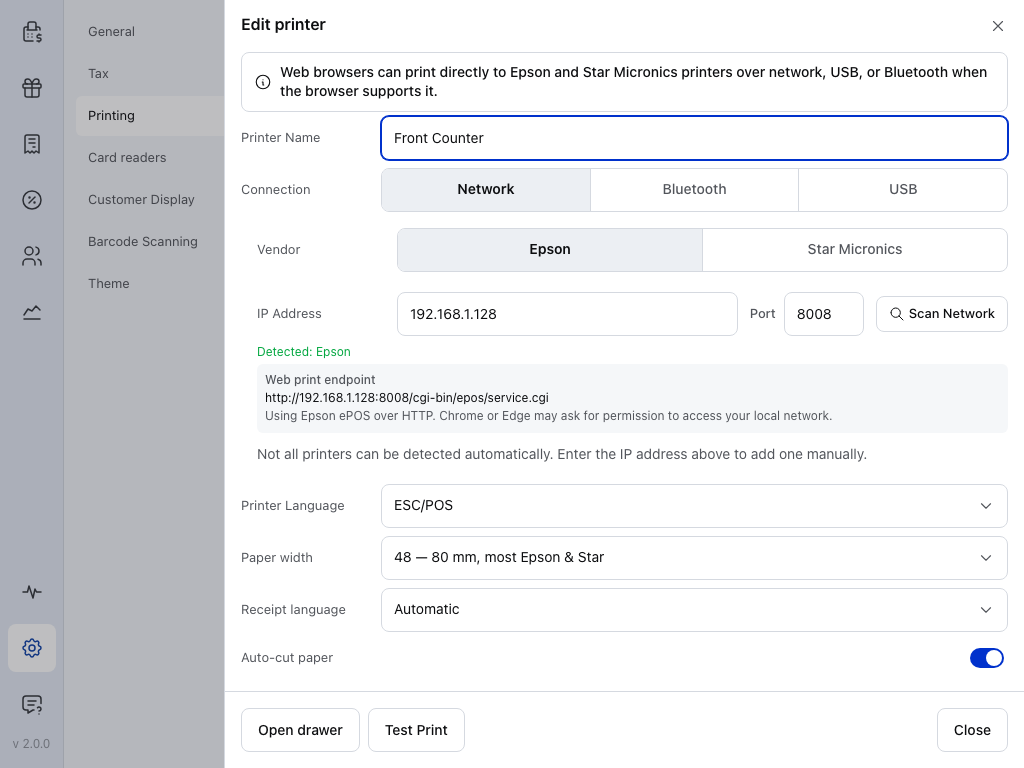
- Auto-cut paper — the last row in view. Scroll down past it to reach Print receipts as an image.
At the end of the form:
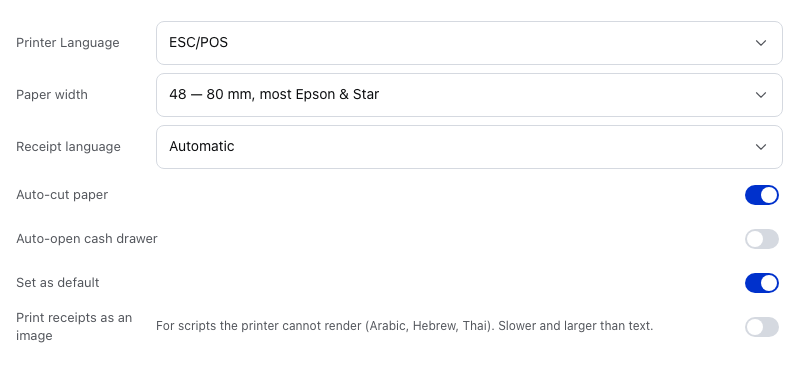
- Printer Language — leave it as set. Secure Printing doesn't change rows 1 to 3.
- Paper width — the characters per line.
- Receipt language — the alphabet for text receipts.
- Print receipts as an image — the switch to check. Off here, as it is unless you turn it on. On an Epson connected by Wi-Fi or network cable, it needs Secure Printing off.
If the switch is off, go back to the table and skip its first row.
When you'd need Print receipts as an image on
It's for receipts in a script the printer can't print as text, such as Arabic, Hebrew or Thai. If you need it on an Epson connected by Wi-Fi or network cable, turn Secure Printing off. See non-Latin receipts.
Turn it off
You need a computer on the same network as the printer, plus the printer's IP address and its admin password, the Initial Password. On a printer with Secure Printing on, both are on the status sheet you print in step 1.
- Print the status sheet: on most models, open the paper cover, hold Feed for a second, then close the cover. If your printer has its own status-sheet button, hold that for three seconds instead. Note the IP address and the Initial Password.
- On a computer on the same network, open
https://followed by that address in a browser. Accept the certificate warning. - Log in as the administrator with the Initial Password from the sheet, or the password you set if you changed it.
- Go to Print → Secure Printing.
- Set it to Disable and save.
- Unplug the printer for ten seconds and plug it back in.
- Print a test page from the app. In Add printer, press Try again. For a printer you saved earlier, press Test Print on its row in Settings → Printing.
If the status sheet won't print, or the password doesn't work
- No status sheet: the button and how long to hold it differ by model. Your printer's manual names them.
- No Initial Password on the sheet: look for a label on the printer. On some models the password is the serial number instead.
- The password was changed: ask whoever set up the printer.
A firmware update can put Secure Printing back on. If printing stops after an update, check whether it's back on. If it is, repeat these steps.
Why it happens
While Secure Printing is on, the printer prints only what the app sends over its secure connection as text. Anything else, including a receipt sent as an image, it holds. It doesn't turn those jobs away: it holds them for about four minutes, prints nothing else in that time, then throws them away. That's why the printer looks fine and acts dead. See Printed once, then stopped.
If the status sheet says Security Mode: RED, Secure Printing applies to this printer.
Which printers and connections this affects
Epson TM-series printers sold in the EU, UK and EFTA since 1 August 2025 ship with Secure Printing on, to meet the EU's Radio Equipment Directive. Using the printer only over Ethernet does not change that. Printers sold elsewhere normally have it off, but one bought from EU or UK stock has it on.
The models Epson lists are the TM-H6000VI, TM-L100, TM-m30II-S, TM-m30II-SL, TM-m30III, TM-m30III-H, TM-m50, TM-m50II, TM-P20II, TM-P80II, TM-T20IV and TM-T88VII. A TM-L100 or TM-T20IV with only USB or serial ports is not affected.
From Epson's own guide for these printers:
| Connection | Secure Printing on | off |
|---|---|---|
| Raw, port 9100 | Can't print | Prints |
| ePOS-Print over HTTP, port 80 | Can't print | Prints |
| ePOS SDK, ports 8008 and 8009 | Can't print | Prints |
| ePOS-Print over HTTPS, port 443 | Prints | Prints |
| ePOS SDK over TLS, ports 8043 and 8143 | Prints | Prints |
| Raw over TLS, port 9143 | Prints | Prints |
| Bluetooth | Prints | Prints |
The desktop app prints to an Epson over HTTPS, port 443 first. The web app prints over HTTPS on port 8043, or 443 if the setup wizard found it there. The mobile apps print raw on port 9100 unless the card says Wi-Fi · secure.
Still stuck?
Secure Printing is already off and nothing prints. If the printer's web page opens but every job fails, see Server Direct Print.
It printed once, then stopped. See Printed once, then stopped.
Anything else. Copy the setup report and paste it into your message. In Add printer, press Copy setup report under Nothing printed. For a saved printer, open the More actions menu on its row in Settings → Printing and choose Copy setup report. Epson's Radio Equipment Directive FAQ has more on the setting.