Customer Tax IDs
WP admin: WP Admin → POS → Settings → General → Tax IDs. The ID is then added on the customer.
A customer buying for a business often needs their tax ID on the receipt: a VAT number, an ABN, a CPF, a GSTIN. Add it to the customer once, and the POS copies it onto each of their orders and prints it on the receipt. You can also add one to a single sale, on the free plugin too.
Most stores need no setup. The Tax IDs section in WP Admin > POS > Settings > General only decides which WordPress field the numbers are saved in, so that a VAT plugin you already use keeps working. See Choose where tax IDs are saved.
Add a tax ID to a customer
Adding and editing customers in the POS needs Pro. On the free plugin, add a tax ID to the sale instead.
- Open the customer form:
- New customer: in the cart, tap + and choose Add new customer, or press Add new customer beside the search on the Customers screen.
- Existing customer: press the open arrow (›) on their row in Customers.
- Press Tax ID. A row opens.
- Choose the Type, type the ID and check the Country. See The Tax ID row.
- New customer: press Add Customer. Existing customer: there's no button; each change saves as you make it. The rest of the form is on Customers.
Add a tax ID to one sale
This works on the free plugin too.

- Address — the pin beside the customer's name. It's grey until the sale has a street, city or postcode, but you can still tap it.
- At the top of the cart, tap the address beside the customer's name. Edit Customer Address opens.
- Press Tax ID, then choose the Type, type the ID and check the Country, as in The Tax ID row.
- Press Close. The number saved on this order as you typed, and prints on its receipt.
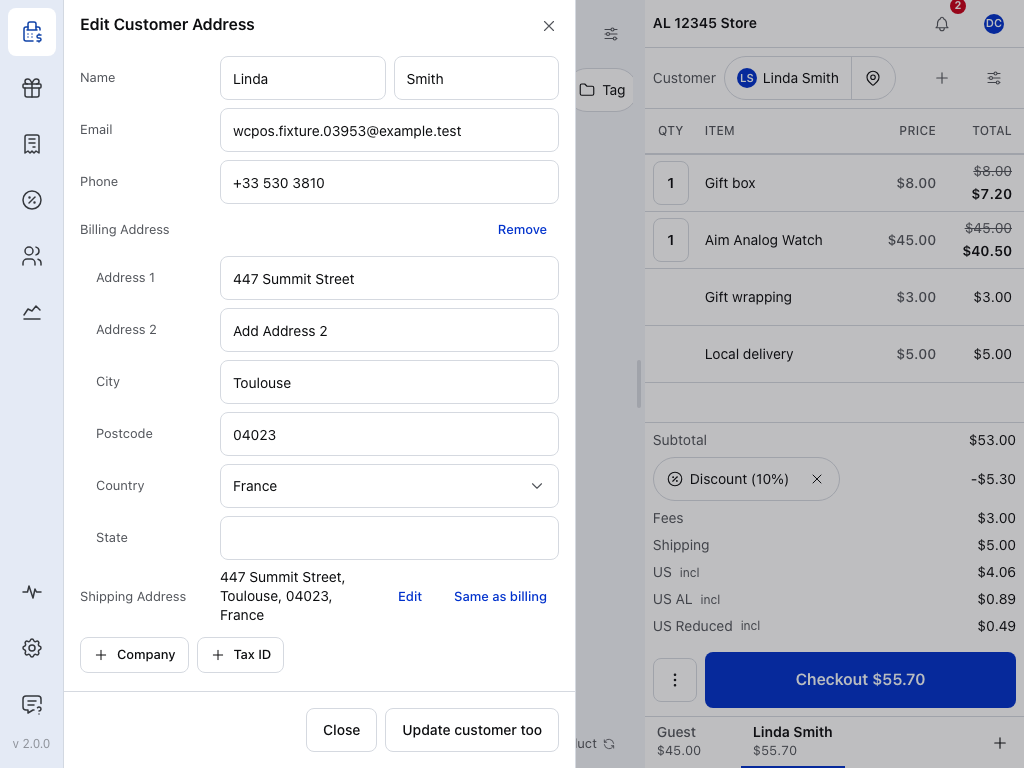
- Name — first and last name. Email and Phone sit below it.
- Billing Address — Edit opens the lines, Remove clears them.
- Country — pick from the list. Over ten countries, you can search it.
- State — a list for countries that have one, a text field for the rest.
- Shipping Address — Same as billing until you press Use a different address.
- Tax ID — adds a Tax ID row to this order.
- Update customer too — saves these details to the customer's profile as well.
To keep the number on the customer's profile as well, press Update customer too. That button shows for a customer with an account, and only to a cashier who may edit customers. See Edit the order's address.
The Tax ID row
The row is the same on the customer form and in the cart's Edit Customer Address, shown here.
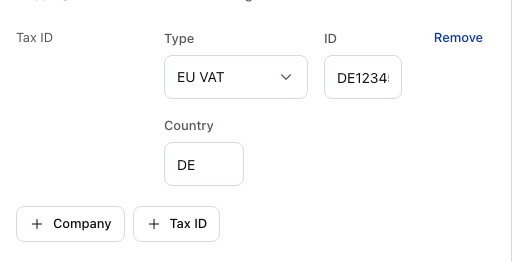
- Tax ID — adds a row. Press it again for a second number, such as an Italian customer's Codice Fiscale and Partita IVA.
- Type — which kind of number this is. A new row starts on the first type for the customer's billing country, or your store's country while the billing address is empty, and on Other when no type fits that country. See Tax ID types.
- ID — the number. The empty field shows an example of the right shape for the type, and a long number scrolls inside the box. When it saves, spaces are taken out and letters become capitals.
- Country — two letters. Choosing a type fills it in: GB for UK VAT, BR for Brazil CPF. For EU VAT and Other it takes the billing country, so check it for an EU customer from another member state.
- Remove — takes the row off.
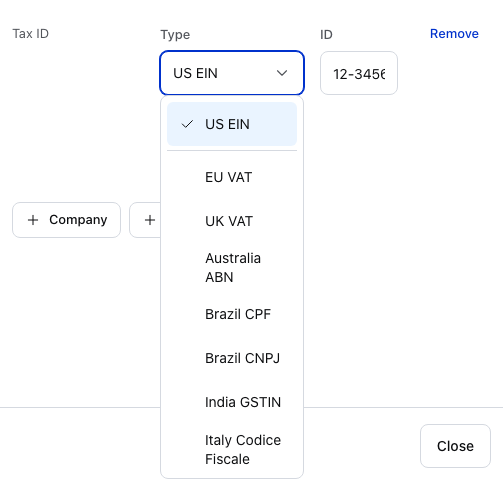
- Types for the country — above the line: the types that fit the billing country, or your store's country. Here the store is in the US, so only US EIN.
- Every other type — below the line, starting with EU VAT.
An EU VAT number is typed with its country letters, as DE123456789. If you type it without them, the store adds the Country in front when it saves, for EU VAT and UK VAT only.
What the order keeps
When you choose a customer for a sale, the POS copies their tax IDs onto the order. They show under the order's address, where you can change them for this sale. The order keeps the numbers it was sold with:
- Changing a customer's tax ID later doesn't change their past orders, so an old receipt reprints as it was.
- A tax ID you change or add in the cart is used for that order instead of the customer's.
- Changing an order's tax IDs changes that order only. Nothing copies them from the customer again.
- A guest sale has no tax ID unless you add one to the sale.
On the receipt
The Standard Receipt, Detailed Receipt, Invoice and Quote templates, and the detailed thermal receipts, print the customer's tax IDs with their details. Each number has its own label, such as VAT ID, ABN or CPF: see the table under Tax ID types. To print them in your own template, see Tax ID objects.
Find a customer by tax ID
Type the number into the customer search, in the cart or on the Customers screen. Search also finds numbers a VAT plugin saved before you used WCPOS, from the plugins listed under Choose where tax IDs are saved. See Customer Search.
Choose where tax IDs are saved
WCPOS saves tax IDs where your VAT plugin already keeps them, so a number typed at the till shows up in the plugin, and a number the plugin saved shows up in the POS. You only need this section when they don't line up.
To check, open WP Admin > POS > Settings > General and scroll to Tax IDs. The banner says whether WCPOS found a VAT plugin.
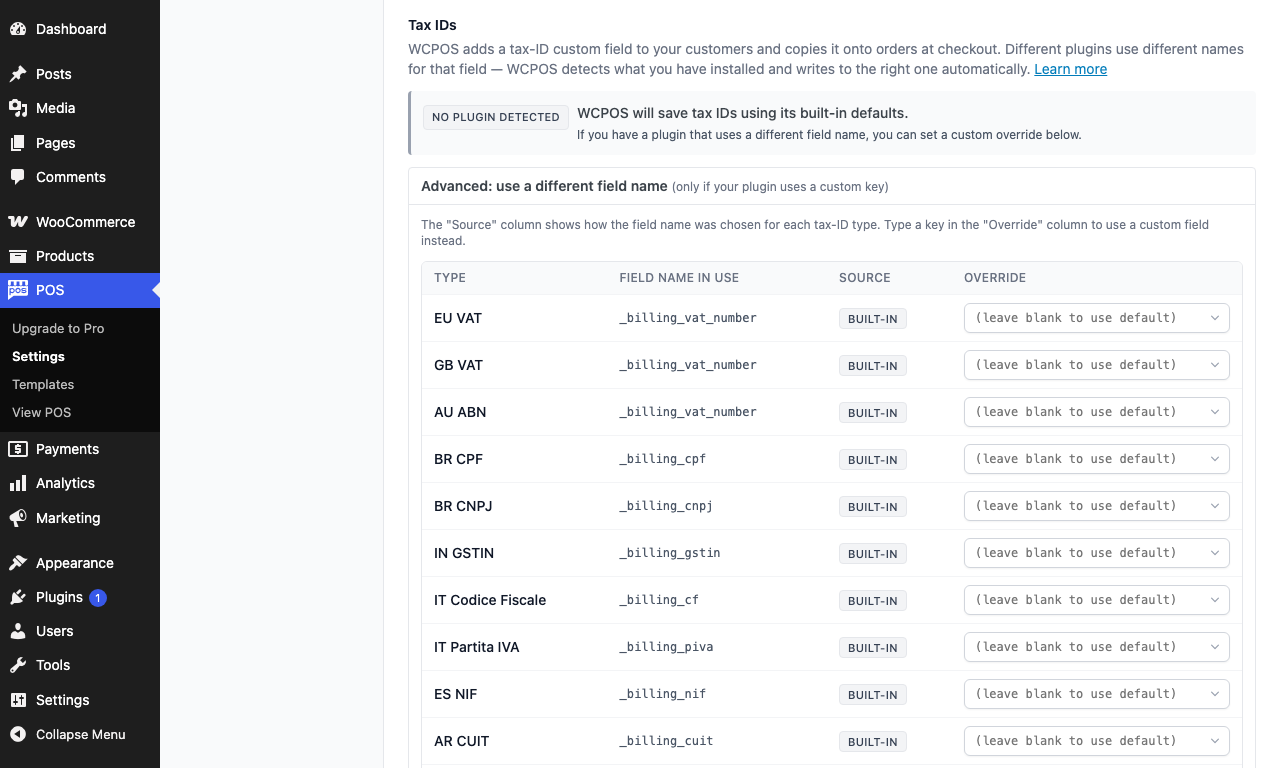
- No plugin detected — WCPOS found no VAT plugin and uses its built-in field names.
- Advanced: use a different field name — opens the table below. See Use a different field name.
- Type — one row per kind of tax ID.
- Field name in use — where WCPOS saves that type now.
- Source — how that field name was chosen, here Built-in for every type.
- Override — your own field name; blank uses the default.
How WCPOS picks the field, and the plugins it detects
WordPress keeps a customer's tax ID in a named field (a meta key), and VAT plugins each use their own name for it. The banner reads:
- Auto-detected — names the plugin it found, as "… is installed." WCPOS saves VAT-shaped tax IDs to the field that plugin reads. No action needed from you.
- No plugin detected — WCPOS uses its built-in field names, or the field your recent orders already use.
For each type, WCPOS takes the first of these that applies:
- Your own field name, if you set one under Use a different field name.
- The field of a plugin it detected.
- With no plugin detected, the field used most on your last 200 orders.
- Its built-in field name.
The plugins it detects:
- WooCommerce EU VAT Number
- Aelia EU VAT Assistant, including whether Aelia found the number valid
- WPFactory EU/UK VAT Manager
- WooCommerce Germanized, and Germanized Pro
- Brazilian Market on WooCommerce, and Extra Checkout Fields for Brazil
- NIF/CIF Spain for WooCommerce
The built-in field names:
| Type | Field name |
|---|---|
| EU VAT, UK VAT, Saudi Arabia VAT, Australia ABN, Canada GST/HST, US EIN, Other | _billing_vat_number |
| Brazil CPF | _billing_cpf |
| Brazil CNPJ | _billing_cnpj |
| India GSTIN | _billing_gstin |
| Italy Codice Fiscale | _billing_cf |
| Italy P. IVA | _billing_piva |
| Spain NIF/CIF | _billing_nif |
| Argentina CUIT | _billing_cuit |
Use a different field name
Only do this if your plugin keeps tax IDs under a name WCPOS doesn't know.
Change the field name
In the Tax IDs section, open Advanced: use a different field name. It shows one row per type:
- Type — the kind of tax ID.
- Field name in use — where WCPOS saves that type now.
- Source — Plugin (from a detected plugin), Built-in (WCPOS default) or Custom (your override).
- Override — type the field name your plugin uses. The box suggests the names WCPOS knows from other plugins. It saves when you pick a suggestion, or press Enter or leave the box after typing your own; there's no Save button.
To go back to the automatic name, clear the Override box: it reads "(leave blank to use default)". The Advanced: use a different field name line shows how many overrides are active.
Only customer tax IDs appear here. Your own business's numbers, such as a USt-IdNr., KVK or SIRET number, are set under Store Tax IDs.
Tax ID types
The same type has a short name in the POS, another in WP Admin, and its own label on the receipt. The example shows the shape the format check expects.
Show tax ID names and examples
On a phone, swipe the table sideways to see the examples.
| In the POS | In WP Admin | On the receipt | Example |
|---|---|---|---|
| EU VAT | EU VAT | VAT ID | DE123456789 |
| UK VAT | GB VAT | VAT No. | GB123456789 |
| Saudi Arabia VAT | SA VAT | VAT No. | 300000000000003 |
| Australia ABN | AU ABN | ABN | 12345678901 |
| Brazil CPF | BR CPF | CPF | 123.456.789-00 |
| Brazil CNPJ | BR CNPJ | CNPJ | 12.345.678/0001-99 |
| India GSTIN | IN GSTIN | GSTIN | 22AAAAA0000A1Z5 |
| Italy Codice Fiscale | IT Codice Fiscale | Codice Fiscale | RSSMRA80A01H501U |
| Italy P. IVA | IT Partita IVA | P.IVA | 12345678901 |
| Spain NIF/CIF | ES NIF | NIF | A12345678 |
| Argentina CUIT | AR CUIT | CUIT | 20-12345678-9 |
| Canada GST/HST | CA GST/HST | GST/HST No. | 123456789RT0001 |
| US EIN | US EIN | EIN | 12-3456789 |
| Other | Other | Tax ID | any number |
If something goes wrong
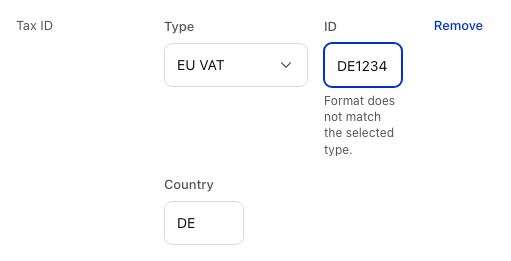
- The format warning — shows under the ID. What to do is in the first item below.
- Format does not match the selected type. — check the Type first, then the number with the customer, for a digit missing. It's a warning only, and the number still saves. An EU VAT number typed without its country letters also shows it; the store adds the Country in front when it saves, so check that the Country is right. The POS checks the shape of the number, never whether a tax office has issued it.
- An old receipt shows the old number — the order keeps the number it was sold with. Change the tax ID on that order, not on the customer.
- No tax ID on the receipt — the sale was to a guest, or the customer had none when it was sold. Add one to the sale before payment, and check that your receipt template is one that shows customer details.
- Your VAT plugin doesn't show numbers typed at the till — in WP Admin > POS > Settings > General > Tax IDs, open Advanced: use a different field name and compare Field name in use with the field your plugin reads. Set an Override if they differ.
- Update customer too isn't there — the sale is to a guest, or your WordPress role can't edit customers. The tax ID is still saved on the order.
- Add new customer is greyed out — it needs Pro, and a role that can create customers.