Store Tax IDs
WP admin: WP Admin → POS → Settings → General → Store details.
Your business's tax numbers print in the store details at the top of your POS receipts and invoices. The list is in WP Admin → POS → Settings → General, under Store details, in Store tax IDs.
Already created a store with WCPOS Pro? General then lists your stores instead of Store details, and each store's numbers go on its own Tax page: Set the numbers for one store.
Add a tax number
Each number is one row of the Store tax IDs list, under the store's phone, email and returns policy:
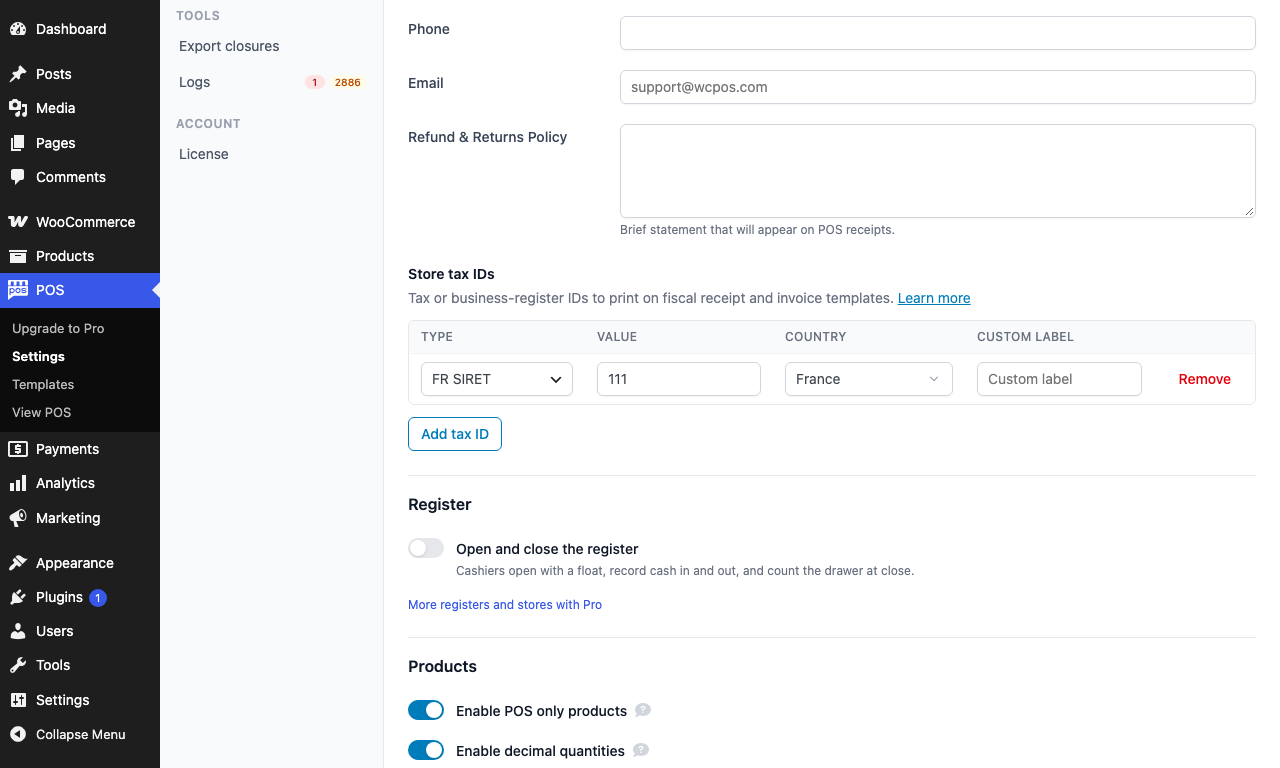
- Add tax ID — adds a row.
- Type — the kind of number, here FR SIRET.
- Country — follows Type, and Type follows it.
- Value — the number. The row saves when you leave this field.
- Custom label — wording to print instead of the type's short name.
- Remove — deletes the row.
- In WP Admin, open POS → Settings → General and scroll to Store tax IDs.
- Click Add tax ID. A new row appears with Country set to your WooCommerce store country, and Type set to the number that country usually prints.
- Check the Type, and pick another if you need a different number. Changing Type can change Country: see Type and Country follow each other. Nothing on the new row saves until Value has a number.
- Type the number in Value, then click or tab out of the field. The row saves when you leave Value, and a Saved message confirms it.
- If you want different wording on the receipt, type it in Custom label, for example
Partita IVAin place ofP.IVA, then leave the field. It saves the same way as Value. - Repeat for each number. Remove deletes a row. On a row that is already saved, a new Type or Country saves as soon as you pick it, and a Saved message confirms it.
Numbers print in the order of the list. To move one, remove it and add it again.
A new row is kept only once its Value has a number in it. A row left empty is gone when you reload the page.
Type and Country follow each other
Changing Country can change Type, and changing Type can change Country. Check both before you leave the row.
How Type and Country change each other
- Pick a Country, and Type changes to the number that country usually prints. To see which, open Find your country below: the first type listed for a country is the one it picks. An EU country without its own row gets EU VAT; any other country gets Other.
- Pick a Type, and Country changes to match. EU VAT keeps an EU country you already chose, or uses your store country when that is in the EU. Other leaves Country as it is.
- No country in the country list clears it. The country helps pick the type; the receipt prints the label and the number.
Types, and what each prints as
A tax number can be a VAT number, ABN, GSTIN, EIN or company-registry number. WooCommerce has no field for them, so WCPOS keeps its own list, and you can add as many as you need. A German shop may print a USt-IdNr., a Steuernummer and an HRB number on the same receipt.
Value shows an example of the number's usual shape in grey. It is only a hint: WCPOS saves whatever you type, so an unusual number still saves. The receipt prints each type under a short name, such as VAT ID for EU VAT or ABN for AU ABN, translated into the receipt's language. A Custom label prints exactly as you type it.
Find your country: its tax types, what each prints as, and an example
On a phone, swipe the table sideways to see every column.
| Type | Country | Prints as | Example |
|---|---|---|---|
| EU VAT | An EU country without its own row | VAT ID | DE123456789 |
| GB VAT | United Kingdom | VAT No. | GB123456789 |
| GB Company number | United Kingdom | Company No. | 12345678 |
| DE USt-IdNr. | Germany | USt-IdNr. | DE123456789 |
| DE Steuernummer | Germany | Steuernummer | 12/345/67890 |
| DE HRB | Germany | HRB | HRB 12345 |
| FR SIRET | France | SIRET | 12345678901234 |
| FR SIREN | France | SIREN | 123456789 |
| IT Partita IVA | Italy | P.IVA | 12345678901 |
| IT Codice Fiscale | Italy | Codice Fiscale | RSSMRA80A01H501U |
| ES NIF | Spain | NIF | B12345674 |
| NL KVK | Netherlands | KVK | 12345678 |
| CH UID | Switzerland | UID | CHE-123.456.789 |
| US EIN | United States | EIN | 12-3456789 |
| CA GST/HST | Canada | GST/HST No. | 123456789RT0001 |
| BR CNPJ | Brazil | CNPJ | 12.345.678/0001-95 |
| BR CPF | Brazil | CPF | 123.456.789-09 |
| AR CUIT | Argentina | CUIT | 20-12345678-3 |
| IN GSTIN | India | GSTIN | 22AAAAA0000A1Z5 |
| SA VAT | Saudi Arabia | VAT No. | 300123456700003 |
| AU ABN | Australia | ABN | 12345678901 |
| Other | Any | Tax ID | Value |
What prints on the receipt
Each number prints on its own line in the store details at the top of the receipt: the label, then the number. The bundled receipts (standard and thermal), the invoice, the quote, the gift receipt and the register close reports print the whole list. The packing slip, the kitchen ticket and the plain report templates print none.
Using your own receipt template?
A custom template prints the list by looping over store.tax_ids:
{{#store.tax_ids}}{{label}}: {{value}}{{/store.tax_ids}}
Each entry also carries its type and country. See Tax ID objects in Receipt Data.
Set the numbers for one store (Pro)
Per-store tax numbers need WCPOS Pro.
Each store can print its own tax numbers: for a chain whose shops are registered separately, or that trades in more than one country.
- In WP Admin, open POS → Stores and click the store's name.
- In the store's menu, open Tax.
- Under Tax number printed on receipts, click Add tax number. The row starts with the country from the store's own Details page, and that country's usual type.
- Fill in Type, Value, Country and, if you want, Label (optional). Type and Country follow each other as on General. The new row saves when you leave Value with a number in it. After that, Type and Country save as soon as you pick them, and Value and Label (optional) when you leave the field. The top corner of the page says Saving…, then ✓ Saved.
Which numbers a store prints:
- The store has its own numbers: receipts at that store print only those. The site's list is not printed.
- The store has none: receipts print the site's Store tax IDs.
- Neither has any: receipts print no tax number.
What the store's Tax page says when it has no numbers
With no numbers of its own, the store's Tax page tells you what prints instead:
- When the site has numbers: No tax number for this store. Receipts print the site's tax number: … (or tax numbers: …), followed by the site's list.
- When the site has none either: No tax number for this store or the site. Receipts print none.
For the rest of the store's Tax page (which address tax is worked out from, and the rates that apply), see Fill in the store's pages.
If something goes wrong
The row I added is gone after a reload. It had no Value. Click Add tax ID again and type the number before you leave the row.
A store prints the wrong number. Open that store's Tax page. If it lists any number, the store prints only its own list; remove or correct the row there. If it lists none, the store prints the site's Store tax IDs.
The label on the receipt isn't what the tax office wants. Type the wording you need in Custom label (Label (optional) on a store's Tax page).
My own template prints one number, or none. Open Using your own receipt template? under What prints on the receipt.