Gestione Prodotti
La schermata Prodotti richiede WCPOS Pro. Gli utenti gratuiti possono visualizzare e aggiungere prodotti al carrello dal Pannello Prodotti POS, ma non possono modificare l'inventario o i prezzi.
La schermata Prodotti è un'interfaccia dedicata alla gestione dell'inventario. A differenza del Pannello Prodotti POS (che è per la vendita), questa schermata è progettata per gestire il tuo catalogo prodotti.
Schermata Prodotti vs Pannello Prodotti POS
| Caratteristica | Pannello Prodotti POS | Schermata Prodotti |
|---|---|---|
| Scopo | Aggiungi prodotti al carrello | Gestisci inventario |
| Stock | Solo visualizzazione | Modifica in linea |
| Prezzi | Solo visualizzazione | Modifica in linea |
| Azioni | Aggiungi al carrello | Modifica, Sincronizza, Elimina |
| Disponibile in | Gratuito + Pro | Solo Pro |
Panoramica dell'Interfaccia
Ricerca e Filtri
Nella parte superiore della schermata:
- Barra di ricerca - Trova prodotti per nome, SKU o codice a barre
- Pulsanti di filtro - Stato dello stock, In Evidenza, In Saldo, Categoria, Etichetta, Marchio
- Impostazioni di visualizzazione () - Configura le colonne visibili
Elenco Prodotti
L'area principale visualizza i tuoi prodotti in una tabella scorrevole:
- Immagine - Miniatura del prodotto
- Nome prodotto - Con SKU, codice a barre e attributi opzionali
- Stock - Quantità di stock modificabile con attivazione "Gestisci"
- Stato dello Stock - Disponibile (verde), Esaurito (rosso), Ordine arretrato
- Categorie - Distintivi della categoria del prodotto
- Prezzi - Prezzo attuale, prezzo regolare, prezzo in saldo (tutti modificabili)
- Azioni - Menu a tre punti con Modifica, Sincronizza, Elimina
Prodotti Variabili
I prodotti variabili mostrano:
- Opzioni di attributo (Colore, Taglia, ecc.)
- Link "Espandi" per visualizzare tutte le variazioni
- Righe di variazione individuali con stock/prezzi separati
Piè di Pagina
- Stato fiscale - Base attuale di calcolo delle tasse
- Conteggio prodotti - "Visualizzazione di X di Y" con pulsante di sincronizzazione (). Pressione prolungata sul pulsante di sincronizzazione per l'opzione Cancella e Aggiorna (dalla versione 1.10.0 questa azione cancella anche la ricerca e i filtri attivi della schermata, così l'elenco torna senza filtri)
Caratteristiche Principali
Modifica dello Stock in Linea
Clicca direttamente sulla quantità di stock per modificarla:
- Clicca sul numero di stock
- Inserisci la nuova quantità
- Premi Invio per salvare
Le modifiche si sincronizzano automaticamente con WooCommerce.
Attivazione Gestione Stock
L'attivazione "Gestisci" controlla se WooCommerce tiene traccia dell'inventario per questo prodotto:
- Attivo - I livelli di stock vengono monitorati e decrementati alle vendite
- Disattivo - Il prodotto è sempre disponibile (stock infinito)
Modifica Prezzo in Linea
Clicca su qualsiasi campo prezzo per modificarlo:
- Prezzo - Prezzo di vendita attuale
- Prezzo Regolare - Prezzo non scontato
- Prezzo in Saldo - Prezzo scontato (quando in saldo)
Costo delle Merci Vendute
La funzionalità Cost of Goods Sold (COGS) di WooCommerce ti permette di tracciare il prezzo di costo di ogni prodotto. WCPOS mostra questi dati nella schermata Prodotti.
Per visualizzare i prezzi di costo, abilita la colonna Costo delle Merci Vendute nelle Impostazioni di Visualizzazione (). La colonna mostra il prezzo di costo accanto ai tuoi prezzi di vendita, rendendo facile valutare i margini a colpo d'occhio.
Gli utenti WCPOS Pro possono modificare il prezzo di costo direttamente dalla schermata Prodotti — clicca sul valore di costo per aggiornarlo in linea, proprio come per i campi di stock e prezzo.
Cost of Goods Sold deve essere abilitato nel tuo negozio WooCommerce: vai su WooCommerce > Settings > Advanced > Features e abilita l'opzione Cost of Goods Sold. Questo richiede una versione recente di WooCommerce con la funzionalità Cost of Goods Sold abilitata. Consulta la documentazione di WooCommerce per i dettagli di configurazione.
Azioni Prodotti
Clicca sul menu a tre punti (⋮) per ciascun prodotto:
- Modifica - Apri il modulo di modifica prodotto
- Sincronizza - Aggiorna questo prodotto da WooCommerce
- Elimina - Rimuovi il prodotto dal database locale
Eliminare un prodotto dal POS lo rimuove solo localmente. Il prodotto rimane in WooCommerce e riapparirà alla prossima sincronizzazione.
Impostazioni di Visualizzazione
Clicca sull'icona dei cursori () per personalizzare la schermata Prodotti.
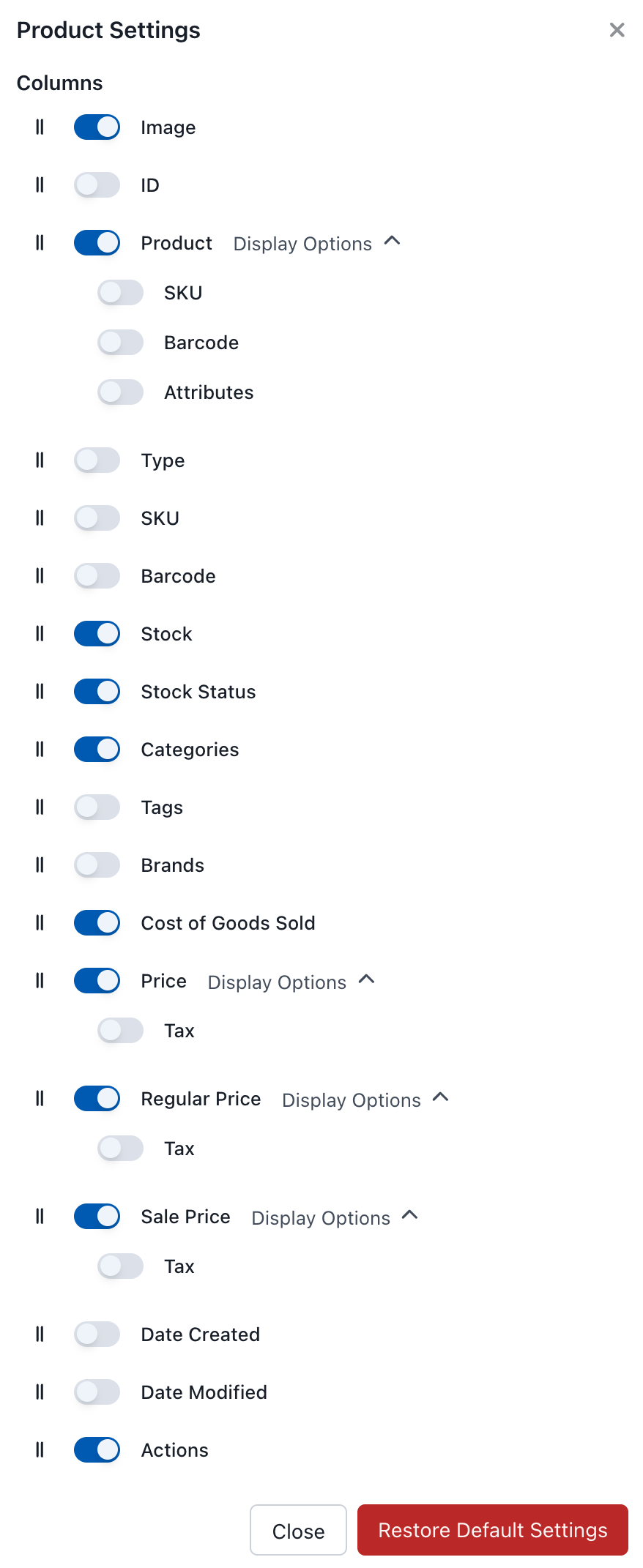
Impostazioni di Visualizzazione dei Prodotti
Colonne Disponibili
| Colonna | Descrizione | Opzioni di Visualizzazione |
|---|---|---|
| Immagine | Miniatura del prodotto | - |
| ID | ID prodotto WooCommerce | - |
| Prodotto | Nome del prodotto | SKU, Codice a barre, Attributi |
| Tipo | Semplice, variabile, raggruppato, ecc. | - |
| SKU | Stock Keeping Unit | - |
| Codice a barre | Codice a barre del prodotto | - |
| Stock | Quantità attuale (modificabile) | - |
| Stato dello Stock | Disponibile / Esaurito / Ordine arretrato | - |
| Categorie | Categorie del prodotto | - |
| Etichette | Etichette del prodotto | - |
| Marchi | Informazioni sul marchio (se il plugin è attivo) | - |
| Costo delle Merci Vendute | Prezzo di costo del prodotto (modificabile con Pro) | - |
| Prezzo | Prezzo di vendita attuale (modificabile) | Informazioni fiscali |
| Prezzo Regolare | Prezzo non scontato (modificabile) | Informazioni fiscali |
| Prezzo in Saldo | Prezzo scontato (modificabile) | Informazioni fiscali |
| Data di Creazione | Quando è stato creato il prodotto | - |
| Data di Modifica | Data dell'ultima modifica | - |
| Azioni | Pulsanti Modifica, Sincronizza, Elimina | - |
Ripristina Impostazioni Predefinite
Clicca per ripristinare tutte le impostazioni di visualizzazione ai loro valori predefiniti originali.
Filtrare Prodotti
Usa i pulsanti di filtro per restringere la tua visualizzazione:
- Stato dello Stock - Disponibile, Esaurito, Ordine arretrato
- In Evidenza - Prodotti contrassegnati come in evidenza
- In Saldo - Prodotti attualmente in saldo
- Categoria - Filtra per categoria di prodotto
- Etichetta - Filtra per etichetta di prodotto
- Marchio - Filtra per marchio (se utilizzi il plugin marchio)
Ordinamento
Clicca su qualsiasi intestazione di colonna per ordinare in base a quella colonna. Clicca di nuovo per invertire l'ordine di ordinamento.