Order Details
Use Order details to add a customer note, hand the order over, change its currency or tax, sync, print or void it. Open it with the ⋮ button beside Checkout.
Open Order details
At the bottom of the cart:
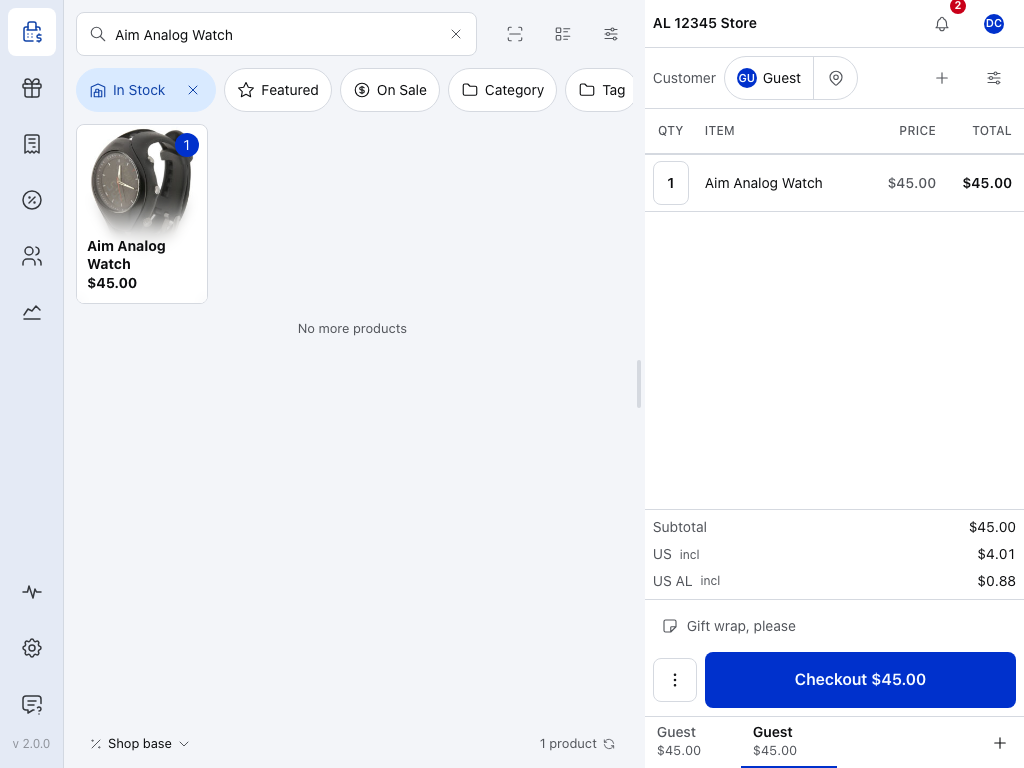
- Note row — the customer note, under the totals, once the order has one. Tap it to open Order details and change it.
- ⋮ — opens Order details.
- Checkout — takes payment. See Checkout.
On a tablet the sheet opens beside the cart; on a phone it fills the screen. At the top are the Form and JSON tabs, then Customer Note and the Hand over box. Scroll down for the rest.
Changes to the fields save as you make them, and a Saved mark shows by the field for a moment. There's no Save button: Close or ✕ puts the sheet away. The one exception is Hand over, which waits for Send.
Order details controls
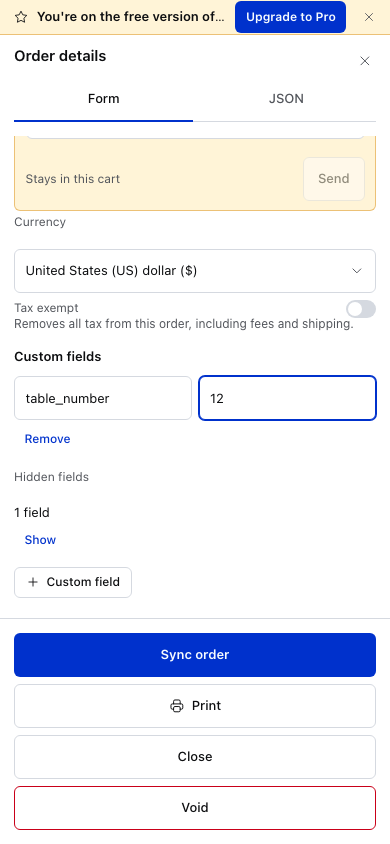
- Send — passes on a change in Hand over. See Hand the order over.
- Currency — the currency the order is recorded in. See Change the currency.
- Tax exempt — takes all tax off the order, fees and shipping included. See Remove tax from the order.
- Custom fields — extra information you add to the order, such as a table number. Remove deletes one. See Add extra information.
- Hidden fields — information other plugins keep on the order. You can leave it alone.
- + Custom field — adds another. + Currency sits beside it until the order has a currency row.
- Sync order — sends the order to your store now. See Sync the order.
- Print — the receipt for the order as it stands. See Print.
- Close — puts the sheet away.
- Void — deletes the order. See Void the order.
Add a note for the customer
Type in Customer Note. The note appears under the cart's totals, so you can see it at a glance; tap that row to change it.
It's the order's customer note in WooCommerce: the customer can read it on their order, it shows on the order in WP Admin under the shipping address, and receipt templates can print it. Keep private notes out of it.
Hand the order over
Hand over is the amber box under Customer Note. It decides where the order waits:
- Status — open, pending payment, on hold or cancelled. On hold and cancelled take the order out of the cart; pending payment keeps it. An order in another status, such as one that's partly paid, shows its status but you can't change it here.
- Cashier — hand the order to someone else. After they sync, it waits in their open orders.
- Store and Register — move the order to another till. They show when your shop has more than one store, or registers to choose from.
Nothing in Hand over takes effect until you press Send and confirm. Close the sheet first and those changes are dropped; the order stays where it was.
To hand it over:
- Change the Status, Cashier, Store or Register. Each one you change is marked in amber.
- Check the box: it says whether the order Leaves this cart or Stays in this cart, and shows each change from before to after.
- Press Send, then confirm.
See Open Orders for how open orders follow a cashier and a register.
Remove tax from the order
Turn on Tax exempt to take all tax off the order, fees and shipping included. Turn it off to put the tax back.
The switch is greyed out while it can't change, and the hint under it says what to do: finish the payment in progress, reopen the order, or, when the order has a coupon, connect to the store or update WooCommerce on the store to 11.3 or later. On a store whose prices include tax, the switch doesn't show at all.
Change the currency
Changing the currency doesn't convert prices. The amounts stay the same.
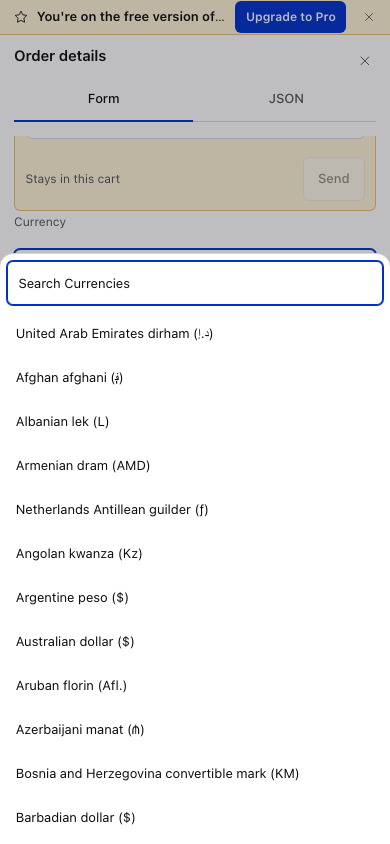
Press + Currency, then tap the currency to open the list. Type in Search Currencies to narrow it down, and tap the one you want.
The order is recorded in that currency, and payments taken on it are recorded in it too. Use it when your store sells in more than one currency and this sale isn't in the default one.
The Currency row shows on its own when an order's currency differs from your store's.
See the currency list
Add extra information
Use + Custom field to add extra information to the order, such as a table number or a reference from an outside payment terminal. Type a name in Key and the information in Value. Your fields are listed under the Custom fields heading, key and value side by side, and Remove under a row deletes it.
Advanced: hidden fields and the order's data
Each custom field is saved on the order as WooCommerce order meta, under its key. Plugins and reports read it from there.
Keys that start with an underscore are private to the plugin that wrote them. They fold away under Hidden fields; press Show to see and edit them, Hide to put them away. The fields WCPOS keeps for itself never show, and a new field can't use one of their keys: the POS says This key is managed by WCPOS. Choose another key.
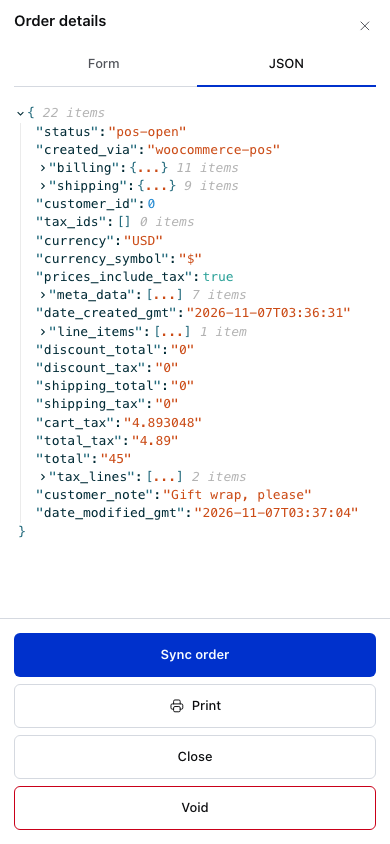
The JSON tab shows the whole order as data. It's for troubleshooting with support, or for a developer checking what a plugin sees.
Sync the order
The POS keeps a new order on this device until it needs your store: at checkout, or when you hand it over. Sync order sends it now. The message Order #… synced gives the number your store gave it. In WooCommerce > Orders it shows with the status POS - Open.
Sync an order you're parking for later, so it's safe if this device is cleared. See Open Orders.
Print
Print opens the receipt for the order as it stands, before it's paid: handy as a quote or a bill for the table. See Printing Receipts.
Void the order
You can't void an order that has a payment on it, finished or in progress. The POS says This order has payments on it. Reverse them with Cancel in the tender pane, then void. Go back to checkout, cancel the payment there, then void. See Cancelling a Payment.
Void deletes the order and empties the cart. The message Order removed has an Undo button if you pressed it by mistake.
- An order that was never synced only existed on this device, so it's gone.
- A synced order moves to the Trash in WooCommerce. To get it back, restore it from WooCommerce > Orders > Trash. If the store won't delete it, it's marked Cancelled instead, and the message says Order voided and marked cancelled.
A void moves no money, so it works with the register closed.
If something goes wrong
Failed to save order. The sync or hand-over didn't reach your store, and the order is back as it was. Check the connection and try again.
This order is still on its way to your store. The store hasn't answered yet. Wait for it rather than sending again; the order updates when the store confirms.
Send stays grey. Nothing in Hand over has changed yet, or a new store's registers are still loading. Pick a register if the store has some.
Not saved beside a field. The change didn't save. Make it again; the mark stays until your next change.
Tax exempt is greyed out. Read the hint under it. See Remove tax from the order.
Voided by mistake. Press Undo on the message before it closes. It puts the order back in the cart as it was.