Totals Don't Match
The POS works out every total at the till, then saves the order to your store. Your store works the total out again. When the two don't match, a warning appears in the cart and at checkout: Your store changed this order's totals.
What the notice means
Check the total with the customer before handing anything over. The sale is not blocked and nothing is lost: the order keeps your store's figures, and they are what WooCommerce reports and what the customer's order shows. Then start the three checks to bring the POS back in line with your store.
Offline, the POS uses the same sums, and there is no store to correct them. Until the cause is found, an offline sale on this store may carry the wrong total, and you won't see it until the connection is back.
The notice sits under the cart's lines, just above the totals, and lists what changed:
- The store's amounts are the ones that count. Check the total before handing over goods. — the line under the title.
- One row per amount that changed: Total, Tax, Item tax, Discount, Discount tax, Shipping or Shipping tax, each as the till's figure → your store's figure.
- N line amounts also differ — when amounts on single lines changed too. They are counted, not listed.
- Why totals disagree — opens this page.
The notice can't be closed. It stays on that order until the order leaves the cart or you switch store. Closing WCPOS (in a browser, reloading the page) also clears it, but not its cause.
First, make sure the POS has your store's settings
The POS keeps its own copy of your store's settings and tax rates. If you changed something in WooCommerce and the copy is out of date, the two disagree. Work through these in order, then make a test sale. Comparing settings with WooCommerce needs access to WP Admin; if you don't have it, show this page to whoever manages your store.
1. Check the tax rows set in WooCommerce
Open Settings at the foot of the menu, then Tax.
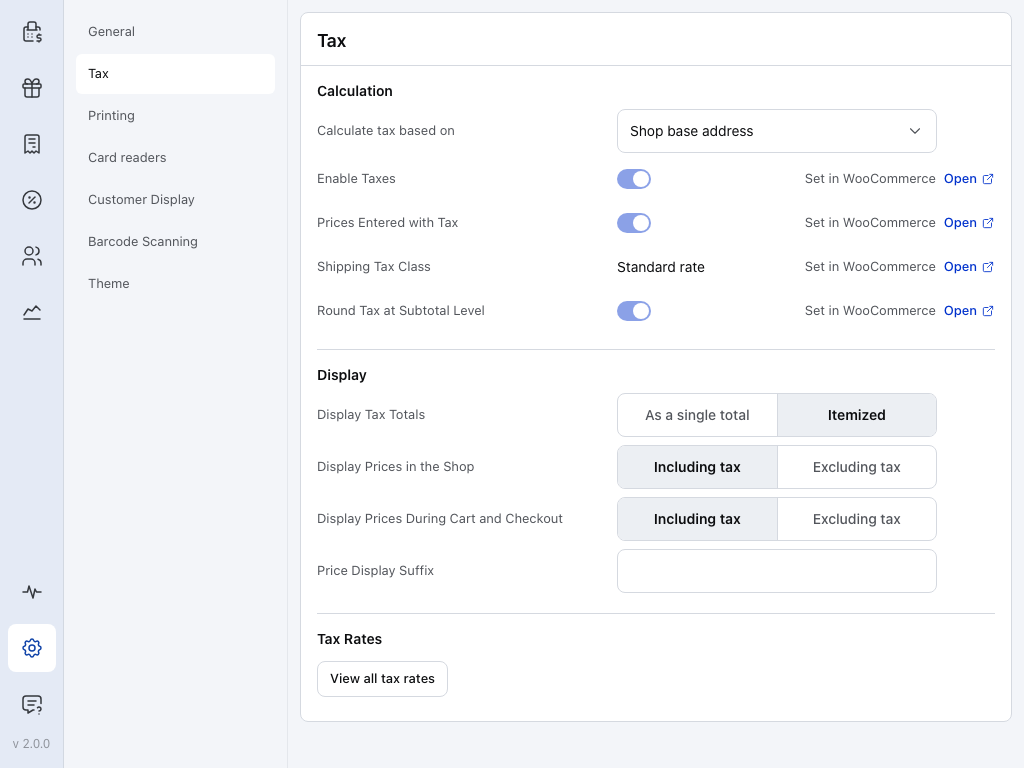
- Enable Taxes — off, no sale has tax.
- Prices Entered with Tax — whether your prices already include tax.
- Shipping Tax Class — the tax class used for shipping.
- Round Tax at Subtotal Level — on, tax is rounded once for the whole order; off, line by line. It changes totals by a cent or two on orders with several lines.
- Open — opens WooCommerce's tax settings in the browser. Each of the four rows has one.
These four rows are set in WooCommerce and can't be changed in the POS. Check they match WP Admin > WooCommerce > Settings > Tax. The POS reads them again every time it loads your store, so after you change one in WooCommerce, close WCPOS and open it again (in a browser, reload the page). Above them, Calculate tax based on picks the address that sets the tax rate: see Calculate tax based on.
2. Restore server settings
Some settings are copied only once, so a value you changed on this device stays. That includes the store address the POS taxes shop sales at. If your store's address has changed in WooCommerce, the POS keeps the old one until you restore.
Open Settings, then General, and scroll to the foot. Press Restore Server Settings, then Restore Server Settings again in the dialog. Restored appears beside the button. See Restore Server Settings for what it changes.
3. Fetch the tax rates again
Open Store health from the pulse icon at the foot of the menu, then Database. On the Tax rates row, press ⋮.
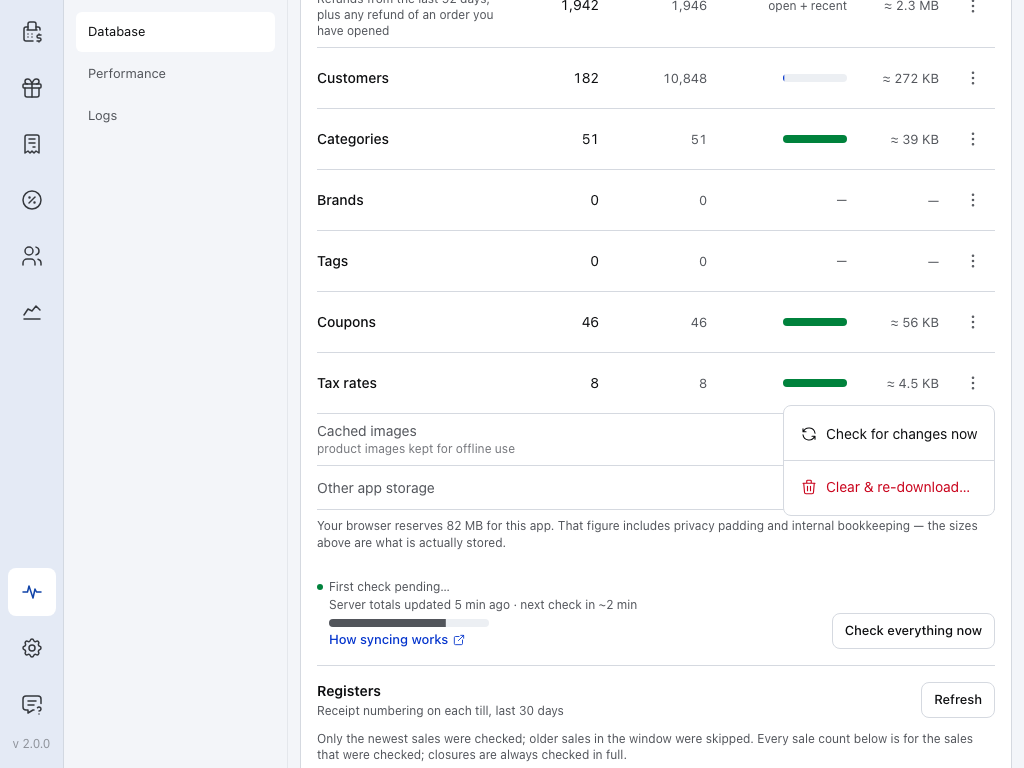
- Check for changes now — asks your store for new or changed rates now, instead of at the next check.
- Clear & re-download… — removes this device's copy of the rates and downloads them again. Your store keeps them. Use it when Check for changes now does not help.
See Check now, or clear and re-download.
Make a test sale
You don't need to take payment.
- Start a new order with the same items, for the same customer or tax address, as the sale that showed the notice.
- Press ⋮ beside Checkout, then Sync order. It sends the order to your store, which works the totals out again. See Sync the order.
- Wait for Order #… synced. Until it appears, the store hasn't answered, so a missing notice proves nothing. If the sync fails, fix the connection and sync again.
- Look under the cart's lines. If the totals agree and no notice appears, the test sale has passed.
- Void the test order. It moves to the Trash in WooCommerce.
Do the three checks again whenever you change anything under WP Admin > WooCommerce > Settings > Tax.
Using WooCommerce Tax? First sales at new locations can differ
With WooCommerce Tax automated taxes on, expect the notice once on the first sale at a location your store has never taxed, and once more if a jurisdiction changes its rate. The rate row is made by that sale, so the POS didn't have it yet. The POS downloads it at its next check, usually within a minute, and the next sale at that location agrees. Check for changes now on the Tax rates row fetches it straight away. With tax based on the customer's address, every new postcode can do this once.
If the notice still appears on the test sale, look at the causes below.
What causes it
There are three causes. The notice looks the same for all of them. If none of them fits, send us the details.
A tax setting or rate the POS reads differently
The most common cause. Check these in WooCommerce:
- Prices entered with tax — under
WP Admin > WooCommerce > Settings > Tax. - Round tax at subtotal level — on the same page. The POS uses your store's value; it shows it greyed out under Settings > Tax and can't change it.
- Tax rates — a rate whose Priority or Compound setting is not what you expect, or rates set per postcode or per city.
- Number of decimals — under
WP Admin > WooCommerce > Settings > General. The POS rounds to your store's count. Changing Number of Decimals in the POS only changes how amounts are shown.
A store that recently changed any of these is the first place to look.
A plugin that changes order totals
Surcharge, fee, currency, loyalty and role-based pricing plugins often work totals out again on your store, after the POS has done its own sums. The POS can't see those rules, so it disagrees on every sale they touch.
If that is what you want, nothing is broken: your store records the sales correctly. But the notice appears on every sale they touch, and it won't go away, because the POS can't copy rules that live on your store. For the same reason, offline sales on that store won't match what your store would charge.
To find which plugin it is, see Plugin Conflicts.
A bug in the POS
If the totals still disagree after the three checks above and no plugins change totals, send us the details below so we can investigate.
When it happens on several sales
One notice is a sale to check. Once three different sales have disagreed since WCPOS was opened on this store, the notice adds two lines:
- This has happened on N sales
- Your store and the POS are calculating totals differently. Show this to whoever manages your store.
It counts sales, not saves: saving the same order again doesn't add to the count.
On a store using WooCommerce Tax, the count can reach three harmlessly: the first sale at each new postcode can disagree once (see Using WooCommerce Tax? under Make a test sale). If the next sale at each of those postcodes agrees, nothing is wrong. If later sales at the same location still disagree, ask whoever manages your store to work through the causes above.
A different notice: Check this order's amounts before taking payment
The same box can carry a second message, on its own or under Your store changed this order's totals. It means the POS couldn't read something it needs to total the order. It has no Why totals disagree link.
- A line's saved price details couldn't be read — remove that line and add it again.
- This order uses a tax rate your store no longer has — the rate was removed in WooCommerce after the line was added. Check the tax on the order before taking payment.
What to send us
The notice shows both figures for each amount that changed. With the list below, that is usually enough to find the cause without a screen share:
- A screenshot of the notice, with the amounts.
- That you made the three checks above and the notice came back.
- Your tax settings:
WP Admin > WooCommerce > Settings > Tax, every field, including whether automated taxes are on, and Number of decimals under General. - Whether Round tax at subtotal level is on.
- The tax rate table itself, not only the settings page: the rows under each tax class, with Country, State, Postcode, City, Rate %, Priority, Compound and Shipping. Most causes live in those rows, and without them we have to ask again.
- The active plugins that touch prices, taxes, fees or currency.
- The order number of a sale that showed the notice.
- The Totals from your store differ from the till row from Store health → Logs, with its event code. See Logs.