POS-Only Products
Some products belong only at the till, some only online. Switch on Enable POS only products and every product gets a POS visibility with three choices:
| POS visibility | Your website | The POS |
|---|---|---|
| POS & Online (where every product starts) | Shown | Shown |
| POS Only | Hidden | Shown |
| Online Only | Shown | Hidden |
You set POS visibility in WP Admin. The POS only follows it: there is no control for it at the till. Missing a product at the till? See If something goes wrong.
Switch it on
In WP Admin, go to POS > Settings > General. Under Products, switch on Enable POS only products. It saves as soon as you switch it. Every product now has a POS visibility: POS & Online for a product you haven't set, and the choice you saved for one you have, if you switched this on before.
If every product sells in both places, leave it off. Off, POS visibility hides nothing; WooCommerce's own visibility settings still apply.
Switching this off again, or deactivating WCPOS, lets your POS Only products appear on your website again, as far as their WooCommerce visibility allows. See Switch it off.
Set a product's visibility
One product
- In WP Admin, go to Products and open the product.
- In the Publish box, press Edit beside POS visibility.
- Choose POS & Online, POS Only or Online Only, and press OK.
- Press Update.
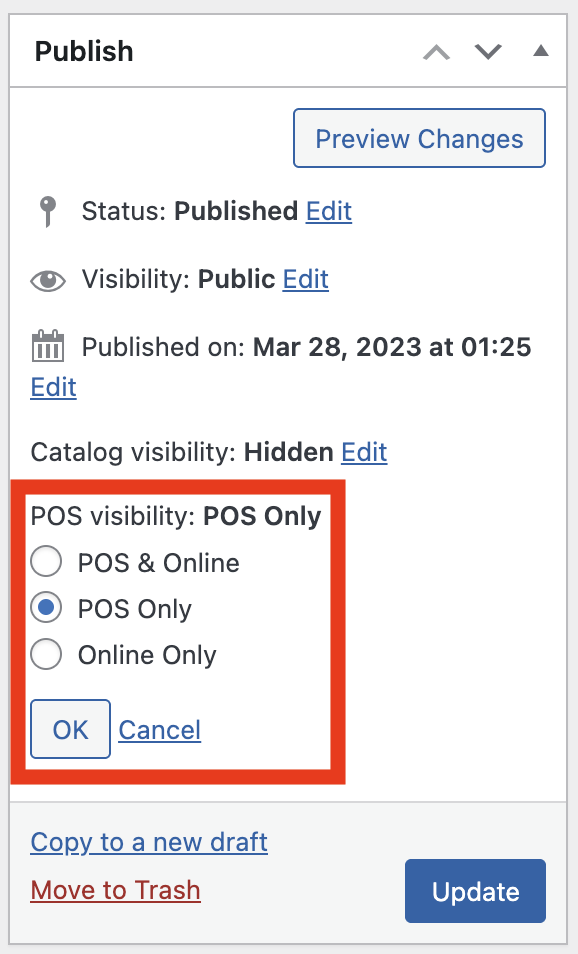
POS visibility sits in the Publish box, under Catalog visibility. In this older screenshot Catalog visibility still has an Edit link; while a product is POS Only it now has none.
From the Products list, Quick Edit on a product has the same POS visibility choice.
Many products at once
- In WP Admin, go to Products and tick the products.
- Choose Edit from Bulk actions and press Apply.
- Pick a choice in POS visibility. Left on — No Change —, each product keeps its own.
- Press Update.
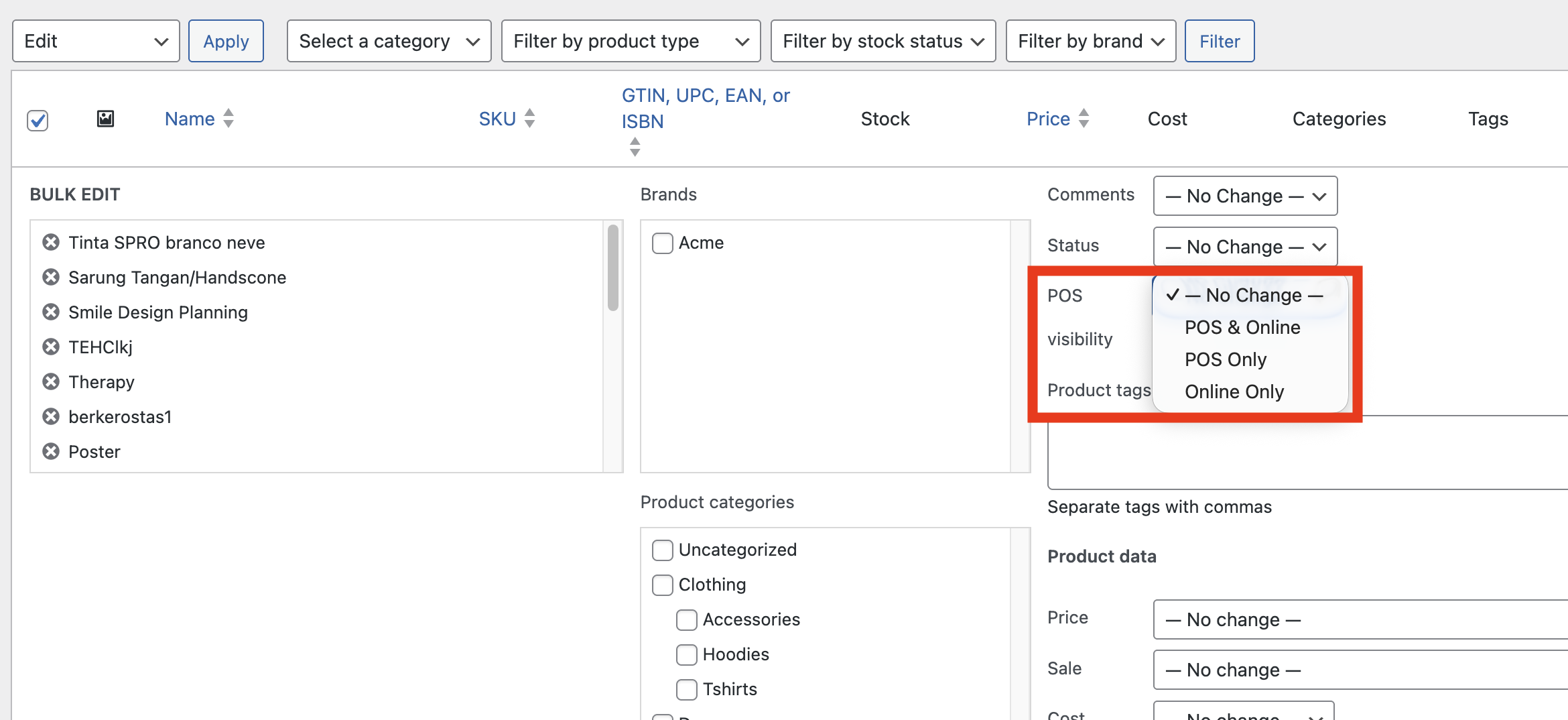
POS visibility in Bulk Edit
Variations
Each variation has its own POS visibility, in its panel under Variations. Press Save changes when you're done. You can sell every colour online and only some at the till, or keep one size for the shop floor. To move a whole variable product, set the product's own POS visibility instead: an Online Only product has no tile on the till, and a POS Only product is off your shop with every variation.
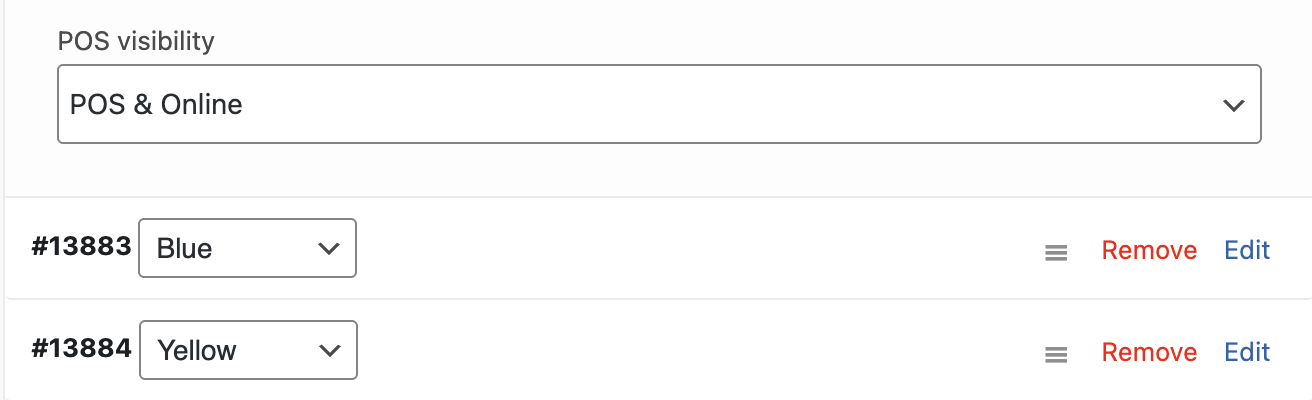
One variation's POS visibility
Find them again
The Products list gains two views above the table, beside Published: POS Only and Online Only, each with its count. Click one to list just those products.
In the POS
An Online Only product isn't on the till at all. It doesn't show in the Product Panel, a search doesn't find it, and scanning its barcode says Barcode not found. POS Only and POS & Online products sell as usual.
When you change a product's visibility, the POS picks it up the next time it checks your store for changes: an Online Only product disappears, and comes back when you change it back. To check now, press the arrow beside the product count.
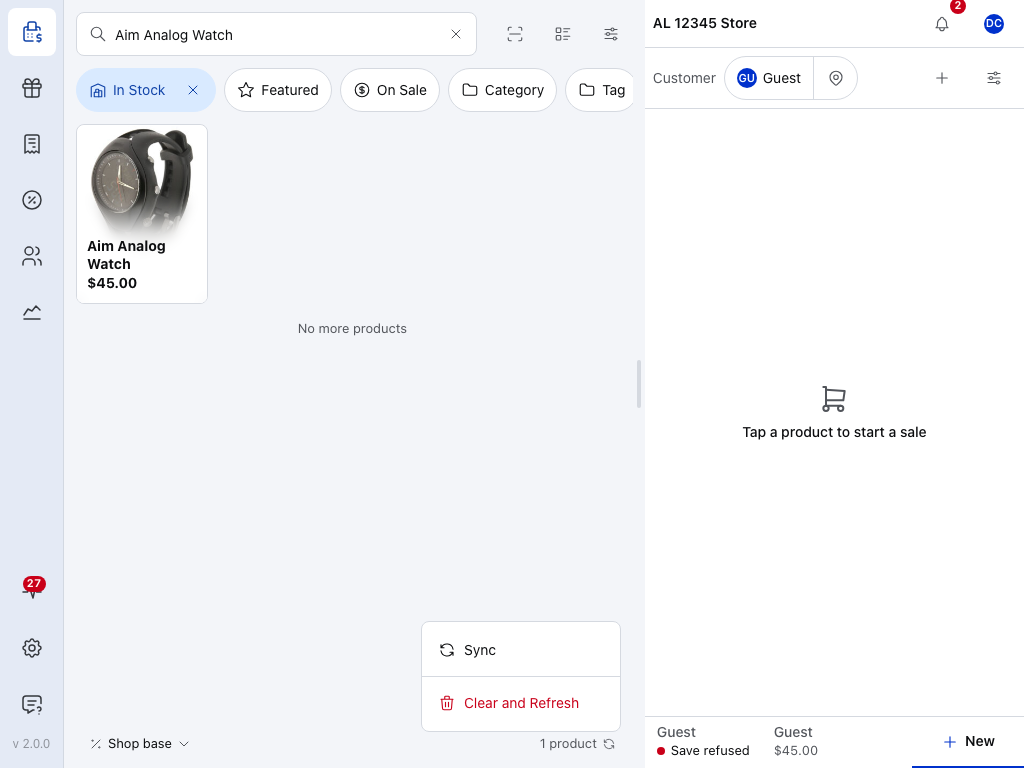
- Search products — also asks your store, but never returns an Online Only product. See Search & Filtering.
- Settings — includes Show out-of-stock products. See Display Settings.
- In Stock — hides out-of-stock products. Press its cross before you decide a product is missing. See Stock status.
- A product tile — POS Only and POS & Online products show here.
- The product count — how many products on this device match: 1 product here, Showing 20 of 259 on a full list. Press the arrow beside it to check for changes now; press and hold it for the menu shown open here: Sync, or Clear and Refresh, which clears the search and filters and downloads the products again. See The panel's footer.
On your website
A POS Only product is hidden from shoppers:
- It isn't listed: not in the shop, category pages, search, related products, product blocks, feeds or sitemaps.
- It can't be added to the cart or bought online. A direct link still opens the product's page, as with WooCommerce's own Hidden, but it can't be added to the cart there.
- A POS Only variation is left out of the options on the product page. The product stays online for its other variations.
Catalog visibility, and where POS Only products still show
WCPOS hides a POS Only product by setting its WooCommerce Catalog visibility to Hidden. While the product is POS Only, Catalog visibility in the Publish box is locked at Hidden, with the line POS Only products are never shown in the online catalog or search. Move it back to POS & Online or Online Only and WCPOS puts back the catalog visibility it had before; the Publish box tells you which before you press Update. A product that was never anything but visible goes back to Shop and search results. For a different catalog visibility, change it after the update. Variations have no catalog visibility of their own in WooCommerce, so nothing is locked for them.
Hiding is a rule for shoppers only. A POS Only product stays visible where you run the shop:
- WP Admin, including the Products list and the product editor.
- WooCommerce Analytics, so a report filtered by a category of POS Only products shows their sales.
- The POS itself.
Switch it off
Switch off Enable POS only products and POS visibility no longer hides anything; WooCommerce's own visibility settings still apply. Online Only products come back to the POS on its next check for changes, and POS Only products get back the catalog visibility they had before: a product you had hidden yourself stays hidden. Each product's choice is kept, so switching it back on uses the choices you saved and hides the same products again.
Deactivating WCPOS also gives every POS Only product back the catalog visibility it had before, so it can appear on your website again.
When to use it
- Gift cards sold at the counter — physical cards activated at the till. Make them POS Only.
- Online pre-orders — products not in stock yet that customers order online. Make them Online Only, so they don't clutter the till.
- Wholesale and retail on one store — wholesale-only products Online Only for your trade customers, in-store exclusives POS Only, everything else POS & Online.
- Downloads and online-only deals — digital products and web-only offers you don't sell at the counter. Make them Online Only.
- In-store specials — promotional items you sell only at the till. Make them POS Only.
If something goes wrong
An Online Only product still shows in the POS. Press the arrow beside the product count to check for changes. If it's still there, press and hold the arrow and choose Clear and Refresh.
A product is missing from the POS. Clear the search and check the filter bar, In Stock included. Then open the product in WP Admin and check its POS visibility, and for a variation, the product's own setting too.
A product shows on one device but not another. Each device keeps its own search and filters and picks up changes only while it's online: see Product Sync.
A POS Only product still appears in your shop, categories or search. Opening it from a direct link is expected; this is for a product shoppers can still find.
- Open the product and look at Catalog visibility in the Publish box. For a POS Only product it reads Hidden.
- If it reads anything else, press Update once and WCPOS sets Hidden again. If it still doesn't, a plugin or custom code is changing it: see For developers.
- If it reads Hidden, the page is most likely cached. Clear your caching plugin or CDN.
Products have no POS visibility. Enable POS only products is off. Switch it on in POS > Settings > General.
For developers
Filters for POS Only products
POS Only products are left out of the WooCommerce Store API, which the block cart and checkout use, and the WooCommerce REST API product and variation lists (/wc/v1 to /wc/v3). WP-CLI commands such as wp wc product list still see them.
wcpos_hide_pos_only_products decides whether a product query leaves POS Only products out. It receives the default decision and the WP_Query about to run: true on the storefront, false in WP Admin, WP-CLI, WooCommerce Analytics and the POS. Return false to let a context of your own see POS Only products.
add_filter( 'wcpos_hide_pos_only_products', function ( $hide, $query ) {
    if ( defined( 'MY_PLUGIN_EXPORTING' ) ) {
        return false;
    }
    return $hide;
}, 10, 2 );
wcpos_pos_only_catalog_visibility sets the catalog visibility WCPOS writes for a POS Only product. It receives hidden and the product. Return one of WooCommerce's catalog visibility keys (visible, catalog, search or hidden) to apply that instead, or null to leave the product's catalog visibility to you. It only changes what WCPOS writes into Catalog visibility: the storefront rule above still applies, so pair it with wcpos_hide_pos_only_products if a POS Only product should appear somewhere online.
add_filter( 'wcpos_pos_only_catalog_visibility', function ( $visibility, $product ) {
    if ( has_term( 'club-stock', 'product_cat', $product->get_id() ) ) {
        return null; // I manage catalog visibility for these myself.
    }
    return $visibility;
}, 10, 2 );
wcpos_default_product_visibility sets the POS visibility a new product starts on in the editor. It receives '' (POS & Online) and the post; return pos_only or online_only to start new products there.
Before WCPOS 2.0 these filters were named woocommerce_pos_hide_pos_only_products, woocommerce_pos_pos_only_catalog_visibility and woocommerce_pos_default_product_visibility. The old names still work, but are deprecated since 2.0 and removed in 2.2 at the earliest. See Hook naming.