ATUM Locations
ATUM Multi-Inventory keeps a product's stock in more than one place: a warehouse, a shop, a market stall. The WCPOS ATUM Integration extension links each WCPOS store to one of those places, its location. The tills in that store then count that location's stock, and can use its prices and SKUs. A sale takes the stock from that location, not from the shop's total.
Cashiers have nothing to set up: see What the cashier sees and Sales and refunds. Administrators start with Install the extension. A count looks wrong at the till? See If the count looks wrong. Stock or prices set up wrong? See If something goes wrong.
What the cashier sees
Selling doesn't change. What changes is the numbers behind each product:
- Stock — this store's location's count.
- Out of stock here — a product the location has run out of shows as out of stock, even if the warehouse has plenty, and the In Stock filter hides it.
- No inventory here — a product with no stock record for this location (ATUM calls it an inventory) keeps the stock, price and SKU it has without ATUM.
- Prices — come from ATUM when the store is set up for it; see Choose where prices come from.
- SKUs — are the location's own when the store is set up for it; see Use the location's SKUs.
If the count looks wrong
- Press and hold the sync button () and choose Clear and Refresh. The till downloads the location's counts again.
- Can't find a product the location has run out of? It's hidden while In Stock is on: press the cross on In Stock to see it. See When you can't find it.
- Still wrong? Ask your manager to check the store's Inventory location and the product's inventory for it in ATUM; see If something goes wrong.
Sales and refunds
A sale rung up in a linked store takes its stock from that store's location. A refund or a cancelled order puts it back in the same place. ATUM does the counting itself, so each movement shows in ATUM's stock history against the order.
Install the extension
You need ATUM Inventory Management and its Multi-Inventory add-on, both active, with your locations created in ATUM. You also need WCPOS Pro and an administrator login to WP Admin.
- In WP Admin, go to POS → Settings and choose Extensions.
- Pick the Inventory tab and find WCPOS ATUM Integration.
- Press Install. It installs and switches on in one go.
See Install an extension for updates and auto-updates.
You can also download the zip from the GitHub releases page and upload it in WP Admin → Plugins → Add Plugin → Upload Plugin.
Link a store to a location
Do this once for each store that has its own stock. Each product you sell in the store also needs an inventory for that location in ATUM: ATUM's record of the product's stock there. A product without one keeps its ordinary WooCommerce stock, price and SKU at the till.
- In WP Admin, go to POS → Stores and click the store's name.
- In the store's menu, under Extensions, open ATUM Inventory.
- Under Inventory location, pick the location this store sells from. No location (use default stock) leaves the store on the shop's ordinary WooCommerce stock.
- Two more settings appear: Pricing source and Use location-specific SKUs from ATUM. Set them as below, or leave them as they are.
- Changes save by themselves. On each till in the store, press and hold the sync button () and choose Clear and Refresh. The stock now matches the location in ATUM.
Choose where prices come from
Pricing source has three choices:
- Default (WooCommerce prices) — ATUM's prices are not used. The till shows the product's per-store price where it has one for this store, and the WooCommerce price otherwise.
- WCPOS Pro (per-store pricing) — the same as Default: per-store price where there is one, WooCommerce price otherwise.
- ATUM (per-inventory pricing) — the regular and sale price come from the location's inventory in ATUM. Where ATUM has no price for it, the till keeps the price it would show with Default.
The stock comes from the location whichever you choose.
Use the location's SKUs
Tick Use location-specific SKUs from ATUM when each location labels its stock with its own SKU. The till shows the location's SKU, and a search for it finds the product. Where ATUM has no SKU for the location, the product's own SKU stays.
Edit products from the POS
With WCPOS Pro, the Products screen in the POS menu shows the location's numbers. An edit made there goes back to the location in ATUM when the product has exactly one inventory for the store's location. Only that location changes: other locations are left alone.
To change a location's stock from a till:
- In the POS menu, open Products and search for the product.
- Click its Stock number, type the new count and press Enter.
- Check it in ATUM: open the product there and look at its inventory for the location, which now shows the new count.
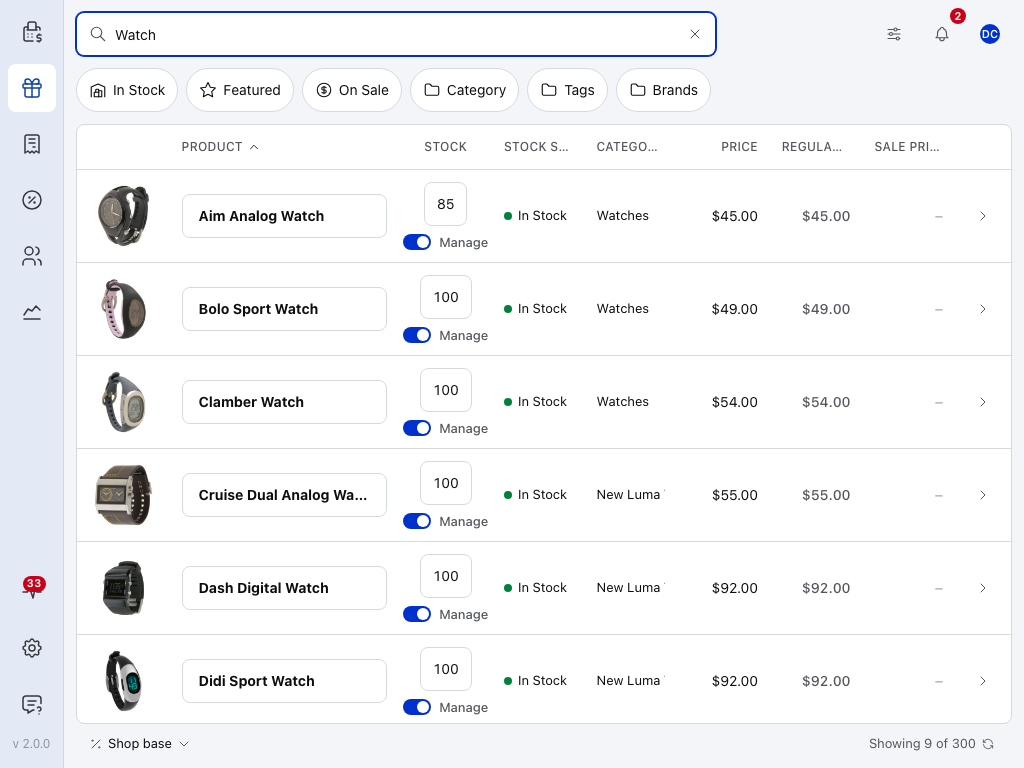
- Search — find a product by its name or SKU. In a store that uses location SKUs, that's the location's SKU.
- In Stock — shows only products whose stock status is In Stock, which follows the location's count.
- Stock — this location's count. Change it here and ATUM's count for the location changes too, when the product has one inventory there. See Inline Stock Editing.
- Stock Status — In Stock while the location has more than 0, Out of Stock at 0 or less.
- Price — what the till charges. With the store's Pricing source on ATUM, this and the Regular Price and Sale Price beside it are the location's. The table below shows when a change goes back to ATUM.
- Open (›) — opens the product to edit it. See Product Actions.
For a product with exactly one inventory for the store's location, these fields go back:
| Field | Goes back to ATUM |
|---|---|
| Stock | Every change. |
| Regular price, Sale price | Only when the store's Pricing source is ATUM and the product has no per-store price for this store. With a per-store price, the change goes to that per-store price instead, and the till keeps showing ATUM's price. |
| SKU | Only when Use location-specific SKUs from ATUM is ticked. |
Nothing goes back to ATUM:
- for a new product. Add the location's stock in ATUM.
- when the product has no inventory for the location. The extension never adds one.
- when the product has more than one inventory for the location. The extension can't tell which to change, so it changes none of them.
If something goes wrong
The till shows the shop's total stock, not the location's. Check that the store has an Inventory location, and that the product has an inventory for it in ATUM. Then press and hold the sync button and choose Clear and Refresh. Also check the extension's version on the Extensions screen: versions before 0.1.4 show the total stock with WCPOS 2.0.
There is no ATUM Inventory page under Extensions in the store's menu. The page needs WCPOS Pro, the extension active, and both ATUM Inventory Management and ATUM Multi-Inventory active.
"No ATUM locations found. Create locations in ATUM settings." ATUM has no locations yet. Create them in ATUM, then reload the store's page.
There is no Pricing source. It appears once the store has an Inventory location.
The till's price isn't the one in ATUM. Check that the store's Pricing source is ATUM, and that the product's inventory for the location has a price. Where it has none, the till keeps the price it would show with Default. After changing the Pricing source, press and hold the sync button on each till and choose Clear and Refresh. See Choose where prices come from.
A stock change on the Products screen didn't reach ATUM. The product has no inventory for the store's location, or has more than one. See Edit products from the POS.
For developers: stored data, REST fields and filters
- A store keeps its settings in three post meta keys:
_wcpos_atum_inventory_location(anatum_locationterm ID),_wcpos_pricing_source(default,wcpos_prooratum) and_wcpos_atum_sku_override(1or empty). The WCPOS stores endpoint returns them asatum_inventory_location,pricing_sourceandatum_sku_override. - Product and variation responses for the POS are changed at priority 20, after WCPOS Pro's per-store prices at priority 10. The stock status is set from the location's quantity alone.
- When the POS saves an order, the extension adds
mi_inventoriesto each line item, and filtersatum/multi_inventory/order_item_inventoriesto the store's location. ATUM then reduces and restores the stock, and records the order ID inatum_inventory_orders. - Product edits are written to
atum_inventory_metafor updates only, never creates, and only when exactly one inventory matches the location (or the request names one withinventory_id). wcpos_atum_is_supportedswitches the extension on or off. By default it is on when ATUM Multi-Inventory is active.- Requirements: WordPress 5.9 or later, PHP 7.4 or later.
Source: github.com/wcpos/wcpos-atum.