# Keyboard Shortcuts
With a keyboard on the counter, you can ring up a sale without reaching for the mouse. Hold **Alt** (**Option ⌥** on a Mac) and press a key. **Alt + /** shows them all.
Where shortcuts work
In a browser and in the desktop app, on the POS screen. They work even while the cursor is in a text field. On a Mac, a shortcut that types an accent there, such as **Option + N**, needs a [click outside the field](#goes-wrong) first. The phone and tablet apps have none. The other screens have none either, except the Orders list, which has its own [arrow keys](#orders).
## The shortcuts[](#shortcuts "The shortcuts으로 직접 링크")
Every shortcut but **Alt + /** waits while you're at checkout or on the paid screen. All but **Alt + F** and **Alt + /** also wait while the cart is out of sight: behind the register picker, the **Open register** card, the count, or the open orders list.
| Press | What happens |
| -------------------------- | ------------------------------------------------------------------------------------------------------------------------------------ |
| **Alt + F** | The cursor goes to **Search products**. On a narrow screen, the Products tab opens first. |
| **Alt + P** | **Checkout** opens.
*Also needs something in the cart.* |
| **Alt + N** | An empty cart. The order you were on stays open.
*Also needs an order in the cart, not an empty cart.* |
| **Alt + ←** or **Alt + →** | The previous or next open order.
*Also needs two or more open orders.* |
| **Alt + D** | **Add Discount** opens.
*Also needs an order in the cart.* |
| **Alt + V** | The order in the cart is voided at once. Press **Undo** straight away if you didn't mean to.
*Also needs an order in the cart.* |
| **Alt + /** | The shortcuts list opens or closes.
*Works any time on the POS screen, checkout included.* |
Alt + V doesn't ask first
The order is voided as soon as you press it. The message that appears has an **Undo** button: press it straight away if you didn't mean to.
The shortcuts are fixed. There's no setting to change them. If you'd like different keys, tell us on [Discord](https://wcpos.com/discord).
## See every shortcut[](#list "See every shortcut으로 직접 링크")
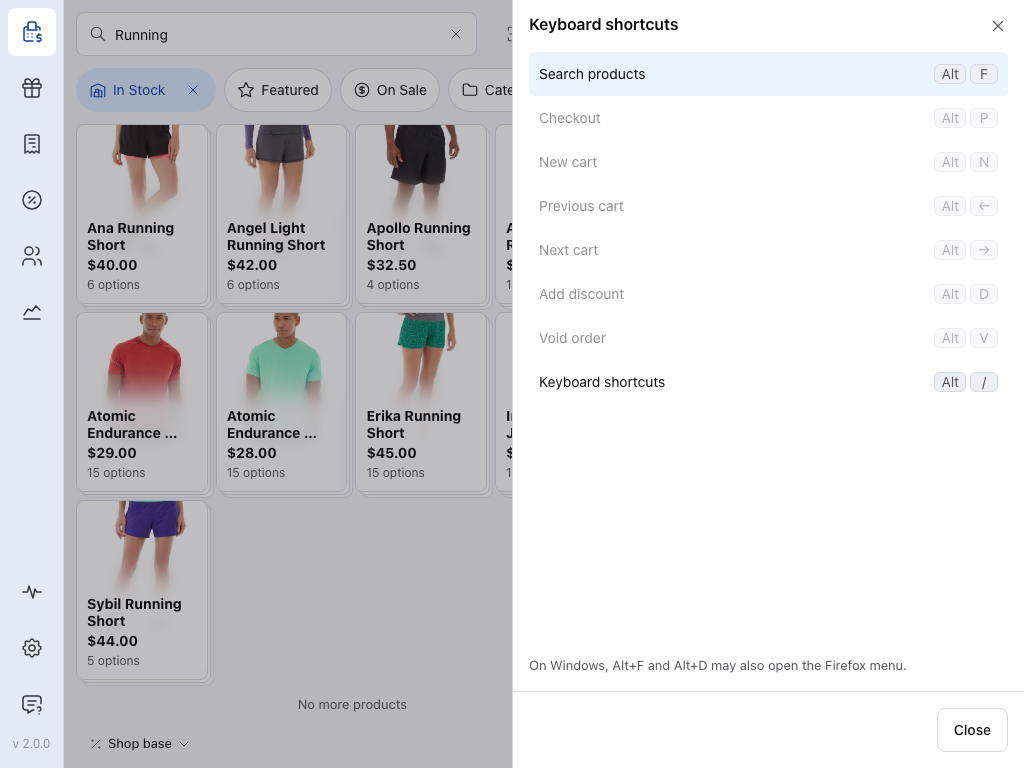
Press **Alt + /**. The list slides in from the right.
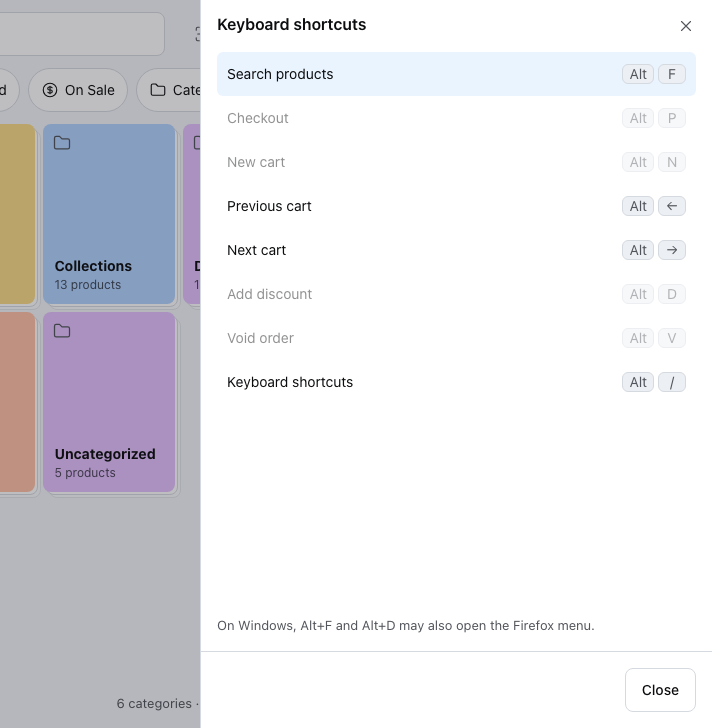
A grey row can't run right now. With an empty cart, **Checkout**, **New cart**, **Add discount** and **Void order** are grey, and **Previous cart** and **Next cart** stay grey until two orders are open. Press any other row to run it, the same as its keys. On Windows, a note at the foot warns about [Firefox](#goes-wrong). Press **Close**, or **Alt + /** again, to put the list away.
The list covers the cart and dims the products beside it.
12345678
1. **Search products** — puts the cursor in the product search, ready to type or scan. See [Search & Filtering](/ko/sell/find-products/search-products.md).
2. **Checkout** — opens the tender pane for the order in the cart. See [Checkout](/ko/getting-started/make-sale.md).
3. **New cart** — starts an empty cart. The order you were on stays in [Open Orders](/ko/sell/cart/open-orders.md).
4. **Previous cart** — steps back to the open order before this one.
5. **Next cart** — steps forward to the next open order.
6. **Add discount** — opens **Add Discount** for the order. See [Discounts](/ko/sell/cart/discounts.md).
7. **Void order** — voids the order in the cart at once, with no question first. Press **Undo** straight away if you didn't mean to. See [Void](/ko/sell/cart/order-details.md#void).
8. **Keyboard shortcuts** — this list.
## Move through the Orders list[](#orders "Move through the Orders list으로 직접 링크")
On the **Orders** screen in a browser or the desktop app, click an order (or **Tab** into the list), then:
* **↓** / **↑** moves the highlight to the next or previous order.
* **Enter** opens the highlighted order.
Pro Feature
The Orders screen comes with WCPOS Pro. See [Orders](/ko/manage-store/orders.md).
## If something goes wrong[](#goes-wrong "If something goes wrong으로 직접 링크")
**Nothing happens.** Open the list with **Alt + /**: if the shortcut's row is grey, it can't run yet, for the reason in [the table](#shortcuts). Check you're on the POS screen, the register is open, and the open orders list isn't covering the cart.
**Alt + F or Alt + D opens the Firefox menu.** On Windows, Firefox may keep those two for itself. Press the row in the shortcuts list instead, or use Chrome, Edge or the desktop app.
**On a Mac, Option + N puts an accent in the search box instead.** Some keyboard layouts use Option + a letter to type an accent, and while you're typing in a field the POS lets the accent through. Click outside the field, then press the shortcut again.
## Related Documentation[](#related-documentation "Related Documentation으로 직접 링크")
[Open OrdersKeep several sales going and switch between them](/ko/sell/cart/open-orders.md)
[DiscountsTake money off a line or the whole order](/ko/sell/cart/discounts.md)
[Order ActionsVoid an order, add a note or save it to the store](/ko/sell/cart/order-details.md)