WooCommerce Tax
WP admin: WooCommerce Tax is set up in WooCommerce. The POS needs no setting of its own.
WooCommerce Tax looks up sales tax for you through TaxJar, so you don't keep a rate table by hand. It works with WCPOS: POS sales get the same rates as your online orders, and there is nothing to switch on in WCPOS.
Already set up? See What to expect at the till.
Requirements
Set it up
Turning on automated taxes (step 2) backs up the rates you entered by hand to a CSV file, then removes them from your rate table. Download the backup from WP Admin > WooCommerce > Status > WooCommerce Tax if you might need them again.
-
Connect WooCommerce Tax. Install and activate it, then connect your site to WordPress.com.
WP Admin > WooCommerce > Status > WooCommerce Taxshould say Connected to WordPress.com. -
Turn on automated taxes. Under
WP Admin > WooCommerce > Settings > Tax, set Automated taxes to Enable automated taxes. -
Check the POS. The POS copies your WooCommerce tax settings each time it loads your store, so there's nothing to change. Open Settings, then Tax, and check the rows below.
-
Make a test sale. Ring up a taxable product and press Checkout. In
WP Admin > WooCommerce > Orders, the order should carry one tax line per jurisdiction, and the matching rows should now be in your tax rate table. Then void the sale or finish it.If the POS shows Your store changed this order's totals after Checkout, take payment for your store's Total, the second amount on the Total line. The first sale at a new address can do this once: see What to expect at the till.
While automated taxes are on, WooCommerce Tax sets your store to work out tax from the customer's shipping address, with prices entered and shown without tax, and locks those settings. The POS Tax page should look like this:
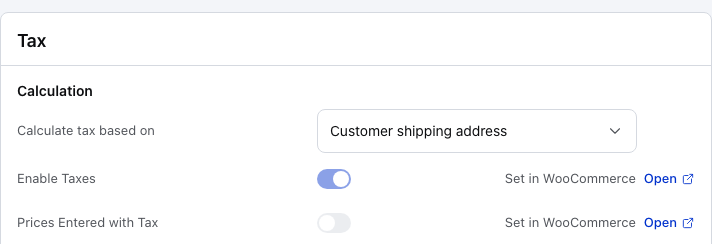
- Enable Taxes — on. It's set in WooCommerce, so the switch is greyed out here, and Open takes you to the setting.
- Prices Entered with Tax — off: prices are entered without tax.
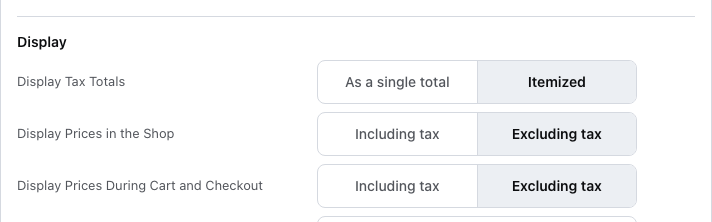
- Display Tax Totals — Itemized shows each jurisdiction's tax on its own line in the cart and on receipts.
- Display Prices in the Shop — Excluding tax.
- Display Prices During Cart and Checkout — Excluding tax.
Calculate tax based on, at the top, is which address sets the rate. See Which address is taxed. If a row on your till doesn't match WooCommerce, see Tax Settings. Restore server settings, under Settings then General, copies your store's values onto this device again.
Which address is taxed
WCPOS (free)
- Without a customer: your shop address.
- With a customer: their shipping address, else their billing address, else your shop address.
WCPOS Pro sets the address per store, as Calculate tax using on the store's Tax page in WP Admin > POS > Stores. A new store uses This store's address. See Setting Up Stores.
- Store set to its own address or your shop address: every sale is taxed there, with a customer or without.
- Store set to the customer's billing or shipping address: a sale with a customer is taxed at that address, as in the free version. Without a customer, your shop address.
What to expect at the till
A sale looks the same as any other. The cart works out tax from the rate rows the POS has downloaded, and your store asks WooCommerce Tax for the rates when you press Checkout.
The POS has no rate row for an address your store has never taxed, so the cart's tax can differ from your store's. After Checkout, the POS shows Your store changed this order's totals, with each amount as POS → store. Take payment for your store's Total, the second amount on the Total line, and check it before handing over the goods.
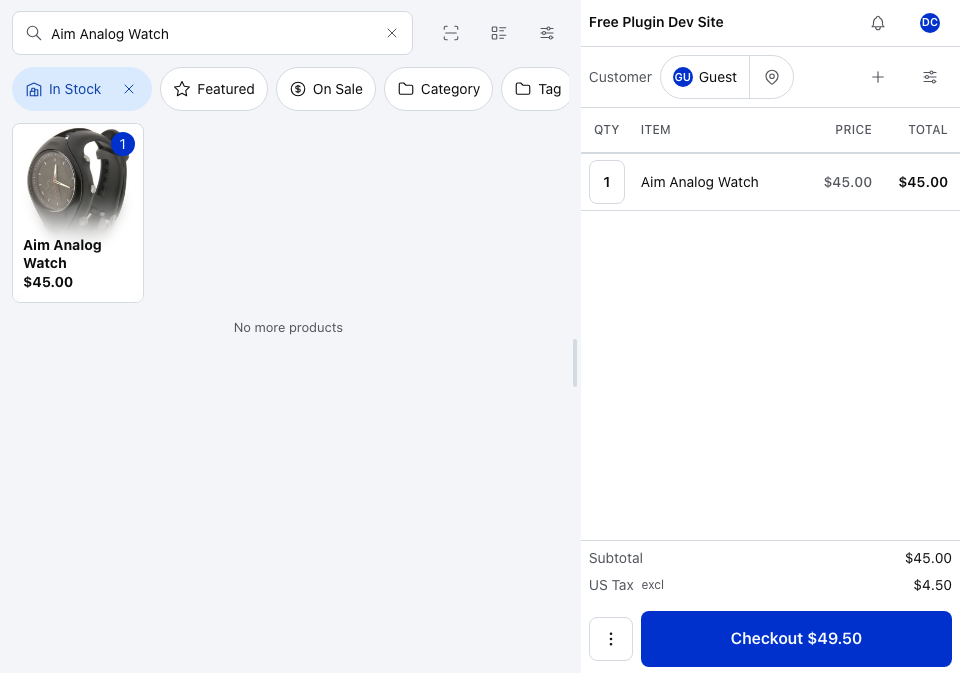
- Subtotal and tax — prices are without tax, so the tax is added on top. With Display Tax Totals set to Itemized, each jurisdiction gets its own line.
- Checkout — sends the order to your store, which asks WooCommerce Tax for its rates.
To see where the cart is taxed, press the tax address button under the products, such as Shop base or Customer shipping address:
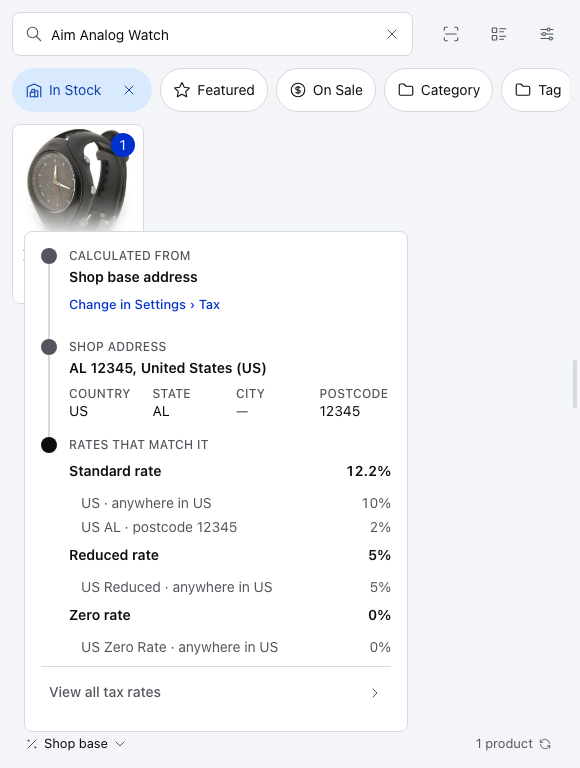
- Address and rates — where the tax is calculated from, and every rate on this device that matches it.
- Change in Settings › Tax — opens the POS Tax settings.
- View all tax rates — every rate this device has downloaded. See Check the tax rates.
How often the totals notice shows. Once the new row reaches the POS, later sales at that address agree. With tax based on a customer address, expect the notice once for each new postcode. With your shop or store address, normally only on the very first sale. A jurisdiction changing its rate can cause it once more. So can the first sale of a product in another tax class, such as Reduced rate, at that address. After three such sales on one till, the notice also says to show it to whoever manages your store; under WooCommerce Tax that is expected while new addresses fill in. See Totals disagree.
Don't add rate rows by hand. If the tax address button turns red and its panel says No rate matches it, or View all tax rates has nothing for an address, nothing in that tax class has been sold there yet. The first sale adds the rows.
Get new rates onto the till straight away
The POS checks your store for changes every minute or so, depending on its sync preset. To fetch new rows now, open Store health, then Database, and press ⋮ on the Tax rates row.
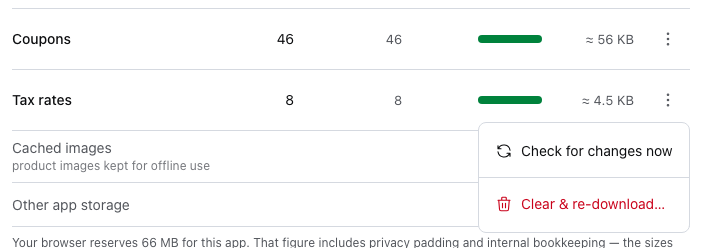
- Tax rates — how many rates are on this device and on your store.
- Check for changes now — fetches new and changed rates. Use this first.
- Clear & re-download — drops this device's copy of the rates and downloads them all again. See Clear & re-download.
How POS orders get their rates
WooCommerce Tax only looks up rates at your online checkout and on the WooCommerce order screen. POS orders reach your store another way, so WCPOS asks WooCommerce Tax for them.
With automated taxes off, WCPOS does nothing extra, and the POS and your store use your tax rate table as usual.
What happens when you press Checkout
- Each time the POS sends an open order to your store, such as when you press Checkout, WCPOS asks WooCommerce Tax for the rates at the order's tax address. That address follows Calculate tax based on: see Which address is taxed.
- WooCommerce Tax adds those rates to your store's tax rate table, one row per jurisdiction, for that postcode and city. You'll find them under
WP Admin > WooCommerce > Settings > Tax. - WooCommerce taxes the order with those rows. It carries one tax line per jurisdiction, such as a state tax and a county tax.
- The POS downloads the new rows on its next check for changes, so the next sale at that address adds up the same on the till and on your store.
Adding or removing items on an open order works its tax out again from the items now on it. Once an order is paid, WCPOS leaves it alone and WooCommerce Tax treats it like any other order.
If something goes wrong
The totals notice shows on every sale at the same address. The new rows may not have reached the POS. Use Check for changes now on the Tax rates row, then make another sale there. If it still disagrees, see Your Store and the POS Disagree on Totals.
An order has no tax from WooCommerce Tax. The sale still saves, with the rates already in your table. Check the WCPOS log on your server to see why: see Logs.
The two log messages
A failed lookup never blocks a sale. WCPOS writes one of these to its log:
- WooCommerce Tax rate priming failed: the lookup failed, for example because TaxJar couldn't be reached.
- WooCommerce Tax returned no rates for the POS order: WooCommerce Tax answered with no rates for the order.
A fee is taxed at an unexpected rate. WCPOS doesn't send fees to TaxJar. A taxable fee is taxed with the rate your table already holds for the fee's tax class.
You use Stripe Tax. Stripe Tax does not work with POS orders. See Plugin Conflicts.