Non-Latin Receipts
The symptom: the receipt looks right on screen, but the paper shows question marks, empty boxes or the wrong letters.
This page is about receipt printers. The Print Dialog and office printers use your computer's fonts, so they print every language as it looks on screen.
Choose a fix
First, see what your printer offers: go to Settings → Printing and press Edit on the printer's row.
No Edit button? The printer is marked managed by WCPOS
A printer marked managed by WCPOS is a cloud printer. It has no Edit, because it is set up in WP Admin → POS → Settings → Cloud Print by whoever runs your store, not in the app. How cloud printers print is on Cloud Printing.
Fast, prints as text: set the receipt language when Edit printer shows Receipt language and the receipt is in Cyrillic, Greek, Turkish, Vietnamese, or accented Western or Central European letters.
Slower, works for every language: print receipts as an image when:
- Edit printer has no Receipt language.
- The receipt is in Chinese, Japanese or Korean.
- The receipt is in Arabic, Hebrew or Thai. These have a receipt language, but print best as an image. Try the receipt language first only if speed matters.
- One receipt mixes two alphabets, such as Greek and Russian.
- A receipt language is set and the letters are still wrong.
Why some printers have no Receipt language
Receipt language shows only when Printer Language is ESC/POS, the command language of Epson and most other receipt printers (see Supported Printers). A Star printer set to StarPRNT or Star Line Mode has none: for non-Latin text, turn on Print receipts as an image.
Set the receipt language
Choose the language your receipts are printed in. The receipt still prints as text, so it stays fast.
For a printer you already have:
- Go to Settings → Printing and press Edit on the printer's row.
- Open Receipt language and choose the entry named for your receipt's language. Edit printer saves each change as you make it.
- Press Test Print at the bottom of Edit printer. If the letters are still wrong, your printer may not have that language built in: print as an image instead.
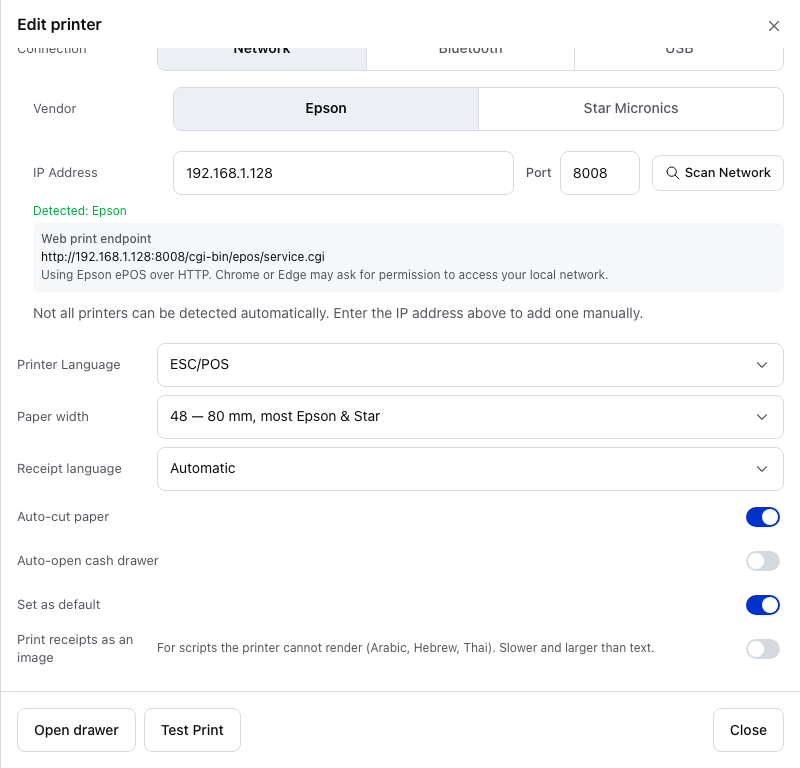
- Printer Language — ESC/POS here. Receipt language shows only for ESC/POS.
- Paper width — the characters per line. See Receipt Width.
- Receipt language — open it and choose the entry for your receipt's language. Every printer starts on Automatic.
- Print receipts as an image — the other fix, for every language. See Print receipts as an image.
While adding a printer: in the Add printer panel, press More options. Receipt language is the fourth setting, under Printer text width (the same setting Edit printer calls Paper width).
The list has eleven entries. Chinese, Japanese and Korean have none: print those as an image. Some entries are named for a region or an alphabet, not a language: Russian, Ukrainian and Bulgarian are under Cyrillic, and Polish, Czech and Hungarian under Central European.
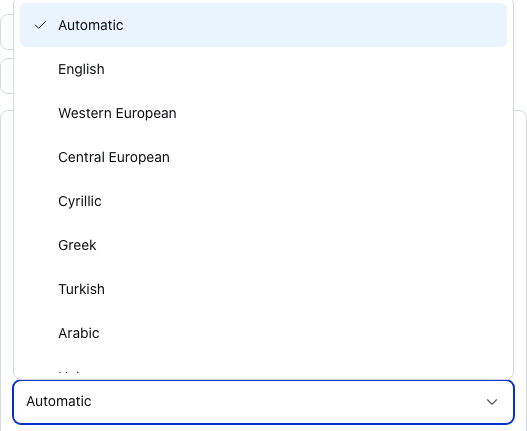
The list from the top.
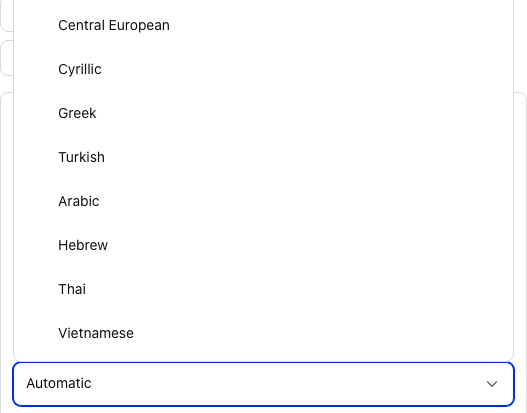
Scroll down for Hebrew, Thai and Vietnamese.
Which receipt language should I choose?
| Entry | For |
|---|---|
| Automatic | The app picks a table line by line. Where every printer starts |
| English | Plain English text |
| Western European | French, German, Spanish, Italian, Portuguese, Dutch and the Nordic languages |
| Central European | Polish, Czech, Slovak, Hungarian, Croatian, Slovenian |
| Cyrillic | Russian, Ukrainian, Bulgarian, Serbian |
| Greek, Turkish, Arabic, Hebrew, Thai, Vietnamese | That language |
Receipt language shows only when Printer Language in Edit printer is ESC/POS, which is what Epson and most other receipt printers use.
The other settings in More options
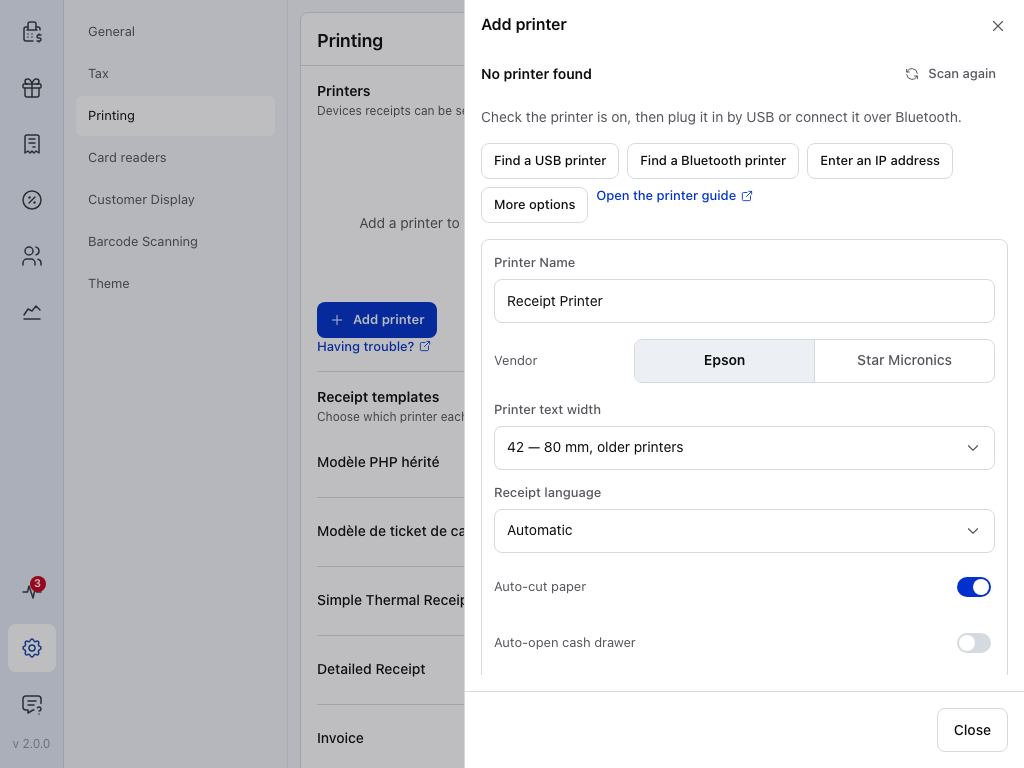
- More options — opens the printer's settings in the panel, before the test page. Press it again to close them.
- Printer Name — the name on the printer's row in Settings → Printing and in the printer lists. Receipt Printer until you change it.
- Vendor — Epson or Star Micronics. Choosing Star Micronics hides Receipt language: on a Star printer, print non-Latin text as an image.
- Printer text width — how many characters fit on one line: 32 for 58 mm paper, 42, 48 or 64 for 80 mm. The test page checks it. See Receipt Width.
- Receipt language — the character table for the receipt's text. Automatic lets the app choose line by line. The list is above.
- Auto-cut paper — cuts the paper after each receipt.
- Auto-open cash drawer — opens a drawer plugged into this printer. See Cash Drawer.
Below these, Set as default makes this the printer for any receipt that isn't sent somewhere else. Everything here can be changed later in Edit printer. The rest of the panel is on Setup Wizard.
Print receipts as an image
This fix works for every language, on any receipt printer you added in the app. The app draws the receipt as a picture and sends the picture, so the printer's character tables no longer matter.
On an Epson connected by Wi-Fi or network cable, printing as an image needs Secure Printing turned off.
- Go to Settings → Printing.
- Press Edit on the printer's row.
- Turn on Print receipts as an image, the last switch in Edit printer. Its note reads: For scripts the printer cannot render (Arabic, Hebrew, Thai). Slower and larger than text.
- Press Test Print at the bottom of Edit printer to check. The printer's row in Settings → Printing has Test Print too.
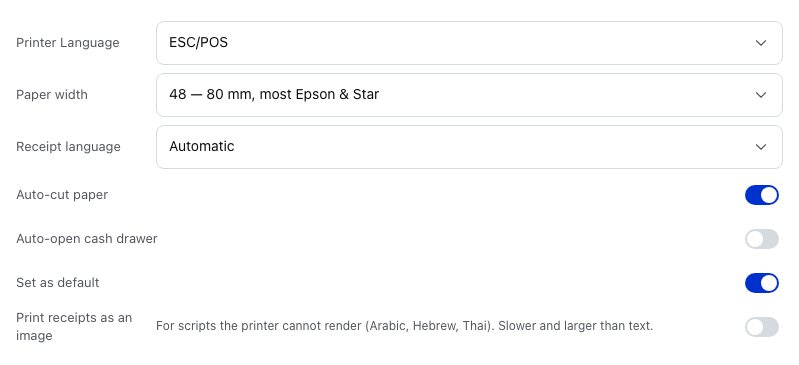
- Printer Language — ESC/POS here. The image works on Star printers too, which have no Receipt language.
- Paper width — the characters per line. See Receipt Width.
- Receipt language — an image doesn't use the printer's character tables, so this no longer matters.
- Print receipts as an image — the switch, off here. Turn it on, then press Test Print to check.
The switch is in Edit printer only, not in More options: add the printer first, then turn it on.
An image is much more to send than text, so each receipt takes longer to print. Turn it on only for the printers that need it.
Why it happens
A receipt printer doesn't use your computer's fonts. When it has no way to print your letters as text, they come out as question marks or boxes; an image avoids that.
How a receipt printer prints text
It prints text from character tables built into the printer, one table at a time. For each line, the app picks a table that holds its letters. That works for English and most European receipts. For other scripts the printer may not have a table the app can pick, and every letter it can't print comes out as a question mark or a box. Receipt language fixes the table for the whole receipt; an image skips the tables altogether.
Still stuck?
On the printer's row in Settings → Printing, open the ⋯ menu and press Copy setup report. In the Android and iOS apps this opens the share sheet instead. Paste the report into your message, with a photo of the printed receipt and the language you're printing.