Scanner Settings
POS settings: Settings → Barcode Scanning in the POS, on this device. The barcode field is in WP admin General.
Open Settings and choose Barcode Scanning. Most stores never change anything here: a scanner works the moment you plug it in or pair it. Come here to turn on a scan sound, or when scans don't come through the way you expect.
Changes save as you make them, and there's no Save button. They belong to this device, so set them on each till that has a scanner.
Scans not working? Start with Test your scanner. It shows what the POS received and offers the fix.
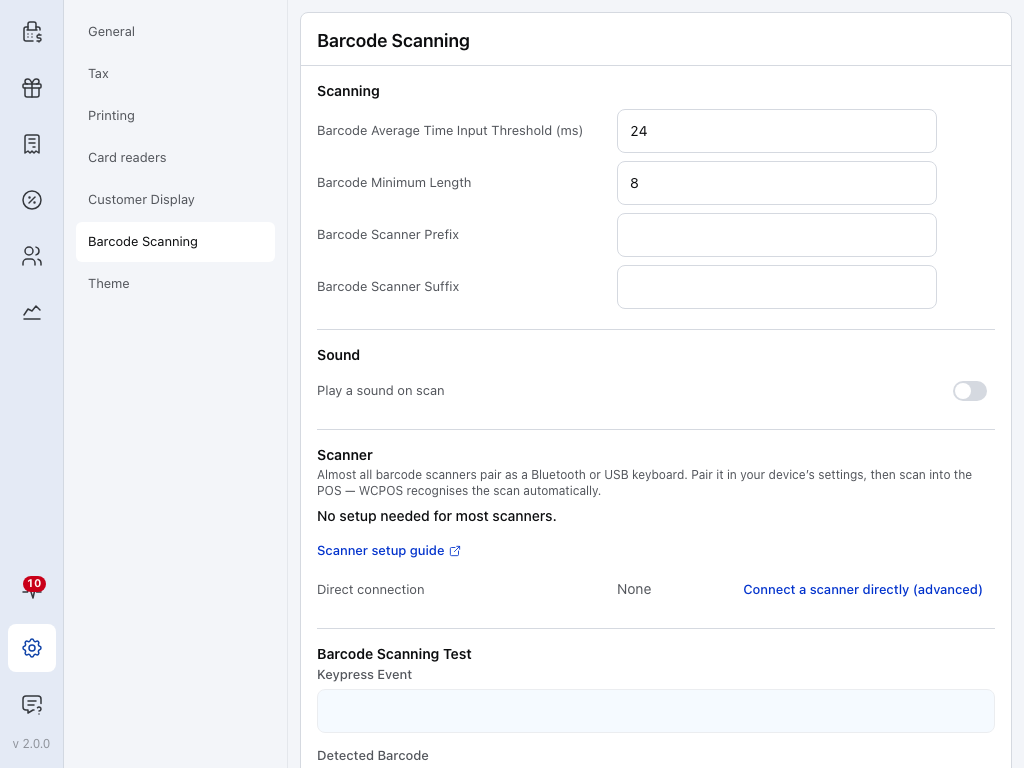
- Barcode Average Time Input Threshold (ms) — how fast the keys must come to count as a scan. See Tell a scan from typing.
- Barcode Minimum Length — the shortest code that counts as a scan.
- Barcode Scanner Prefix — a character your scanner adds before each code, removed before the lookup.
- Barcode Scanner Suffix — a character your scanner adds after each code, removed before the lookup.
- Play a sound on scan — off to start. Switch it on to choose a sound. See Choose a scan sound.
- No setup needed for most scanners — what the Scanner section says until a scanner is connected directly or registered on this device.
- Scanner setup guide — opens the Scanner Setup Wizard.
- Connect a scanner directly (advanced) — for when keyboard mode isn't enough. See Connect a scanner.
- Barcode Scanning Test — scan into it to see what the POS makes of a scan. See Test your scanner.
Tell a scan from typing
Not sure what to set? Scan into the test. It times your scanner and offers the fix.
Adjust scan detection
A scanner in keyboard mode, which is nearly every scanner, types the barcode as if it were a very fast keyboard. The POS times the gaps between keys. When the average gap is under the threshold, the keys are a scan; when it's over, they're typing. The Scanning section sets where that line falls.
- Barcode Average Time Input Threshold (ms) — starts at 24. Keys whose average gap is under this many milliseconds count as a scan. Raise it for a slow scanner; lower it if fast typing is taken for a scan.
- Barcode Minimum Length — starts at 8. The shortest code that counts as a scan. Set it to your shortest barcode; 8 fits an EAN-8.
- Barcode Scanner Prefix — starts empty. One character your scanner adds before every code. The POS removes it before it looks the code up.
- Barcode Scanner Suffix — starts empty. One character your scanner adds after every code, removed the same way.
Remove an extra character
Leave Barcode Scanner Prefix and Barcode Scanner Suffix empty unless your scanner is set to add a character. If it puts A before every code and Z after, type A as the prefix and Z as the suffix: the scan A4006381333931Z is looked up as 4006381333931. The POS removes the character only at that end of the code, never from the middle. A trailing Enter needs no suffix: the POS ignores it.
When a barcode is too short
A scan shorter than Barcode Minimum Length is never looked up. The POS shows Barcode scanned: with the code, and Barcode must be at least 8 characters long (or whatever your minimum is). From a keyboard-mode scanner, it says so only when the keys look like a scan, all digits or ending with Enter, and at most once every 30 seconds. A short burst of letters is taken for fast typing and left alone.
Choose a scan sound
Scan sounds let you hear whether a product went into the cart or the scan needs attention, while you keep your eyes on the customer. To choose one:
- Switch on Play a sound on scan, under Sound. The rest of the sound settings open below it.
- Press a theme's name to choose it. Press its ▶ and ▶✕ to hear its success and failure sounds.
- Drag Volume, and press the ▶ beside it to hear the result.
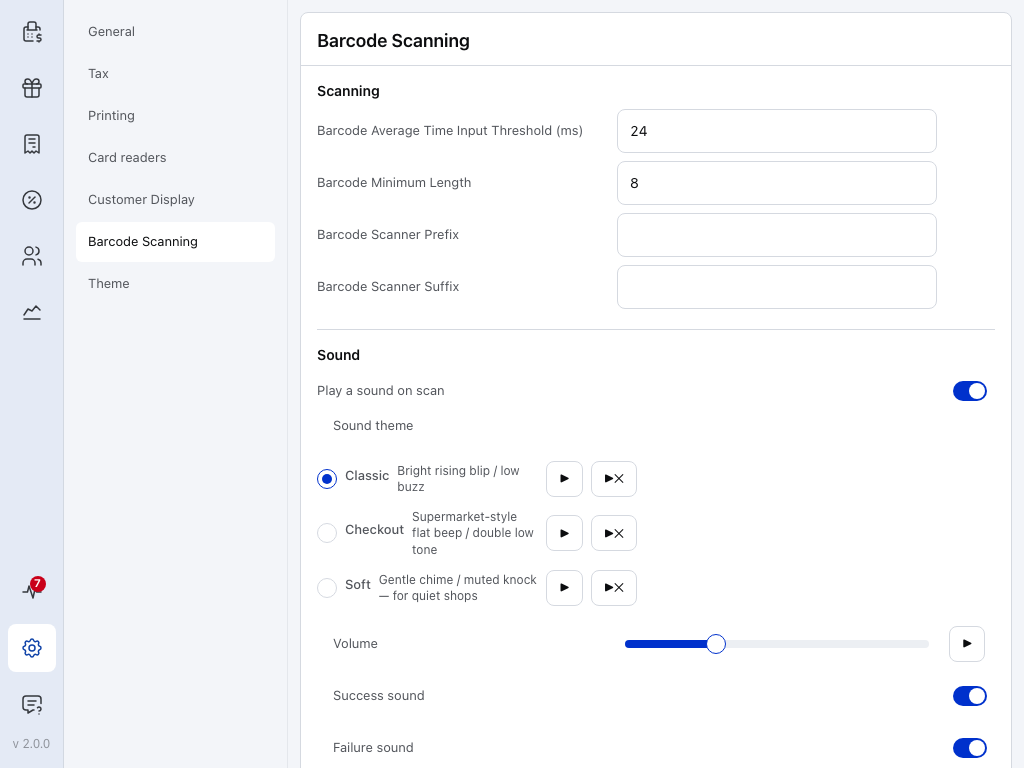
- Play a sound on scan — turns scan sounds on and shows the options below it.
- Sound theme — Classic, Checkout or Soft. Press a theme's name to choose it.
- ▶ — plays that theme's success sound, the one for a product going into the cart.
- ▶✕ — plays its failure sound.
- Volume — drag the slider. It starts towards the quiet end.
- ▶ beside Volume — plays the chosen theme's success sound at that volume.
- Success sound — on to start. Turn it off to hear only the failures.
- Failure sound — on to start. Turn it off to hear only the successes.
Compare sound themes
Each theme has a success sound and a failure sound. The app describes them like this:
| Theme | Success / failure |
|---|---|
| Classic | Bright rising blip / low buzz. The theme you start with. |
| Checkout | Supermarket-style flat beep / double low tone |
| Soft | Gentle chime / muted knock, for quiet shops |
The previews play at the volume you've set, so press them to pick a theme and a volume together.
When each sound plays. The success sound plays when a scanned product goes into the cart. The failure sound plays for everything else the POS can say after a scan: Barcode not found, Several matches, Choose a variation, out of stock, and the rest in What the screen says. Searching store… is silent, because the result is still to come.
Vibration on iPhone, iPad and Android
In the iPhone, iPad and Android apps there's one more switch, Failure vibration, on to start. The device vibrates on a failed scan, with the failure sound or on its own if Failure sound is off. It needs Play a sound on scan on. The ▶✕ preview plays the sound only, without the vibration. A browser and the desktop app don't have it.
For a gentle sound, choose Soft and turn the volume down. For silence, in the iPhone, iPad or Android app, keep Play a sound on scan and Failure vibration on, and turn Success sound and Failure sound off. Then only a failed scan makes itself felt, as a vibration.
Connect a scanner
The Scanner section is for a scanner the POS knows by the device rather than by its speed. Almost every scanner pairs as a Bluetooth or USB keyboard and needs nothing here: pair it in your device's settings and scan.
- Scanner setup guide opens the Scanner Setup Wizard, which asks a few questions and walks you through setup or a fix.
- Connect a scanner directly (advanced) opens the sheet for a USB or Bluetooth scanner out of keyboard mode. On Android the row reads Register a scanner instead: it registers a keyboard-mode scanner by its device, so its scans no longer depend on typing speed. See Connect a scanner directly.
In Safari and Firefox there's no Scanner section: those browsers can't connect a scanner directly.
Test your scanner
The Barcode Scanning Test at the foot of the screen shows what the POS made of each scan, judged against the settings above.
- Get ready to scan. In a browser or the desktop app, click outside any text field. In the iPhone, iPad or Android app, tap Keypress Event.
- Scan any barcode.
- Read the verdict under the chart: Detected as a scan, or why it was treated as typing.
- If it offers a fix, press Apply.
- Scan again to check.
Here the same barcode was scanned twice: once slowly, so it was treated as typing, and once at scanner speed.
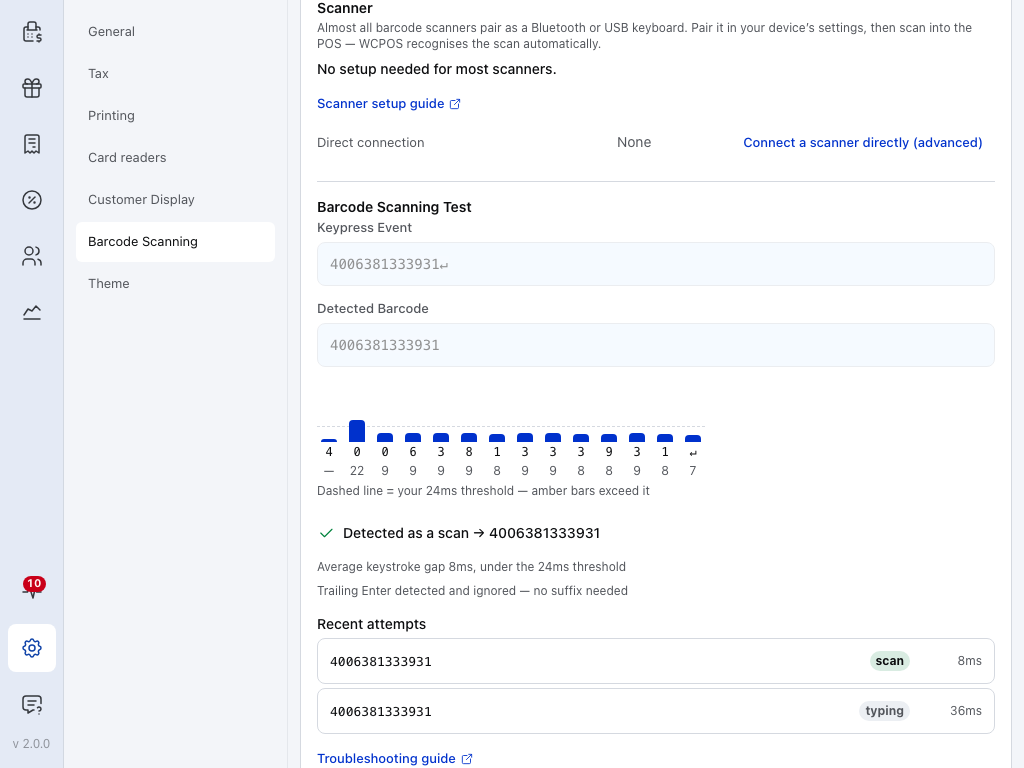
- Keypress Event — every key that arrived, including an Enter at the end.
- Detected Barcode — the code the POS will look up, after the prefix and suffix are removed.
- Timing chart — one bar per key, against a dashed line at your threshold. A bar over the line, in amber, is a key that came too slowly.
- Verdict — Detected as a scan, or why it was treated as typing. When a setting is in the way, it offers the fix with an Apply button that saves it.
- Recent attempts — your last few tries, each marked scan, typing or too short, with its average gap between keys.
- Troubleshooting guide — opens the Scanner Setup Wizard for a fix by symptom.
The fixes the test offers are Raise threshold for a scanner a little too slow, Lower minimum length for a code under your minimum, and stripping a leading character as your prefix. For a walk through every verdict, see Check a scan in the test panel.
If something goes wrong
Nothing shows in the test. First check where you're scanning. In a browser or the desktop app, a scan into a text field types into that field, so click outside it before you scan; in the iPhone, iPad or Android app, tap Keypress Event first. If the test still stays empty, check that the scanner is paired or plugged in: see Connect a scanner.
The verdict says "Treated as typing". The scanner is slower than your threshold. Press Apply on the suggestion, or raise Barcode Average Time Input Threshold (ms) and scan again.
Typing in the product search is taken as a scan. This happens in the iPhone, iPad and Android apps, where the POS judges search typing by its speed too. Lower the threshold, or raise Barcode Minimum Length. In a browser or the desktop app, typing into a field never counts as a scan.
The code has an extra character at the start or end. Your scanner adds it. Type that character as the Barcode Scanner Prefix or Barcode Scanner Suffix. An Enter at the end needs nothing.
"Barcode must be at least 8 characters long". The code is shorter than Barcode Minimum Length. Lower it to the length of your shortest barcode.
No sound on a scan. Check that Play a sound on scan is on, that Success sound or Failure sound is on for the one you expect, and that the device isn't muted. In a browser, sound starts only once you've clicked or tapped somewhere on the page, so the first scan after the page opens can be silent.
The scan reaches the POS but no product comes up. The POS says why. See What the screen says. Which product field holds the barcode is set in Barcode Field.