Stores
More than one store needs WCPOS Pro. Without Pro, the POS runs one store: its name, contact details and tax numbers come from WP Admin → POS → Settings → General, and the rest from your WooCommerce settings.
A store is a place you sell from: a shop, a market stall, a trade counter. Each one has its own address, receipts, taxes, registers and staff, all inside your one WooCommerce site. Every sale is recorded against the store it was rung up at, so orders and reports can be read store by store.
To create a store, see Setting Up Stores. For how stores, registers and devices fit together, see Stores, Registers and Devices.
Where cashiers see the store
Cashiers pick the store when they sign in. The list shows only the stores they're allowed to use.
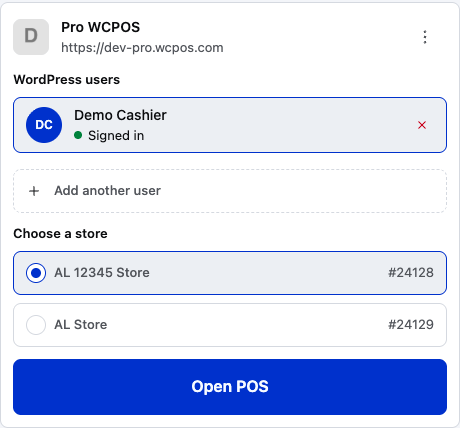
- A store they can use — picked here. The number on the right is the store's ID in WP Admin.
- Another store — a second store this cashier can use.
- Open POS — opens the POS at the picked store. With only one store, it's picked already and the heading says Store.
In the POS, the store's name heads the register bar above the cart, with the register's name too when the store has more than one. Tap the store's name, or your avatar at the end of the bar, to open your cashier sheet.
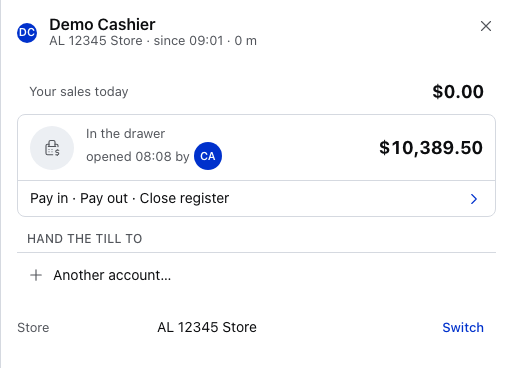
- Store and time on the till — the store you're selling in, under your name.
- Switch — on the Store row, only when you can use more than one store.
Switch to another store
Finish any payment first and stay online. Then:
- Open your cashier sheet: tap the store's name or your avatar at the end of the bar.
- Press Switch on the Store row and pick the store.
- Read the confirmation. It asks Switch to store name? and says whether that store's register is open.
- Press Switch to store name. The POS reloads at that store.
Switch is greyed out while a payment is going through, and while the POS can't reach your site (the row then says Needs the store to switch).
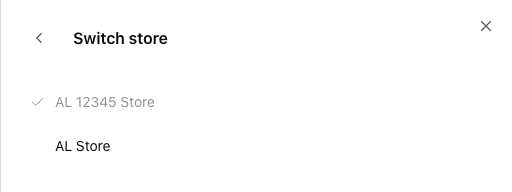
- This store — ticked. You can't pick it again.
- Another store — press it to switch there.
- Back — returns to the cashier sheet without switching.
What happens to your open drawer when you switch
If your register is open, the confirmation offers two choices for the cash:
- Take the drawer with you — closes your register at the expected amount and opens the other store's register with it as the float. Offered when that store's register is closed.
- Leave it open here — your register stays open, and the confirmation says its drawer stays open here.
If the other store has more than one register, you choose one there. See Choosing a store and a register.
What each store sets for itself
A manager sets these in WP Admin → POS → Stores, on the store's own pages: its address and receipts, its taxes, its registers and who can sign in to it.
Settings a manager can change for each store
| The store's own | Set on |
|---|---|
| Name, address, logo and contact details, printed on receipts | Details |
| Opening hours, printed on receipts | Opening hours |
| Currency, the language of the POS and its receipts, and the timezone for reports and close reminders | Currency & language |
| How tax is worked out, and the tax number printed on receipts | Tax |
| Receipt messages and the receipt templates cashiers can print | Receipts |
| What the customer-facing screen shows | Customer display |
| Its registers (cash drawers) and cash drawer rules | Registers |
| Who can sign in to it | Staff |
All stores share the rest: the products, customers, coupons, payment methods, the tax rates themselves (see Tax Settings), and the rest of your WooCommerce settings. A product can still have its own price or tax at one store, and its own stock with ATUM.
Orders and reports by store
- Orders opens on your own orders at the store you're signed in to. The store's name shows in a filter at the top: tap it to pick another store, or POS, Online Store or WP Admin under Created via. To see orders from all stores, including online orders and orders created in WP Admin, clear this filter and the cashier filter beside it.
- Reports covers the store and register named at the top of the screen. Tap the name to choose another store, or All stores.
- Receipts print the address and logo of the store the sale was rung up at.
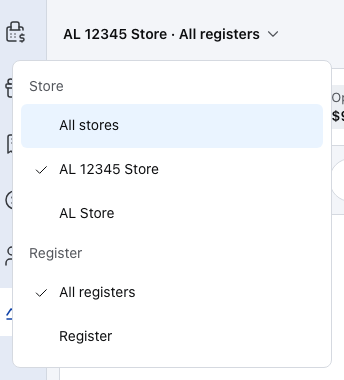
- All stores — every store in one report. It appears only with more than one store.
- A store — that store's sales only.
- All registers — every register in the chosen store, and orders taken online.
- A register — one till's sales.
In WP Admin, an order's POS Store shows where it was sold, and changing it moves the order to another store.
Prices, taxes and stock per store
A product can have its own price or tax at one store. Cashiers at that store get those; every other store uses the product's normal WooCommerce price and tax.
Change a product's price or tax for one store
On the product in WP Admin → Products, or on each of its variations, set its own Regular price and Sale price, or its own Tax status and Tax class, one store at a time. See Per-store prices and taxes.
Stock
All stores share the same WooCommerce stock. To count stock per store, use ATUM Multi-Inventory: you link each store to an ATUM location, and a sale takes its stock from that location. ATUM can also give each store the location's prices and SKUs.
Fully separate shops without ATUM: WordPress Multisite
For shops that share nothing, run each one as its own site on WordPress Multisite:
- Create a WordPress site for each shop.
- Install WooCommerce and WCPOS on each site.
- Each site keeps its own products, stock and orders.
You then manage several WooCommerce installations, and each site's orders and reports are its own.
What stores don't do
- They don't make separate shops. Stores are places inside one WooCommerce site, sharing its products, customers and coupons.
- They can't hide a product from a store. Every store sells the same catalogue. With ATUM, a product the store's location has run out of shows as out of stock there.
- Adding a store doesn't move old orders. An order stays with the store it was sold at. See What happens to old orders.