Apply a Coupon
A customer hands you a coupon code, or you're running a promotion. This page puts one of your store's coupons on the sale in the cart. Applying coupons works on the free plugin too.
The till applies coupons your store already has. Make them in WP Admin → Marketing → Coupons; see Coupons. For an amount off that isn't a coupon, use Add Discount instead.
Find the coupon
- With the items in the cart, press + at the top of the cart and choose Add Discount. On a phone, the cart is on its own tab: open it first.
- Switch to Coupon and press Select coupon.
- Type part of the code or the coupon's description, and tap the coupon.
- Press Apply.
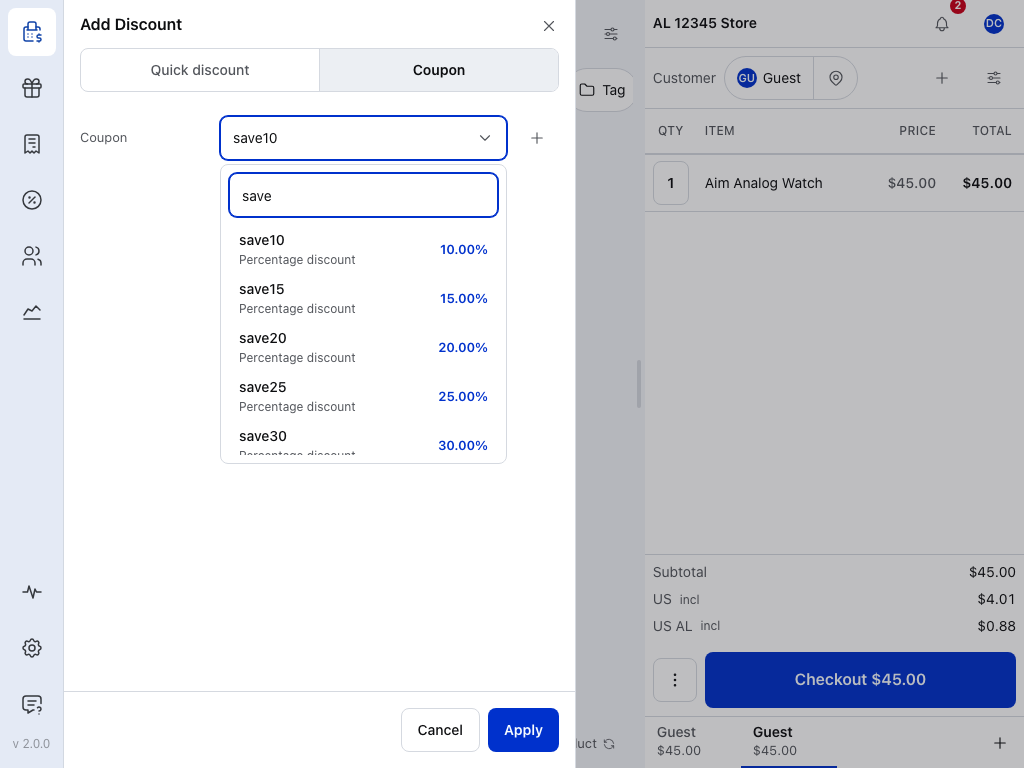
- Quick discount — an amount or a percentage off the order, without a coupon. See Discounts.
- Coupon — your store's coupons.
- Select coupon — opens the list. Once you pick one, its code shows here.
- Search coupons — type any part of the code or the description. Capitals don't matter.
- A coupon — its code, then its description, or its type when it has none: Percentage discount, Fixed cart discount or Fixed product discount. On the right, how much it takes off.
- New coupon (WCPOS Pro) — make a coupon now and apply it to this sale. It needs permission to create coupons and a connection to your store; otherwise the + is greyed out.
- Apply — checks the coupon's rules against this order and puts it on.
The list shows every coupon your store has, including ones that have expired or run out. The till checks the rules when you press Apply, not when you pick.
Apply it
When you press Apply, the dialog closes and the coupon appears in the totals, under Subtotal: its code, a ✕ to remove it, and the amount it takes off. Each coupon you add gets its own row, in the order you applied them. To add another, open Add Discount again.
The items in the cart show their share too: each line's total drops, with the old amount struck through.
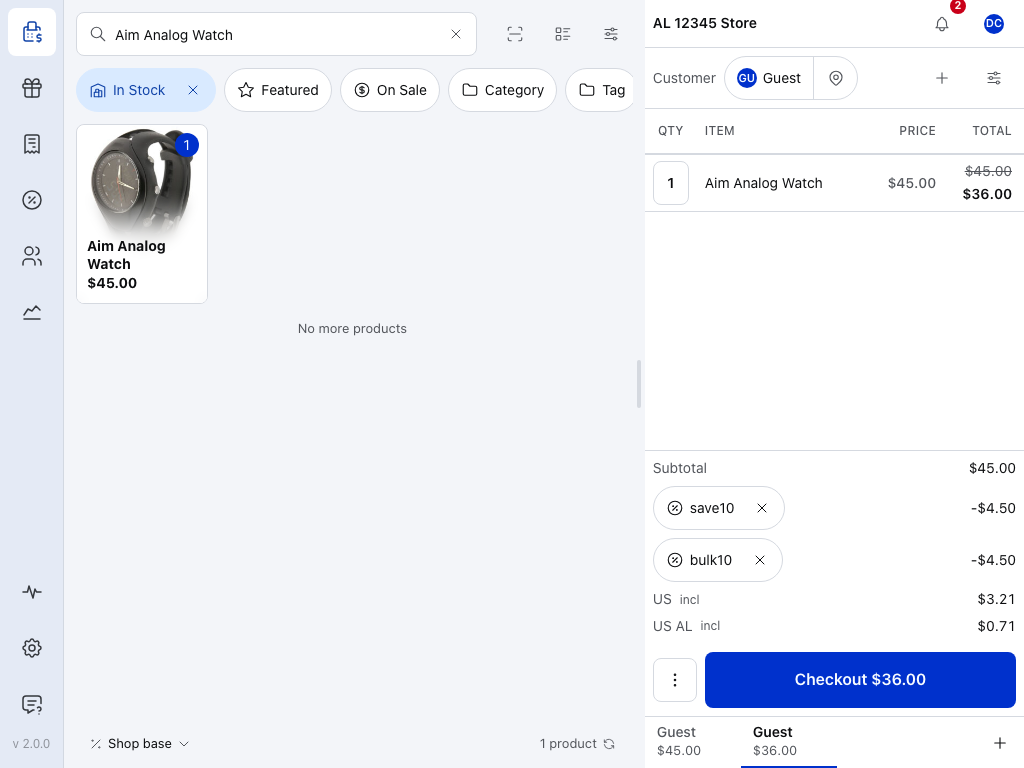
- + — open Add Discount again to add another coupon.
- Subtotal — the order before coupons. The coupon rows sit under it.
- A coupon — its code, the ✕ that removes it, and the amount it takes off.
- The next coupon — each coupon gets its own row, in the order you applied them.
- Checkout — take payment for the order. See Checkout.
The receipt prints the coupon's description from WooCommerce, or its code when it has no description. A receipt printed offline shows the code. When you change the cart, each coupon works out its amount again: add an item and a percentage coupon takes off more.
Checking a coupon uses what's on this device, so applying works offline too. Your store can still change the total or refuse the order when it receives it; see If something goes wrong.
Remove a coupon
Press ✕ on the coupon's row in the totals. The amount it took off goes back on, and a message says Coupon removed. To put it back, apply it again.
At checkout the coupon rows have no ✕, so a coupon can't change while you take payment. Press ✕ at the top of checkout to go back to the cart, change the coupons there, then press Checkout again.
Voiding the order drops its coupons with it.
When the till refuses a coupon
If the coupon doesn't fit this order, the dialog stays open and says why in red above the coupon. Pick another coupon, or press Cancel.
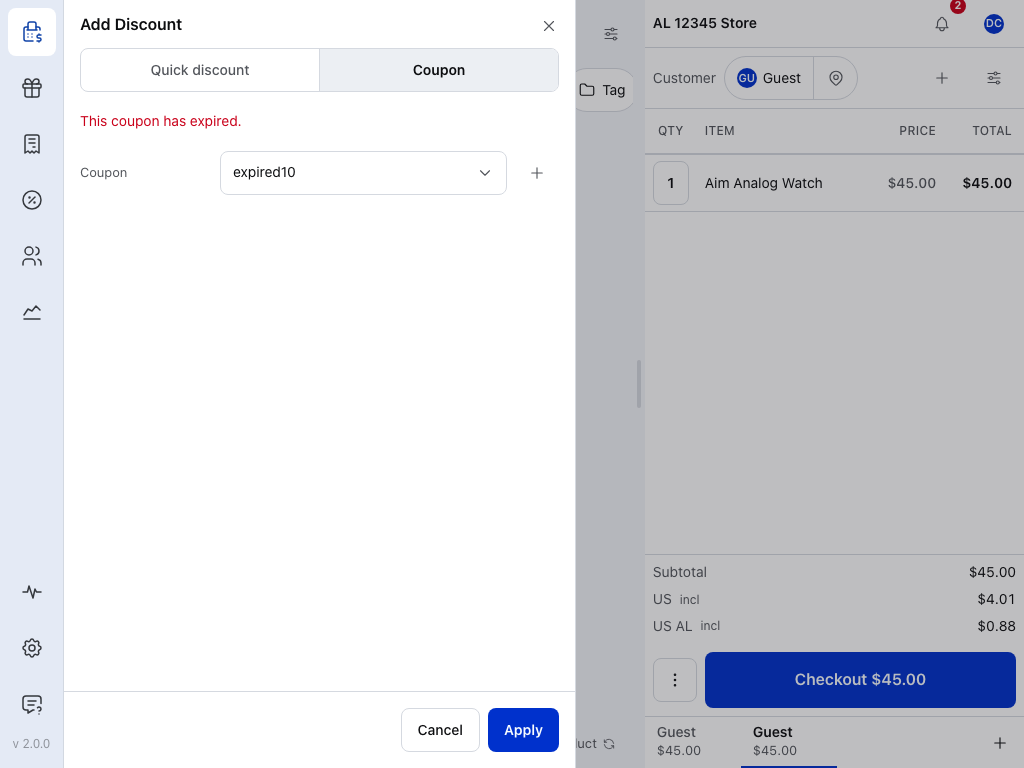
- Select coupon — the coupon you tried. The red line above it says why it didn't go on. Pick another coupon here.
- Apply — try again once the order fits.
Find the cause below. Each one gives the till's exact message, why it happened and what to do:
Expired coupon
The till says: This coupon has expired.
The coupon's expiry date has passed, so it can't be used. Choose another coupon. If the coupon should still be running, the store can change its date in WP Admin.
Coupon used up
The till says: This coupon has reached its usage limit.
The coupon has been used as many times as the store allows. Choose another coupon.
Customer has used their share
The till says: This customer has already used this coupon the maximum number of times.
The customer on the order has used up their share of this coupon. Check that the right customer is on the order, or choose another coupon.
Below the minimum spend
The till says: This coupon needs a minimum spend of …
The order is below the coupon's minimum spend, and the message tells you the amount. Add more items, or choose another coupon.
Above the maximum spend
The till says: This coupon only applies to orders of … or less.
The order is above the coupon's maximum spend, and the message tells you the amount. Ring up some of the items as a separate sale, or choose another coupon.
The new coupon must go on alone
The till says: … can't be combined with other coupons. Remove the others to use it.
The coupon you picked has to be the only coupon on the order. Remove the coupons that are already on it, then apply this one.
A coupon on the order must stay alone
The till says: … is already on the order, and it can't be combined with other coupons.
A coupon on the order has to be the only one, and the message names it. Remove that coupon if you'd rather use the new one; otherwise keep it and skip the new one.
Coupon already on the order
The till says: This coupon is already on the order.
Each coupon goes on an order once, and this one is already there. You don't need to do anything.
No customer email on the order
The till says: This coupon is restricted to certain customers. Add a customer with an email address to the order first.
The coupon only works for certain email addresses, and the order has no customer email yet. Choose the customer in the cart, then apply the coupon again.
Customer's email not on the list
The till says: This coupon is restricted to certain customers, and this customer's email isn't one of them.
The customer's email address isn't on the coupon's list. Check that the right customer is on the order, or choose another coupon.
Nothing in the cart the coupon covers
The till says: This coupon can't be applied to this cart.
None of the items in the cart are ones the coupon covers. Or the coupon leaves out items on sale, and the cart has one. Add an item the coupon covers, or take the sale item off. See Price changes and coupons.
Coupon not on this device
The till says: Coupon not found
The coupon isn't on this device yet. Fetch the coupons, then try again.
Cart changed while checking
The till says: Cart changed during coupon application. Please try again.
The cart changed while the till was checking the coupon. Press Apply again.
More than one coupon
You can put several coupons on one order: open Add Discount again for each one. A coupon set to Individual use only won't share an order with any other coupon, whichever you apply first. The till says which coupon is in the way.
How a second coupon counts
It depends on WooCommerce's Calculate coupon discounts sequentially setting, in WP Admin → WooCommerce → Settings → General. The till follows your store's setting.
Two 10% coupons on a $100.00 order:
- Off (WooCommerce's default): each coupon takes 10% of $100.00, so $10.00 each. The customer pays $80.00.
- On: the first coupon takes $10.00. The second takes 10% of the $90.00 that's left, so $9.00. The customer pays $81.00.
With the setting on, the order you apply them in can change the total. A fixed cart coupon, such as $5 off the order, takes the same amount either way.
Price changes and coupons
A coupon works from the price on the line. If you lowered an item's price at the till, the coupon takes its share off the lower price, not the original.
Coupons that exclude sale items
An item whose price you lowered counts as on sale. A coupon set to Exclude sale items skips it, and a fixed cart coupon with Exclude sale items can't be used while it's in the cart. See How POS Price Changes Interact with Coupons.
If something goes wrong
The coupon isn't in the list. This device hasn't fetched it yet. To fetch it now:
- Open Store health from the menu, then Database.
- On the coupons row, open More actions and choose Check for changes now.
- Open Add Discount again and search for the coupon.
If it still isn't there, choose Clear & re-download… on the same row. The till fetches every coupon again. See Clear & re-download.
How coupons reach the till
The till fetches your coupons the first time you open the list. After that, it checks your store for changes on a schedule: every 60 seconds on the default preset. A coupon made in WP Admin usually shows up within that time. See Sync presets.
With WCPOS Pro, the Coupons screen has a sync button at the foot of the list. Press and hold it for Clear and Refresh, which fetches every coupon again.
Your store changed this order's totals. The store worked out different totals when the order reached it. The store's amounts are the ones that count; check the total before you hand over the goods.
Order not saved — the store refused it. The store wouldn't take the order, and the sale is still in the cart as it was. The message gives the store's reason, or says The store gave no reason. If the reason names a coupon, remove that coupon and press Checkout again. The Store health button on the message shows what the store refused; see Changes that never reached your server.
Coupon setups that work well at the till
These are made in WP Admin → Marketing → Coupons. The field names are WooCommerce's.
A manager discount you can track
Make a coupon called mgr10:
- Discount type: Percentage discount
- Coupon amount: 10
- Individual use only: off, so it can go on with a customer's coupon
- Description: "Manager discount", so cashiers find it by searching manager
Give the code to managers only. Unlike a price lowered at the till, it counts in WooCommerce's Discount total and shows in reports. See POS Discounts vs WooCommerce Coupons.
A reward for a returning customer
Make a coupon called loyal5:
- Discount type: Fixed cart discount
- Coupon amount: 5
- Minimum spend: 25, or your own threshold
- Usage limit per user: 1, if the reward is once only
- Description: "Loyalty reward"
At the till, search loyalty to find it without the code. Choose the customer before you apply it, so the per-user limit has someone to count.
A flyer or printed promotion
Make one coupon per campaign. Set Usage limit per coupon to 1 for a single-use voucher, or higher for a shared code. Set a Coupon expiry date so it can't be used after the campaign. For a shared code each customer may use once, also set Usage limit per user to 1.
A customer brings a coupon and you want to add a manager discount
Apply the customer's coupon first, then the manager's. If the customer's coupon is Individual use only, the till refuses the second one. Choose which one the customer gets, or use Add Discount for the extra amount.
New coupon makes a coupon at the till and applies it to the sale. The Coupons screen lists every coupon with its amount, type, usage and expiry date; on the free plugin it shows as a preview.