Checkout
WP admin: WP Admin → POS → Settings → Checkout. Cashiers never see it.
Checkout Settings decide how a sale gets paid and what happens to the order afterwards.
What you can do here:
- Offer a payment method at the till
- Choose which payment method comes first
- Rename a tile, or round cash totals
- Choose an order's status after checkout
- Stop the till selling stock you don't have (off on a new store)
- Choose which emails a POS order sends
Custom fields aren't set here: add one to an order with + Custom field in Order details, or to a customer's account in the customer form.
Changes on this screen save as you make them: a Saving and then Saved message shows, and there is no Save button. The one exception is a gateway's POS settings dialog, where you press Save.
Tills read these settings when the POS starts, so reload the POS on each till after a change.
The screen at a glance
From top to bottom the screen has Prevent overselling, the Admin emails, Customer emails and Cashier emails switches, and the Gateways table. A store on WooCommerce's older order storage also sees a warning at the top; see Order storage.
Payment Gateways
The Gateways table lists your payment methods, which WooCommerce calls gateways: every one installed on your site, plus the POS's own Cash and Card. Each row is one payment method, with an Enabled switch to offer it at the till, its Order Status, and a drag handle to set its place. The other columns are in the disclosure below.
Gateway table columns
| Column | What it does |
|---|---|
| Drag handle | Drag the row up or down to move that tile on the till. See Choose which payment method comes first. |
| Default | The gateway already chosen on your store's own payment page, which the Legacy tab shows. Only a gateway that is switched on can be picked. Cash is never on that page: cash is taken only on its tile. The tiles on the Payments tab don't use it; see Choose which payment method comes first. |
| Gateway | The gateway's name. |
| Gateway ID | WooCommerce's identifier for it, such as pos_cash. You need it only when a developer asks. |
| Enabled | Offer it at the till, or not. |
| Order Status | The status a sale paid this way is given. See Order Status. |
| ⋮ | POS settings, and for any gateway but Cash and Card, WooCommerce settings. See Rename a tile, or round cash totals. |
Without WCPOS Pro, only Cash and Card can be switched on. On every other row the Enabled switch, Order Status and ⋮ are greyed out, and a note above the table says so, with an Upgrade to Pro link.
Offer a payment method at the till
Before you start: a payment method that comes from a plugin, such as a card reader, shows in the table only once that plugin is installed and active on your site. Payment Gateways lists the ones the POS supports, each with its setup guide.
- Find the payment method in the Gateways table.
- Switch Enabled on.
- Reload the POS. The till reads your payment methods each time it starts.
The payment method is now a tile at checkout, or a gateway on the Legacy tab if it runs on its own payment page.
Choose which payment method comes first
Drag a row by its handle to move it. The tiles at the till follow this order, and when checkout opens on a new sale, the first tile that can be used is already picked. To have Cash picked for most sales, drag Cash to the top. The Default column doesn't change which tile is picked; only the order does.
This is where your settings show up at the till, in the tender pane:
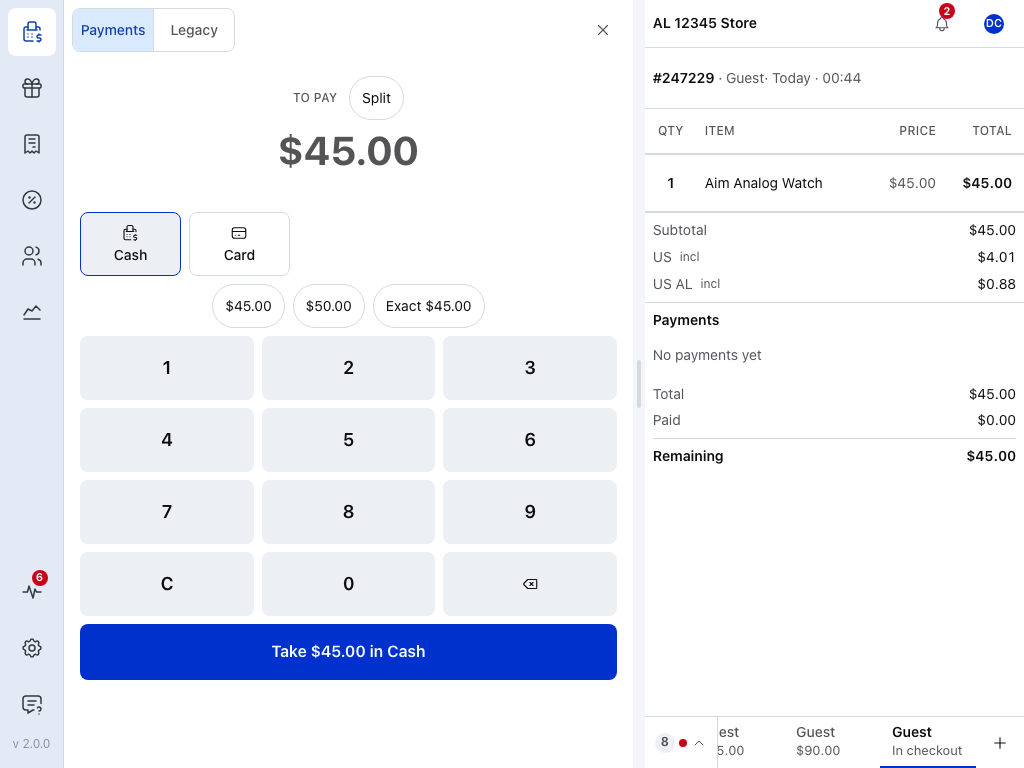
- Payments tab — a tile for each gateway you switched on, in the table's order.
- Legacy tab — gateways that run on their own payment page. See The Legacy Tab.
- To pay — the balance still due. With Rounding set for Cash, the till asks for the rounded amount; see Cash rounding.
- Split — divides the order into several payments.
- Payment method tiles — each shows the Title from the gateway's POS settings. The first one is picked.
- Quick amounts — the exact amount, or rounded-up notes.
- Keypad — enter what the customer hands over.
- Take — records this payment. When the payments cover the total, checkout finishes and the order gets the gateway's Order Status.
The cashier's side of this screen is in The Tender Pane.
Rename a tile, or round cash totals
⋮ > POS settings opens a dialog for that payment method. It changes what the till shows, and nothing on your website:
- Title — the name on the tile.
- Description — saved with the gateway. The till doesn't show it; only the Title appears on the tile.
- Rounding (Cash only) — round cash totals to the coins you have: 0.05, 0.10, 0.25, 0.50, 1, 5 or 10. No rounding is the default. Card and online payments keep the exact amount. See Cash rounding.
Press Save to keep the change, or Cancel.
⋮ > WooCommerce settings opens the gateway's own settings in WooCommerce, where you connect the account and set what your website shows.
POS vs Online Store
The Enabled switch here is separate from WooCommerce's own payment settings. A payment method can be:
- On for the POS, off online — cash, for example, which a website can't take.
- On online, off for the POS — a payment method that needs the customer at a computer, such as PayPal checkout.
- On for both.
A gateway's plugin must be installed and active before the gateway shows in the table. It does not have to be switched on in WP Admin > WooCommerce > Settings > Payments: the POS lists every gateway WooCommerce knows about. If one is missing, check that its plugin is active.
Order Status
Each payment method has its own Order Status: the status an order gets when checkout finishes. Processing and Completed mark the order as paid; On hold and Pending payment leave it unpaid. Pick by how the money arrives:
- Money taken at the counter: Processing or Completed.
- Money the customer will transfer on their own, without a pay link: On hold, the default for BACS and Cheque.
- Pay later through the order's pay link, a "pay by invoice" workflow, for example with BACS: Pending payment. The order stays unpaid until the customer pays through the link.
To change it:
- Find the payment method in the Gateways table.
- Pick the status in its Order Status column.
It saves straight away, and applies to new sales, not to orders already taken.
Finishing checkout isn't the same as being paid. When the payments recorded at the till cover the total, checkout finishes and the order gets this status, so an order set to On hold or Pending payment is finished at the till but still unpaid.
Send a payment link
WooCommerce keeps a Pending payment order payable: it is not marked paid, stock is not reduced, and the pay link works while the order stays Pending payment. The POS does not send the link. The order needs a customer email, and you email the invoice from the order screen in WooCommerce or share the link another way.
Cash, Card and most gateways start on Completed, because the money is taken at the counter. BACS (direct bank transfer) and Cheque start on On hold, because the money arrives later. Any WooCommerce order status can be picked. If an older version of the POS set one status for every gateway, each gateway starts with that status instead.
How the till treats the status
Payments recorded at the till are those taken with Cash, Card, card readers and tiles such as Direct bank transfer. When they cover the total, the order is given the status you chose for the gateway.
Split sales and Legacy tab gateways
- A split sale takes the status of the gateway with the largest payment, or the earliest of them on a tie.
- A gateway on the Legacy tab: the POS finishes the sale once the order reaches that status.
The Email Invoice gateway and Pending payment
The Email Invoice Gateway sends the invoice and sets Pending payment itself, so leave its Order Status on anything else. Set to Pending payment, the till shows no Invoice sent screen, and the order gets no Send again or Cancel invoice. See Email Invoice.
Prevent Overselling
Prevent overselling stops the POS selling more of a product than you have. It is off on a new store; until you switch it on, the till sells whatever is in the cart. To switch it on:
- Open
WP Admin > POS > Settings > Checkout. - Switch Prevent overselling on, and wait for Saved.
- Reload the POS on each till.
Switching it off works the same way. Products that allow backorders still sell; see Backorders still win.
With the switch on, the till won't add more of a product than you have, checkout is blocked while a cart line is short, and your store checks stock again before it takes each payment. Saving a sale that is still open is never refused.
The three stock checks, and what the cashier sees
- When a product goes in the cart. The cashier can't add a product, or raise its quantity, past what you have. The till says Only 3 available for Hoodie, or Hoodie out of stock, and leaves the cart as it was. See Out-of-stock products for every message.
- While the sale is in the cart. If stock drops while a sale is open, for example because another till sold the last one, a notice above the cart lines lists each short line with Reduce or Remove, the line shows how many are available, and Checkout dims until the cart is fixed. A payment in the tender pane is refused the same way. See When checkout is blocked.
- When a payment is taken, on your store. Before any money moves, and again when the sale closes, your store checks the order's stock. If the till's figures were out of date, the store refuses the payment with Cannot complete order: 1 item(s) exceed available stock., and the POS shows that reason. On the Legacy tab, the reason shows on the store's payment page. A sale sent later from an offline till can be refused the same way; see Order not saved — the store refused it.
Your store doesn't check a sale that is only being saved, so an open sale syncs freely.
Why your store checks as well as the till
WooCommerce doesn't check stock when an order arrives through its REST API, which is how the POS sends orders. Two busy tills, or a till whose stock figures are out of date, could sell more than you have. The check on your store catches what the till couldn't see.
How stock is decided
Whether stock is tracked on the product, or on each variation, decides the limit.
Stock rules by product setup
| Product setup | With the switch on |
|---|---|
| Manages stock (a quantity is tracked) | Sales stop at the stock quantity. Several lines of the same product count toward the same limit. |
| Variation tracks its own stock | The limit is per variation. |
| Variation uses the parent's stock | All of the product's variations share the parent's quantity. |
| Doesn't manage stock | The stock status decides: Out of stock can't be sold; In stock and On backorder can. |
Backorders still win
A product's own Allow backorders? setting in WooCommerce comes first. Use it to let some products sell past zero while the switch is on:
- Do not allow — sales stop when stock runs out.
- Allow — the product always sells, even below zero.
- Allow, but notify customer — the product always sells. When a sale goes past the stock, the till says Hoodie will be backordered.
A product on backorder never blocks checkout.
Prevent Overselling vs. "Show out-of-stock products"
These two settings do different jobs:
- Prevent overselling (this page) checks quantities: as products go in the cart, while the sale is open, and again before each payment is taken. It applies to every till in the store.
- Show out-of-stock products is a setting on each device, in the product panel. Off, products with none left are hidden and a scan of one is refused. On, they stay in the list, greyed out and marked Sold out. See Out-of-stock products.
Turning Prevent overselling off does not change what the product panel shows.
Tills get Prevent overselling with your store's details when the POS starts. Your store's own check before each payment applies straight away, even on a till that hasn't been reloaded.
Email Notifications
Three switches choose which WooCommerce emails POS orders send, separately from your website's own email settings:
- Admin emails — New order, Cancelled order and Failed order to the recipients set in WooCommerce. On.
- Customer emails — Order on hold, Processing order, Completed order, Refunded order and Failed order to the customer. On.
- Cashier emails — New order to the cashier who made the sale. Off.
Switch a group on and its emails show as tick boxes, all ticked at first. Untick any you don't want. See Email Notifications for when each email goes, who receives it, and common setups.
Order storage
If a warning about order storage sits at the top of the screen, follow Order Storage to switch your store to WooCommerce's High-Performance Order Storage. A store that already uses it sees no warning.
Recognise the order storage warning
It reads Checkout in WCPOS gets slower as your catalog and order history grow, because this store uses legacy order storage. We strongly recommend switching to High-Performance Order Storage. It can't be dismissed. Under it, Open WooCommerce's order storage setting takes you to the setting, and How to switch opens the same guide.
If something goes wrong
A payment method isn't in the table. Its plugin isn't installed or active. Activate it, then reload this screen.
The Enabled switch is greyed out. Your store runs the free version, which offers only Cash and Card. See WCPOS Pro.
A payment method is switched on but isn't at checkout. Reload the POS. Then look on the Legacy tab: gateways that run on their own payment page are there, not in the tiles.
The wrong tile is picked when checkout opens. The till picks the first tile it can use, in the table's order. Drag the payment method you want to the top. The Default column doesn't change it.
Orders paid by bank transfer show as On hold. That's the default for BACS and Cheque, because the money arrives later. When a transfer arrives, change that order's status in WP Admin > WooCommerce > Orders. Change the gateway's Order Status here only if the money will already be in for every future sale paid that way: the setting applies to new sales, not to orders already taken.
The till sold more than you had. Prevent overselling is off, or the product allows backorders. See Backorders still win.