Products Management
The Products screen requires WCPOS Pro. Free users can view and add products to cart from the POS Product Panel, but cannot edit inventory or prices.
The Products screen is a dedicated inventory management interface. Unlike the POS Product Panel (which is for selling), this screen is designed for managing your product catalogue.
Products Screen vs POS Product Panel
| Feature | POS Product Panel | Products Screen |
|---|---|---|
| Purpose | Add products to cart | Manage inventory |
| Stock | View only | Edit inline |
| Prices | View only | Edit inline |
| Actions | Add to cart | Edit, Sync, Delete |
| Available in | Free + Pro | Pro only |
Interface Overview
Search & Filters
At the top of the screen:
- Search bar - Find products by name, SKU, or barcode
- Filter buttons - Stock Status, Featured, On Sale, Category, Tag, Brand
- Display settings () - Configure visible columns
Product List
The main area displays your products in a scrollable table:
- Image - Product thumbnail
- Product name - With optional SKU, barcode, attributes
- Stock - Editable stock quantity with "Manage" toggle
- Stock Status - In Stock (green), Out of Stock (red), Backorder
- Categories - Product category badges
- Prices - Current price, regular price, sale price (all editable)
- Actions - Three-dot menu with Edit, Sync, Delete
Sorting and filtering run on the server, so they apply across your entire catalogue — not just the products already on the device. Sort by name, SKU, stock, price, or date, and the list keeps loading more rows as you scroll, right through the catalogue. Product search, by contrast, runs on-device once the catalogue is local, so it returns instantly with no server request.
Variable Products
Variable products show:
- Attribute options (Colour, Size, etc.)
- "Expand" link to view all variations
- Individual variation rows with separate stock/prices
Footer
- Tax status - Current tax calculation basis
- Product count - "Showing X of Y" with sync button (). Long press the sync button for the Clear and Refresh option (from v1.10.0 this also clears the screen's search and active filters, so the list comes back unfiltered)
Key Features
Inline Stock Editing
Click directly on the stock quantity to edit it:
- Click the stock number
- Enter the new quantity
- Press Enter to save
Changes sync to WooCommerce automatically.
Manage Stock Toggle
The "Manage" toggle controls whether WooCommerce tracks inventory for this product:
- On - Stock levels are tracked and decremented on sales
- Off - Product is always available (infinite stock)
Inline Price Editing
Click on any price field to edit:
- Price - Current selling price
- Regular Price - Non-discounted price
- Sale Price - Discounted price (when on sale)
Cost of Goods Sold
WooCommerce's Cost of Goods Sold (COGS) feature lets you track the cost price of each product. WCPOS surfaces this data on the Products screen.
To view cost prices, enable the Cost of Goods Sold column in Display Settings (). The column shows the cost price alongside your selling prices, making it easy to review margins at a glance.
WCPOS Pro users can edit the cost price directly from the Products screen — click the cost value to update it inline, just like stock and price fields.
Cost of Goods Sold must be enabled in your WooCommerce store: go to WooCommerce > Settings > Advanced > Features and enable the Cost of Goods Sold option. This requires a recent version of WooCommerce with the Cost of Goods Sold feature enabled. See the WooCommerce documentation for setup details.
Product Actions
Click the three-dot menu (⋮) for each product:
- Edit - Open the product edit modal
- Sync - Refresh this product from WooCommerce
- Delete - Remove product from local database
Deleting a product from the POS only removes it locally — the product remains in WooCommerce and returns on the next sync. If a product is deleted in WooCommerce, the sync removes it from the POS too, so your device stays in step with the store.
Display Settings
Click the sliders icon () to customise the Products screen.
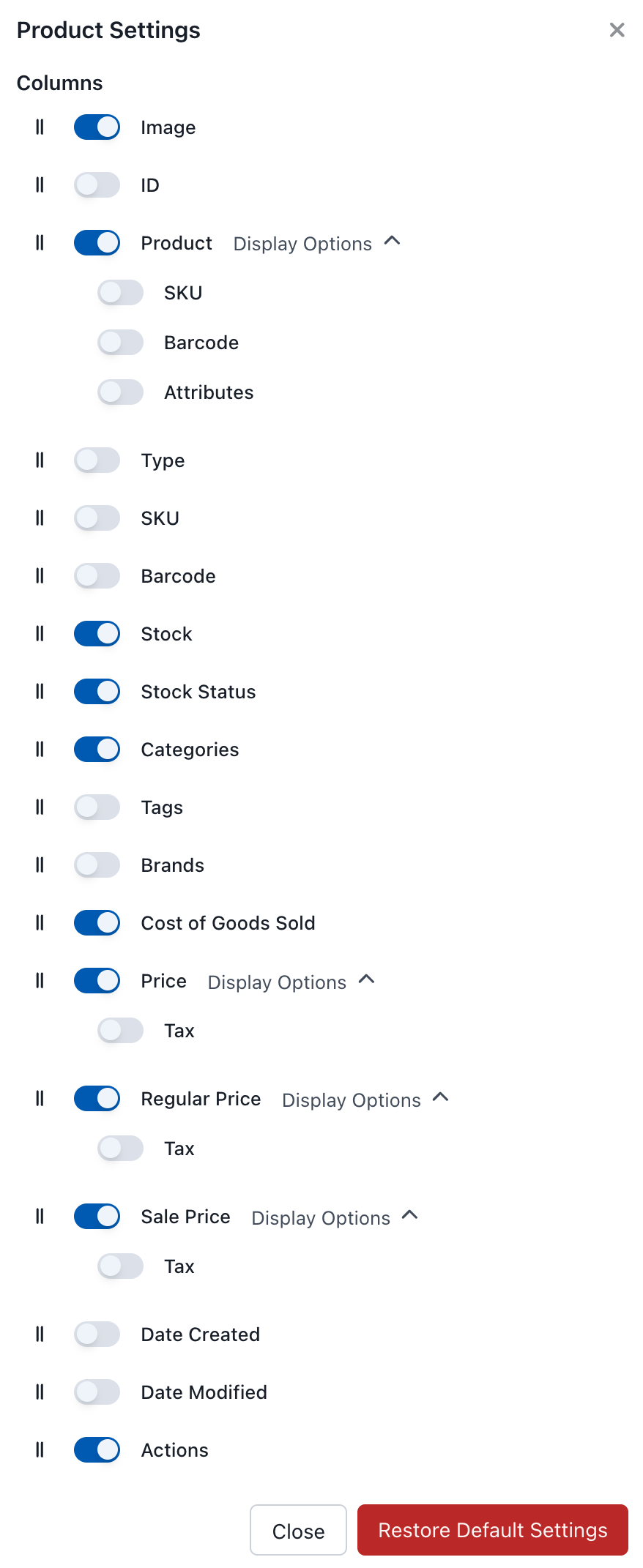
Products Display Settings
Available Columns
| Column | Description | Display Options |
|---|---|---|
| Image | Product thumbnail | - |
| ID | WooCommerce product ID | - |
| Product | Product name | SKU, Barcode, Attributes |
| Type | Simple, variable, grouped, etc. | - |
| SKU | Stock Keeping Unit | - |
| Barcode | Product barcode | - |
| Stock | Current quantity (editable) | - |
| Stock Status | In Stock / Out of Stock / Backorder | - |
| Categories | Product categories | - |
| Tags | Product tags | - |
| Brands | Brand info (if plugin active) | - |
| Cost of Goods Sold | Product cost price (editable with Pro) | - |
| Price | Current selling price (editable) | Tax info |
| Regular Price | Non-discounted price (editable) | Tax info |
| Sale Price | Discounted price (editable) | Tax info |
| Date Created | When product was created | - |
| Date Modified | Last modification date | - |
| Actions | Edit, Sync, Delete buttons | - |
Restore Default Settings
Click to reset all display settings to their original defaults.
Filtering Products
Use the filter buttons to narrow your view:
- Stock Status - In Stock, Out of Stock, Backorder
- Featured - Products marked as featured
- On Sale - Products currently on sale
- Category - Filter by product category
- Tag - Filter by product tag
- Brand - Filter by brand (if using brand plugin)
Sorting
Click any column header to sort by that column. Click again to reverse the sort order.