POS Only Products
POS Only Products is a feature that lets you control whether products appear in your online store, your POS, or both. This is useful when you have different product catalogues for online and in-store sales.
Overview
When enabled, each product gets a POS Visibility setting with three options:
| Visibility | Online Store | POS |
|---|---|---|
| POS & Online (default) | Visible | Visible |
| POS Only | Hidden | Visible |
| Online Only | Visible | Hidden |
When to Use This Feature
Enable POS Only Products if you need to:
- Sell in-store exclusives - Products only available when customers visit your physical store
- Hide online-only items from POS - Digital products, pre-orders, or items that shouldn't be sold in-store
- Manage different catalogues - Separate product ranges for online and retail channels
- Control promotional items - In-store-only specials or online-exclusive deals
If all your products should appear in both channels, you don't need this feature. Leave it disabled for better performance.
Enabling the Feature
- Go to WP Admin > POS > Settings > General
- Enable "Enable POS Only Products"
- Save changes
For more details on General Settings, see WP Admin General Settings.
Only enable this setting if you need it. When enabled, it adds an extra database lookup for every product request, which can impact performance on stores with large catalogues.
Setting Product Visibility
Individual Products
To set visibility for a single product:
- Go to WP Admin → Products and edit a product
- In the Product data panel, look for POS Visibility
- Select your desired option:
- POS & Online - Product appears everywhere (default)
- POS Only - Product hidden from online store
- Online Only - Product hidden from POS
- Click Update to save
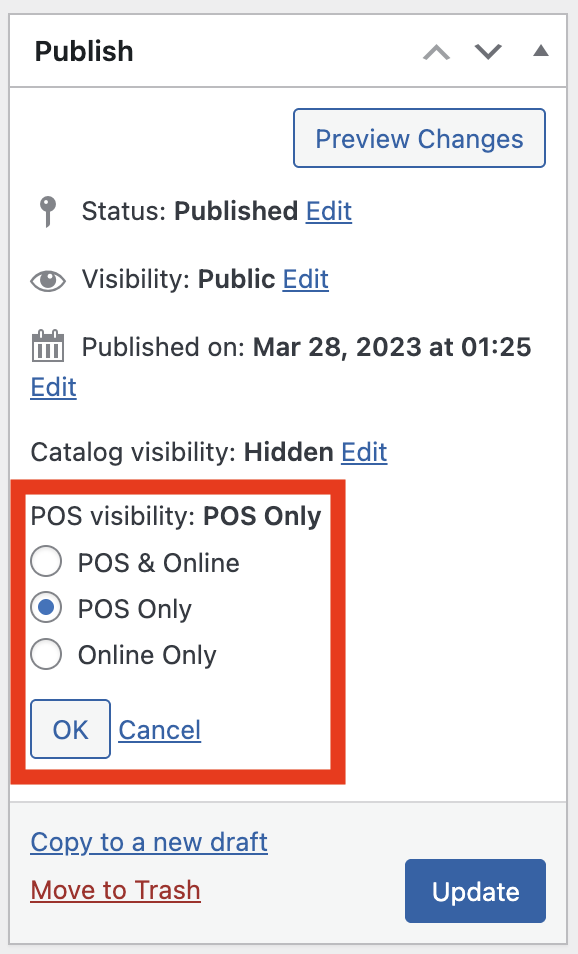
POS Visibility setting in the Product data panel
Bulk Editing
To change visibility for multiple products at once:
- Go to WP Admin → Products
- Select the products you want to modify using the checkboxes
- From the Bulk actions dropdown, select Edit
- Click Apply
- In the bulk edit panel, find the POS Visibility dropdown
- Select your desired visibility option
- Click Update
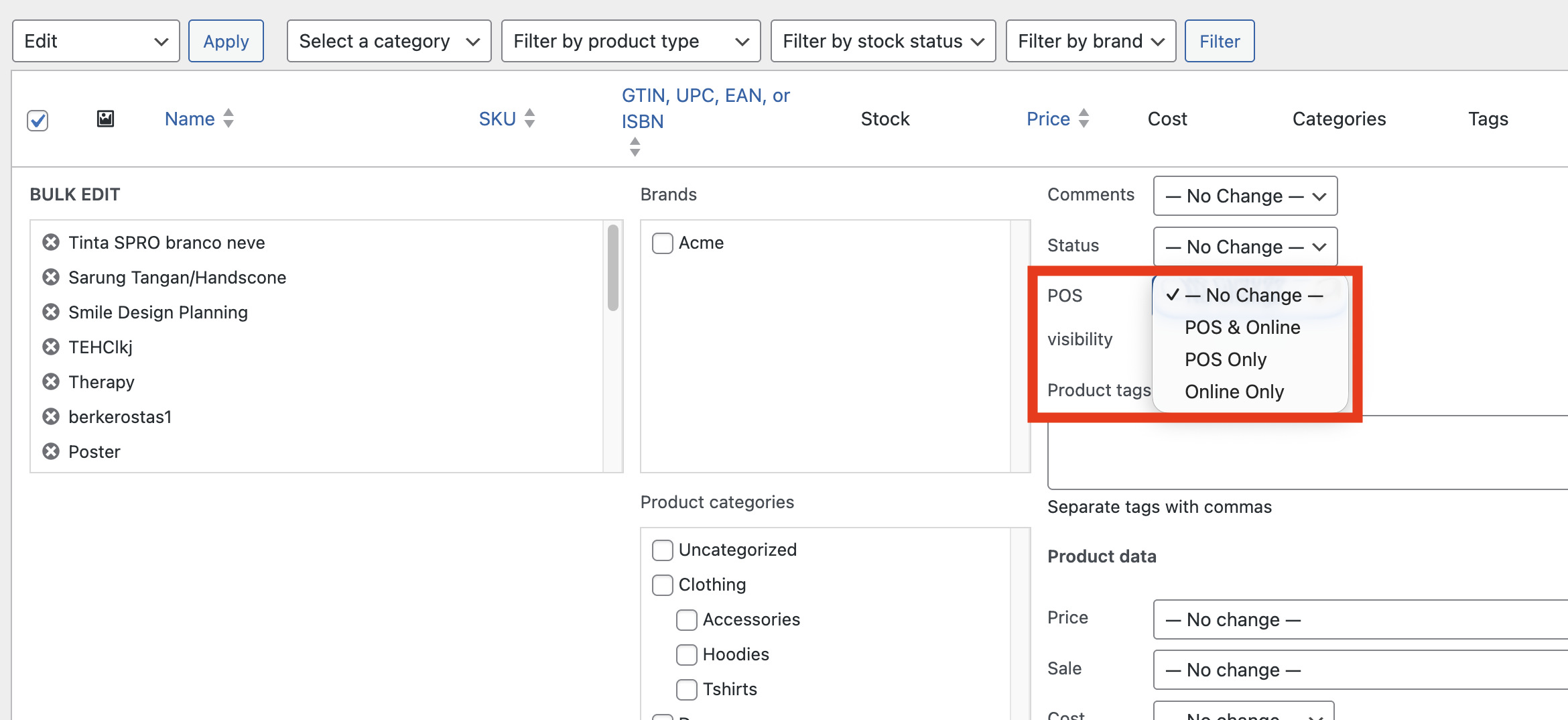
Bulk editing POS visibility from the Products list
Variable Products
For variable products, you can set visibility at both the parent product level and for each individual variation. This gives you fine-grained control - for example, you could show all variations online but only certain colours or sizes in-store.
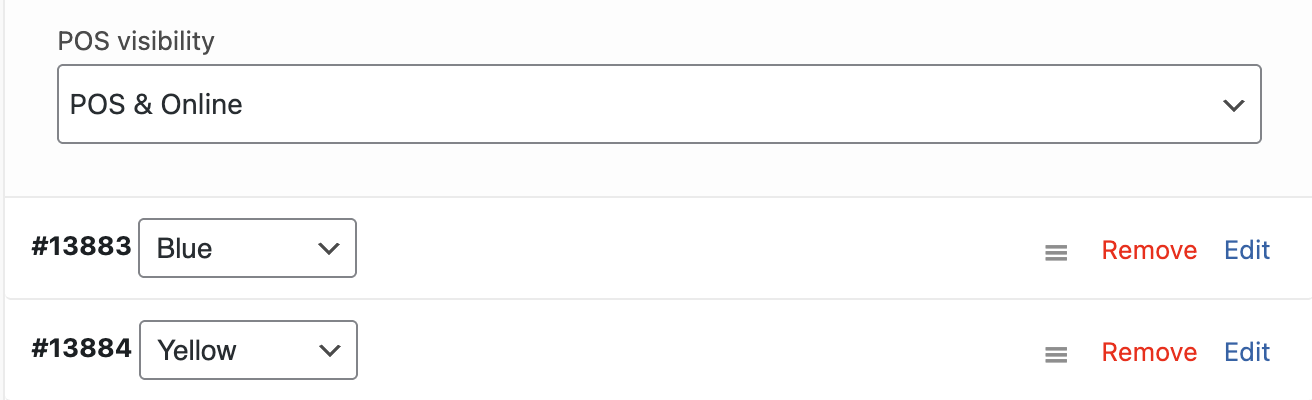
Each variation has its own POS Visibility setting
How It Affects the POS
When a product is set to Online Only:
- It won't appear in the Product Panel
- It won't be found via search or barcode scanning
- It cannot be added to cart in the POS
When a product is set to POS Only:
- It is left out of the shop catalogue, category pages and WooCommerce's own search
- It cannot be added to the cart or bought online
- It is kept out of the WooCommerce REST API and Store API product lists
Also set Catalog visibility to Hidden. POS Only and WooCommerce's own Catalog visibility control, which sits just above POS visibility in the Publish box, are separate settings. WCPOS keeps POS Only products out of standard WooCommerce product queries, but anything that reads WooCommerce's catalog visibility directly still shows the product unless Catalog visibility is Hidden. That includes search plugins such as FiboSearch or Relevanssi, related products, and blocks or shortcodes that list products by ID. To set it, click Edit next to Catalog visibility in the Publish box, choose Hidden, then click Update. The two settings stay separate the other way too: when you later move the product back to POS & Online or Online Only, set Catalog visibility back to Shop and search results yourself, or it stays hidden from the website.
If you've recently changed a product's visibility and it's still appearing (or not appearing) in the POS, try a sync. Long press the sync button and select "Clear and Refresh" to reload all product data.
Where POS Only products stay visible
Hiding a POS Only product is a storefront rule. The product stays visible wherever you are running the shop rather than shopping in it:
- WP Admin, including the Products list and the product editor
- WooCommerce Analytics, so a report filtered by a category of POS Only products shows their sales
- WP-CLI commands such as
wp wc product list - The POS itself
It is hidden from the shop catalogue and search, from the WooCommerce Store API used by the block cart and checkout, from the WooCommerce REST API (/wc/v3/products), and from anything built on those, such as product feeds and sitemaps.
Developers can change the decision for a context of their own with the woocommerce_pos_hide_pos_only_products filter. It receives the default decision and the WP_Query about to run; return false to let that query see POS Only products.
add_filter( 'woocommerce_pos_hide_pos_only_products', function ( $hide, $query ) {
    if ( defined( 'MY_PLUGIN_EXPORTING' ) ) {
        return false;
    }
    return $hide;
}, 10, 2 );
Common Use Cases
In-Store Only Gift Cards
Physical gift cards that need to be activated at the register:
- Create the gift card product
- Set visibility to POS Only
- The card won't appear online but staff can sell it in-store
Online Pre-Orders
Products available for pre-order online but not yet in stock:
- Create the pre-order product
- Set visibility to Online Only
- Customers can pre-order online, but it won't clutter the POS
Wholesale vs Retail
If you use the same WooCommerce store for wholesale and retail:
- Set wholesale-only products to Online Only (for B2B portal access)
- Set retail exclusives to POS Only
- Keep regular products as POS & Online
Troubleshooting
Products still appearing after setting to Online Only
- Open the POS
- Long press the sync button at the bottom of the Product Panel
- Select "Clear and Refresh"
- Wait for products to reload
Setting not showing on products
Make sure the feature is enabled:
- Go to WP Admin > POS > Settings > General
- Verify "Enable POS Only Products" is checked
- Save settings if you made changes
A POS Only product still shows up on the website
Check two things:
- Catalog visibility is Hidden. Open the product and look at Catalog visibility in the Publish box. If it says anything other than Hidden, click Edit, choose Hidden and update the product. Search plugins, related products, and blocks or shortcodes that list products by ID read this WooCommerce setting rather than WCPOS's POS visibility, so POS Only alone does not reach them.
- The page is not cached. A caching plugin or CDN can keep serving a shop or search page that was rendered before the product became POS Only. Clear the site cache after changing visibility.
Opening the product from a direct link still shows its page. That is also how WooCommerce's own Hidden visibility behaves. The product cannot be added to the cart from that page.
Analytics shows “No data” for a category of POS Only products
WCPOS plugin versions up to 1.10.26 applied the storefront rule to WooCommerce Analytics as well. Filtering a report by a category made up of POS Only products found no products and showed No data, while searching for the same products by name showed their sales.
This is fixed in the first WCPOS plugin release after 1.10.26. Update the plugin; no change to the products or the report settings is needed.