Cancel a Payment
The customer has paid part of the order and then changes their mind. Cancel payment undoes the payments taken so far, tells you what to hand back, and returns the order to the cart. This page walks through it with $20.00 cash taken on a $45.00 order.
To undo only one payment and keep taking the rest, see Cancel one payment. A sale that's already finished is undone with a refund instead. See Refunds at the Till.
Open Cancel payment
Cancel payment appears at the top of the tender pane once a payment has been taken on the order.
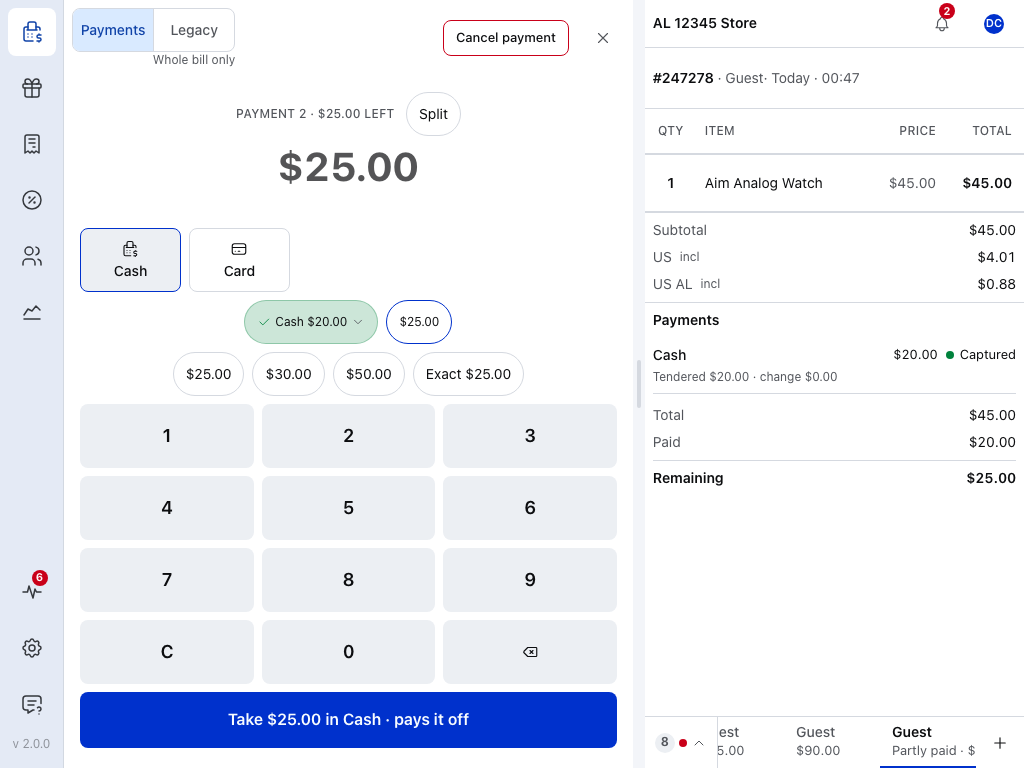
- Cancel payment — opens the cancel view for every payment on this order.
- Payment — what was taken so far, with its method and status.
- Remaining — what's still due.
- Close — with a payment already taken, this opens the same cancel view instead of leaving checkout. While a card reader is still working on a payment, it leaves checkout without cancelling anything.
- Paid pill — what's been taken so far: Cash $20.00 for one payment, 2 paid · $30.00 once there are two. Press it to cancel one payment on its own; see Cancel one payment.
While a card reader is still working on a payment, Cancel payment isn't offered. Press Cancel on terminal in the pane, or cancel on the reader itself when the till says Cancel on the reader; see On a Card Reader.
Check what goes back
Press Cancel payment, or close. The till asks Cancel this payment? and lists what has to happen to each payment before anything is undone.
Cancelling needs a connection to your store. If the till stays in checkout with a message, at least one payment wasn't undone and still counts. Keep the cash until the cancel succeeds; see If something goes wrong.
Each line says one of three things:
- Return the amount in cash to the customer.
- Void the amount on its payment method. The till voids it for you when you cancel; there's no cash to hand back. This isn't the Void under ⋮, which removes the whole order.
- The amount is already taken and cannot be voided: refund it from the order. This is usually a card payment already charged to the customer; ask a manager to refund it in WordPress. See A payment can't be voided.
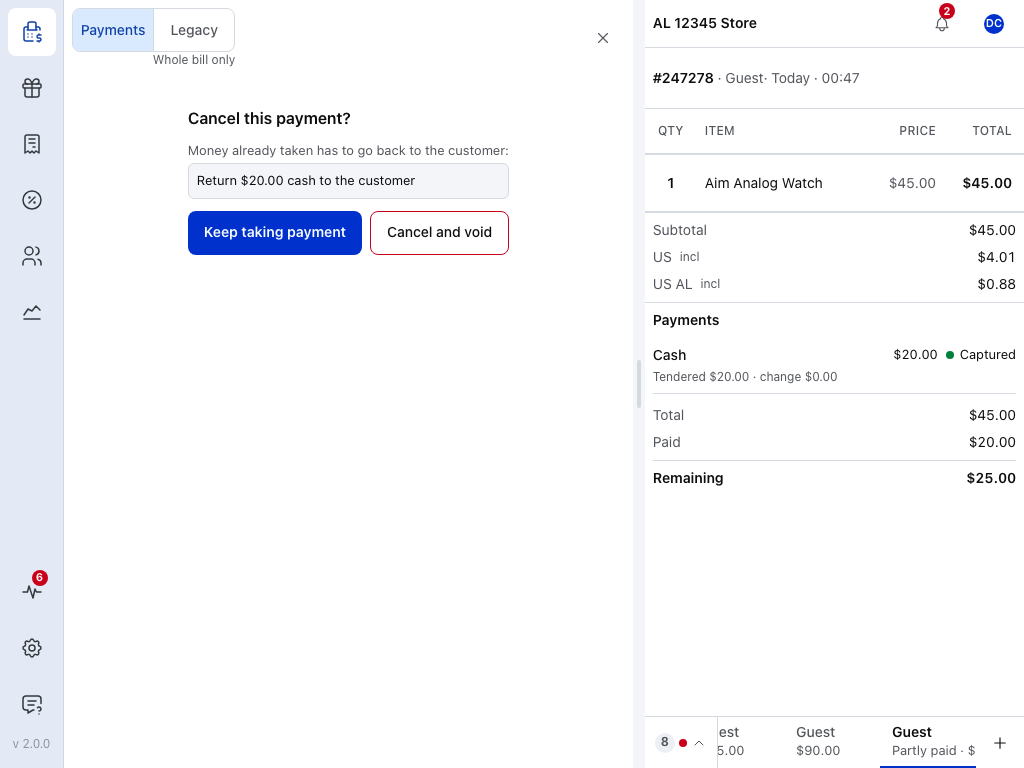
- What goes back — one line per payment. Here, $20.00 cash to hand back.
- Keep taking payment — goes back to the tender pane. Nothing changes.
- Cancel and void — undoes the payments.
Cancel and void
Press Cancel and void. When every payment is cancelled, the till leaves checkout and you're back in the cart. The order is still open, with everything still in it. Once you see the cart, hand back the cash the view listed.
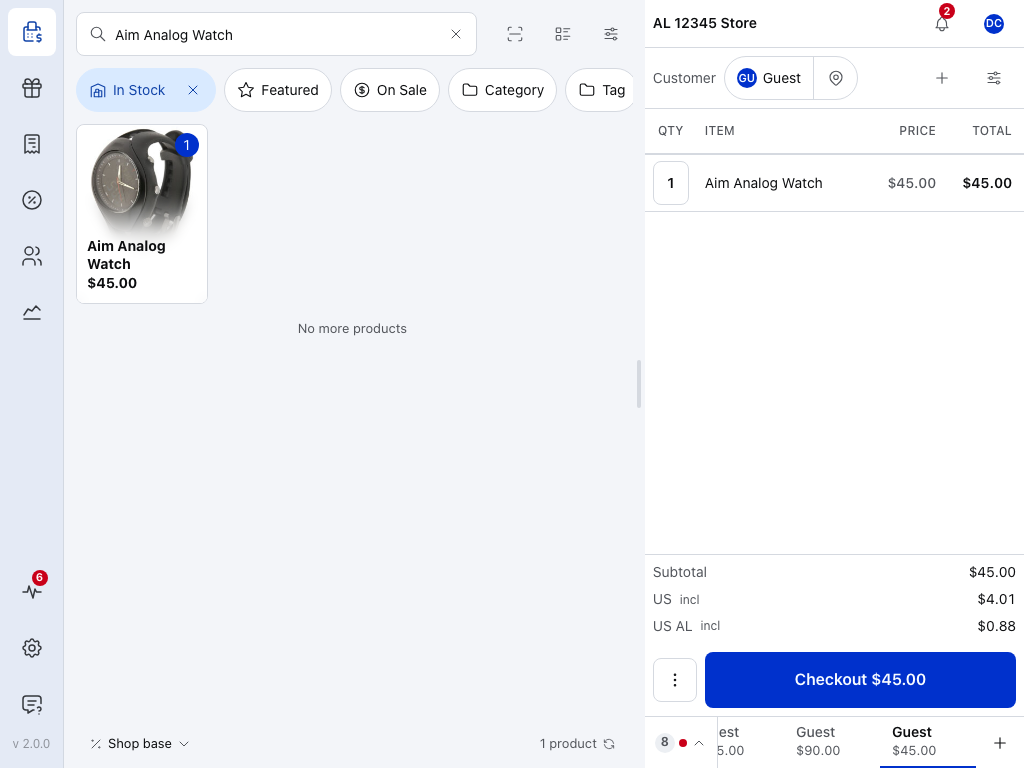
- Customer — the order keeps its customer.
- Checkout — names the full total again. Press it to take a new payment.
- ⋮ beside Checkout — press it, then Void, if the customer no longer wants the order. See Void the order.
Open checkout again and the cancelled payment is still on the order, struck through and marked Cancelled. It no longer counts: Paid is back to $0.00 and the whole amount is due.
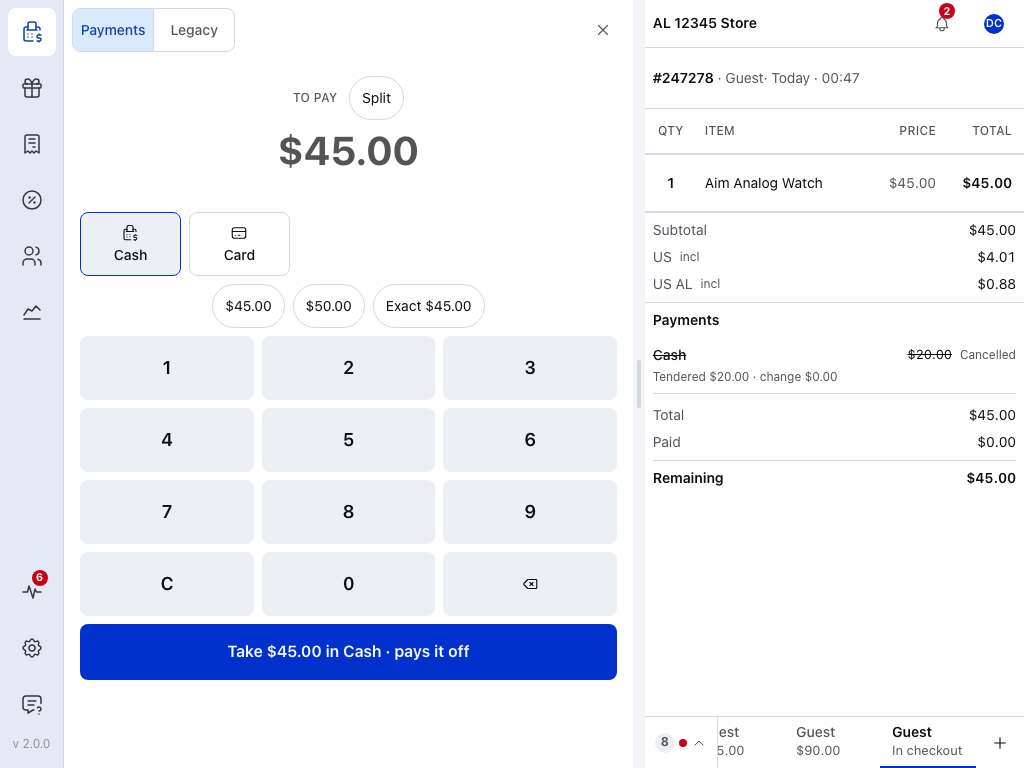
- Cancelled — the cancelled payment stays on the order's record so you can see what happened.
- Paid — back to $0.00. A cancelled payment no longer counts.
- Remaining — the full $45.00 is due again.
Cancel one payment
When one payment is wrong but the rest should stand, cancel just that one, for example one part of a split bill. The sale stays in checkout and that amount is due again. Here, $20.00 and then $10.00 cash were taken on the $45.00 order, and the $10.00 is cancelled.
Press the paid pill above the keypad (callout 5 in the first shot); with two payments it reads 2 paid · $30.00. It opens the list of payments taken.
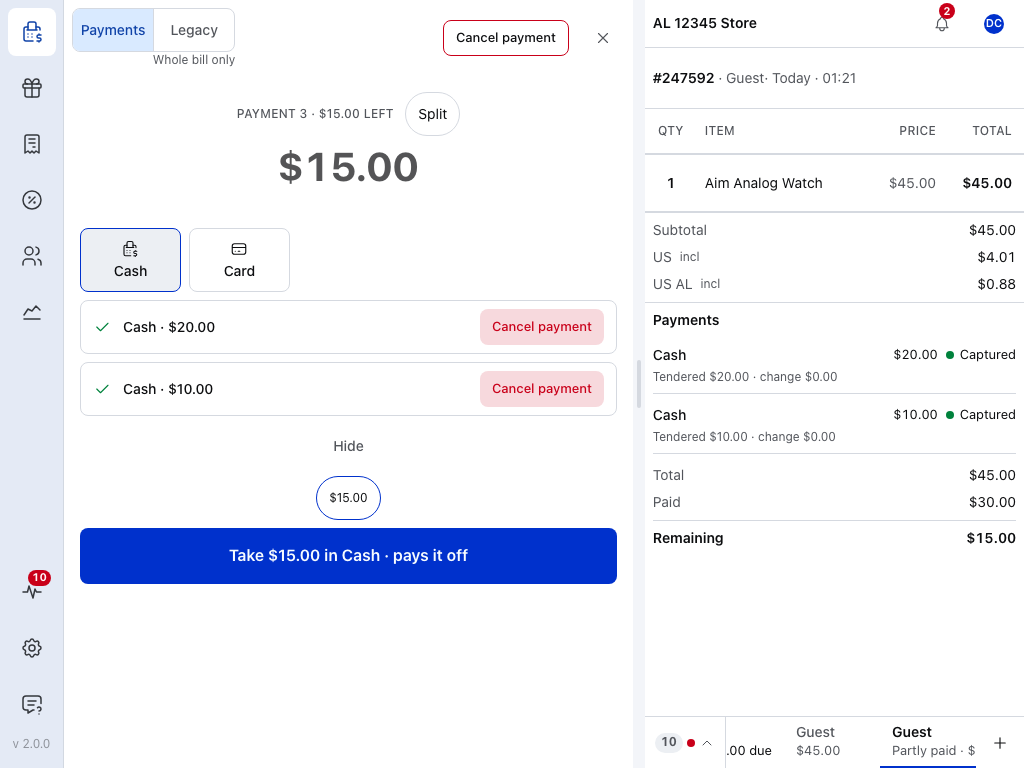
- Payment — one row per payment taken. On a split bill it also names the items that payment covered.
- Cancel payment — cancels this payment only.
- Hide — folds the list away again.
- Cancel payment at the top — cancels every payment, not just one. See Open Cancel payment.
Press Cancel payment on the row. The till asks Cancel this payment? and names what goes back, in the same words as the full cancel: here, Return $10.00 cash to the customer.
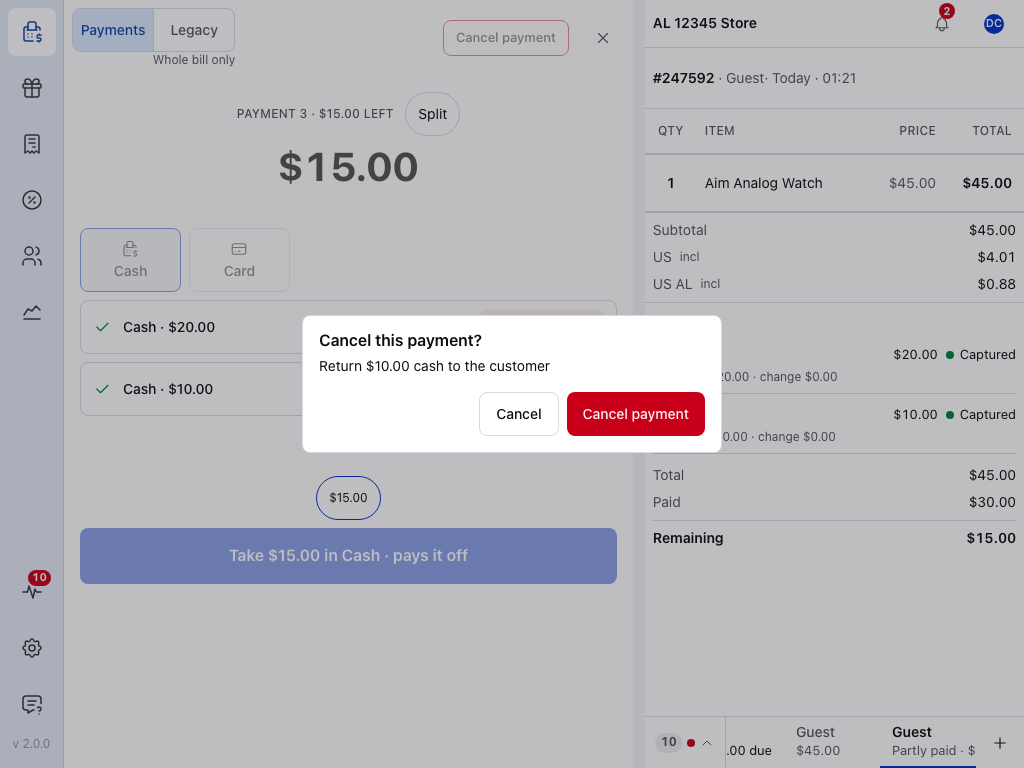
- Cancel — keeps the payment and closes the question.
- Cancel payment — undoes this payment.
If the pane says the store hasn't answered while the cancel goes through, see The store hasn't answered.
Payment cancelled appears and the till stays in checkout. Hand back the $10.00 cash, then take the rest.
The payment stays on the order, struck through and marked Cancelled, and only the payments left count towards Paid. On a split bill, the items the cancelled payment covered can be paid for again.
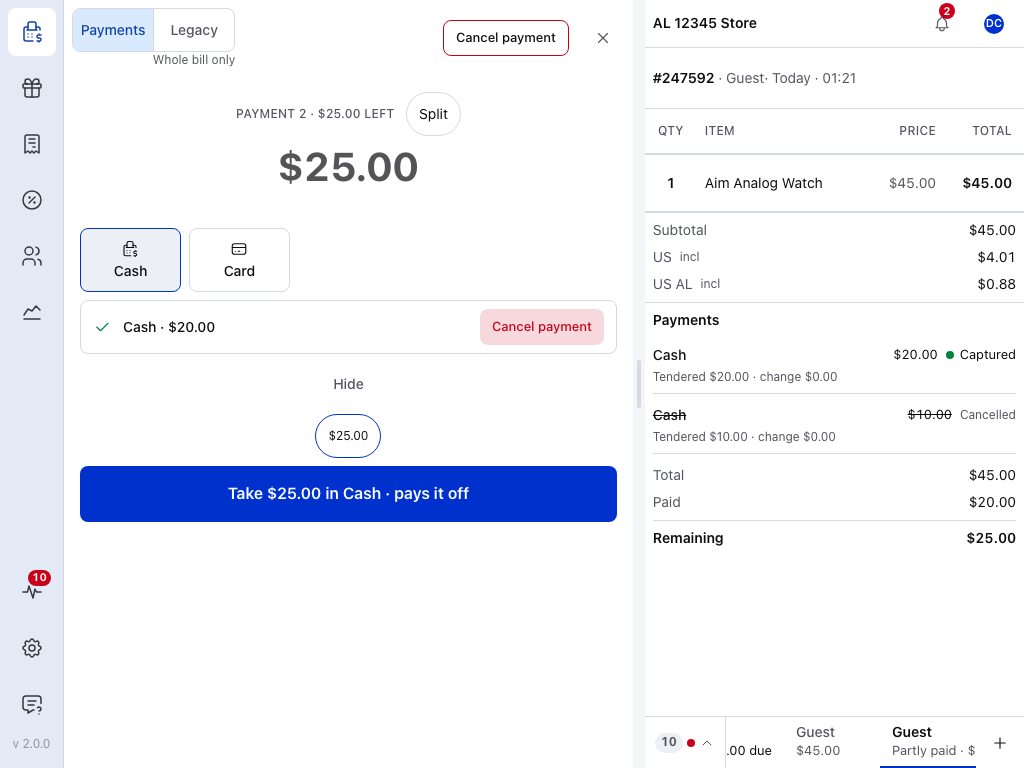
- Cancelled — the $10.00 payment, kept on the record.
- Paid — only the $20.00 still counts.
- Remaining — $25.00 is due again.
If the payment can't be cancelled, the till shows one of the messages below and the payment still counts.
If something goes wrong
You're offline
The till says: Cancelling these payments needs the store. Nothing was cancelled; try again when you are online.
Reconnect to your store, then cancel again. See What needs a connection.
A reader payment hasn't settled
The till says: This reader payment must settle before it can be cancelled.
Wait until the till is back online and the reader payment has reached the store, then cancel. The till shows this when a reader payment was approved offline, or when the till is offline with a reader payment on the order.
Some payments weren't voided
The till says: Some payments couldn't be voided, so that money is still held. Try again, or refund it from the order.
Cancel again. Keep the cash until it goes through.
If it keeps failing, give your manager the code on the message: PAYMENT221 means the store refused, PAYMENT201 that the till couldn't tell whether it went through.
The store hasn't answered
The till says: The store has not answered the last payment. Try again to confirm it; it will not be taken twice.
Wait a few seconds. This can show while a cancel is still going through, and it clears once the store answers. If it stays, press Try again: the till sends the cancel again, and the store doesn't do it twice.
A payment can't be voided
The till says: Money already taken cannot be voided, so this sale stays open: refund it from the order. Usually it's a card payment already charged to the customer.
You can't refund this at the till: it only offers Refund on finished orders (completed, processing or on hold), and this sale stays open. Leave the sale open and ask a manager to refund the payment from the order in WordPress. See When the Refund Action Appears. You can't mark the order Cancelled either while it still holds the payment.
Void won't remove the order
The till says: This order has payments on it. Reverse them with Cancel in the tender pane, then void.
Open checkout, cancel the payment, then void the order.