Keyboard Shortcuts
With a keyboard on the counter, you can ring up a sale without reaching for the mouse. Hold Alt (Option ⌥ on a Mac) and press a key. Alt + / shows them all.
In a browser and in the desktop app, on the POS screen. They work even while the cursor is in a text field. On a Mac, a shortcut that types an accent there, such as Option + N, needs a click outside the field first. The phone and tablet apps have none. The other screens have none either, except the Orders list, which has its own arrow keys.
The shortcuts
Every shortcut but Alt + / waits while you're at checkout or on the paid screen. All but Alt + F and Alt + / also wait while the cart is out of sight: behind the register picker, the Open register card, the count, or the open orders list.
| Press | What happens |
|---|---|
| Alt + F | The cursor goes to Search products. On a narrow screen, the Products tab opens first. |
| Alt + P | Checkout opens. Also needs something in the cart. |
| Alt + N | An empty cart. The order you were on stays open. Also needs an order in the cart, not an empty cart. |
| Alt + ← or Alt + → | The previous or next open order. Also needs two or more open orders. |
| Alt + D | Add Discount opens. Also needs an order in the cart. |
| Alt + V | The order in the cart is voided at once. Press Undo straight away if you didn't mean to. Also needs an order in the cart. |
| Alt + / | The shortcuts list opens or closes. Works any time on the POS screen, checkout included. |
The order is voided as soon as you press it. The message that appears has an Undo button: press it straight away if you didn't mean to.
The shortcuts are fixed. There's no setting to change them. If you'd like different keys, tell us on Discord.
See every shortcut
Press Alt + /. The list slides in from the right.
A grey row can't run right now. With an empty cart, Checkout, New cart, Add discount and Void order are grey, and Previous cart and Next cart stay grey until two orders are open. Press any other row to run it, the same as its keys. On Windows, a note at the foot warns about Firefox. Press Close, or Alt + / again, to put the list away.
The list covers the cart and dims the products beside it.
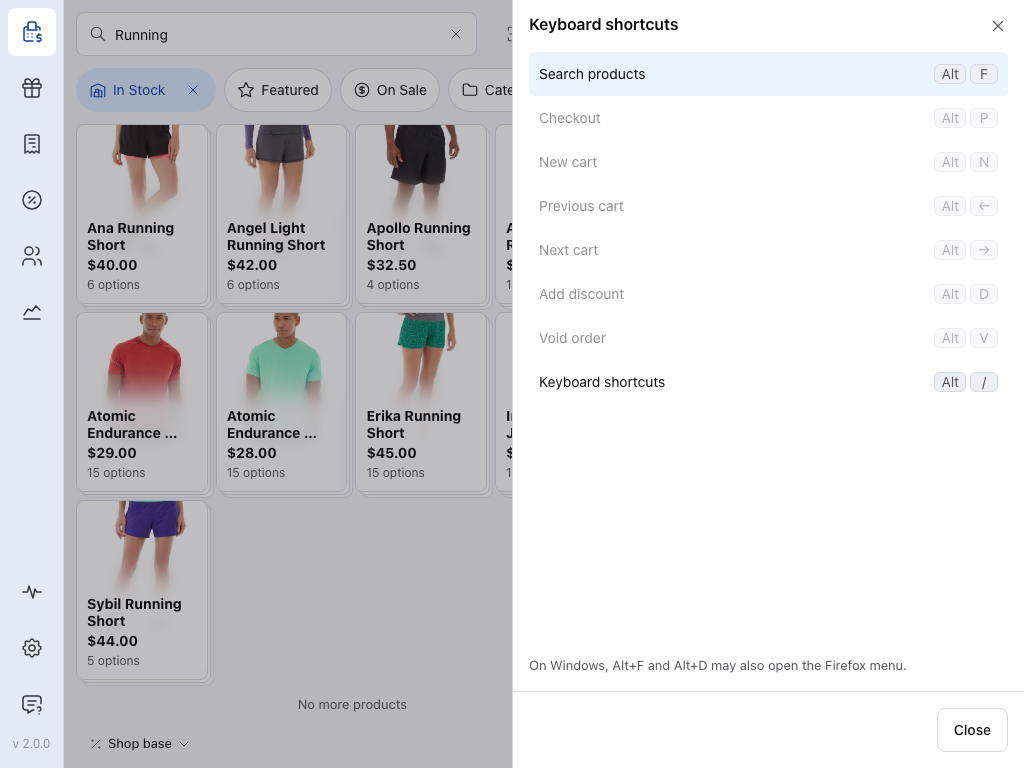
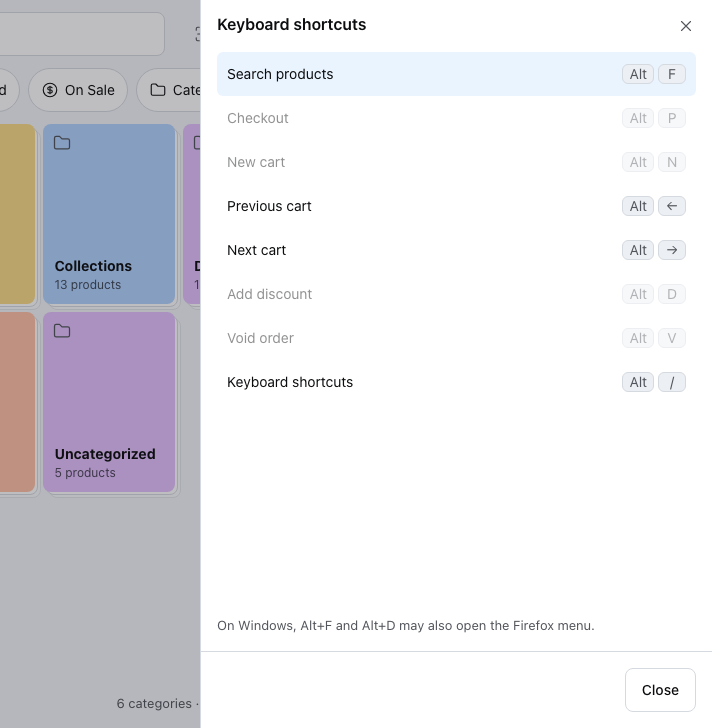
- Search products — puts the cursor in the product search, ready to type or scan. See Search & Filtering.
- Checkout — opens the tender pane for the order in the cart. See Checkout.
- New cart — starts an empty cart. The order you were on stays in Open Orders.
- Previous cart — steps back to the open order before this one.
- Next cart — steps forward to the next open order.
- Add discount — opens Add Discount for the order. See Discounts.
- Void order — voids the order in the cart at once, with no question first. Press Undo straight away if you didn't mean to. See Void.
- Keyboard shortcuts — this list.
Move through the Orders list
On the Orders screen in a browser or the desktop app, click an order (or Tab into the list), then:
- ↓ / ↑ moves the highlight to the next or previous order.
- Enter opens the highlighted order.
The Orders screen comes with WCPOS Pro. See Orders.
If something goes wrong
Nothing happens. Open the list with Alt + /: if the shortcut's row is grey, it can't run yet, for the reason in the table. Check you're on the POS screen, the register is open, and the open orders list isn't covering the cart.
Alt + F or Alt + D opens the Firefox menu. On Windows, Firefox may keep those two for itself. Press the row in the shortcuts list instead, or use Chrome, Edge or the desktop app.
On a Mac, Option + N puts an accent in the search box instead. Some keyboard layouts use Option + a letter to type an accent, and while you're typing in a field the POS lets the accent through. Click outside the field, then press the shortcut again.