Theme Settings
Customise the appearance of your POS application with different themes and colour schemes.
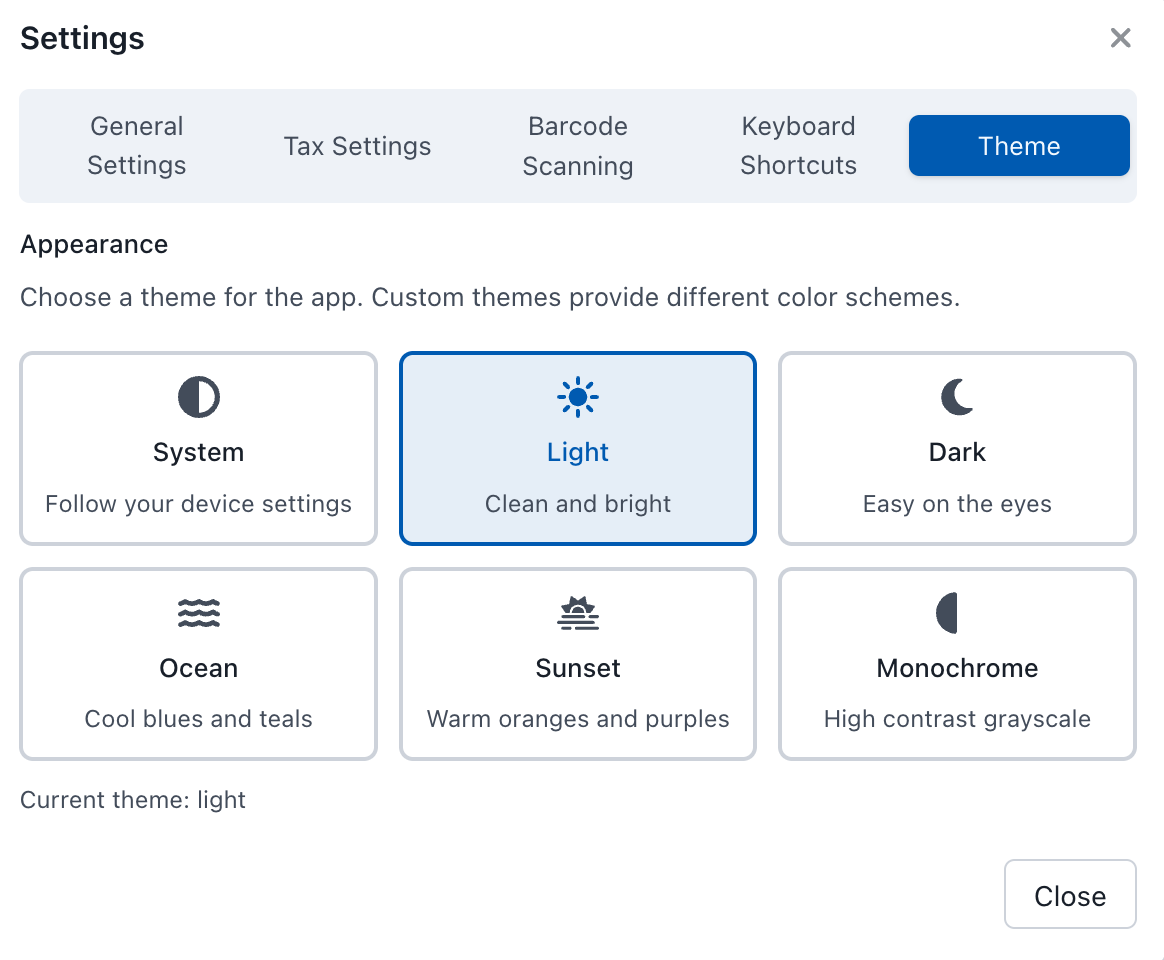
Theme Settings
Available Themes
System Theme
- Description: Follow your device settings
- Behaviour: Automatically switches between light and dark modes based on your device's system preferences
Light Theme
- Description: Clean and bright
- Best for: Well-lit environments and users who prefer traditional light interfaces
Dark Theme
- Description: Easy on the eyes
- Best for: Low-light environments and reducing eye strain during extended use
Ocean Theme
- Description: Cool blues and teals
- Best for: Creating a relaxed, professional atmosphere
Sunset Theme
- Description: Warm oranges and purples
- Best for: Creating a cozy, inviting atmosphere
Monochrome Theme
- Description: High contrast grayscale
- Best for: Accessibility needs and environments requiring high contrast
Selecting a Theme
- In the Theme settings panel, you'll see all available themes displayed as cards
- Each theme card shows the theme name and brief description
- Click on any theme card to select it
- The current active theme will be highlighted with a blue border
- Your selection is automatically saved and applied immediately
Tips for Theme Selection
| Theme | Best Environment |
|---|---|
| System | When you want the POS to match your device automatically |
| Light | Bright retail environments with good lighting |
| Dark | Dimly lit environments or evening/night shifts |
| Ocean/Sunset | Adding personality and brand alignment |
| Monochrome | When you need maximum contrast |
The theme you select will persist across all your POS sessions.
Coming Soon
More themes and customisation tools are coming soon!