Clear All Local Data
WCPOS stores a local copy of your products, orders, and customers so the POS can work quickly and function offline. Occasionally this local data can become out of sync with your WooCommerce store. Clearing all local data removes the local database and triggers a fresh sync from your server.
From v1.10.0, Store health → Database offers Clear & re-download per collection — it removes and re-fetches just the collection that's misbehaving (for example, products), without touching anything else or logging you out. The confirmation shows how many records will be removed and confirms your server copy is unaffected. Note that collections which download on demand legitimately show a low count right after a reset and refill as they're used — that's the designed behaviour, not a stalled sync. See Store Health.
This is the nuclear option. Clearing local data deletes everything stored on the device and forces a full re-sync. Depending on the size of your store, this can take some time. Only use it when other options — a normal sync or a per-collection Clear & re-download — haven't resolved the issue.
Before clearing, check the changes waiting to send tile in Store health → Database — clearing local data destroys any unsent changes on the device.
When to Use It
You might need to clear local data when:
- Sync issues — products, orders, or customers aren't updating properly
- After a plugin update — to ensure compatibility with new data structures
- Stale data — prices, stock levels, or other information appears outdated
What Gets Cleared
| Cleared | Not Cleared |
|---|---|
| Local product database | Server-side data |
| Local order database | WooCommerce settings |
| Local customer database | |
| Login session |
Your WooCommerce store data is unaffected — only the local copy on your device is removed. A fresh sync begins automatically after clearing.
- Desktop app: You will be logged out and must re-connect your store.
- Web app: Login data is cleared, but because you are still logged into WP Admin the session re-hydrates automatically — so you won't notice being logged out.
How to Clear Local Data
Web
- Click your user menu in the top-right corner to open the menu
- Click Clear All Local Data
- The local database will be deleted and a fresh sync will begin automatically
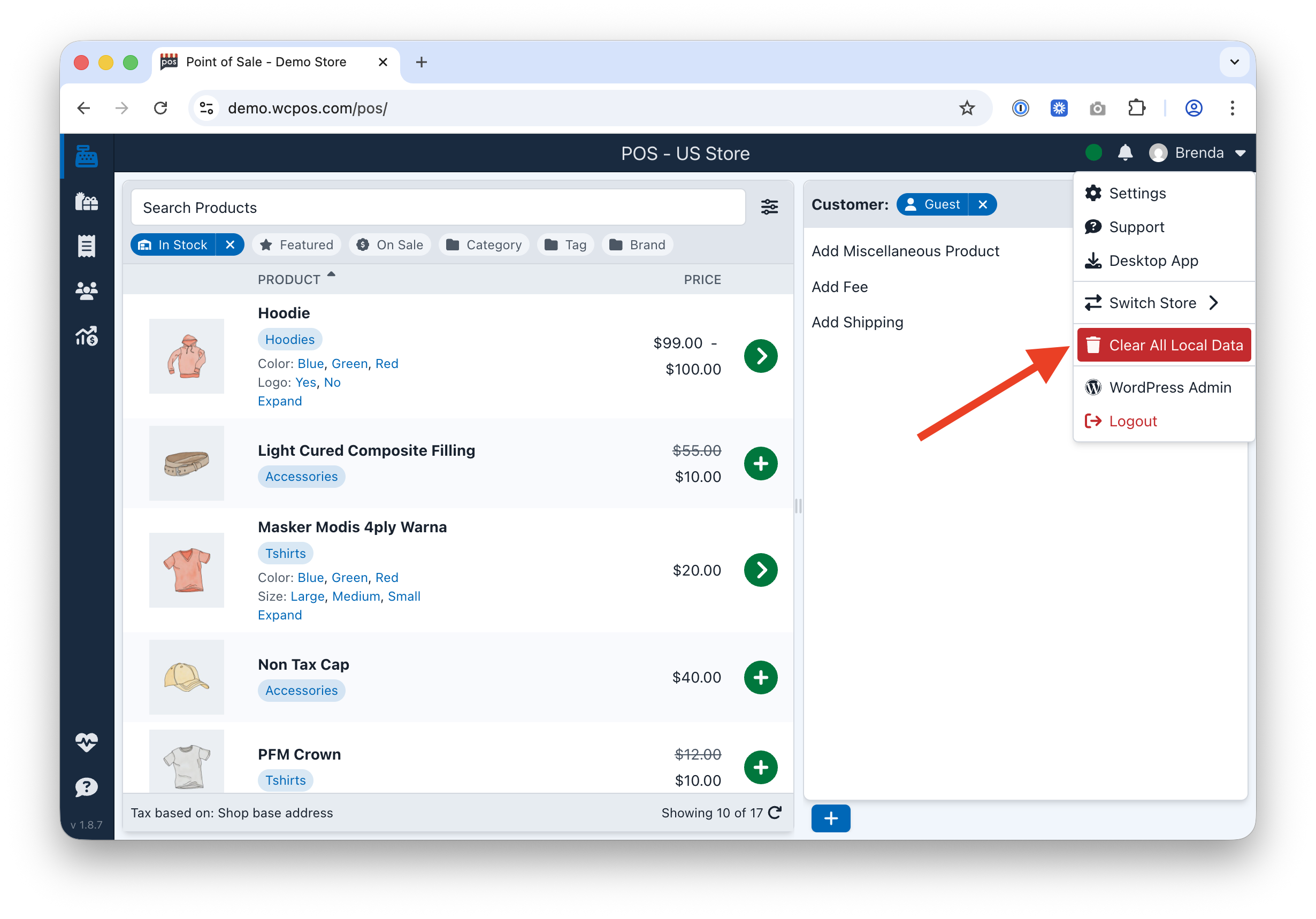
The Clear All Local Data option in the web app user menu
Desktop
- Open the WCPOS application menu in the top menu bar
- Hover over Advanced
- Click Clear App Data
- The local database will be deleted and a fresh sync will begin automatically
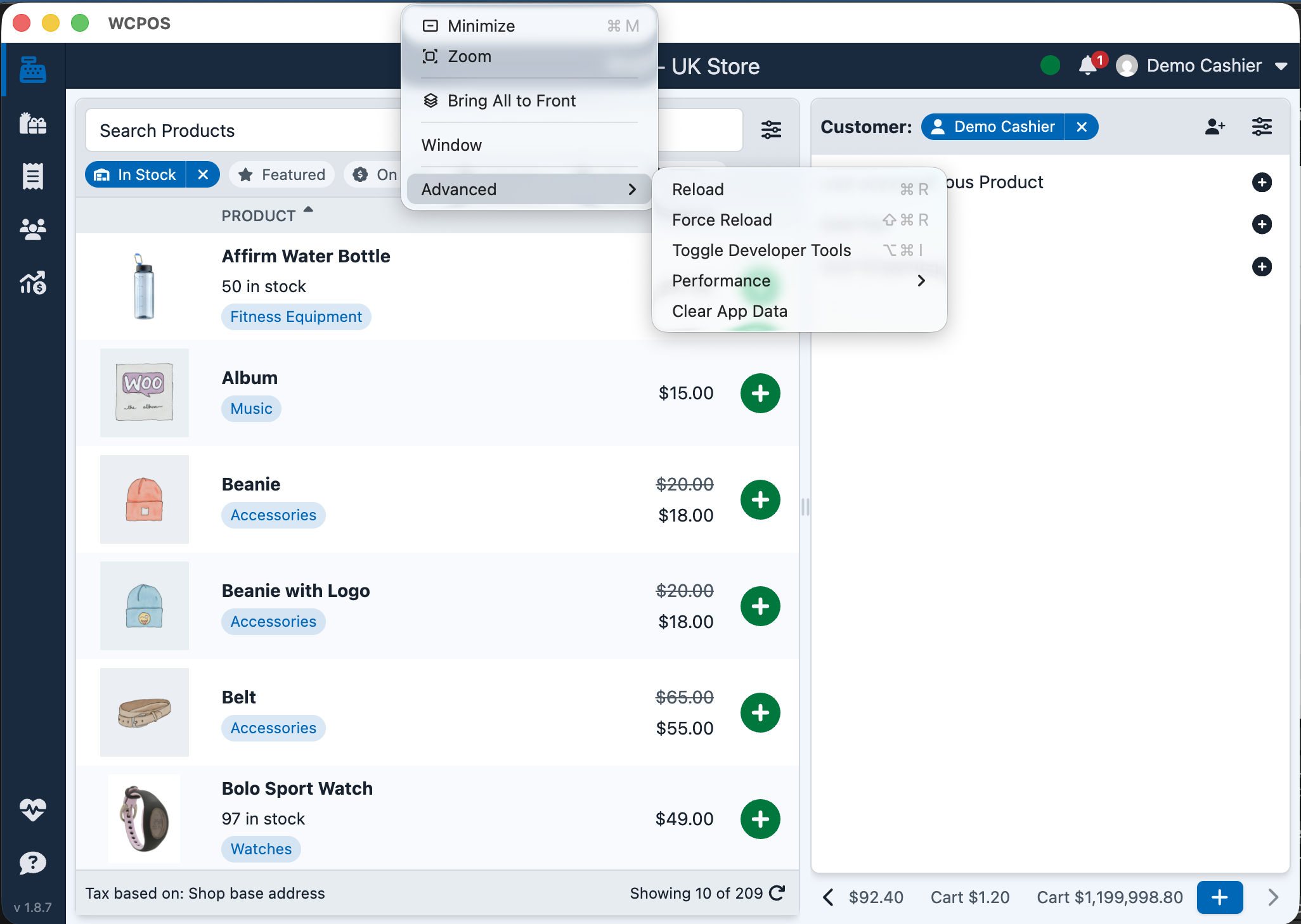
The Clear App Data option in the desktop app Advanced menu
All platforms store data in the same local database format (OPFS-based file storage from v1.10.0). It is fully cleared on every platform, but the login behavior differs — see the platform difference note above.