Order Storage (HPOS)
The symptom: checkout in WCPOS takes several seconds, and it has been getting slower over time.
You do this once, in WordPress admin. You need access to the WooCommerce settings; if you don't have it, ask the person who manages your website to follow these steps. Tell them checkout is slow and send them this page.
One common cause is the way WooCommerce stores your orders. Check which kind of storage your store uses, and if it is the old one, move to High-performance order storage (HPOS) with WooCommerce's own tool.
Check which storage your store uses
- In WordPress admin, go to WooCommerce → Settings → Advanced → Features.
- Find Order data storage:
- High-performance order storage (recommended) selected: you already use HPOS, so this is not the cause. See Other causes of slow checkout.
- WordPress posts storage (legacy) selected: switch to HPOS below. It speeds up a slow step in every checkout (why), and the larger your store, the more it helps.
This store already uses HPOS:
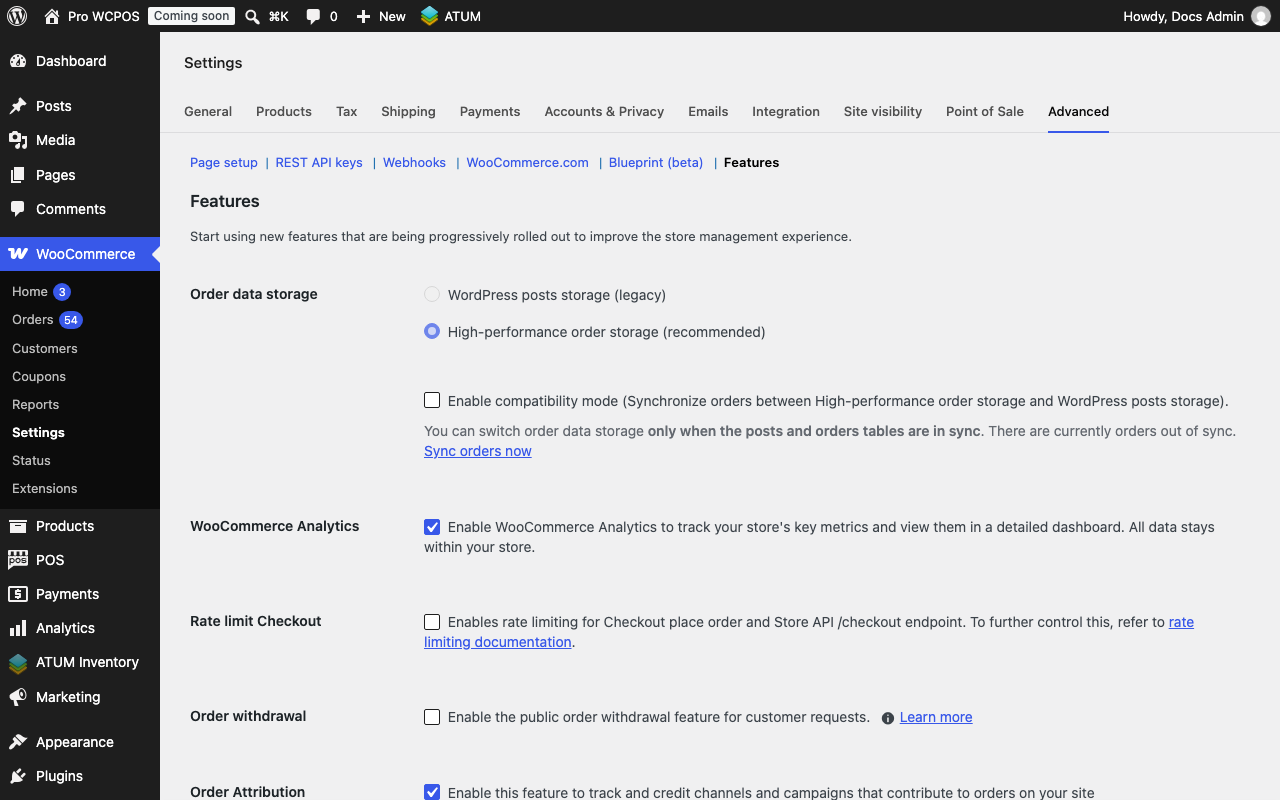
- Advanced — the last tab in WooCommerce → Settings.
- Features — the last link under the tabs.
- Order data storage — the selected option is the storage your store uses. Here it is High-performance order storage (recommended). On an HPOS store you can ignore the out-of-sync message under Enable compatibility mode: it matters only if you switch back.
New WooCommerce stores have used HPOS since 2023, so an older store is the one most likely to still be on legacy storage.
On a store with legacy storage, a warning sits at the top of POS → Settings → Checkout. Its Open WooCommerce's order storage setting link takes you straight to the Features page, and How to switch brings you back here.
Switch to HPOS
WooCommerce moves your orders for you. First it copies them across (the sync), then you switch. WooCommerce will not let you switch until the copy is complete.
Make a full backup of your site and database before you start, and check that you can restore it. If you have a staging site, try the switch there first.
-
Go to WooCommerce → Settings → Advanced → Features. If a warning on this page names plugins that are incompatible with HPOS, deal with those first: see Only High-performance order storage is greyed out.
-
Tick Enable compatibility mode and click Save changes. WooCommerce starts copying your orders in the background. On a large store this can take a while; the progress shows under the checkbox as Currently syncing orders... with the number still pending.
-
Reload the page now and then until no message is left under Enable compatibility mode: the copy has finished. If There are currently orders out of sync. shows instead, click Sync orders now. If the options stay greyed out, see If something goes wrong.
-
Select High-performance order storage (recommended) and click Save changes.
-
Leave Enable compatibility mode ticked while you check that everything still works:
- Take a test sale in WCPOS and check that it completes.
- Find that sale in WooCommerce → Orders.
- Check that the plugins that work with your orders, such as accounting, shipping or email plugins, still see new orders.
While compatibility mode is on, both copies of your orders stay in step, so you can switch back once the copy is up to date.
-
When those checks pass, untick Enable compatibility mode and click Save changes. From here on, switching back means copying your orders back first: see Switch back to legacy storage.
For the full details, see WooCommerce's guide: High-Performance Order Storage.
Switch back to legacy storage
If something stopped working after the switch, go back to legacy storage, then find the plugin that broke before you try again.
- Go to WooCommerce → Settings → Advanced → Features.
- If Enable compatibility mode is unticked, tick it and click Save changes. WooCommerce copies your orders back to legacy storage.
- Wait until no message is left under Enable compatibility mode. Reload the page now and then, and click Sync orders now if it appears. Until then both options stay greyed out.
- Select WordPress posts storage (legacy) and click Save changes.
Orders taken since the switch come with you: compatibility mode copies them to legacy storage too.
If something goes wrong
Both storage options are greyed out when you try to switch. WooCommerce lets you change storage, either way, only when both copies of your orders are in step. The copy has not finished. Look under Enable compatibility mode:
- Currently syncing orders... with a number: the copy is still running. Wait, and reload the page now and then.
- There are currently orders out of sync. with a Sync orders now link: the copy is not running. Click Sync orders now, wait until the copy has finished, then switch.
On a store already on HPOS with compatibility mode off, this screen is normal until you want to switch. Here both options are greyed out and the copy is not running:

- WordPress posts storage (legacy) — greyed out until the copy is complete.
- High-performance order storage (recommended) — selected, and greyed out too.
- Enable compatibility mode — the message under it says whether the copy is running.
- Sync orders now — starts the copy.
Only High-performance order storage is greyed out. WooCommerce blocks the switch while an active plugin is marked as incompatible with HPOS. A warning on the Features page names those plugins, with a View and manage link. Update them, or ask their developers about HPOS support, before you switch.
Something stopped working after the switch. Switch back to legacy storage, then find the plugin that broke before you try again.
Checkout is still slow after switching. Order storage was not the only cause. See Other causes of slow checkout below.
Why legacy storage slows checkout
With legacy storage, saving a sale in WCPOS gets slower as your store grows. With HPOS the order lookup behind that delay is close to instant. Hosting and other plugins can still slow checkout: see Other causes of slow checkout.
How much faster, and why
Every time WCPOS saves an order, it first looks the order up by the ID WCPOS gave it. With legacy storage, WooCommerce keeps orders alongside your WordPress posts, in tables with no quick way to find an order by that ID, so the lookup goes through your store's records one by one. HPOS keeps orders in their own tables, where the same lookup is close to instant.
On one store we measured (about 30,000 products and variations, legacy storage), each lookup took about 0.46 seconds and a checkout made about two of them. With HPOS the same lookup took about 1 millisecond. Your store will differ, but the larger it is, the more you gain.
What WCPOS supports
- HPOS is fully supported, and it is what we recommend.
- Legacy storage still works. Nothing breaks; checkout is only slower on large stores.
Other causes of slow checkout
Order storage is not the only thing that slows checkout. If you already use HPOS, or checkout is still slow after switching, look at:
- Your hosting. A busy or underpowered server slows every step. See Server Performance.
- Other plugins that run when an order is saved, such as accounting, email marketing or inventory plugins. See Plugin Conflicts and Checkout Performance.