Upgrade to 2.0
WCPOS 2.0 is a major update: a new register, a new checkout and a cash drawer. This page is for whoever clicks Update. Read it to the end before you do.
The first time a till opens 2.0, it clears the 1.11 data on that device. A sale the till hasn't sent to your store by then is lost. Let every till finish syncing before you update.
Already updated the store, and a till still has unsent sales? See A 1.11 till still has unsent sales.
Can you upgrade today?
Open WP Admin → Plugins and check two things.
- WooCommerce is 9.0 or later. 2.0 needs it. Older than 9.0: see If your store isn't ready yet, and don't update WCPOS first.
- You have WCPOS Pro if you use a card terminal extension. From 2.0, Stripe Terminal, SumUp, Mollie Terminal and the other terminal extensions need Pro. If you use one and don't have Pro, stop here and read Free vs Pro before you update.
WooCommerce is 9.0 or later, and you either don't use a card terminal extension or have WCPOS Pro: carry on with Before you click Update.
Before you click Update
- Sync every till. Open each till, then open Store health → Database from its menu. Its changes waiting to send must read 0, with no panel asking for a decision. Anything above 0 hasn't reached your store yet: keep the till online and wait. That count leaves out open orders: finish each one, or press Save to Server on it (Sync order in 2.0). Both show only who is signed in now: repeat this for each cashier who uses the till, in every store and on every register they use. Any sales, open orders or changes a till hasn't sent to your store are lost when it opens 2.0.
- Back up the site, or ask your host for a restore point. The update doesn't change your orders, but a major update deserves a way back.
- Pick a quiet hour. Once the plugin is updated, each till has to move to 2.0 before its sales reach your store again, and a sale that is half-way through checkout on the old version has to be rung up again.
- If you use WCPOS Pro, check your licence is active, in WP Admin → POS → Settings → License. Pro updates arrive only with a valid licence. See Installing WCPOS Pro.
- Tell your cashiers about discounts. If they take money off by adding a negative fee, that stops working. 2.0 has Add Discount instead. See What changes on day one.
- If you use a card terminal extension, check it has a 2.0 release. Stripe Terminal, SumUp and Mollie Terminal each do. You update it straight after WCPOS, below.
Update the plugin and the tills
- Update the plugin. On a free site, update WCPOS. With Pro, update WCPOS Pro only: it already contains the free plugin and switches off the separate copy. A notice says so, and you can delete the free plugin.
- Update your card terminal extension, if you use one, to its 2.0 release. An extension that hasn't been updated still shows on the Legacy tab of checkout, but it can't drive a reader from the tender pane.
- Move every till to 2.0. On a browser till, reload the page: it loads 2.0 from your store. Update the desktop and mobile apps to 2.0 the way you usually update them, then open them. Let each till finish its first sync.
- Check each till is on 2.0. Tap the version at the foot of the menu (v 2.0.0, or Version 2.0.0 on a phone). About WCPOS opens.
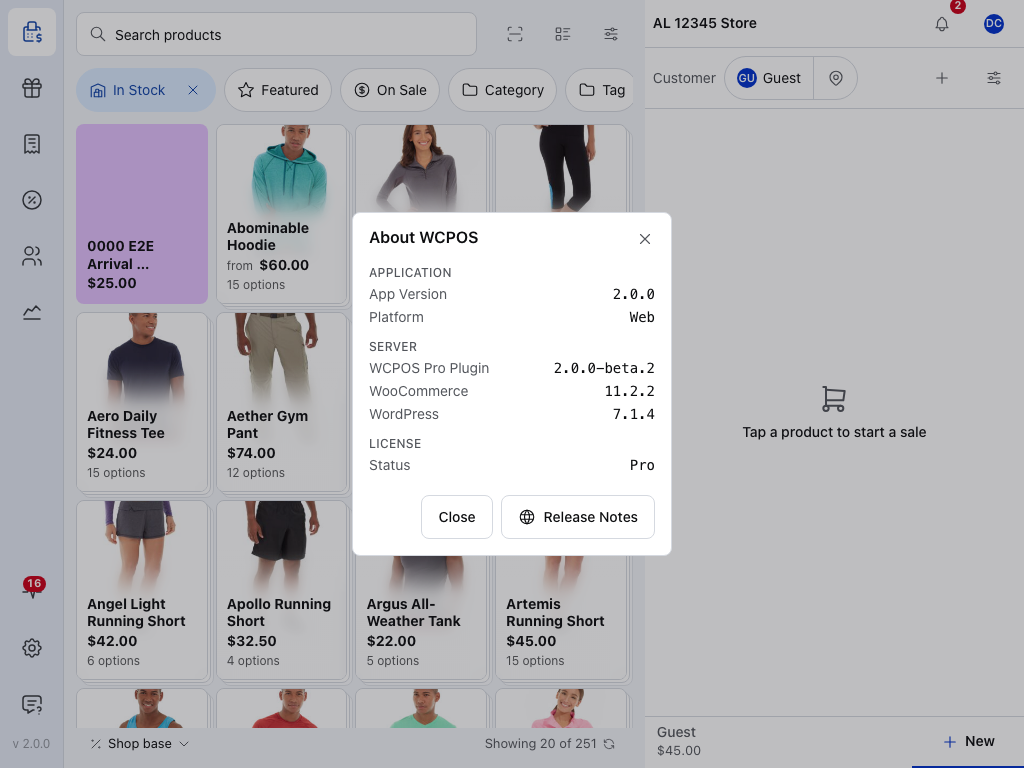
- App Version — the POS on this till. It must start with 2.0.
- WCPOS Pro Plugin — the plugin on your store, WCPOS Plugin on a free site. It must also be on 2.0.
- WooCommerce — 9.0 or later.
- Status — Pro or Free. Pro that reads Free here: see Installing WCPOS Pro.
- Release Notes — what changed in each version.
The app and the plugin must both be on 2.0. A till that is out of step stops at a screen saying so:
- A 1.11 app on a 2.0 store asks for an app update. See SYNC341. If it still has sales it hasn't sent, don't update it yet: see A 1.11 till still has unsent sales.
- A 2.0 app on a store still on 1.11 reports AUTH331. Update the plugin, then reconnect. See AUTH331.
What changes on day one
Your cashiers see a new register the first time they open the POS. Most of it works as before; these are the changes they will notice. What's new in 2.0 has the full list.
Discounts replace negative fees
A fee can no longer be negative. To take money off, press + in the cart and choose Add Discount. Orders that already carry a negative fee are unchanged.
Find Add Discount and coupons
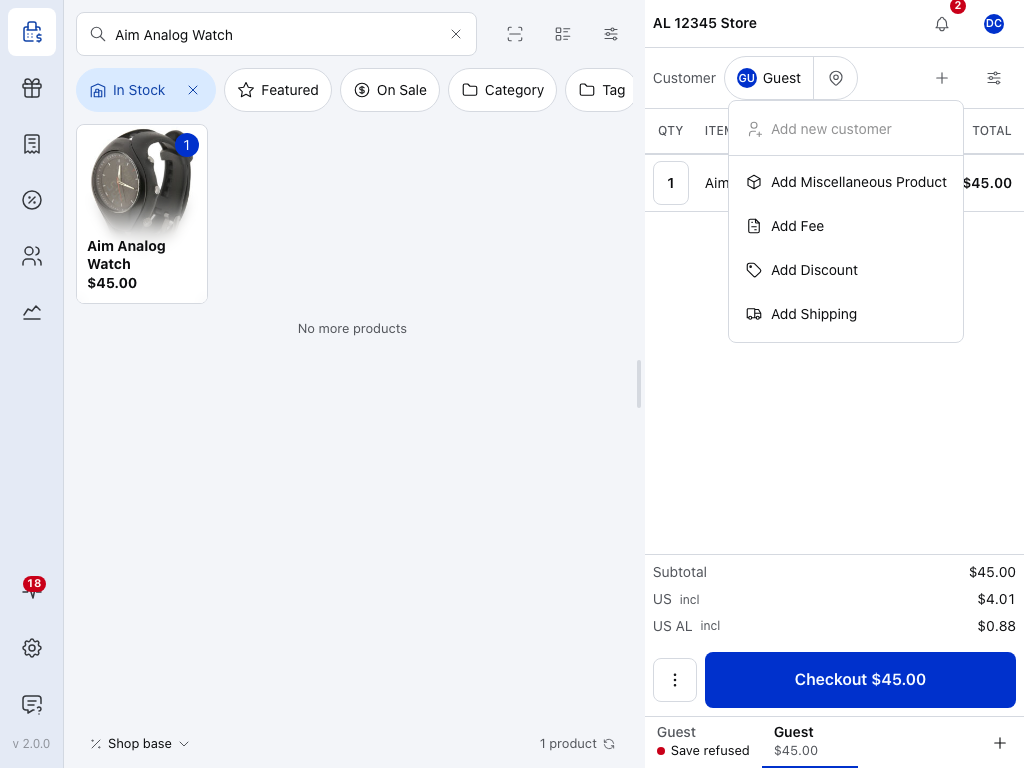
- Register bar — the store this till is on, and the register when the store has more than one. See Stores, Registers and Devices.
- + — the cart's add menu, for anything that isn't a product tile.
- Add Fee — fees only add to the order now.
- Add Discount — an amount or a percentage off the order, or a WooCommerce coupon code on its Coupon tab. Coupons at the till no longer need Pro. See Cart Discounts.
- Subtotal — the order's figures before payment.
- Checkout — opens the tender pane, below.
Checkout is the tender pane
Pressing Checkout opens a keypad beside the cart instead of WooCommerce's payment page. Type what the customer hands over and the change is shown. One sale can be split across cash and cards.
Find payment methods, Split and Legacy
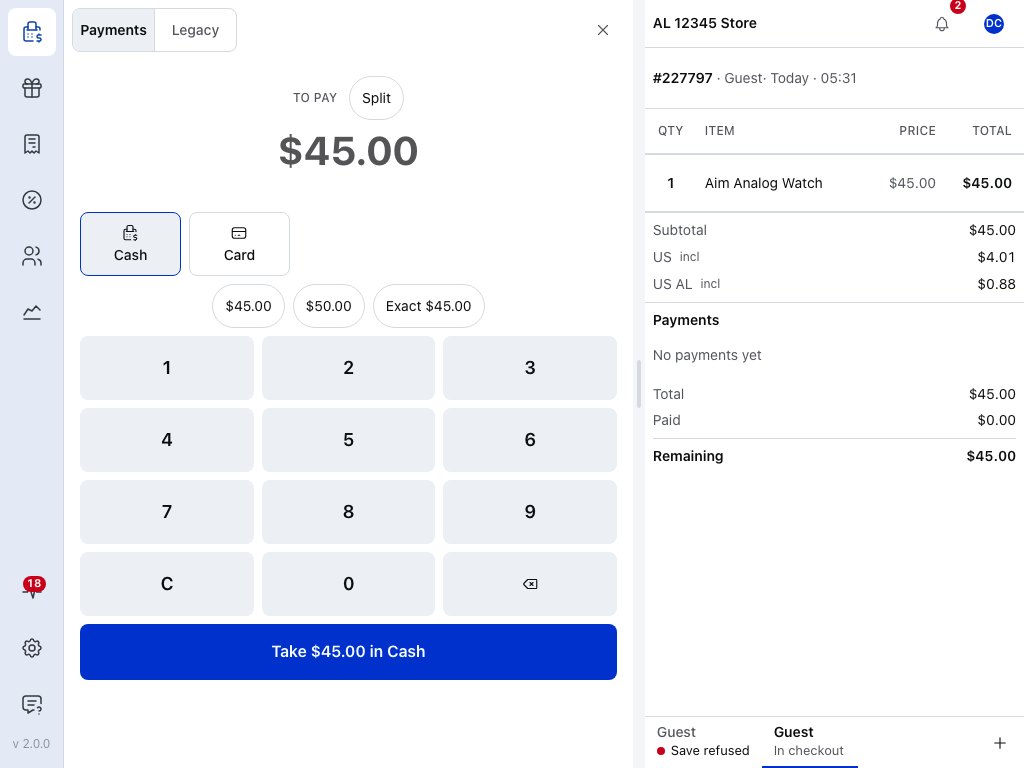
- Payments — the payment methods your store takes at the till, and card readers paired with this till. See The Tender Pane.
- Legacy — gateways that still use their own payment page, including terminal extensions that haven't been updated. See The Legacy Tab.
- Split — take the order in several payments. See Split Payments.
- Payment method tile — tap the way the customer is paying.
- Keypad — enter what the customer hands over.
- Take — records the payment. See Checkout.
Also new on day one
- A new look. Forms and pickers slide in as panels. A Scale setting in Settings → Theme sizes the POS for your device. You can put the cart on the left and add your own quick filter buttons. See What's new: A new register.
- WooCommerce Analytics counts a POS order once it's paid. Orders still open or only partly paid at the till no longer count as sales, so totals that included them will be lower.
- Receipts carry the register name and the software version. A refund prints its own receipt, headed Refund, naming the sale it corrects. Custom receipt templates keep working, and show the new details only if you add them. See Receipts.
- POS Only products get their catalog visibility set to Hidden, once, when the plugin updates, so they stay out of your online shop.
- Magnetic-stripe card readers are no longer supported. Take cards on a paired reader (Pro) or on your own terminal, and record the payment at the till.
Registers and the cash drawer
Registers and the cash drawer: off until you turn them on
2.0 can open and close the register with a float and a count, in the free plugin too. Nothing changes on day one: it stays off until a manager turns on Open and close the register in WP Admin → POS → Settings → General, under Register, where the Opening float is set too. With it on, the POS asks for a float before the first sale, and Close register counts the drawer and writes a numbered closure, which the sheet that follows prints with Print closure. See End-of-Day Reconciliation.
The free plugin has one register, shared by every device. More registers come with Pro. See Registers and Open the Register.
If your store isn't ready yet
Stay on WCPOS 1.11. It keeps working, and it keeps receiving fixes for six months after 2.0 is released.
- Turn off automatic updates for WCPOS and WCPOS Pro. In WP Admin → Plugins, each plugin row has an Enable auto-updates / Disable auto-updates link. Make sure it reads Enable auto-updates, which means they are off. This stops an automatic update from reaching a till mid-shift.
- Update WooCommerce to 9.0 or later when you're ready. WooCommerce's own release notes cover that update.
- Come back to Before you click Update.
- Once you're on 2.0, turn automatic updates back on if you used them, or later fixes won't arrive by themselves.
If WCPOS updated before WooCommerce did
The POS won't open until WooCommerce is 9.0 or later. Orders already saved in your store are kept. Unsent sales stay on a till only until it opens 2.0, so don't update or reload that till: follow A 1.11 till still has unsent sales. Either update WooCommerce now, or reinstall WCPOS 1.11 and turn off automatic updates as above.
The POS is gone after a plugin update
The POS menu has gone from WP Admin, and yourdomain.com/pos no longer opens the POS. WCPOS 2.0 runs only when your site meets its requirements. When it doesn't, the plugin stays installed but switches nothing on. Your orders stay in WooCommerce.
- Check WooCommerce. In WP Admin → Plugins, WooCommerce must be active and on 9.0 or later. Update or activate it. If you can't update it yet, see If WCPOS updated before WooCommerce did.
- Check PHP. 2.0 needs PHP 7.4 or later. Ask your host which version your site runs.
- With Pro, check WCPOS Pro is active. The free WCPOS plugin is switched off on purpose: Pro carries it. See Update the plugin and the tills.
- Look for "The WCPOS plugin failed to load correctly." at the top of WP Admin. The plugin's own files didn't load, so it stops there. Download the same version again and upload it over the one you have, as in Upload it over the current version. Don't delete the plugin first.
If a till still holds sales from before the update, read A 1.11 till still has unsent sales before you reload it.
Rolling back
A 1.11 till still has unsent sales
The till shows an update screen and its sales haven't reached your store. They are still on that device, until it opens 2.0. To send them:
- Leave that till as it is. Don't update the app, and on a browser till don't reload the page: either opens 2.0, which clears the unsent sales.
- Reinstall the 1.11 plugin on your store.
- Reload the page on a browser till, or close and reopen the app. Now that the store is on 1.11 again, the till reconnects and sends its sales. Wait until changes waiting to send in Store health → Database reads 0, with no panel asking for a decision. Open orders aren't in that count: finish each one, or press Save to Server on it. Its sales are now in the store.
- Update to 2.0 again, from Update the plugin and the tills.
Go back to 1.11
If 2.0 isn't working for you, tell us on Discord first. Most upgrade-day problems have a quicker fix than a rollback.
Going back to 1.11 starts each till from an empty local database, and 1.11 can't send the sales a 2.0 till hasn't sent to your store yet. Let every 2.0 till finish syncing first: in Store health → Database, its changes waiting to send must read 0, with no panel asking for a decision and no open order left unsynced (Sync order).
A desktop or mobile app already on 2.0 can't connect to a 1.11 plugin (it reports AUTH331), and the app stores don't offer older versions. Use the browser POS at yourdomain.com/pos on that till until you upgrade again.
To roll back, reinstall the 1.11 plugin. Browser tills and apps still on 1.11 carry on as before.
Orders made on 2.0 are ordinary WooCommerce orders and stay where they are. Register sessions and closures recorded on 2.0 stay in the database, but 1.11 doesn't show them.