Variable Products
A variable product is one product that comes in options, such as a hoodie in five sizes and three colours. Each option has its own price, stock and barcode, and the option is what goes in the cart. WooCommerce calls the options variations.
Spot a variable product
- In the grid — the tile shows a starting price and how many options it has, such as from $60.00 and 15 options. With the Popover style, it shows a Variants badge and its price range instead.
- In the table — the row shows how many options it has. With the Expanded rows style, it lists the options under the name.
Pick an option
Tap a variable product, and read the section that matches what opens:
| What opens | Read |
|---|---|
| The options fill the product panel | Open in place |
| A box beside the product, or a sheet at the bottom of a phone | Popover (in Grid) |
| The options appear as rows under the product | Expanded rows (in Table) |
A new device opens them in place. To switch, see Change how a product opens. A scan works the same whichever way they open.
Open in place
Tap the product, and its options fill the panel, one tile each. Tap an option to add it.
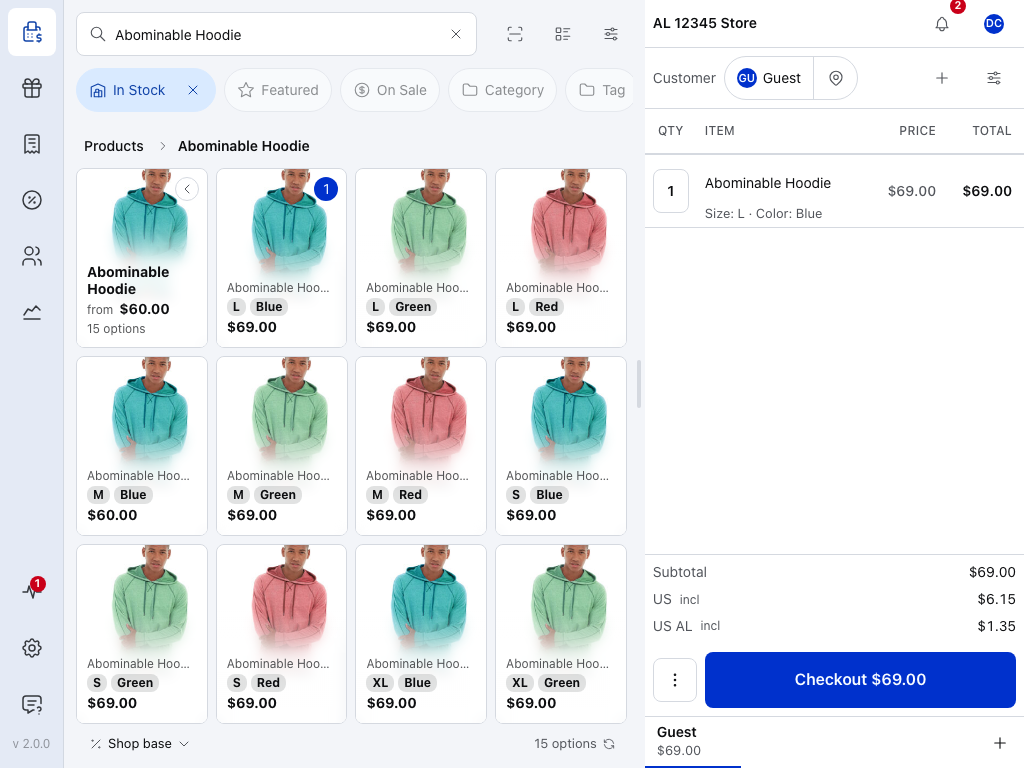
- Products — tap it to go back to the list you came from.
- Where you are — the product you opened.
- The product — its price range and how many options it has. Tap it to go back too.
- One option — tap it to add it to the cart. The chips show its size and colour.
- In the cart — how many of this option are in the cart. You stay here, so you can add another.
- The cart line — the product's name, with the option underneath.
- 15 options — the count under the panel now counts this product's options.
- In Stock — while it's on, options that are out of stock are hidden. With it off, they show Sold out.
You can also go back by pressing Escape on a keyboard, swiping in from the left edge on a touch screen, using Android's back button, or typing a new search.
In Table, tap the row and the options open as rows, with an Option column. Tap a row or its + to add it.
Popover
In Grid, with the Popover style, tap the product and pick each option from a popover beside it.
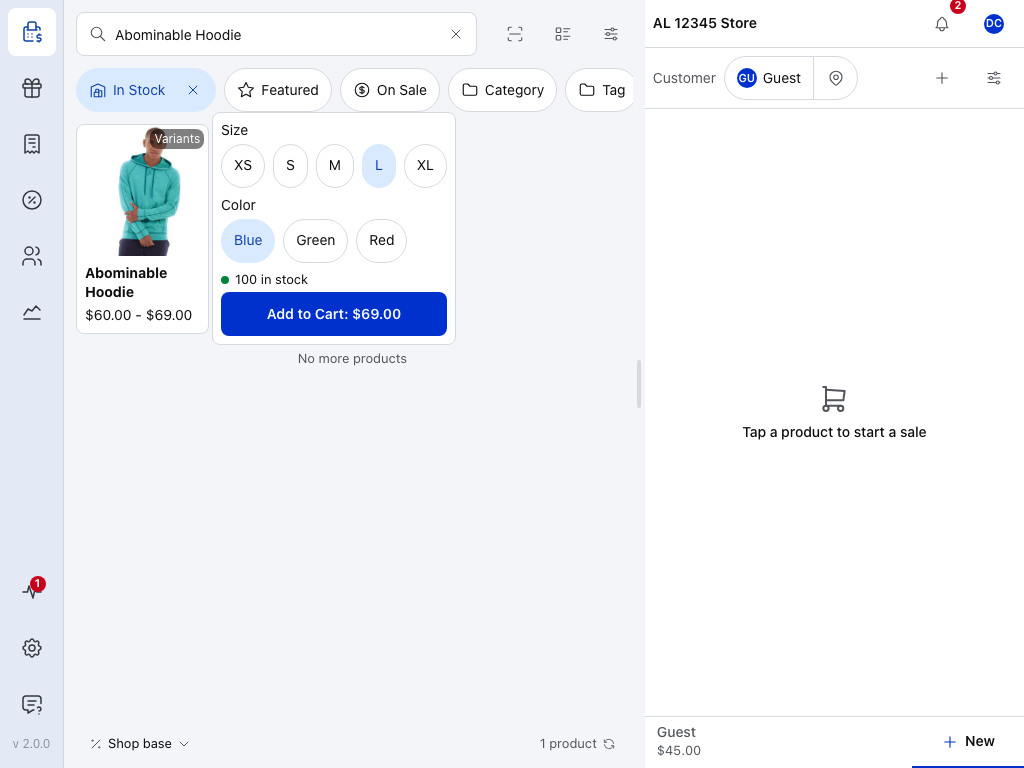
- Variants — this tile has options. Tap it to open the popover.
- Size — one row for each thing the options differ by.
- L — the size you picked.
- Green — tap another chip to change your pick.
- 100 in stock — the stock of the option you picked, or Out of Stock or On Backorder. There's none when the store doesn't track its stock.
- Add to Cart: $69.00 — adds the option and closes the popover.
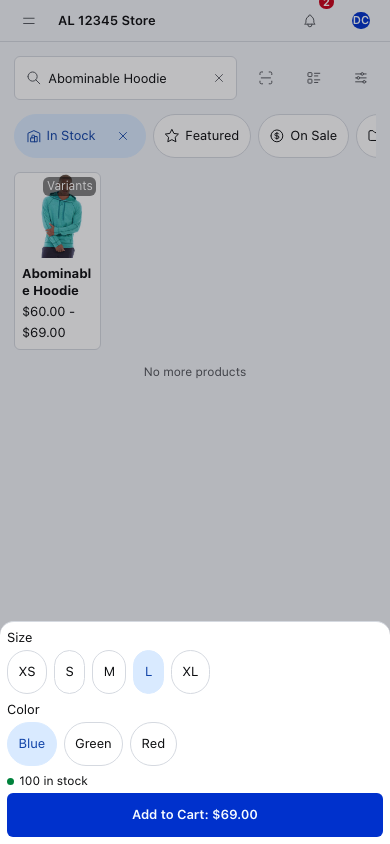
On a phone, the popover opens as a sheet from the bottom of the screen. The numbers are the same as above.
Greyed-out choices and unavailable options
As you pick, chips that can't make an option are greyed and can't be tapped. When only one choice is left, it's picked for you.
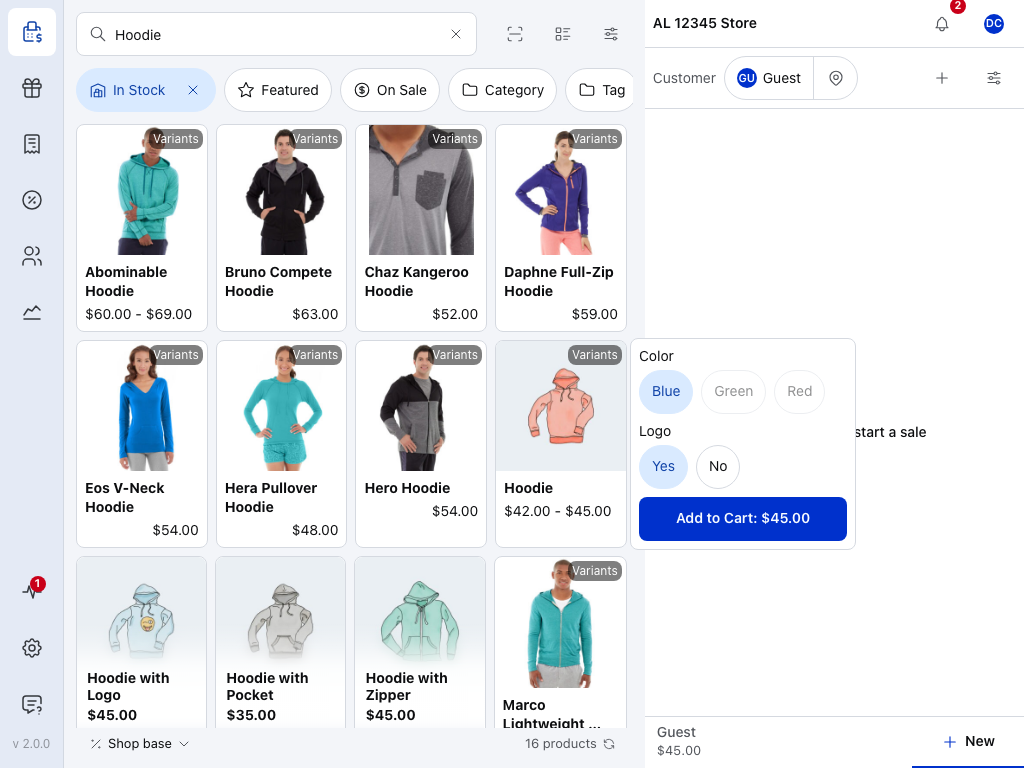
- Hoodie — a product whose options differ by colour and logo.
- Yes — the logo you picked.
- No — tap it to change your pick.
- Blue — the only colour that comes with a logo, so it's picked for you.
- Green — greyed, because there's no green hoodie with a logo.
- Red — greyed for the same reason.
- Add to Cart: $45.00 — there's no stock line, because the store doesn't track this option's stock.
When a list of choices is long, it's a dropdown that reads Select an option, and one with more than 10 choices has a search box. A dropdown doesn't grey out choices, so you can pick a mix with no option behind it. Then the popover reads Variant not available and there's nothing to add. Pick something else.
Expanded rows
In Table, with the Expanded rows style, the options open as rows under the product.
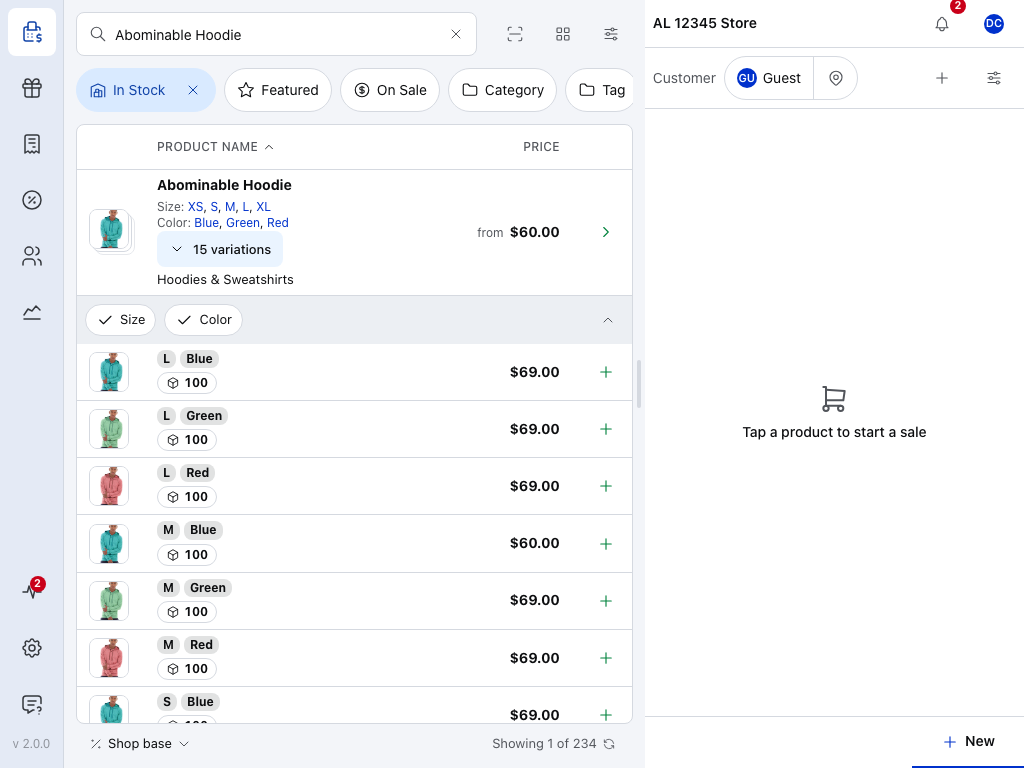
- 15 variations — opens and closes the rows.
- XS, S, M, L, XL — tap one to open the rows and show only that size or colour.
- Size and Color — narrow the rows to one size or colour.
- Collapse — closes the rows.
- One option — its size and colour, and how many are in stock.
- + — adds it to the cart.
- › — opens the popover for this product instead.
Scan an option
Scan an option's own barcode, and it goes straight into the cart, whichever style you use. If the option isn't on this device yet, the POS shows Searching store…, fetches it, and adds it. If the scan can't add the option, check the message, for example:
- … out of stock — the scan is refused while Show out-of-stock products is off.
- Scanning unavailable — the option isn't on this device and the store can't be reached. Search for it when you're back online.
Scan the product's barcode instead, and nothing is added. The POS shows Choose a variation, and puts the barcode in the search field so the product is in front of you. Pick the option there.
Which field counts as the barcode is set in Barcode Field. For every other result of a scan, see Barcode Scanning.
In the cart
The cart line shows the product's name, with the option underneath, such as Size: L · Color: Blue. Add the same option again, and its quantity goes up instead of adding a second line. To change the option, remove the line and add the right one.
Change how a product opens
- Press the settings button beside the search field. Product settings opens.
- Under View Mode, choose Grid or Table.
- Under Variations, choose Open in place, or the view's other style: Popover for Grid, Expanded rows for Table.
- Press Close.
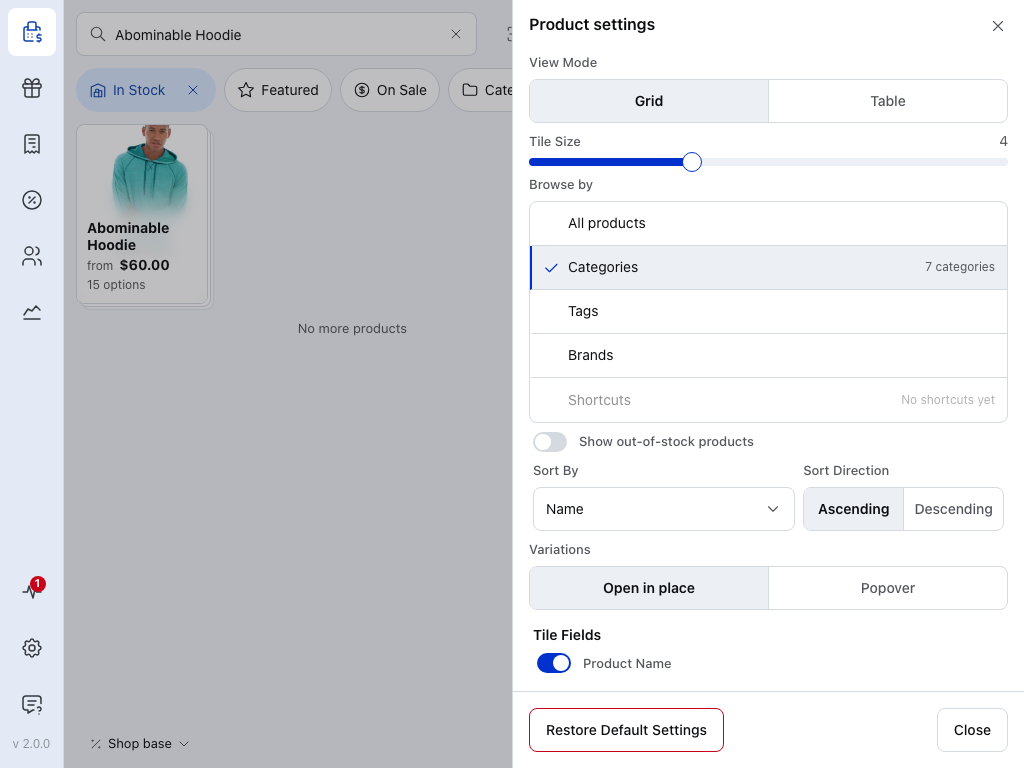
- View Mode — tiles or rows.
- Grid — its second style is Popover.
- Table — its second style is Expanded rows.
- Show out-of-stock products — while it's off, options that are out of stock are hidden and a scan of one is refused.
- Variations — how a variable product opens.
- Open in place — where a new device starts.
- Popover — reads Expanded rows while View Mode is Table.
The setting applies on this device only. For every other setting here, see Display Settings.
Do all the options load?
Yes. When you open a variable product, every one of its options loads, however many it has, in each style: in place, in the popover and in expanded rows. There's no limit to raise and no setting for it.
The POS fetches a product's options from your store when you first open it on a device, and keeps them there. A product with many options can take a moment the first time: you see Syncing… until they arrive. An option still missing after that is usually out of stock and hidden by In Stock: see If something goes wrong.
If something goes wrong
- An option is missing — check whether In Stock is hiding it. Press the cross on the filter, or turn on Show out-of-stock products.
- Add to Cart stays greyed — the option is out of stock and your store doesn't let the POS sell more than it has. Pick another option, or update the stock in WooCommerce.
- Variant not available — no option matches what you picked. Change one of your choices.
- Syncing… — the options are still loading onto this device. Wait a moment.
- Choose a variation — you scanned the product, not one of its options. Pick the option, or scan the option's own barcode.
- The wrong option is in the cart — remove the line and add the right one.