Vipps MobilePay Gateway
Taking Vipps MobilePay at the till needs WCPOS Pro. Without Pro, the gateway still works on your online store's checkout.
The customer pays with the Vipps or MobilePay app on their own phone. They scan a QR code on your screen, or approve a payment request you send to their phone. No card reader is needed. The gateway runs on the checkout's Legacy tab, on your store's own payment page.
Your store needs the gateway set up first. See Set up Vipps MobilePay.
Take a Vipps payment
Vipps takes the whole order in one payment. Once part of the order is paid, the Legacy tab says A legacy gateway can't be used once a payment has been taken and you can't choose Vipps: cancel that payment first, or take the rest another way.
Press Checkout, open the Legacy tab and choose Vipps MobilePay. Its controls open under it. Then show the customer a QR code, or send the request to their phone.
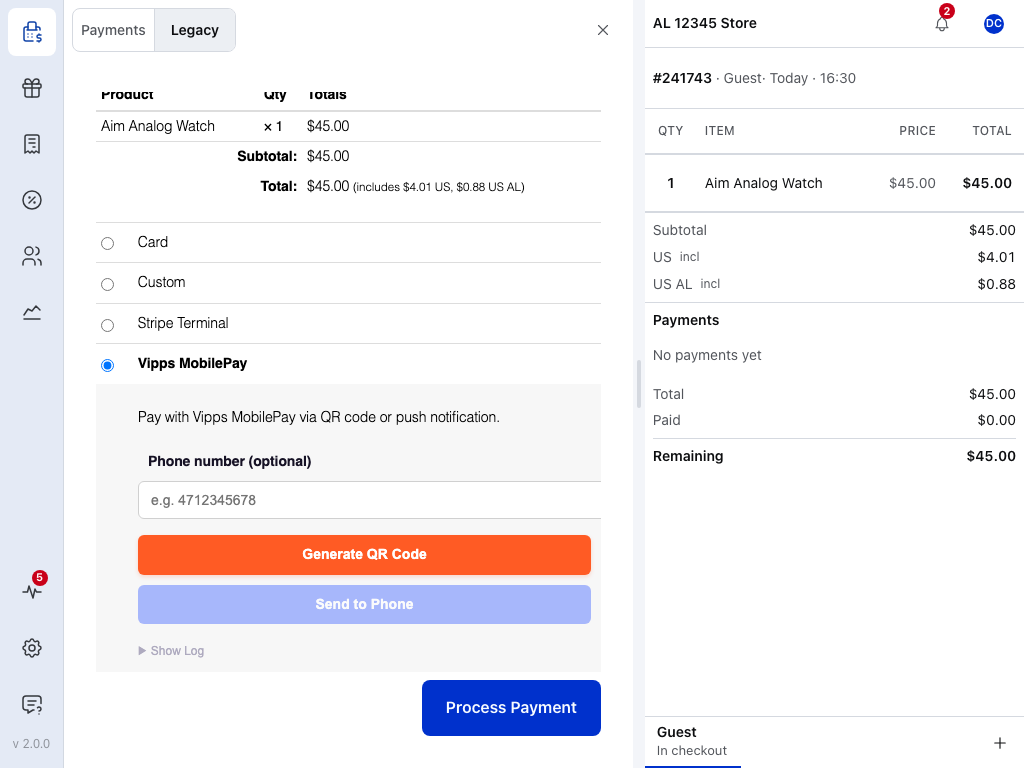
- Legacy tab — gateways that run on their own payment page. See The Legacy Tab.
- Vipps MobilePay — the gateway. Your store may give it another name; see Settings.
- Phone number (optional) — only for Send to Phone. Leave it empty for a QR code.
- Generate QR Code — shows a code for the customer to scan. See With a QR code.
- Send to Phone — sends the payment request to the number you typed. It lights up once there's a number. See Send it to their phone.
- Remaining — what the customer approves in the app: the whole order.
- Process Payment — you don't need it for Vipps. The sale completes by itself when the customer approves.
With a QR code
- Press Generate QR Code. A QR code appears under the buttons, with Waiting for payment... under it.
- Turn the screen to the customer. They scan the code with the Vipps or MobilePay app and approve the payment.
- The till checks with Vipps every two seconds. When the customer approves, the page says Payment successful! and the receipt screen opens by itself, the same as for any paid sale.
While the till waits, both buttons are greyed out and a Cancel Payment button shows under them. If nobody approves within five minutes, the page says Payment expired. Please try again.
Send it to their phone
Type the customer's phone number and press Send to Phone. Then one of two things happens:
- Direct Push: the request appears in their Vipps app, and they approve it there. The page waits, and finishes, as for a QR code.
- The Vipps page opens in a new window, or the page first asks you to press again. That's expected when Vipps hasn't turned on Direct Push for your store: open Asked to press Send to Phone again? below.
Norwegian numbers only. Type eight digits, or put 47, +47 or 0047 in front. An eight-digit number is always read as Norwegian, so for a MobilePay customer in Denmark or Finland, use the QR code.
Asked to press Send to Phone again?
The page says Direct push not available for your account. Click Send to Phone again. when Vipps hasn't turned on Direct Push for your account.
- Press Send to Phone again.
- A new window opens on the Vipps page for that number, and the request goes to the customer from there.
- When the customer has paid, that window says Payment complete and closes by itself. If the browser won't close it, it moves on to your store's home page: close it and go back to the checkout.
From then on, every Send to Phone opens that window, until you turn on Direct Push. In Test Mode there's no window: the page asks you to press again every time, so test with the QR code.
Stop a payment
Press Cancel Payment while the till is waiting. The payment is cancelled with Vipps and the page says Payment cancelled. Nothing was taken. Press Generate QR Code or Send to Phone to try again, or pay another way: pick another gateway on the Legacy tab, or go back to the Payments tab.
The same Payment cancelled. shows when the customer declines in their app.
If something goes wrong
Payment expired. Please try again. Five minutes passed with no answer from the customer. Press Generate QR Code or Send to Phone again.
Payment cancelled. and you didn't press Cancel. The customer declined in their app. Check with them, then try again.
Invalid phone number. Use a Norwegian number, e.g. 4741234567. The number isn't a Norwegian mobile number. Check it, or use the QR code.
Popup blocked. Please allow popups and try again. The browser stopped the Vipps window from opening. Allow pop-ups for your store's site in the browser settings, then press Send to Phone again.
Network error. Please check your connection. The till couldn't reach your store to start the payment. Check the till's connection, then press Generate QR Code or Send to Phone again.
Failed to create Vipps payment. Your store couldn't start the payment with Vipps. Ask the customer whether they approved a payment in their app. If they did, ask your store owner to check Vipps before you take another payment. If not, take this sale another way, and ask your store owner to check the gateway's setup.
For the store owner: check the setup and the log
- The four keys and Test Mode in Settings: live keys with Test Mode off, or test keys with it on.
- Your site runs on HTTPS.
- The order is in a currency Vipps takes. See Where it works.
- For the reason, turn on Debug Log and try again. It shows under Show Log on the payment page, and in
WooCommerce > Status > Logsunder the sourcewcpos-vipps.
Vipps payment was accepted, but … Please try again. The customer's payment went through at Vipps, but WooCommerce didn't mark the order paid. Before you take a new payment, find this payment in the Vipps MobilePay portal, so the customer doesn't pay twice.
Send to Phone opens a window instead of going straight to the app. Your account is on Web Redirect. That works, with one extra step for the customer. To go straight to the app, see Turn on Direct Push.
Set up Vipps MobilePay
You need a Vipps MobilePay merchant account with the ePayment API, its four API keys, WCPOS Pro, and a site on HTTPS, which the Vipps API requires.
The store owner installs the gateway, adds the four keys and turns it on for the POS. It then shows on the checkout's Legacy tab.
For the store owner: install and turn on the gateway
- Install WCPOS Vipps MobilePay from
WP Admin > POS > Settings > Extensions. See Installing an Extension. Or download the plugin zip asset (not the source-code zip) from the releases page and upload it inPlugins > Add Plugin, then Upload Plugin. - Add your keys. Open
WP Admin > WooCommerce > Settings > Payments > WCPOS Vipps MobilePayand enter the Merchant Serial Number, Client ID, Client Secret and Subscription Key from the Vipps MobilePay portal. Save. - Turn it on for the POS in
WP Admin > POS > Settings > Checkout. See Enabling a Gateway. It then appears on the checkout's Legacy tab.
If Checkout with Vipps MobilePay is set up on your site, WCPOS Vipps MobilePay copies its keys, test keys included, the first time it loads. Check them and save.
The Enable/Disable box on the WooCommerce screen is for your online store's checkout only. The POS uses the gateway once it's turned on in Checkout Settings, whether that box is ticked or not.
Settings
These are on WP Admin > WooCommerce > Settings > Payments > WCPOS Vipps MobilePay. Most stores only fill in the four keys. The rest start right for the till: the money is taken as soon as the customer approves, and Send to Phone tries Direct Push first.
All settings: name and description, keys, Auto Capture, Phone payment method, Debug Log and Test Mode
| Setting | What it does |
|---|---|
| Enable/Disable | Offers Vipps MobilePay on your online store's checkout. Not needed for the POS. Off to start with. |
| Title | The gateway's name on the Legacy tab and online. Starts as Vipps MobilePay. Checkout Settings can give the POS its own title. |
| Description | The line under the name. Starts as "Pay with Vipps MobilePay via QR code or push notification." |
| Merchant Serial Number, Client ID, Client Secret, Subscription Key | Your live keys from the Vipps MobilePay portal. The gateway isn't offered until all four are filled in (with Test Mode on, the four Test keys instead). |
| Auto Capture | On to start with: the money is taken as soon as the customer approves. Turn it off only if you capture reserved payments yourself, outside WCPOS. |
| Phone payment method | How Send to Phone reaches the customer. Direct Push (the start) goes straight to their Vipps app. Web Redirect opens the Vipps page in a new window. Switches to Web Redirect by itself when Vipps refuses Direct Push (not in Test Mode). |
| Debug Log | Writes each payment step to WooCommerce > Status > Logs, and adds a Show Log panel under the payment controls. Turn it on to find out why a payment fails, then off again. |
| Test Mode | Sends payments to Vipps' test system instead, using the four Test keys below it. Turn it off before you take real payments. |
Turn on Direct Push
With Direct Push, Send to Phone goes straight to the customer's Vipps app, with no extra window. Vipps has to allow it on your account first, and then the store owner switches the gateway back to it once.
For the store owner: ask Vipps, then switch back to Direct Push
- Log in to the Vipps MobilePay portal.
- Contact your Vipps key account manager, partner manager or customer service.
- Tell them: "I need PUSH_MESSAGE enabled on my MSN for use with a POS integration". MSN is your Merchant Serial Number.
- When they confirm, set Phone payment method back to Direct Push and save. The gateway doesn't switch back by itself. While it's on Web Redirect, the setting's own description reminds you how to turn Direct Push on.
In Test Mode, a refused Direct Push leaves the setting as it is and doesn't open the Vipps page: each Send to Phone asks you to press again. Test with the QR code instead.
Refunds
Refund the order from the POS and choose Refund to Vipps MobilePay, or refund it from the WooCommerce order screen. The money goes back to the customer through Vipps. See Refunds. If Vipps refuses, the refund isn't recorded and the message says Vipps refund request failed. Try again, or refund in cash.
Where it works
| Country | App | Currency |
|---|---|---|
| Norway | Vipps | NOK |
| Denmark, Finland | MobilePay | DKK, EUR |
The order has to be in one of these currencies, and your merchant account decides which of them you can take. Send to Phone works with Norwegian numbers only; the QR code works everywhere.
Getting help
- Account and keys: Vipps MobilePay customer service.
- The Vipps API: the Vipps MobilePay developer docs.
- A fault in the gateway: the GitHub repository.