Installation
WCPOS is a plugin for your WooCommerce site. Install it once and the POS is ready in a browser at yourdomain.com/pos. The desktop and mobile apps are optional: they open the same POS and sign in to the same site.
Installing is a job for whoever looks after the website. Cashiers can start at Open the POS.
Check your site is ready
- WooCommerce 9.0 or later, installed and active. Check under Plugins in WP Admin.
- WordPress 5.6 or later, or 5.8 with Pro. Check on the Dashboard in WP Admin.
- PHP 7.4 or later. Check in your hosting account, or ask your host.
- Permalinks set to anything except Plain. Check under Settings › Permalinks in WP Admin.
WCPOS 2.0 needs WooCommerce 9.0; 1.x ran on older versions. If your store is on WCPOS 1.x today, read Upgrading to 2.0 before you update anything.
For a busy store, the server matters as much as these minimums. See Server performance.
Install the plugin
- In WP Admin, go to Plugins and add a new plugin.
- Search for WCPOS. In the results the plugin is WCPOS – Point of Sale (POS) plugin for WooCommerce, by kilbot.
- Press Install Now, then Activate.
WordPress installs the current release from the WordPress.org plugin directory. This page describes WCPOS 2.0 or later: once the plugin is active, Check what's installed shows its version under Server. If the Plugins page shows the plugin at version 1.11 or earlier, you have WCPOS 1.x: follow the 1.x installation guide instead.
WP Admin now has a POS menu. View POS opens the POS, Settings holds the plugin's settings, and Templates holds the receipt templates. On the free plugin the menu also has Upgrade to Pro.
Here it is on a store with the free plugin, open on Settings, then the menu close up:
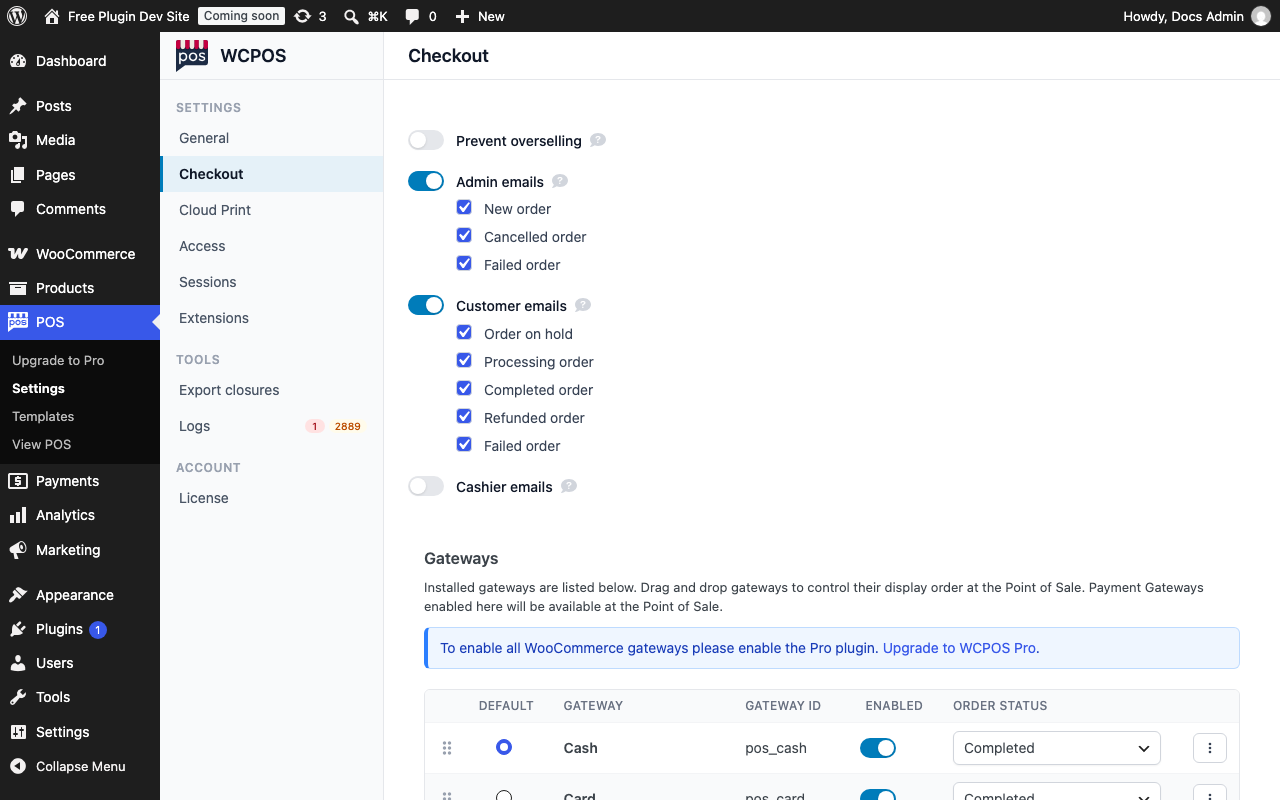
- POS — the plugin's menu in WP Admin.
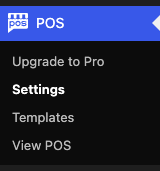
- Upgrade to Pro — on the free plugin only.
- Settings — the plugin's settings.
- Templates — the receipt templates.
- View POS — opens the POS.
You can also download the plugin from WordPress.org and add it with Upload Plugin on the same screen.
Pro is its own plugin and contains everything in the free one: install WCPOS Pro and activate your licence. If the free plugin is installed too, Pro switches it off. See With WCPOS Pro below and Installing WCPOS Pro.
Open the POS
- In a browser, go to
yourdomain.com/pos, or choose POS › View POS in WP Admin. - Sign in with your WordPress username and password.
- If the store has several registers, the POS asks Which register is this device at? the first time. Pick the one you're at. See Stores, Registers and Devices.
- If the cart shows an Open register card, enter the cash in the drawer and press Open register. It shows only with Open and close the register turned on, while the register is closed. See Registers.
Ready to serve a customer? Follow Checkout to make your first sale. Here is the POS open, with a search typed in and the In Stock filter on. Clear both to see the rest of your products, or see Search & Filtering if one is missing:
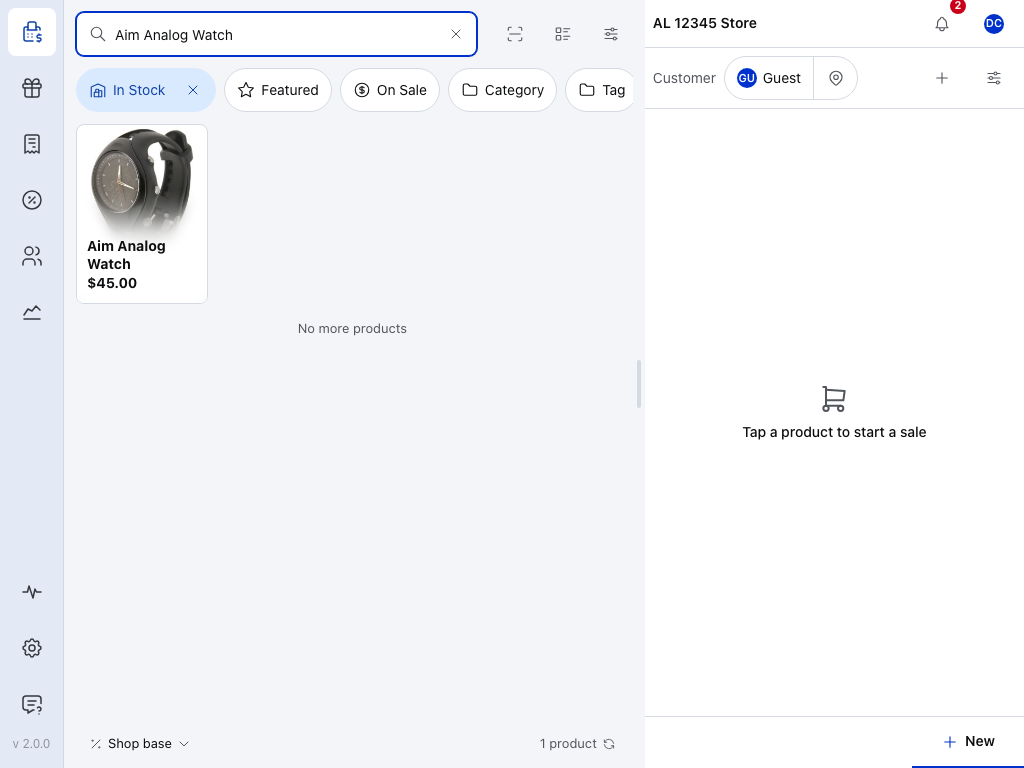
- POS — opens the register screen: products on the left, the cart on the right. On a phone, they're on separate tabs. See Checkout.
- Register bar — the store you're selling for, and the register when the store has more than one. See Stores, Registers and Devices.
- Your avatar — your cashier sheet: the drawer, handing over and signing out. In a browser it also holds the Desktop App link. See Your cashier sheet.
- Search products — find a product by name, SKU or barcode. See Products.
- Health — whether this device and your store are talking properly, and what to do if not. See Store Health.
- Settings — language, printing, card readers, barcode scanning, theme and more. See Settings.
- Support — the WCPOS community on Discord, inside the POS. See Support.
The first time you open it, the POS copies your products onto the device so it can keep selling through a dropped connection. See Offline.
Administrators and shop managers can use the POS straight away. For everyone else, the plugin adds a Cashier role: give it to the people who sell. See Access.
Do you need to be signed in to WordPress?
Yes. The POS uses your WordPress account: there's no separate POS login. If this browser isn't signed in to WordPress, /pos opens the WordPress sign-in page, and the POS opens once you've signed in.
Signed in, but the page reads This account cannot use the POS? Your WordPress role isn't allowed to use it. See Access.
Page not found at /pos? See /pos shows page not found.
Get the desktop and mobile apps
The browser needs nothing else. Use a current version of Chrome, Edge, Firefox or Safari, with JavaScript on, in a normal window: a private window can clear the POS's data on the device mid-session, and deletes it when it closes.
The apps run the same POS in their own window. Download the one for your device:
- Windows — Windows 10 or later, 64-bit (x64). Download the Windows installer.
- macOS — macOS 13 Ventura or later. Download for Apple silicon or Intel. On macOS 12 Monterey, you can stay on desktop app 1.11.12, the last 1.x version.
- Linux — 64-bit (x64). Download the .deb for Debian and Ubuntu or the .rpm for Fedora and Red Hat.
- iPhone and iPad — iOS and iPadOS 16.4 or later. Join the TestFlight beta.
- Android — Android 10 or later. Join the Google Play beta.
Open the app and add your store on its Connect screen. See Connect to Your Store.
In the POS in a browser, the Desktop App link in your cashier sheet opens the desktop app's download page too.
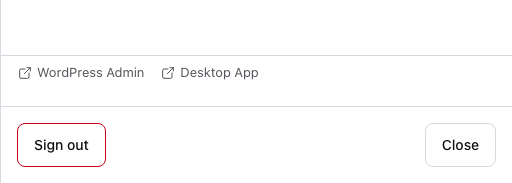
- WordPress Admin — opens WP Admin on your site.
- Desktop App — the desktop app's download page.
- Sign out — in a browser, this signs you out of WordPress too.
Bluetooth and network printers need the app's Bluetooth and local network permissions. Allow them when the app asks. See Android permissions and iOS local network.
Check what's installed
Tap the version number at the foot of the menu down the left, such as v 2.0.0, to open About WCPOS. On a phone it reads Version 2.0.0, in the menu that the Menu button opens.
With Pro
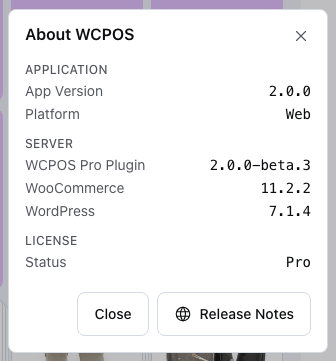
- Application — the version of the POS on this device, and where it runs: Web, Desktop, iOS or Android.
- Server — the WCPOS Plugin version, or WCPOS Pro Plugin with Pro, then the WooCommerce and WordPress versions on your site.
- License — Status reads Pro or Free.
- Release Notes — opens the current WCPOS versions and what changed in them.
Free
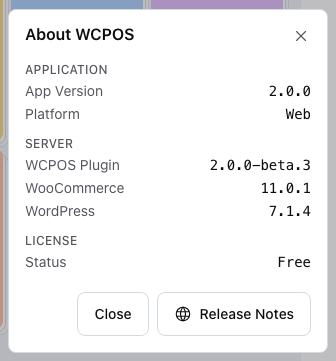
The app needs WCPOS plugin 2.0.0 or later: that is the version under Server. If the plugin is older than that, or newer than this app can work with, the POS says which one to update. See If something goes wrong.
With WCPOS Pro
Which download is Pro?
Once installed, the two plugins have these names on your Plugins page (the WordPress.org listing above uses a longer name for the free one):
- WCPOS – Point of Sale for WooCommerce is the free plugin, from WordPress.org.
- WCPOS Pro – Point of Sale for WooCommerce is Pro. It comes only from the Downloads page of your wcpos.com account, as a zip file.
Install Pro over the free plugin without losing data
Install Pro with the free plugin still in place: you don't remove anything first. When Pro starts, it switches the free plugin off and shows a notice saying so.
Your data stays. Pro has the free plugin's code inside it, so it uses the POS settings, receipt templates and registers already on your site. Switching the free plugin off doesn't delete them, and your orders, products and customers belong to WooCommerce: neither plugin removes them.
Then activate your licence key: see Activate your licence key.
If something goes wrong
"WCPOS requires WooCommerce 9.0 or higher" at the top of WP Admin. WooCommerce is missing, switched off or older than 9.0. Install or update it, then activate it. On a store still running WCPOS 1.x, follow Upgrading to 2.0.
"WCPOS requires PHP 7.4 or higher". Ask your host to move the site to a newer PHP version.
"WooCommerce REST API requires pretty permalinks to work correctly", or yourdomain.com/pos shows your site's page-not-found. See /pos shows page not found.
"Update the WCPOS plugin on your WordPress site." The app is newer than the plugin. Update WCPOS in Plugins. See AUTH331.
"Update the POS app on this device." The plugin is newer than the app. In a browser, reload the page. In an app, install its update. See SYNC341.
The sign-in window shows an error or a blank page. A security, firewall or login plugin is usually in the way. See Plugin Conflicts.
"This account cannot use the POS" after you sign in. Your WordPress role isn't allowed to use the POS. See Access.
The Windows installer says "Installation has failed", or won't run. See Install fails on Windows.
Still stuck? Ask on Discord. For licence or private questions, email support@wcpos.com. See Support.
/pos shows page not found
Your site's page-not-found at yourdomain.com/pos, signed in or not, has two usual causes:
- Permalinks are set to Plain. The POS address needs any other setting. WP Admin shows "WooCommerce REST API requires pretty permalinks to work correctly": press Enable permalinks on the notice, or open Settings › Permalinks, choose any other setting and press Save Changes.
- The POS has another address. An administrator can change
posto something else: look for POS base in Settings › Permalinks. See Open the POS in a browser.
Install fails on Windows
The app is 64-bit (x64) only: there's no 32-bit or ARM build. See Get the desktop and mobile apps.
The Windows installer isn't code-signed, so when you double-click Setup, Windows may show a blue Windows protected your PC screen naming an Unknown publisher. To go on, choose More info, then Run anyway. Starting Setup from PowerShell, as below, doesn't show this screen.
Fixed in 2.0.1. The Windows installer no longer stops with "Installation has failed". If the 2.0.0 installer failed for you, run the 2.0.1 installer. It repairs the half-finished install, and you don't need to uninstall first. Close WCPOS before running it. Your stores and settings are kept.
Updating from inside the app was never affected.
When you double-click those older Setup files, they can stop with "Installation has failed". Install from PowerShell instead:
- Close WCPOS. Open Task Manager and end any WooCommercePOS process that is still running. If WCPOS is still running, the next steps fail without any message.
- Open PowerShell in your download folder. In File Explorer, open the folder that holds
WCPOS-2.0.0-Setup.exe. Right-click an empty space and choose Open in Terminal. - Run the installer silently:
If you downloaded another version, use the name of your Setup file. No window appears. Wait about a minute..\WCPOS-2.0.0-Setup.exe --silent
- Open WCPOS from the desktop or Start menu shortcut.
This also repairs an install that a failed Setup left half-finished. Your stores and settings are in %AppData%\WCPOS, and the installer doesn't touch them.
Still failing? Email support@wcpos.com or ask on Discord, and send:
- the installer's log,
%LocalAppData%\SquirrelTemp\Squirrel-Install.log(older versions call itSquirrelSetup.log); - the name of the Setup file you ran, and the WCPOS version you had before, if any;
- your Windows version: press Win+R and type
winver; - your antivirus product.