Is WCPOS Right for You?
WCPOS is a point of sale (POS) for WooCommerce. It runs in a web browser or as a Windows, macOS or Linux desktop app, with iOS and Android apps in beta. It sells from the same catalogue, stock and prices as your online store and records every sale as a WooCommerce order.
Until November 2025 the plugin was listed on wordpress.org as WooCommerce POS; the plugin slug is still woocommerce-pos, and older reviews, forum threads and tutorials use that name.
This page answers the questions people ask before installing: who it suits, who it doesn't, what it needs, what it costs, what it looks like, how it compares, and how to try it.
Who WCPOS is for
WCPOS suits a business that already sells on WooCommerce and wants to sell in person from the same stock.
- A shop, counter, market stall or pop-up that also sells online. One catalogue, one stock count and one order list, whether the sale happened on the website or at the till.
- A store that wants its sales data in its own database. WCPOS is a WordPress plugin; orders, customers and products stay in your WooCommerce installation, not in a third-party service.
- A counter with a cash drawer. The free plugin runs one register, shared by every device on the counter, with a float, cash in and out, and an end-of-day count and closing report. Pro adds a register for each drawer.
- A phone-order or trade desk. Look up an existing customer, build their order and take payment by cash or card, or, with Pro, send an Email Invoice the customer pays from a link.
- A business with several tills or several locations. Each device keeps its own copy of the catalogue, so the till stays quick. Pro adds more registers, and more stores, each with its own address, logo, tax IDs and receipt templates. Stores share one stock count unless you add ATUM for stock per location.
Who WCPOS is not for
- You don't run WooCommerce. WCPOS needs a WordPress site with WooCommerce installed. It does not work with Shopify, Magento or a standalone shop.
- You need a certified till today. WCPOS 2.0 holds no fiscal certification in any country: not France's NF525, not Spain's VeriFactu. Fiscal Compliance explains where things stand country by country. There is no workaround for a certification requirement.
- You need to start and finish a sale entirely offline. What decides it is the order number above the items in Checkout. With a number, the sale reached your store before the connection dropped: take cash, a card on your own terminal or another payment recorded at the till. Without one, as with a sale started offline, keep it on the device and take payment when the connection is back. Connected card readers and online gateways always need a connection. See Offline Mode.
- You need a self-service kiosk or a hardware bundle from the vendor. WCPOS has no kiosk mode and sells no hardware: it runs on the computers, tablets and phones you choose, with any supported printer, scanner and cash drawer.
What you need
| Requirement | Minimum |
|---|---|
| WordPress | 5.6 |
| WooCommerce | 9.0 (required since WCPOS 2.0) |
| PHP | 7.4 (8.x recommended) |
| Device | Any modern browser, or the desktop app for Windows, macOS or Linux; the iOS and Android apps are in beta |
Receipt printers, barcode scanners and cash drawers are optional. See Installation and Hardware.
Once the first download is done, what syncing costs your server follows what changed, not how big your catalogue is: see Sync Performance.
What it costs
The free plugin takes cash, cards on your own terminal and split payments, runs one register with its cash drawer and prints receipts. WCPOS Pro adds connected card readers, refunds, stock and price editing, order history, the customer display, and more registers and stores.
- WCPOS (free plugin): $0. Open source under GPL-3.0, installed from the WordPress plugin directory. It takes sales, prints receipts and records every sale as a WooCommerce order, with no transaction fees from WCPOS.
- WCPOS Pro, Yearly: $129, paid once. Updates and priority support for one year. It doesn't renew by itself, and when it ends Pro keeps working; only new updates and priority support stop.
- WCPOS Pro, Lifetime: $399, paid once. Updates forever.
Each Pro licence activates on two sites: one live site and one for development. Pro covers every device and cashier on that site. Prices as of November 2026, from wcpos.com/pro. Card-processing fees are set by your payment provider, not by WCPOS.
If a till that records sales is all you need, the free plugin is enough. Free vs Pro has every difference side by side, and Installing WCPOS Pro has the activation steps.
What it looks like
This is the POS on a tablet, with one product in the cart. The menu down the left side opens the other screens.
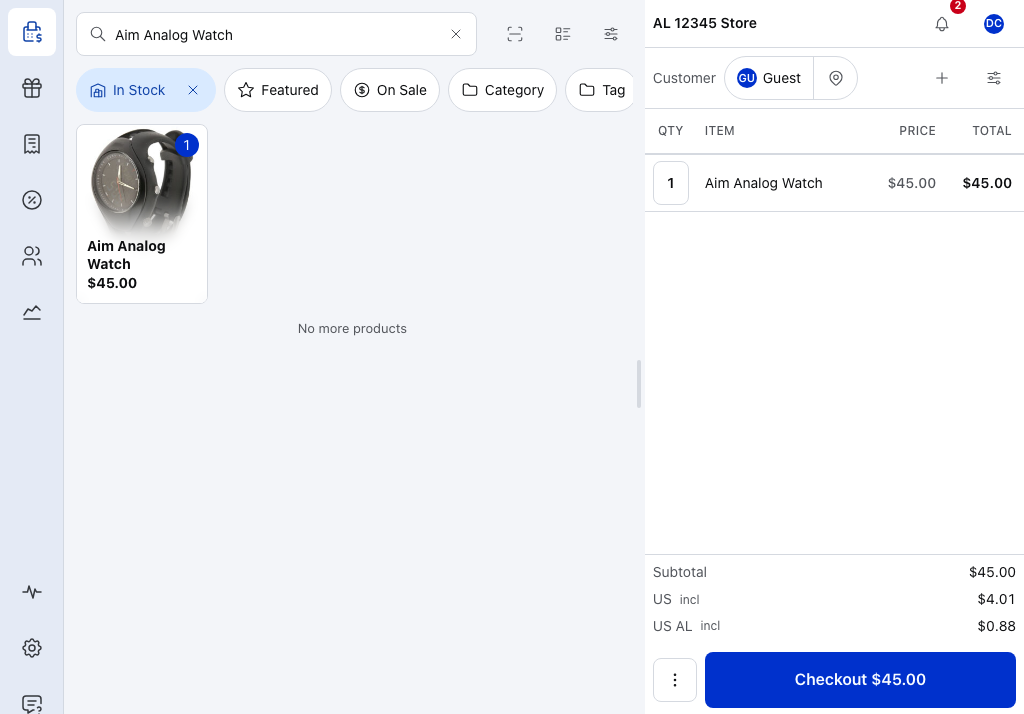
- Register bar — the store this device sells for, with a status such as Closed or Offline when the register needs you. See Stores, Registers and Devices.
- Your avatar — opens your cashier sheet, your way into the register panel. See Open the Register.
- Search — type a name or SKU, or scan a barcode with the camera or a scanner. See Product Panel.
- Products — your WooCommerce catalogue, with the same prices and stock as your website. Tap one to add it.
- Customer — who the sale is for, chosen from your WooCommerce customers. See The Cart.
- Checkout — take cash, record a card taken on your own terminal, or split the payment. With Pro, connected card readers and your store's other payment methods too. See Checkout.
- Products in the menu — with Orders, Customers and Coupons below it: the screens for running the store from the POS. They need Pro; the free plugin shows a preview. See Free vs Pro.
- Reports — today's sales and register closures. Earlier days, other registers and other stores need Pro. See Reports.
- Settings — this device's printers, card readers, barcode scanners and customer display. See Settings.
More about the register bar and the register panel
When the store has more than one register, the register bar also names the register this device is on.
With Open and close the register switched on, your cashier sheet shows the cash in the drawer, and the register panel moves cash in and out, then counts the drawer and closes it with a closing report. See Open the Register.
On a phone, products and cart are separate tabs at the bottom of the screen.
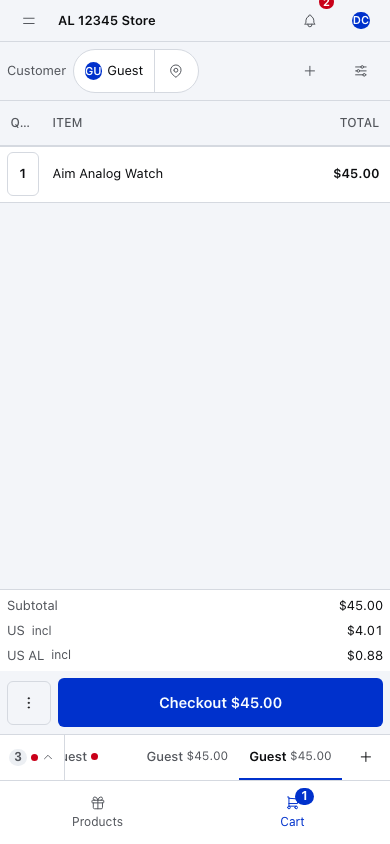
- Open orders — sales in progress on this register. Tap one to switch to it; the others wait. See Open Orders.
- Customer — tap to choose someone else.
- Quantity — tap to type a number. See Line Items.
- Checkout — shows the total. Press it to take payment.
How it compares
wcpos.com/compare has a comparison for each of the main point-of-sale options for WooCommerce: Oliver POS, WooCommerce's official POS, Square, Jovvie, Vitepos, YITH Point of Sale and FooSales. Each one is written by the maker of WCPOS, takes its facts from the other vendor's own pricing page and wordpress.org, is dated, and says when the other product is the better choice.
Try it
The demo store runs WCPOS Pro with the login demo / demo, so it also shows the Pro screens. On the free plugin, each Pro screen's View Demo button opens that screen on the demo store.
To try it on your own store, install the free plugin from Plugins in WP Admin: Installation has the steps.