Orders
The Orders screen requires WCPOS Pro.
The Orders screen provides access to your order history directly within the POS. View past orders, reprint receipts, and manage order details without switching to the WooCommerce admin.
Interface Overview
Search & Filters
At the top of the screen:
- Search bar - Find orders by number, customer name, etc.
- Status filter - Filter by order status (Completed, Processing, etc.)
- Customer filter - Filter by customer
- Cashier filter - Filter by who processed the order
- Store filter - Filter by store (for multi-store setups)
- Date Range - Filter by date
Active filters appear as blue badges that can be removed by clicking the ×.
Orders Table
The main area displays orders with:
- Status icon - Visual indicator (✓ completed, 🕐 pending, 🛒 open)
- Order Number - Unique order ID
- Customer - Customer name (or "Guest")
- Billing Address - Customer billing information
- Note indicator - Speech bubble when order has notes
- Date Created - Relative timestamps ("2 hours ago")
- Cashier - Who processed the order
- Payment Method - Cash, Card, etc.
- Total - Order total amount
- Actions - Three-dot menu
Filtering — by status, customer, cashier, store, or date range — runs on the server, so it spans all your orders, not just those already on the device, and the list keeps loading more as you scroll. Sort by clicking a column header.
Footer
- Order count with sync button (). Long press for Clear and Refresh option
Key Features
Order Lookup
Quickly find orders using:
- Order number search
- Customer name search
- Date range filtering
- Status filtering
- Cashier filtering
Receipt Reprinting
For any order, you can:
- Click the three-dot menu
- Select the receipt option
- View, print, or email the receipt
Order Details
Click an order to view:
- Complete line item details
- Customer information
- Payment details
- Order notes
- Meta data
Display Settings
Click the sliders icon () to customise visible columns.
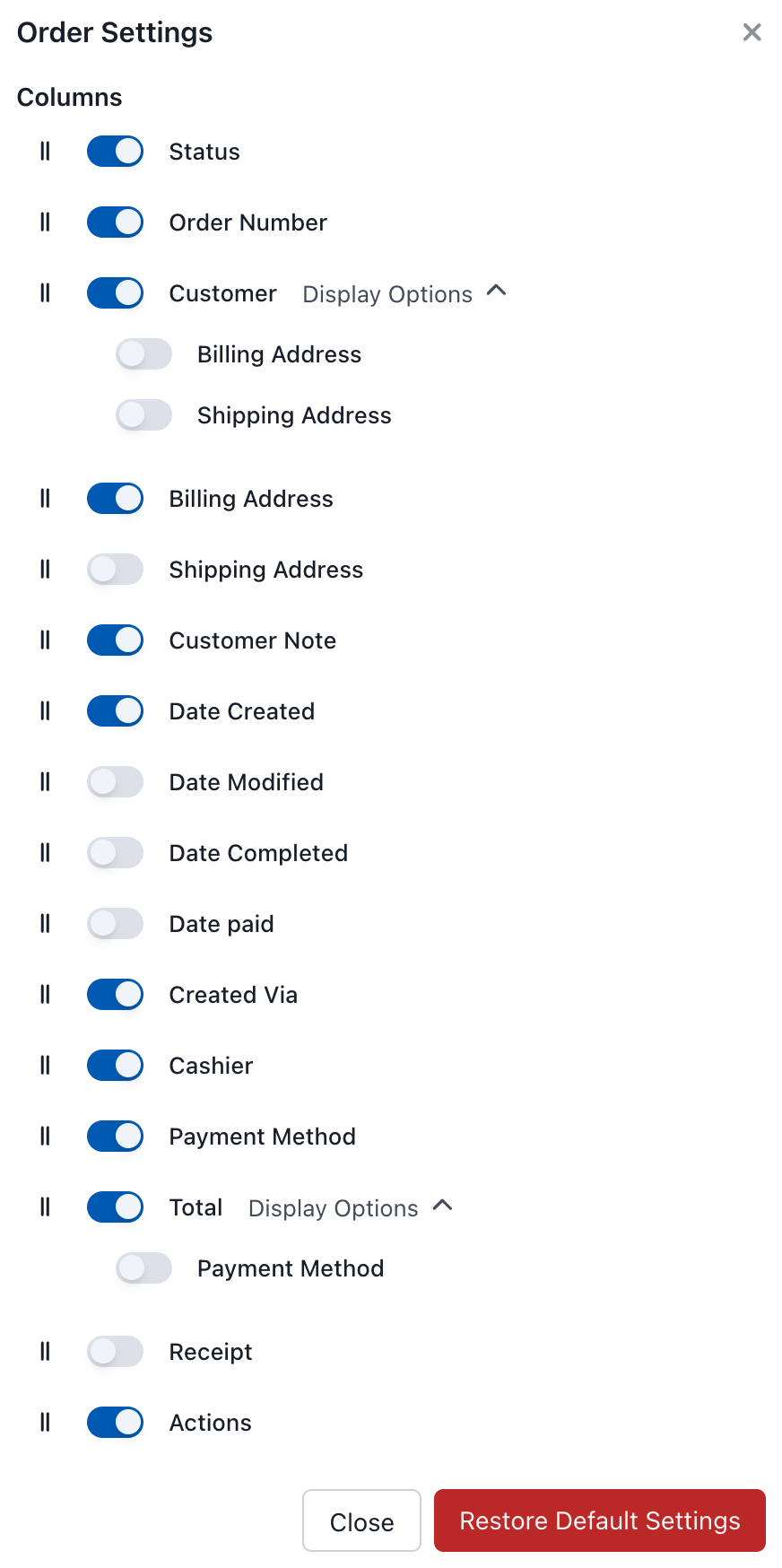
Orders Display Settings
Available Columns
Essential columns
The core columns most stores keep visible — they identify the order and let you act on it.
| Column | Description |
|---|---|
| Status | Order status icon |
| Order Number | Unique order ID |
| Customer | Customer name and details |
| Total | Order total |
| Receipt | Quick receipt access |
| Actions | Edit, view, etc. |
Optional columns
Extra detail you can switch on when you need it — addresses, dates, and order metadata.
| Column | Description |
|---|---|
| Billing Address | Billing information |
| Shipping Address | Shipping information |
| Customer Note | Notes from customer |
| Date Created | When order was placed |
| Date Modified | Last modification |
| Date Completed | When order completed |
| Date Paid | When payment received |
| Created Via | Order source (POS, Online, etc.) |
| Cashier | Who processed the order |
| Payment Method | Payment type used |
Order Actions
Click the three-dot menu (⋮) for options:
- View - See full order details
- Edit - Modify order information
- Receipt - View/print/email receipt
- Sync - Refresh order from server
Editing Orders
Select Edit from the three-dot menu to modify an existing order. This reopens the order in the cart, where you can:
- Add or remove line items
- Change quantities or prices
- Update the customer
- Add notes or metadata
After making changes, proceed through checkout again to save the updated order.
Order Statuses
POS orders use standard WooCommerce order statuses plus one custom status:
An order generally progresses POS - Open → Pending → Processing → Completed, with Cancelled or Refunded as end states. Most POS orders skip straight to Completed because payment is collected at the point of sale.
| Status | Description |
|---|---|
| POS - Open | Order saved from the POS but not yet completed (parked/held orders) |
| Pending | Awaiting payment |
| Processing | Payment received, order is being fulfilled |
| Completed | Order fulfilled and complete |
| Cancelled | Order was cancelled |
| Refunded | Order was fully refunded |
Most POS orders go directly to Completed since payment is collected at the point of sale. Open orders (saved with the Save to Server button in the cart) use the POS - Open status and can be reopened later to continue the transaction.
Refunds
You can issue full or partial refunds directly from the POS — either back to the original payment method (when the gateway supports it) or as cash from the till. Open the three‑dot menu (⋮) on an order and choose Refund, or click the Refund button in the order view footer.
See Refunds for the full walkthrough, including refund destinations, partial refunds, and how refunds appear on receipts.
Use Cases
Customer Service
- Look up past orders to assist with returns or inquiries
- Verify what a customer purchased
- Reprint receipts on request
End of Day
- Review all orders for the day
- Filter by cashier to verify individual totals
- Cross-reference with Reports for reconciliation
Order Tracking
- Monitor order statuses
- Track which orders are pending vs completed
- Identify orders that need attention