Reports
The Reports screen requires WCPOS Pro.
The Reports screen provides sales reporting and daily reconciliation tools. It's primarily designed for end-of-day reports to help cashiers and managers close out the day.
For detailed analytics across any date range, use WP Admin > Analytics. The POS Reports screen is optimised for quick end-of-day summaries and daily reconciliation.
Interface Overview
Filters
At the top of the screen:
- Status filter - Filter by order status (Completed, Processing, etc.)
- Customer filter - Filter by customer
- Cashier filter - Filter by who processed orders
- Store filter - Filter by store (multi-store setups)
- Date Range - Select the reporting period (Today, This Week, Custom)
Three-Panel Layout
The Reports screen is divided into three areas:
1. Sales Chart (Top)
A bar chart showing sales over time:
- Hourly breakdown for daily reports
- Visual representation of sales patterns
- Helps identify peak selling times
2. Orders Table (Bottom Left)
A list of orders included in the report:
- Checkbox - Select/deselect orders for inclusion
- Status - Order status icon
- Order Number - Unique order ID
- Date Created - When order was placed
- Date Paid - When payment was received
- Total - Order amount
Click the display settings icon to customise columns.
3. Report Summary (Bottom Right)
The calculated report totals:
- Report type dropdown (Default/Offline)
- Store information (name, ID)
- Report period (start/end timestamps)
- Cashier (if filtered)
Sales Summary:
- Total Orders
- Total Net Sales
- Total Tax Collected
- Total Sales
- Total Discounts
- Total Refunds (shown when the period includes refunds)
Payment Methods:
- Breakdown by payment type (Cash, Card, etc.)
Cashier / Store Totals:
- A per-cashier and per-store breakdown, shown when the report spans more than one cashier or store
Print button to generate a physical report.
Display Settings
Click the sliders icon () to customise the orders table.
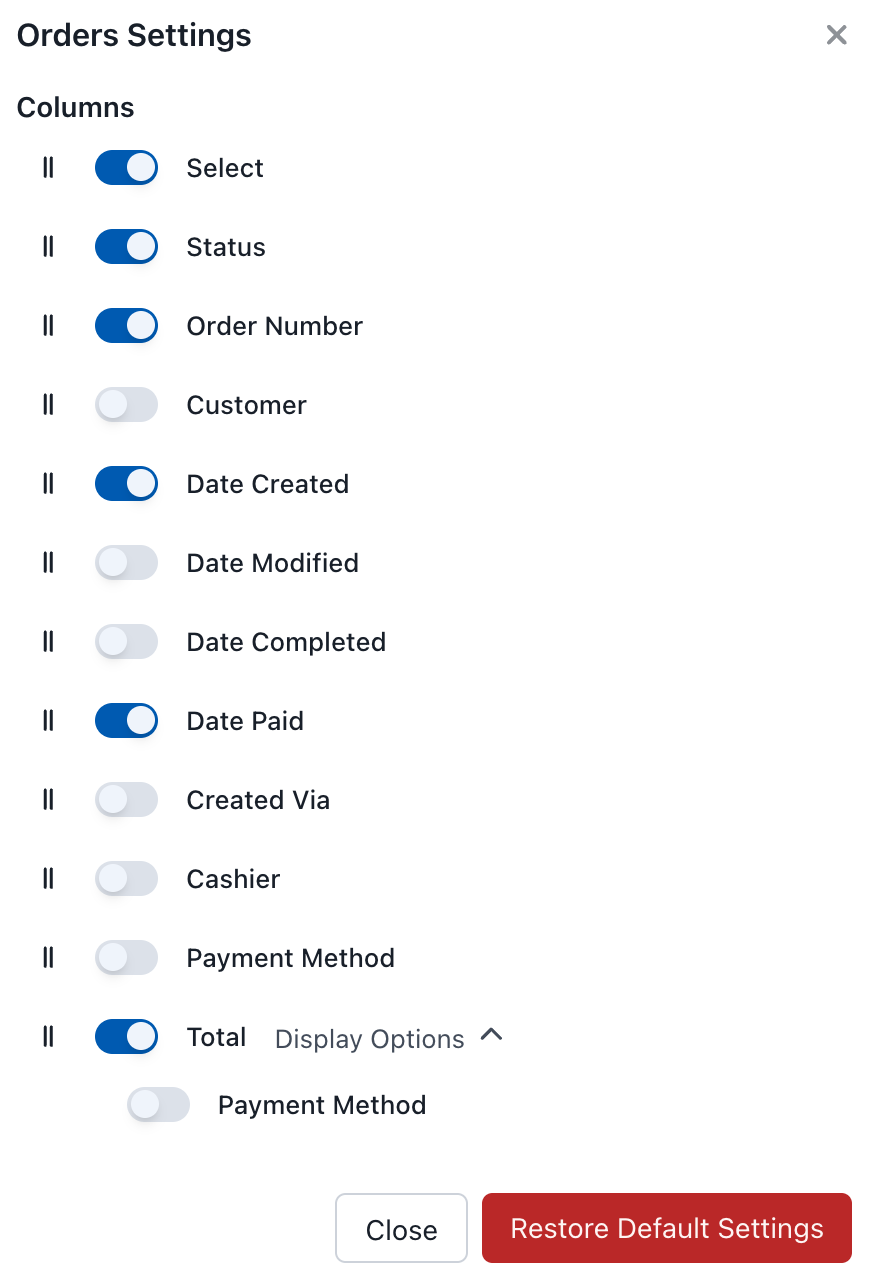
Reports Display Settings
Available Columns
| Column | Description |
|---|---|
| Select | Checkbox for report inclusion |
| Status | Order status |
| Order Number | Unique order ID |
| Customer | Customer name |
| Date Created | Order creation time |
| Date Modified | Last modification |
| Date Completed | Completion time |
| Date Paid | Payment time |
| Created Via | Order source |
| Cashier | Who processed it |
| Payment Method | Payment type |
| Total | Order amount |
Report Types
Default (Offline)
The default report is generated from locally stored data. This:
- Works without server connection
- Provides fast report generation
- Uses data already synced to the device
This is ideal for quick end-of-day summaries where all relevant orders are already synced.
When you're connected and a report's date range covers more orders than are on the device, WCPOS fetches every matching order to completion — there's no 10,000-record ceiling — showing progress as it works, so the totals reflect the full range rather than a truncated slice. Offline, the default report stays limited to the orders already synced to this device.
End-of-Day Workflow
For the full cashier-facing walkthrough — opening float, drawer count, cash + card reconciliation, variance handling, and sign-off — see End-of-Day Reconciliation.
The quick version:
- Set date range to Today and (optionally) filter by cashier for individual reports
- Review the orders in the table for accuracy
- Count the drawer and compare to the Cash line in the Summary panel
- Run a batch total on your card terminal and compare to the Card line
- Print the report for the paper record
Printing Reports
Click the Print button to generate a printable report. This includes:
- Store information
- Report period
- Sales summary
- Payment method breakdown
- Order details (if selected)
Exporting Data
The POS Reports screen does not currently support CSV or Excel exports. For exporting data, use WP Admin > WooCommerce > Analytics which provides:
- CSV downloads for orders, revenue, products, and more
- Custom date ranges with arbitrary periods and comparisons
- Product-level reports showing which products sold best over any time period
The POS reports and WooCommerce Analytics draw from the same order data, so totals should match for the same date range and filters.
POS filters in WooCommerce Analytics (Pro)
With WCPOS Pro active, WP Admin > WooCommerce > Analytics gains POS-aware filtering so you can separate in-person sales from online sales:
- On the Orders report, the order-type filter adds POS Orders and Online Orders alongside "All orders".
- On the Revenue report, three extra filters appear (each shown once you have more than one value): Store, Cashier, and Payment Method.
This lets you answer questions like "how much did each cashier take?" or "what did this store sell in person last month?" using WooCommerce's full reporting and CSV export — something the in-app offline report can't do.