Checkout
When you're ready to complete a sale, click the Checkout button to open the checkout modal. This is where you process payment and complete the order.
Checkout Modal Overview
The checkout modal displays:
- Order number - The WooCommerce order ID
- Amount to Pay - Total amount due
- Checkout Settings button - Troubleshoot display issues
- Cashier - Who is processing the order
- Customer - The customer for this order (clickable link)
- Add Coupon button - Apply discount codes
- Order summary - Products, quantities, and totals
- Payment methods - Available payment options
- Cancel / Process Payment buttons
Payment Methods
Available in Free Version
The free version of WCPOS includes two payment gateways:
- Cash - With amount tendered and change calculator
- Card - For external card terminals
Additional Gateways (Pro)
Additional payment gateways require WCPOS Pro.
With Pro, you can enable:
- Stripe Terminal - Direct integration with Stripe card readers
- SumUp Terminal - Integration with SumUp card readers
- Custom Gateways - Create your own payment integrations
See Payment for details on configuring gateways.
Selecting a Payment Method
Click on a payment method to select it. The form updates to show relevant fields:
Cash:
- Amount Tendered - Enter the amount the customer gives you
- Change - Automatically calculated change to return
Card:
- Process payment on your external card terminal
- Click Process Payment to complete
Coupons
The cart includes an Add Coupon input above the totals (Pro only). Type the code or search by description; the coupon validates locally and appears as a removable pill. Multiple coupons stack sequentially.
See Applying Coupons at the Till for the full workflow — search, pills, sequential discounts, and the table of validation errors and resolutions. For coupon types, validation rules, and setup in WooCommerce, see Coupons.
Processing Payment
- Select a payment method
- For cash, enter the amount tendered — WCPOS shows the change due in the order's own currency
- Click Process Payment
- The order is completed and the receipt is shown
Cash change and card cashback are shown in the currency of the order being sold, not your site's default currency — so a sale rung up in a store that trades in a different currency displays the right symbol and amount.
An order is paid with a single payment method — WCPOS doesn't currently support split or partial payments (e.g. part cash, part card) across one order. Split-payment support is on the roadmap.
Checkout Settings (Troubleshooting)
The checkout modal uses an iframe/webview to display the WooCommerce Order Pay page. This leverages WooCommerce's existing payment infrastructure, meaning any payment gateway that works with WooCommerce should work in the POS.
However, theme and plugin scripts can sometimes interfere. Click Checkout Settings to troubleshoot:
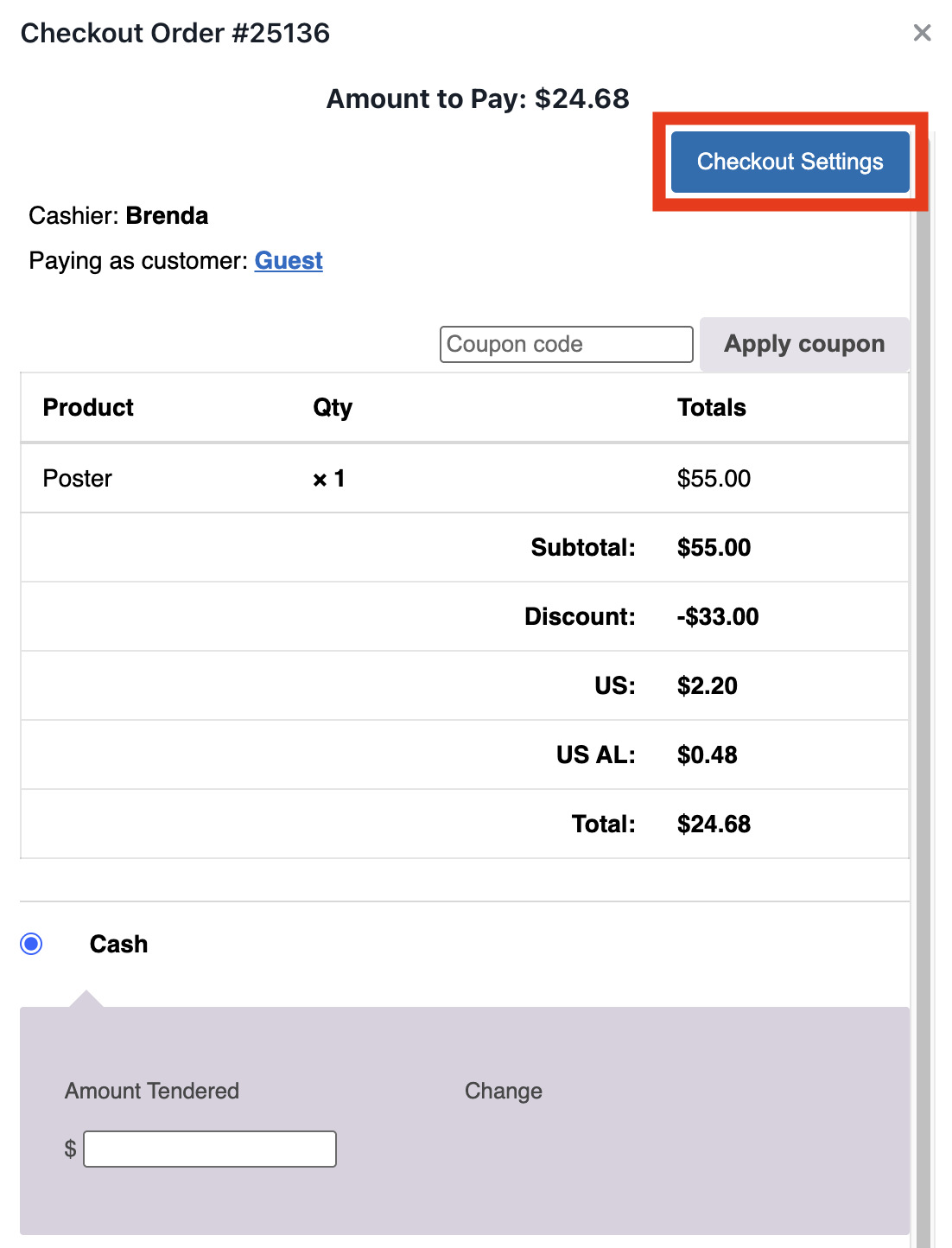
Checkout Settings in the Checkout Modal
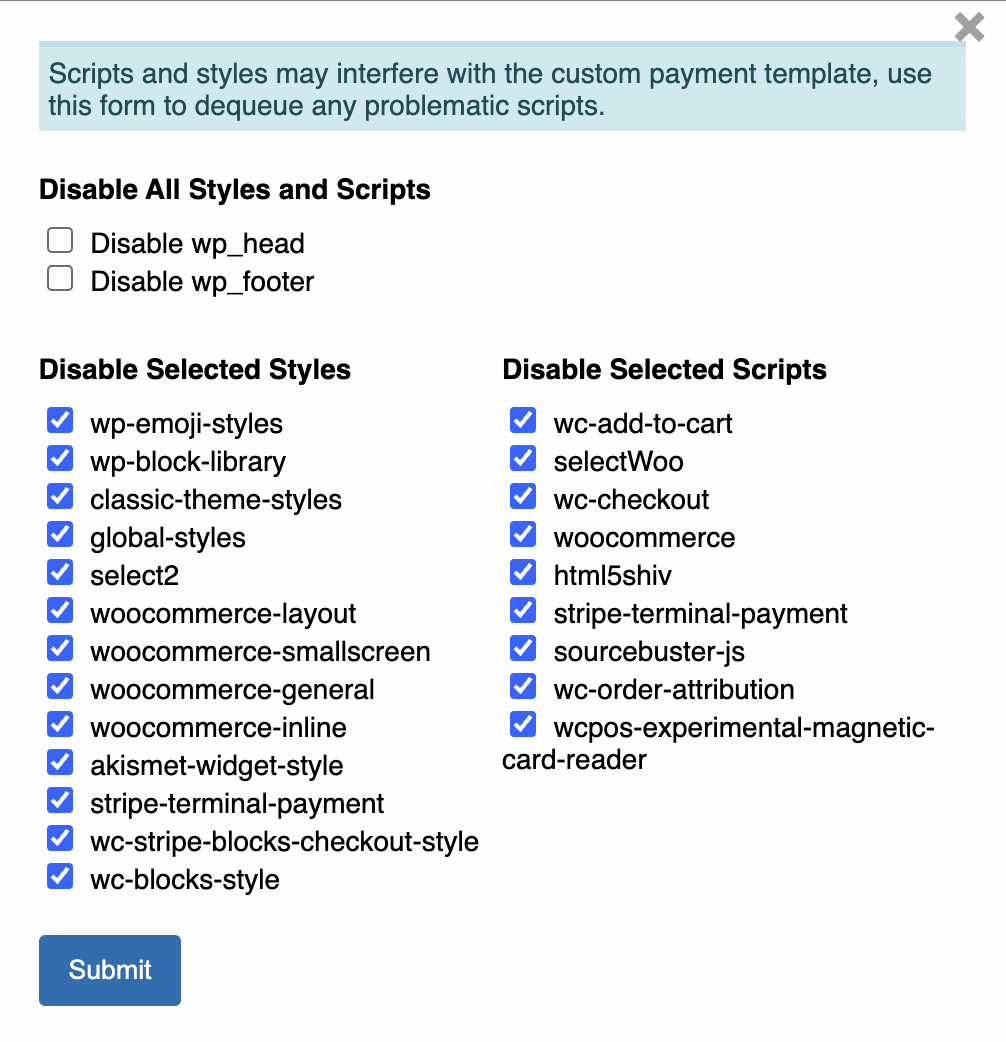
Form to disable all styles and scripts
Disable All Styles and Scripts
This is the nuclear option and should only be used for testing or in rare cases where the developer knows what they are doing. Disabling all wp_head scripts will remove even the WooCommerce scripts necessary to expand/contract the payment gateways, potentially breaking payment functionality.
- Disable wp_head - Removes all scripts/styles from the WordPress header
- Disable wp_footer - Removes all scripts/styles from the WordPress footer
Disable Selected Styles
Selectively disable CSS that may cause display issues:
- wp-emoji-styles
- wp-block-library
- classic-theme-styles
- woocommerce-layout
- woocommerce-smallscreen
- woocommerce-general
- etc.
Disable Selected Scripts
Selectively disable JavaScript that may interfere with payment gateways:
- wc-add-to-cart
- selectWoo
- wc-checkout
- woocommerce
- html5shiv
- etc.
If a payment gateway doesn't display correctly:
- Try disabling theme styles first
- Then try disabling WooCommerce scripts that aren't needed
- Be careful not to disable scripts required by your payment gateway
Cancel
Click Cancel to close the checkout modal without completing the order. The order remains as an open cart.