Ordini
La schermata Ordini richiede WCPOS Pro.
La schermata Ordini fornisce accesso alla cronologia dei tuoi ordini direttamente all'interno del POS. Visualizza ordini passati, ristampa ricevute e gestisci i dettagli dell'ordine senza passare all'admin di WooCommerce.
Panoramica dell'interfaccia
Ricerca e filtri
Nella parte superiore dello schermo:
- Barra di ricerca - Trova ordini per numero, nome del cliente, ecc.
- Filtro stato - Filtra per stato dell'ordine (Completato, In elaborazione, ecc.)
- Filtro cliente - Filtra per cliente
- Filtro cassa - Filtra per chi ha elaborato l'ordine
- Filtro negozio - Filtra per negozio (per configurazioni multi-negozio)
- Intervallo di date - Filtra per data
I filtri attivi appaiono come distintivi blu che possono essere rimossi cliccando sul ×.
Tabella degli ordini
L'area principale visualizza gli ordini con:
- Icona di stato - Indicatore visivo (✓ completato, 🕐 in attesa, 🛒 aperto)
- Numero ordine - ID ordine unico
- Cliente - Nome del cliente (o "Ospite")
- Indirizzo di fatturazione - Informazioni di fatturazione del cliente
- Indicatore note - Nuvola di dialogo quando l'ordine ha note
- Data di creazione - Timestamp relativi ("2 ore fa")
- Cassa - Chi ha elaborato l'ordine
- Metodo di pagamento - Contante, Carta, ecc.
- Totale - Importo totale dell'ordine
- Azioni - Menu a tre punti
Piè di pagina
- Conteggio ordini con pulsante di sincronizzazione (). Pressione prolungata per opzione Cancella e Aggiorna
Caratteristiche principali
Ricerca ordini
Trova rapidamente ordini utilizzando:
- Ricerca per numero d'ordine
- Ricerca per nome del cliente
- Filtraggio per intervallo di date
- Filtraggio per stato
- Filtraggio per cassa
Ristampa ricevute
Per qualsiasi ordine, puoi:
- Fare clic sul menu a tre punti
- Selezionare l'opzione ricevuta
- Visualizzare, stampare o inviare via email la ricevuta
Dettagli ordine
Fai clic su un ordine per visualizzare:
- Dettagli completi delle righe
- Informazioni sul cliente
- Dettagli di pagamento
- Note sull'ordine
- Metadata
Impostazioni di visualizzazione
Fai clic sull'icona degli slider () per personalizzare le colonne visibili.
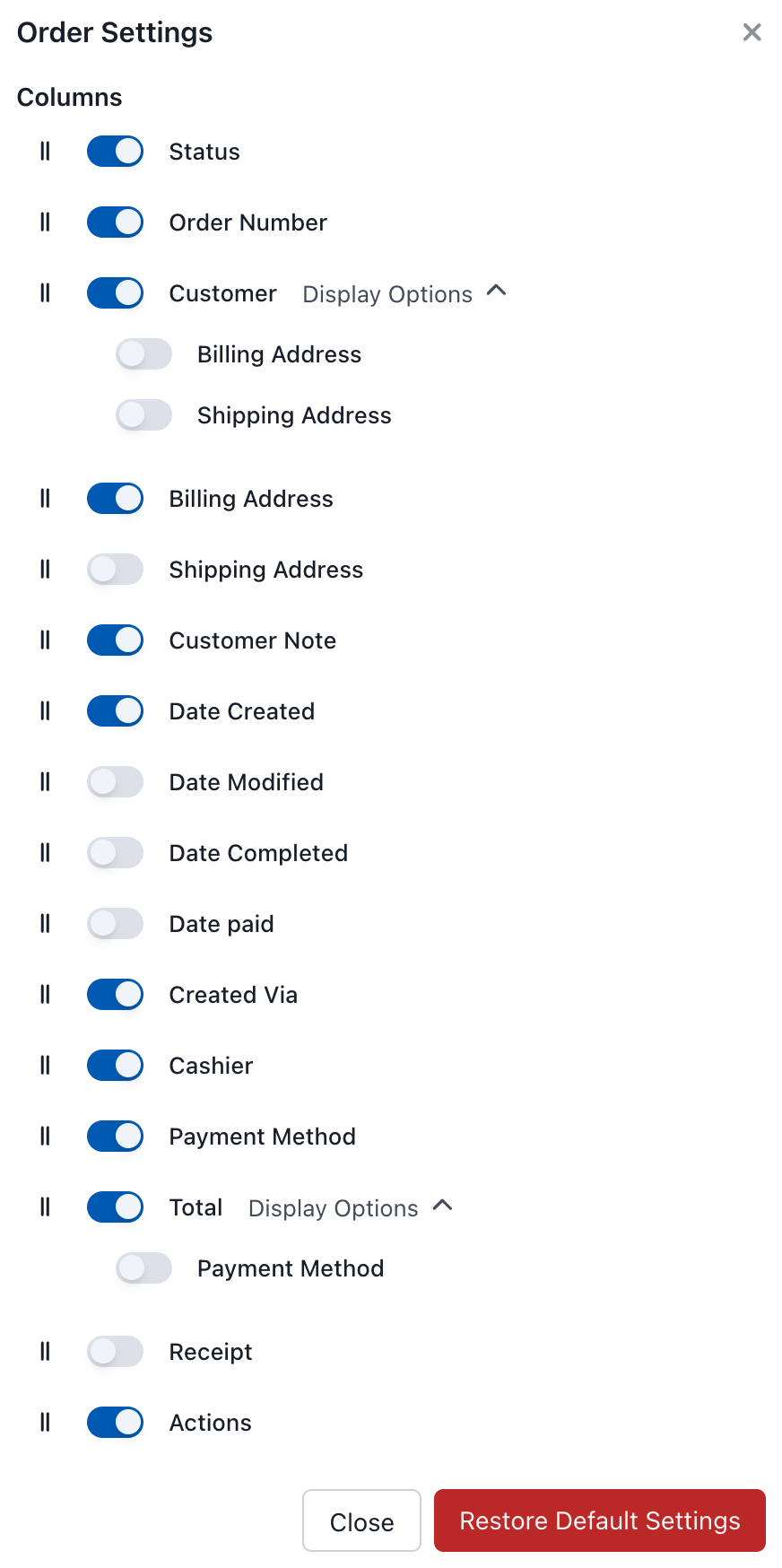
Impostazioni di visualizzazione degli ordini
Colonne disponibili
Colonne essenziali
Le colonne principali che la maggior parte dei negozi tiene visibili — identificano l'ordine e ti permettono di agire su di esso.
| Colonna | Descrizione |
|---|---|
| Stato | Icona di stato dell'ordine |
| Numero ordine | ID ordine unico |
| Cliente | Nome e dettagli del cliente |
| Totale | Totale ordine |
| Ricevuta | Accesso rapido alla ricevuta |
| Azioni | Modifica, visualizza, ecc. |
Colonne opzionali
Dettagli aggiuntivi che puoi attivare quando ti servono — indirizzi, date e metadati dell'ordine.
| Colonna | Descrizione |
|---|---|
| Indirizzo di fatturazione | Informazioni di fatturazione |
| Indirizzo di spedizione | Informazioni di spedizione |
| Nota del cliente | Note dal cliente |
| Data di creazione | Quando è stato effettuato l'ordine |
| Data di modifica | Ultima modifica |
| Data completata | Quando l'ordine è stato completato |
| Data pagata | Quando è stato ricevuto il pagamento |
| Creato tramite | Fonte dell'ordine (POS, Online, ecc.) |
| Cassa | Chi ha elaborato l'ordine |
| Metodo di pagamento | Tipo di pagamento utilizzato |
Azioni sugli ordini
Fai clic sul menu a tre punti (⋮) per opzioni:
- Visualizza - Vedi i dettagli completi dell'ordine
- Modifica - Modifica le informazioni dell'ordine
- Ricevuta - Visualizza/stampa/invia via email la ricevuta
- Sincronizza - Aggiorna l'ordine dal server
Modifica degli ordini
Seleziona Modifica dal menu a tre punti per modificare un ordine esistente. Questo riapre l'ordine nel carrello, dove puoi:
- Aggiungere o rimuovere righe
- Cambiare quantità o prezzi
- Aggiornare il cliente
- Aggiungere note o metadati
Dopo aver apportato le modifiche, procedi nuovamente al checkout per salvare l'ordine aggiornato.
Stati dell'ordine
Gli ordini POS utilizzano gli stati ordine standard di WooCommerce più uno stato personalizzato:
Un ordine generalmente progredisce attraverso POS - Open → Pending → Processing → Completed, con Cancelled o Refunded come stati finali. La maggior parte degli ordini POS passa direttamente a Completed perché il pagamento viene riscosso al punto vendita.
| Stato | Descrizione |
|---|---|
| POS - Open | Ordine salvato dal POS ma non ancora completato (ordini parcheggiati/in sospeso) |
| Pending | In attesa di pagamento |
| Processing | Pagamento ricevuto, l'ordine è in fase di evasione |
| Completed | Ordine evaso e completato |
| Cancelled | L'ordine è stato annullato |
| Refunded | L'ordine è stato completamente rimborsato |
La maggior parte degli ordini POS passa direttamente a Completed poiché il pagamento viene riscosso al punto vendita. Gli ordini aperti (salvati con il pulsante Save to Server nel carrello) utilizzano lo stato POS - Open e possono essere riaperti in seguito per continuare la transazione.
Rimborsi
Puoi emettere rimborsi totali o parziali direttamente dal POS — sia rimborsando il metodo di pagamento originale (quando il gateway lo supporta) sia in contanti dalla cassa. Apri il menu a tre punti (⋮) su un ordine e scegli Refund, oppure fai clic sul pulsante Refund nel piè di pagina della vista ordine.
Vedi Rimborsi per la procedura completa, incluse le destinazioni dei rimborsi, i rimborsi parziali e come i rimborsi appaiono sulle ricevute.
Casi d'uso
Servizio Clienti
- Cerca ordini passati per assistere con restituzioni o richieste
- Verifica cosa ha acquistato un cliente
- Ristampa ricevute su richiesta
Fine della giornata
- Rivedi tutti gli ordini per la giornata
- Filtra per cassa per verificare i totali individuali
- Incrocia con Rapporti per riconciliazione
Monitoraggio ordini
- Monitora stati degli ordini
- Tieni traccia degli ordini in attesa rispetto a quelli completati
- Identifica ordini che necessitano attenzione